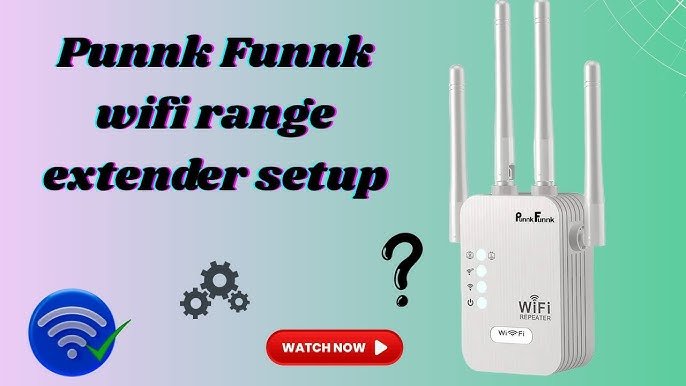
Are you tired of dead zones and spotty WiFi in your home? Struggling with slow internet in areas where you need it the most can be incredibly frustrating.
But there’s good news! With a dual-band WiFi extender, you can boost your WiFi signal and enjoy seamless connectivity throughout your entire space. This guide will show you how to connect a dual-band WiFi extender to your router, ensuring you get the most out of your internet connection.
You’ll discover how to eliminate those pesky dead zones and finally have the smooth, reliable internet experience you deserve. Stick around, and you’ll learn the simple steps to enhance your WiFi coverage today.

Credit: m.tvcmall.com
Choosing The Right Extender
Check if the extender supports your router’s brand and model. Some extenders work better with certain routers. This ensures smooth connection and better performance.
Dual band extenders offer two frequency bands: 2.4 GHzand 5 GHz. Choose one that matches your router’s bands. This helps in faster speeds and less interference.
Think about the area you want to cover. A larger home needs an extender with strong coverage. Smaller spaces might work well with basic models. Consider walls and floors that may block signals.
| Feature | Why It Matters |
|---|---|
| Compatibility | Ensures smooth connection with your router |
| Dual Band | Provides faster speeds and less interference |
| Coverage | Covers the entire area without dead zones |
Preparing Your Devices
Place the extenderhalfway between your router and the area with weak WiFi. Avoid walls and metal objects. This helps the signal reach further and stay strong.
Plug in the extender and press the power button. Wait for its lights to turn on. This means it is ready to connect.
Reset the extender if it was used before. Hold the reset button for about 10 seconds until lights blink. This clears old settings for a fresh start.
Connecting Via Wps
Find the WPS buttonon your router. It is usually on the back or side. The button might have a symbol like two arrows in a circle.
Press the WPS button on the extender. The extender will start trying to connect to the router.
Wait for the lights on the extender to show a successful connection. This may take a minute or two. A steady light usually means the connection is good.
Manual Setup Using Web Interface
Access the extender’s web interface by entering its IP address in a browser. Enter your router’s network name and password to link both devices. Save the settings to complete the connection quickly.
Access Extender’s Admin Page
Open a web browser and enter the extender’s IP address. This opens the admin login page. Use the default username and password to log in. These are often found on the extender’s label or manual.
Log In With Default Credentials
Enter the username and password carefully. Usually, both are “admin” or “user”. After logging in, you will see the extender’s settings dashboard.
Scan For Available Networks
Click the option to scan for WiFi networks. The extender will show a list of nearby routers and access points. Wait a moment for the scan to complete.
Select Router’s Ssid
Find your home router’s SSID (network name) in the list. Select it to connect the extender to your main WiFi network.
Enter Wifi Password
Type the password for your router’s WiFi network carefully. This lets the extender join your network. Click “Connect” or “Apply” to save settings.
Optimizing Extender Settings
Set unique SSID namesfor your extender and router. This helps avoid confusion. It also lets you choose which device to connect to easily.
Configure security settingsby using WPA2 or WPA3 encryption. These options keep your network safe. Avoid using open or weak passwords.
Regularly update firmwareon your extender. Updates fix bugs and improve performance. Check the manufacturer’s website or app for updates.

Credit: www.youtube.com
Testing And Troubleshooting
Check the signal strengthbetween the extender and router. A strong signal means a better connection. Place the extender where the WiFi signal is still strong but reaches areas with poor coverage.
Common issues include slow speeds, no internet, or device not connecting. Make sure the SSID and passwordare correct. Verify that the extender is set to the right WiFi band (2.4 GHz or 5 GHz).
Restarting can fix many problems. Turn offboth the router and extender. Wait 30 seconds, then turn them back on. This helps refresh the connection and clear any errors.

Credit: m.youtube.com
Frequently Asked Questions
How Do I Connect A Dual Band Wifi Extender To My Router?
To connect, plug in the extender near your router. Press the WPS button on both devices. Wait for the extender to sync with the router’s network. Then, move the extender to your desired location for better coverage.
Can I Use Dual Band Wifi Extender With Any Router?
Yes, dual band extenders work with most routers. Ensure your router supports 2. 4 GHz and 5 GHz bands for optimal performance. Check your extender’s compatibility in the manual before setup.
Why Is My Dual Band Extender Not Connecting To Router?
Common issues include weak signals, incorrect passwords, or wrong placement. Restart both devices, verify login details, and place the extender closer to the router. Update firmware if problems persist.
What’s The Ideal Location For Placing A Wifi Extender?
Place the extender halfway between your router and the weak signal area. Avoid walls and metal objects that block signals. A central, elevated spot improves coverage and connection stability.
Conclusion
Connecting your dual band WiFi extender to your router improves your home network. It helps reach areas with weak signals. Follow the steps carefully for a smooth setup. Check the extender’s position for the best coverage. Restart your devices if the connection drops.
Enjoy faster internet on all your devices now. Keep your network secure by updating passwords regularly. A strong WiFi means better streaming, browsing, and gaming. Stay connected with ease and avoid dead zones. Simple steps lead to a better online experience for everyone.


