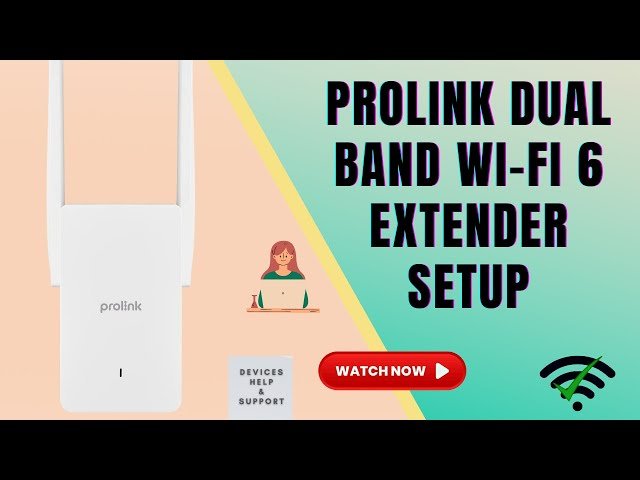
Ever wondered why your WiFi signal drops in certain corners of your home? You’re not alone.
Many people experience this frustrating issue, and a dual-band WiFi extender could be the perfect solution for you. But once you’ve got that extender, what’s next? Finding the right settings can feel like a maze. You’re in the right place if you want to optimize your WiFi experience.
Imagine smooth streaming and uninterrupted video calls, all from simply adjusting a few settings. Keep reading to discover exactly where to find those settings and how to tweak them for maximum performance. Your WiFi woes could soon be a thing of the past.
Accessing Your Extender Interface
Connect your device to the extender’s WiFi network. This network usually has the extender’s name or SSID. Use the WiFi password if it asks for one. This step links your device to the extender, not your main router.
Open a web browser and enter the default IP addressof the extender. Common IPs are 192.168.0.1or 192.168.1.1. This address opens the extender’s settings page.
Log in using the default username and password. These are often “admin” for both fields. Check your extender’s manual or label for these details. Changing the password after login is a good idea for security.

Credit: www.youtube.com
Navigating Dual Band Settings
Dual band WiFi extenders support both 2.4 GHzand 5 GHznetworks. Switching between these bands helps you choose the best speed and range for your needs. Access your extender’s settings page by typing its IP address in a browser. Look for the wirelessor dual bandsection to find band options.
Adjusting the SSIDand passwordlets you name each band and secure your connection. You can set different names for 2.4 GHz and 5 GHz bands to easily tell them apart. Use strong passwords to keep your network safe.
| Setting | Purpose | Tip |
|---|---|---|
| Channel | Choose a less crowded channel for better signal | Use auto or pick channels 1, 6, or 11 on 2.4 GHz |
| SSID | Name your network | Use clear, easy names for each band |
| Password | Secure your WiFi | Use a mix of letters and numbers |
Quick Setup Steps
Press the WPS buttonon your router and then on your WiFi extender. The devices will connect automatically without needing a password. This is a fast way to link your extender to your home network.
Access the extender’s settings by typing its IP address into a browser. Use the default username and password provided in the manual. This lets you change settings manually for better control.
- Make sure to save any changes before exiting.
- Click the “Apply” button to activate new settings.
- The extender may restart to complete the setup.

Credit: www.youtube.com
Troubleshooting Common Issues
Forgotten login detailscan stop you from accessing the extender settings. Check the label on the device for default username and password. If changed and forgotten, reset the extender to factory settings by pressing the reset button for 10 seconds.
Extender not connecting to routercan happen due to distance or wrong password. Place the extender closer to the router. Re-enter the WiFi password carefully in the extender setup page. Restart both devices to refresh connections.
Signal strength problemsoften result from obstacles like walls or interference from other devices. Move the extender to a higher spot and away from thick walls. Avoid placing it near microwaves or cordless phones.
Optimizing Extender Performance
Placing the dual band WiFi extenderin the right spot is key for strong coverage. Choose a location between your router and areas with weak signals.Avoid walls and metal objects that block signals. Higher spots work better than low or hidden places.
Keeping the extender’s firmware up to dateensures it runs smoothly and securely. Check the manufacturer’s website or the device’s settings page for updates. Updates fix bugs and improve performance.
Adjusting security settingsprotects your network from intruders. Use WPA2 or WPA3 encryptionfor better safety. Change the default username and password to something strong and unique. Turn off WPS if not needed to avoid risks.

Credit: www.youtube.com
Frequently Asked Questions
Where Can I Access Dual Band Wifi Extender Settings?
You can access settings via the extender’s default IP address. Connect to the extender’s network, open a browser, and enter the IP. Common addresses are 192. 168. 0. 1 or 192. 168. 1. 1. Login with default credentials found in the manual or on the device label.
How Do I Log Into My Dual Band Wifi Extender?
Connect your device to the extender’s WiFi, then open a browser. Enter the extender’s IP address in the address bar. Use the default username and password from the device manual. After login, you can change settings like SSID, password, and frequency bands.
What Is The Default Ip For Dual Band Wifi Extenders?
Most dual band extenders use 192. 168. 0. 1 or 192. 168. 1. 1 as default IPs. Check your device label or manual for exact IP. This IP lets you access the extender’s settings page through any web browser.
Can I Change Dual Band Wifi Extender Settings Remotely?
Yes, if your extender supports remote management, you can change settings remotely. Use the manufacturer’s app or web portal by logging in with your credentials. Ensure remote management is enabled in the settings for secure access.
Conclusion
Finding your dual band WiFi extender settings is simple with clear steps. Start by connecting to the extender’s network. Then, access the settings through its web address or app. Adjust bands and passwords as needed to improve your signal. Regular checks keep your connection strong.
Remember, good WiFi means better browsing and streaming. Follow these tips to enjoy a stable internet connection at home. Easy setup leads to less frustration and more online fun. Keep your extender updated for best performance. Simple actions make a big difference in your WiFi experience.


