Struggling with WiFi dead zones in your home? You’re not alone.
Many people face the frustration of slow internet in certain areas, and it can feel like a never-ending battle. But what if I told you there’s a simple solution that can enhance your internet experience and eliminate those dreaded dead spots?
With a dual band WiFi extender, you have the power to boost your signal and enjoy seamless connectivity throughout your space. In this guide, we’ll walk you through the straightforward steps to use your dual band WiFi extender as a repeater. This isn’t just about improving your internet; it’s about transforming how you connect with the digital world. Ready to unleash the full potential of your home network? Let’s dive in!
Dual Band Wifi Extender Basics
A Dual Band Wifi Extenderworks by repeating signals on two frequencies: 2.4 GHz and 5 GHz. This helps cover more area in your home or office. The extender receives the wifi signal from your router and sends it out again to places with weak or no signal.
Dual Band Technology means the extender uses two different wifi bands. The 2.4 GHz band covers longer distances but is slower. The 5 GHz band is faster but covers less distance.
- Better Coverage:Reaches more rooms and floors.
- Less Interference:Uses two bands to avoid wifi crowding.
- Faster Speeds:5 GHz band supports quicker internet.
- More Devices:Supports more gadgets at once.

Credit: www.amazon.ca
Choosing The Right Extender
Compatibility with your routeris key for a dual band WiFi extender. It must support both 2.4GHz and 5GHz bands to work well. Check if the extender uses the same WiFi standard as your router, such as 802.11ac or 802.11n. This ensures smooth connection and better performance.
Consider the range and speedbefore buying. The extender should cover the area where your signal is weak. Look for one that offers good speed on both bands to avoid slow internet. Remember, walls and distance can reduce the signal strength.
| Feature | What to Check |
|---|---|
| Compatibility | Match router’s WiFi bands and standards |
| Range | Must cover weak signal areas in your home |
| Speed | Support fast speeds on both 2.4GHz and 5GHz |
Setting Up As A Repeater
Place the wifi extenderhalfway between your router and the weak signal area. Avoid walls and metal objects that block signals. Keep it away from microwaves and cordless phones.
Check the extender’s signal strength before final placement. A strong signal from the router helps the repeater work better. Plug the extender into a power outlet with a stable connection.
- Turn on the extender and connect to its network using a phone or computer.
- Open a browser and enter the extender’s setup URL, usually found in the manual.
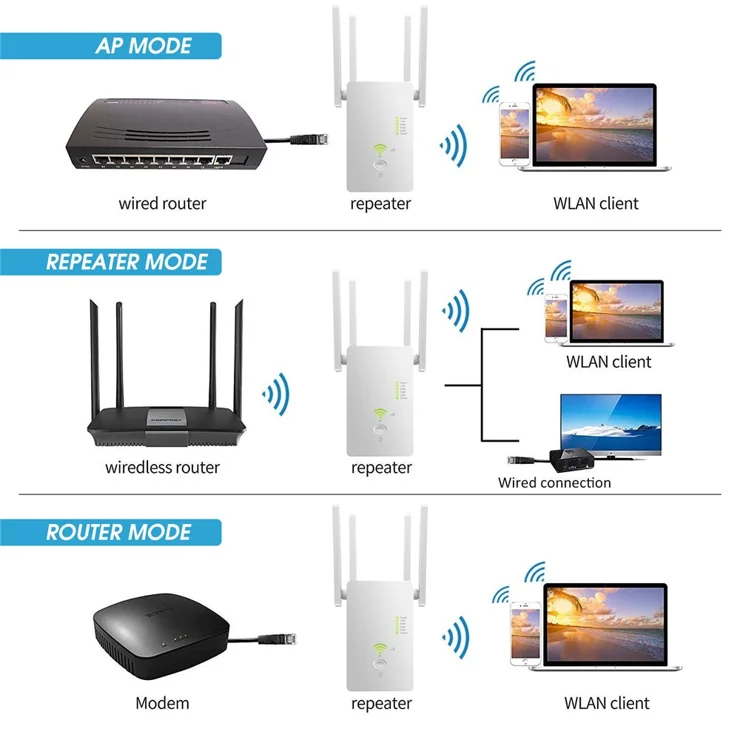
- Select the Repeater modeoption in the settings menu.
- Choose your main wifi network and enter its password.
- Save settings and wait for the extender to reboot.
- Reconnect your devices to the new extended network.
Configuring Network Settings
Start by connecting the extender to your main router’s WiFi network. Enter the SSID(network name) and the passwordof your existing WiFi. This lets the extender join the network and repeat the signal.
Set the extender’s own SSIDto the same or a new name. Using the same SSID helps devices switch smoothly between router and extender. A new name lets you choose which network to join.
Make sure the password for the extender matches the main network for easy access. Double-check all settings before saving to avoid connection issues.
- Connect extender to main WiFi using SSID and password
- Choose extender SSID: same or different from main
- Set password to match main network for easy login
- Save and apply settings to start repeating signal
Troubleshooting Common Issues
Signal dropsoften happen due to walls or devices causing interference. Keep the extender away from thick walls or microwaves. Place it closer to your main router for a stronger link.
Interferencefrom other electronics can slow your WiFi. Move the extender away from cordless phones, baby monitors, or Bluetooth gadgets. Change the WiFi channel on your router to reduce overlap with neighbors.
- Slow speedsmight mean too many devices are connected.
- Restart both your router and extender to refresh the connection.
- Check for firmware updates on your extender to fix bugs.
- Use the 5 GHz band for faster speeds but shorter range.
- The 2.4 GHz band covers a larger area but may be slower.

Credit: www.youtube.com
Maximizing Performance
Firmware updateskeep your dual band wifi extender running smoothly. They fix bugs and improve performance. Check the manufacturer’s website often. Download and install the latest updates to avoid connection drops and speed issues.
Advanced settingscan help boost your wifi signal. Adjust the extender’s channel to avoid interference from other devices. Use the 5GHz band for faster speeds and less congestion. Set the transmit power higher, but not too high to avoid noise.
- Choose a less crowded wifi channel.
- Use 5GHz band for better speed.
- Adjust transmit power carefully.
- Enable Quality of Service (QoS) for important devices.

Credit: www.youtube.com
Frequently Asked Questions
What Is A Dual Band Wifi Extender Repeater?
A dual band WiFi extender repeater boosts both 2. 4 GHz and 5 GHz signals. It enhances wireless coverage and reduces dead zones in your home or office.
How Do I Set Up A Dual Band Wifi Repeater?
To set up, plug in the extender near your router. Connect it to your existing WiFi network using the WPS button or the extender’s app. Follow on-screen instructions for easy configuration.
Can A Dual Band Extender Improve Wifi Speed?
Yes, dual band extenders improve WiFi speed by using both frequency bands. This reduces congestion, allowing faster and more stable internet connections for multiple devices.
Where Should I Place My Dual Band Wifi Repeater?
Place the repeater halfway between your router and the area with weak WiFi. Avoid walls or large obstacles to ensure strong signal reception and transmission.
Conclusion
Using a dual band WiFi extender as a repeater can boost your home network. It helps cover dead zones and improve signal strength. Setup is simple with clear steps to follow. Choose the right band for your devices to get the best speed.
Regularly check your extender for updates and placement. This way, your internet connection stays stable and fast. Enjoy smoother streaming, gaming, and browsing throughout your space. A dual band extender can make a big difference in your WiFi experience. Give it a try and see the change yourself.


