Are you tired of lag ruining your gaming experience? You’re not alone.
When your internet slows down just as you’re about to make a crucial move, it’s frustrating. Luckily, setting QoS (Quality of Service) on your gaming modem can change all that. By prioritizing your gaming traffic, QoS helps keep your connection smooth and responsive.
In this guide, you’ll learn exactly how to set up QoS on your modem step-by-step, so you can enjoy faster, uninterrupted gameplay every time. Ready to take control of your gaming connection? Let’s dive in.
What Is Qos And Why It Matters
Quality of Service, or QoS, controls how your internet traffic flows. It decides which data gets priority on your network. For gamers, this can mean the difference between smooth play and frustrating lag. Understanding QoS helps you manage your gaming modem settings better.
Basic Concept Of Qos
QoS is a system that manages internet traffic. It gives priority to certain types of data. For example, gaming packets get faster delivery than downloads or video streams. This prevents slowdowns during important activities. It works by setting rules in your modem or router.
Impact On Gaming Performance
Good QoS settings reduce lag and improve response times. They help keep your game stable during online play. Without QoS, other devices can slow your connection. This causes delays and poor gameplay. Proper QoS ensures your gaming data moves quickly and smoothly.
Choosing The Right Gaming Modem
Choosing the right gaming modem is essential for a smooth online gaming experience. It impacts your connection speed, stability, and latency. A good modem handles high data traffic and reduces lag during gameplay. Understanding key features and compatibility with QoS settings helps select the best device for your needs.
Key Features For Gaming
- Low latency support to reduce delay in gameplay
- High download and upload speeds for fast data transfer
- Multiple antennas for better signal strength and range
- Advanced security features to protect against attacks
- Easy-to-use interface for quick setup and monitoring
- Support for the latest Wi-Fi standards like Wi-Fi 6
Compatibility With Qos Settings
- Ability to prioritize gaming traffic over other data
- Customizable QoS rules for different devices and apps
- Clear QoS dashboard to monitor bandwidth allocation
- Regular firmware updates to improve QoS performance
- Support for both wired and wireless QoS management
- Compatibility with major internet service providers
Accessing Your Modem’s Qos Settings
Accessing your modem’s QoS (Quality of Service) settings is the crucial first step to optimizing your gaming experience. Without entering the modem’s control panel, you can’t prioritize gaming traffic or manage bandwidth effectively. Let’s walk through how to find the IP address of your modem and log into its admin panel so you can start adjusting those settings.
Finding The Modem Ip Address
Your modem’s IP address is like its home address on your network. You need this address to access the settings page where QoS controls reside.
Most modems use common default IP addresses such as 192.168.0.1or 192.168.1.1. If these don’t work, you can find the IP address easily on your computer:
- On Windows, open Command Prompt and type
ipconfig. Look for the “Default Gateway” under your active network connection. - On Mac, open Terminal and type
netstat -nr | grep defaultor check System Preferences > Network > Advanced > TCP/IP.
Knowing this address is your gateway to customizing your gaming modem’s performance.
Logging Into The Admin Panel
Once you have your modem’s IP address, open a web browser and enter the IP into the address bar. This takes you to the login screen for your modem’s admin panel.
You’ll need your username and password here. Often, the default credentials are printed on a sticker on your modem or included in the manual. Common defaults are “admin” for both username and password.
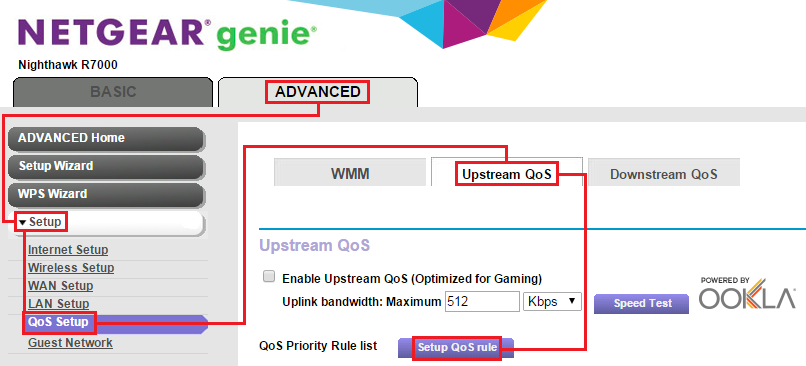
If you’ve changed these credentials before and forgotten them, you might have to reset the modem to factory settings. After logging in, you’ll see a dashboard with various settings, including the QoS section where you can prioritize your gaming traffic.
Credit: medium.com
Configuring Qos For Gaming
Configuring Quality of Service (QoS) on a gaming modem helps improve your online gaming experience. It controls how your internet traffic flows, giving priority to important data. This reduces lag and keeps your game running smoothly.
Setting up QoS involves assigning priority to gaming devices, managing bandwidth, and controlling different types of traffic. Each step ensures your game data gets through quickly without interruptions.
Prioritizing Gaming Devices
Start by identifying your gaming devices on the network. This includes consoles, PCs, or mobile devices used for gaming. Assign these devices the highest priority in your modem’s QoS settings. This ensures their data is sent first, reducing delay during gameplay.
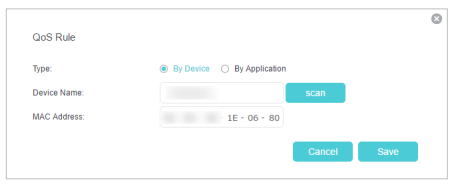
Most modems let you prioritize by device name, MAC address, or IP address. Choose the method that matches your modem’s interface. Save your settings to apply the changes.
Setting Bandwidth Allocation
Next, allocate bandwidth specifically for gaming devices. Bandwidth limits the amount of data your device can use at once. Reserving enough bandwidth prevents other activities like streaming or downloads from slowing your game.
Check your total internet speed before setting limits. Allocate a portion of this speed to gaming. For example, reserve 50-70% of your bandwidth for gaming during peak hours. This keeps your connection stable and fast.
Managing Traffic Types
Different internet activities use different types of traffic. Gaming traffic is sensitive to delay, while downloads and uploads can wait. Use your modem’s QoS settings to classify and manage traffic types.
- Mark gaming packets as high priority.
- Set lower priority for non-gaming activities like file downloads.
- Enable traffic shaping to control how data flows.
This helps your modem send gaming data first, improving response time and reducing lag.
Tips To Maximize Qos Benefits
Maximizing the benefits of QoS on your gaming modem requires attention beyond basic setup. Small actions can improve your network’s performance. These tips help you keep your gaming connection smooth and stable.
Regular Firmware Updates
Keep your modem’s firmware up to date. Updates fix bugs and improve QoS features. They can enhance speed and reduce lag during gameplay. Check for updates often and install them promptly.
Avoiding Network Congestion
Limit the number of devices connected during gaming sessions. Too many devices use bandwidth and cause slowdowns. Pause downloads and streaming on other devices. This frees up bandwidth for your game.
Using Wired Connections
Use Ethernet cables instead of Wi-Fi whenever possible. Wired connections provide stable and faster speeds. They reduce interference and packet loss. This results in a smoother gaming experience with less lag.
Credit: helpdeskgeek.com
Troubleshooting Qos Issues
Dealing with QoS (Quality of Service) issues on your gaming modem can be frustrating, especially when your gaming experience depends on smooth, lag-free connections. Troubleshooting QoS problems requires a careful look at how settings are applied and identifying common pitfalls that might be undermining your network’s performance.
Common Configuration Mistakes
Many gamers overlook simple errors that cause QoS to malfunction. One frequent mistake is assigning incorrect priorities—like giving file downloads higher priority than your gaming traffic. This can cause unexpected lag during gameplay.
Another issue is misidentifying the device’s IP address or MAC address when setting rules. If the modem doesn’t recognize the right device, QoS won’t apply correctly. Double-check these details in your modem’s interface.
Also, some users forget to enable QoS after setting it up. It sounds basic, but it happens more often than you’d think. Always confirm that QoS is turned on before testing your connection.
Resetting And Reapplying Settings
If your QoS settings seem stuck or ineffective, resetting might clear hidden glitches. Start by backing up your current configuration, so you don’t lose important settings.
After resetting, reapply your QoS rules carefully. This time, pay attention to the order in which you add devices or services. Sometimes, the modem prioritizes traffic based on the sequence settings are entered.
Test your connection after each change. This approach helps you spot exactly where the problem lies. Have you noticed your ping drop after adjusting a specific rule? That’s a strong sign your QoS is working as intended.
Credit: www.tp-link.com
Frequently Asked Questions
What Is Qos And Why Is It Important For Gaming Modems?
QoS, or Quality of Service, prioritizes gaming traffic on your network. It reduces lag and improves connection stability. This ensures smoother online gameplay by allocating bandwidth efficiently, preventing interruptions from other devices or applications.
How Do I Enable Qos On My Gaming Modem?
Access your modem’s settings via its IP address in a browser. Locate the QoS section and enable it. Then, assign higher priority to gaming devices or applications to optimize performance and reduce latency during gameplay.
Can Qos Improve Online Gaming Performance?
Yes, QoS enhances online gaming by prioritizing game data packets. It minimizes lag, jitter, and packet loss, resulting in a more stable and responsive gaming experience. This is especially helpful on busy networks with multiple users.
Does Qos Affect Other Internet Activities Besides Gaming?
QoS prioritizes gaming traffic but can also manage bandwidth for other activities. It ensures critical tasks get sufficient bandwidth while preventing non-essential usage from slowing down your gaming connection. This balance improves overall network efficiency.
Conclusion
Setting QoS on your gaming modem improves your online experience. Prioritize gaming traffic for smoother gameplay. Adjust settings based on your specific needs. Experiment to find the best configuration. Remember, each modem might differ slightly. Check your modem’s manual for guidance.
Regular updates ensure optimal performance. Enhanced gaming requires a well-configured modem. Enjoy seamless gaming sessions with these steps. Happy gaming!