Are you tired of your internet slowing down every time you connect more devices? You want to stream, work, and game all at once without the frustration of lag or buffering.
The good news is, you don’t have to choose between speed and connectivity. You’ll discover simple, effective ways to keep your connection fast—even when multiple devices are online. Keep reading, and you’ll learn how to enjoy smooth, reliable internet no matter how many gadgets you use.

Credit: www.amazon.ie
Common Speed Issues
Connecting multiple devices to your network can slow down your internet speed unexpectedly. Identifying the common speed issues helps you keep your connection fast and reliable. Let’s break down the main reasons your network might struggle when sharing with several devices.
Bandwidth Sharing Basics
Think of your internet speed as a pie. When multiple devices connect, they all take a slice. The more devices you add, the smaller each slice becomes.
If someone is streaming video while you’re gaming, both activities compete for bandwidth. This competition can cause lag or buffering. Have you noticed your video calls freezing when others start downloading big files?
To manage this, prioritize devices or activities that need more speed. Many routers offer Quality of Service (QoS) settings to help you do this easily.
Signal Interference
Wireless signals don’t always travel smoothly. Physical obstacles like walls, floors, or furniture can block or weaken the signal. Even common household devices such as microwaves or cordless phones can cause interference.
If your router is near other electronics, moving it to a more open spot might improve speed. Ever experienced slower internet in a certain room? It’s often due to signal interference.
Using the 5GHz band instead of 2.4GHz can reduce interference since it’s less crowded, but keep in mind it has a shorter range.
Hardware Limitations
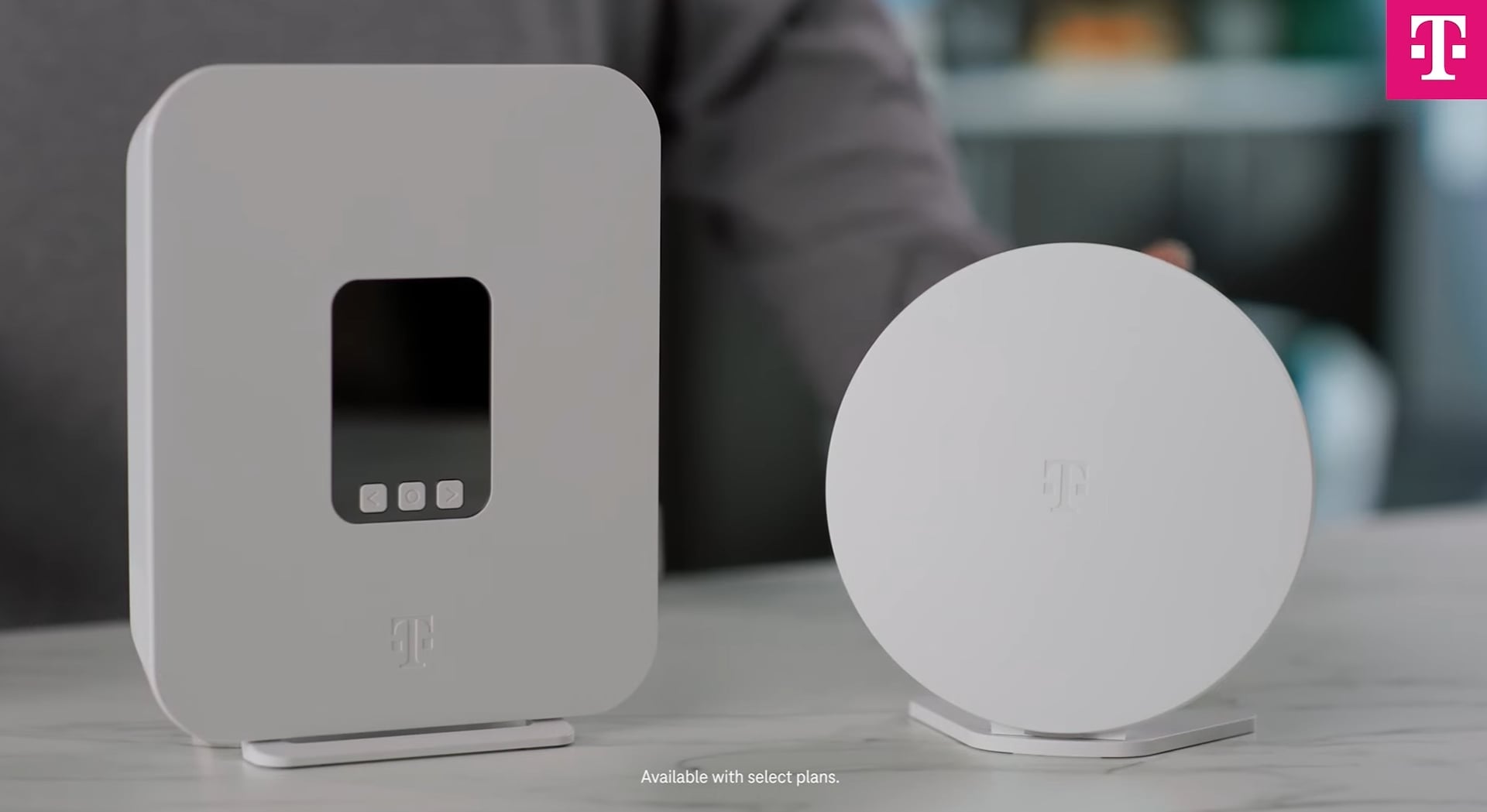
Your router and devices have speed limits. Older routers or devices may not support faster internet standards like Wi-Fi 5 or Wi-Fi 6. This can bottleneck your connection even if your internet plan is fast.
Check your hardware specifications and compare them to your internet speed. Upgrading to a newer router or network adapter can make a noticeable difference.
Have you checked the age and specs of your equipment lately? Sometimes a small upgrade solves big speed problems.
Credit: www.t-mobile.com
Choosing The Right Router
Choosing the right router is crucial for maintaining strong internet speed across multiple devices. The router acts as the backbone of your network, so picking one that matches your household’s needs can prevent frustrating slowdowns. Understanding the key features and how they affect performance helps you make an informed decision.
Dual-band Vs Tri-band
Dual-band routers operate on two frequencies: 2.4 GHz and 5 GHz. The 2.4 GHz band covers a wider area but offers slower speeds, while 5 GHz provides faster speeds but covers less distance.
Tri-band routers add an extra 5 GHz band, creating three separate channels. This setup is great if you have many devices or do heavy streaming and gaming simultaneously. It reduces congestion by distributing devices across bands, keeping speed consistent.
Think about how many devices you connect daily. If you only have a few, a dual-band router often does the job. But if your home feels like a mini office or entertainment center, a tri-band router could be worth the investment.
Wi-fi Standards Explained
Wi-Fi standards like 802.11ac (Wi-Fi 5) and 802.11ax (Wi-Fi 6) determine how fast and efficient your router can be. Wi-Fi 6 offers better speed, handles more devices, and improves battery life for connected gadgets.
Older standards like Wi-Fi 4 (802.11n) might still work but limit your network’s potential. Check if your devices support Wi-Fi 6 to fully benefit from its speed and efficiency.
Upgrading to a router that supports the latest Wi-Fi standard can transform your experience. Have you noticed slowdowns when multiple devices stream or video chat? Newer standards help fix that.
Router Placement Tips
Where you place your router affects signal strength and speed. Keep it in a central, open location away from walls and metal objects.
Avoid placing your router near microwaves, cordless phones, or thick walls as they interfere with the signal. Elevate the router if possible to improve coverage.
Try different spots and use apps to check signal strength in key rooms. Sometimes, just moving your router a few feet can make a big difference in speed and connection quality.
Optimizing Network Settings
Optimizing your network settings is key to maintaining fast internet speeds across multiple devices. Small tweaks can make a huge difference in how your connection handles traffic. Let’s look at some practical adjustments that can help you avoid slowdowns and keep your network running smoothly.
Channel Selection
Wi-Fi routers broadcast on different channels, but many default to the same ones, causing interference. Checking which channels are crowded in your area can improve your signal quality. Tools like Wi-Fi analyzers show which channels are less busy, so you can switch your router to a clearer channel.
Have you noticed your internet getting slower at certain times? It might be due to channel overlap from neighbors’ networks. Changing to a less congested channel often restores speed without any extra cost.
Quality Of Service (qos)
QoS settings prioritize important traffic on your network, like video calls or gaming, over less urgent tasks. This means your devices won’t compete equally for bandwidth, preventing lag when you’re streaming or working online. You can usually find QoS options in your router’s settings and customize them based on your needs.
Imagine streaming a live event while others download large files. Without QoS, the streaming might buffer endlessly. Setting QoS to favor streaming ensures your experience stays smooth even during heavy use.
Firmware Updates
Router manufacturers often release firmware updates that fix bugs and improve performance. Ignoring these updates can leave your network vulnerable to slowdowns or security risks. Regularly checking for and installing firmware updates ensures your router operates efficiently and supports the latest standards.
I once skipped a firmware update, and my connection became unstable. After updating, the speed and reliability improved noticeably. Don’t let outdated firmware hold back your network’s potential.
Using Wired Connections
Using wired connections is a reliable way to connect multiple devices without losing speed. Wired setups use cables to link devices directly to the network. This approach reduces interference and provides stable internet speeds. It works well for homes and offices with many devices needing fast connections.
Ethernet Advantages
Ethernet cables offer fast and steady internet connections. They carry data quickly between devices and the router. Ethernet is less affected by walls or distance than Wi-Fi. It lowers lag and avoids connection drops. Using Ethernet means smoother video calls and faster downloads.
Powerline Adapters
Powerline adapters use your home’s electrical wiring to send internet signals. Plug one adapter near the router and connect it with an Ethernet cable. Plug the other adapter in the room where you want the connection. This method avoids running long cables through walls. It delivers good speeds with simple setup.
Switches And Hubs
Switches and hubs expand the number of wired connections available. A switch manages traffic between devices efficiently. It prevents slowdowns by sending data only where needed. Hubs send data to all devices, which can reduce speed. Choose a switch for better performance in busy networks.
Managing Connected Devices
Managing connected devices is key to maintaining fast internet speeds. Each device uses bandwidth, so balancing their needs helps avoid slowdowns. Proper management keeps your network smooth and responsive for everyone.
Device Prioritization
Prioritize devices that need the most speed. Streaming, gaming, or work devices usually get top priority. Many routers have Quality of Service (QoS) settings. Use these to assign higher priority to critical devices. This ensures important tasks get enough bandwidth.
Limiting Background Usage
Devices often run apps in the background, using data without notice. Check each device for apps syncing or updating automatically. Disable or limit these background activities. This frees up bandwidth for active tasks and keeps speeds steady.
Guest Network Setup
Create a separate guest network for visitors. This isolates guest traffic from your main devices. It prevents guests from slowing down your primary connection. Most modern routers allow easy guest network creation in settings.
Advanced Solutions
Advanced solutions help keep your internet fast, even with many devices. These tools improve coverage, manage traffic, and reduce slowdowns. They work well in busy homes or offices with many users.
Mesh Wi-fi Systems
Mesh Wi-Fi systems use several devices called nodes. Each node spreads the signal to cover large areas. This stops weak spots and keeps speed steady. Nodes connect to each other and form one big network. Devices switch smoothly between nodes without losing connection.
Network Extenders
Network extenders boost your Wi-Fi range. They catch the signal from your router and send it farther. This helps devices far from the router get better speed. Extenders are easy to set up and work with most routers. Place them where the signal starts to fade.
Load Balancing Routers
Load balancing routers share internet traffic across multiple connections. They split the data load to avoid congestion. This keeps speed high when many devices use the network. These routers are great for busy homes or small offices. They also improve reliability by switching connections if one fails.

Credit: danielrosehill.medium.com
Frequently Asked Questions
How Can I Connect Multiple Devices Without Losing Speed?
Use a high-quality router with dual-band or tri-band support. Prioritize devices using QoS settings. Keep your firmware updated and avoid overcrowding your Wi-Fi channels. This helps maintain a stable connection and consistent speeds across all devices.
Does Using A Mesh Wi-fi System Improve Device Connection Speed?
Yes, mesh Wi-Fi systems provide better coverage and reduce congestion. They use multiple nodes to spread the signal evenly. This ensures faster, more reliable connections when many devices are connected simultaneously in different areas.
What Role Does Bandwidth Play In Connecting Multiple Devices?
Bandwidth determines how much data your network can handle at once. Higher bandwidth means more devices can connect without slowing down. Choose an internet plan with sufficient bandwidth for your device count and usage needs.
Can Ethernet Connections Help Maintain Speed With Many Devices?
Yes, wired Ethernet connections offer faster, more stable speeds than Wi-Fi. Using Ethernet for stationary devices reduces Wi-Fi traffic and interference. This helps maintain overall network speed when multiple devices are connected.
Conclusion
Connecting multiple devices efficiently is simple with the right steps. Prioritize a reliable router. It helps maintain stable speed. Use wired connections for key devices. They ensure faster data transfer. Wireless extenders can boost Wi-Fi range. They eliminate dead zones.
Manage bandwidth by setting priorities. Limit background apps to free up speed. Regular updates keep your network optimized. These strategies ensure smooth connections. Enjoy seamless browsing and streaming. No more speed issues or interruptions. Stay connected, stay fast.