Have you ever wondered why your smart camera sometimes shows blurry footage or lags unexpectedly? You might be surprised to learn that your router could be the hidden factor affecting your camera’s video quality.
If you want clear, smooth, and reliable camera feeds, understanding how your router impacts performance is key. Keep reading to discover how your router can make or break your smart camera experience—and what you can do to fix it.
Router And Camera Quality
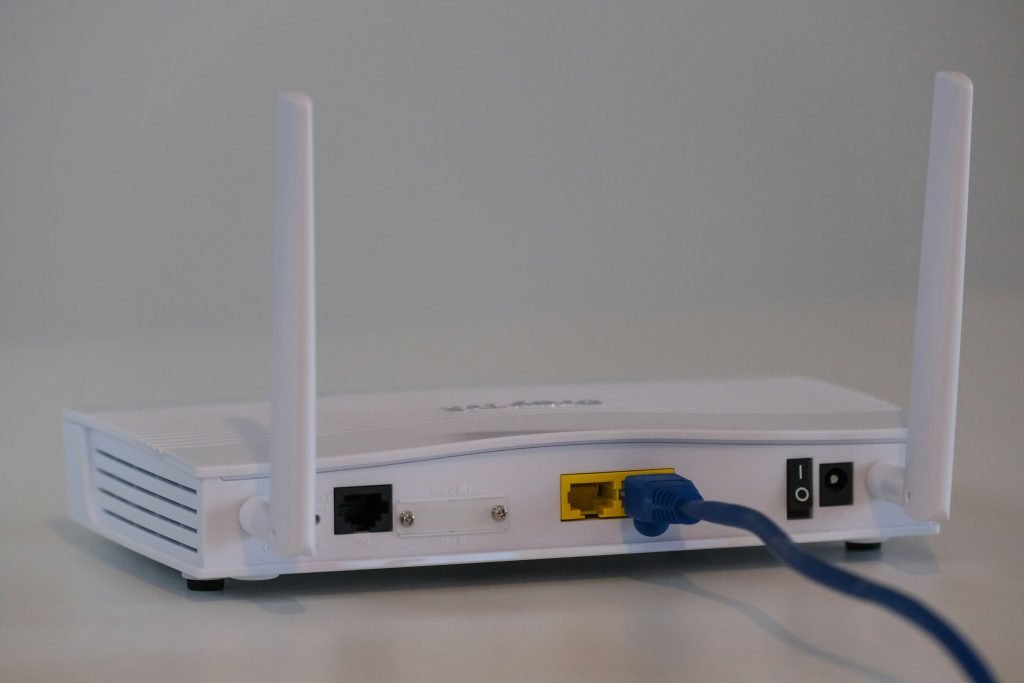
Routers play a key role in smart camera quality. They send video data from cameras to your devices. A strong and stable routerhelps keep video clear and smooth. Weak routers may cause video to lag or pixelate.
Bandwidth affects video resolution. Higher bandwidth allows better resolution and sharper images. Low bandwidth can make videos blurry or choppy.
| Factor | Effect on Camera Video |
|---|---|
| Bandwidth | Supports high resolution and smooth streaming |
| Latency | Low latency means less delay in video feed |
| Frame Rates | Higher frame rates show smoother motion |
- Low latencykeeps video live and responsive.
- High frame rateshelp capture fast movements clearly.
- Poor routers can cause video freezes or delays.
Choosing The Right Router
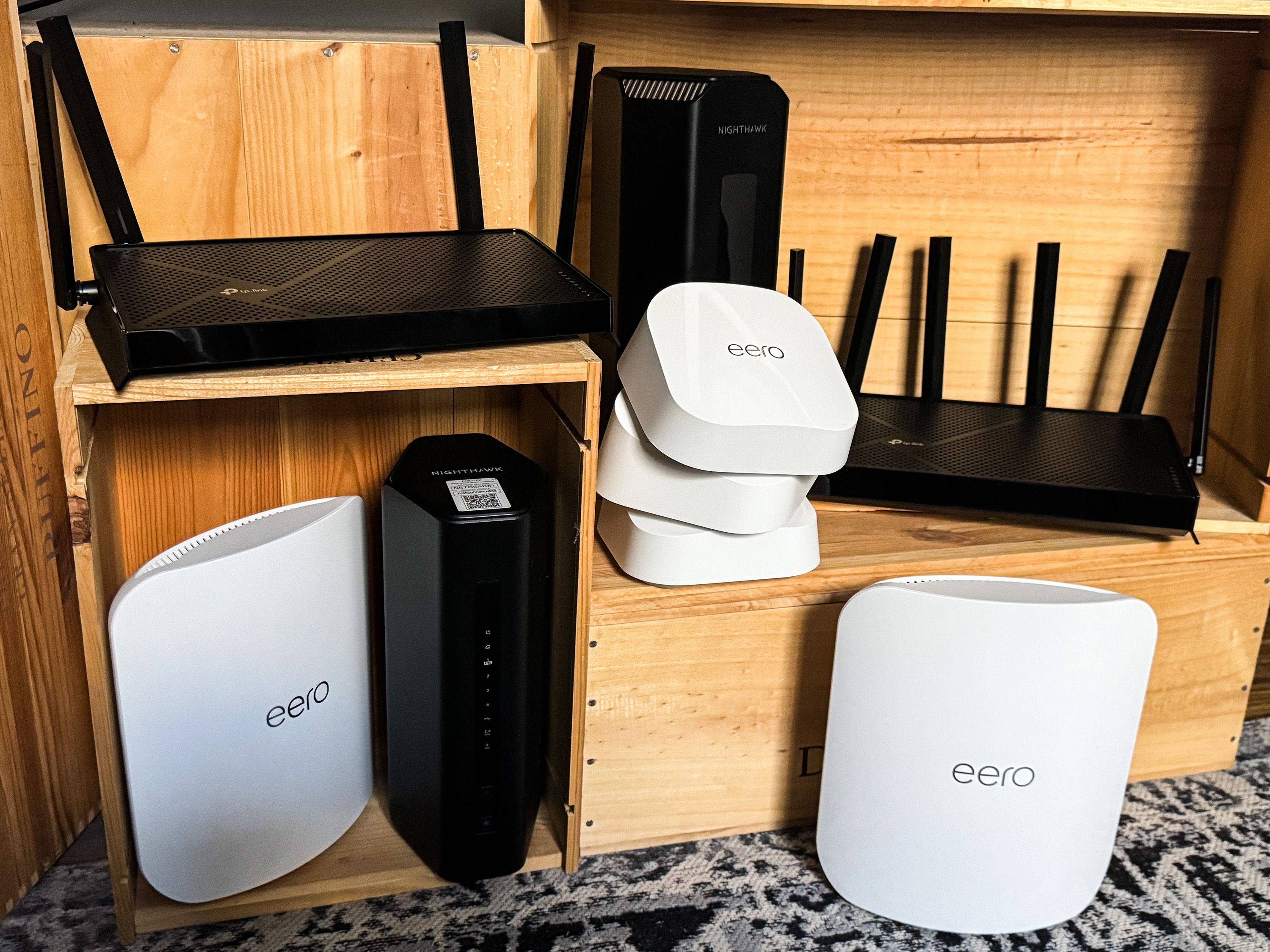
Choosing the right router greatly impacts your smart camera’s video qualityand connection stability. Routers differ in speed, range, and frequency bands. Older routers may not support newer Wi-Fi standards, limiting camera performance.
Understanding router types helps pick the best one for smart cameras:
- Single-band routersoperate on one frequency, usually 2.4 GHz. They offer longer range but slower speeds.
- Dual-band routersuse both 2.4 GHz and 5 GHz bands. This allows better speed and less interference.
- Tri-band routersadd an extra 5 GHz band. They handle many devices well, reducing lag.
Wi-Fi standards affect compatibility and quality:
| Wi-Fi Standard | Speed | Range | Best For |
|---|---|---|---|
| 802.11n (Wi-Fi 4) | Up to 600 Mbps | Good | Basic cameras |
| 802.11ac (Wi-Fi 5) | Up to 3.5 Gbps | Better | HD video streaming |
| 802.11ax (Wi-Fi 6) | Up to 9.6 Gbps | Best | Multiple devices, 4K cameras |
Dual-band routers work well for most smart cameras. They balance speed and coverage. Tri-band routers suit homes with many devices or high data needs. This avoids slowdowns and buffering.
Network Settings That Matter
Choosing the right frequency channelcan reduce interference. Wi-Fi routers often use 2.4 GHz or 5 GHz bands. The 2.4 GHz band covers a longer range but may have more devices connected. The 5 GHz band offers faster speeds but shorter range. Switching channels can help avoid crowded frequencies and improve camera streaming quality.
Quality of Service (QoS) settingslet you prioritize traffic. Assigning higher priority to your smart camera ensures smooth video without lag. This helps keep important video data flowing even if many devices use the network.
Strong security settingsprotect your camera from hackers. Using WPA3 or WPA2 encryption secures your Wi-Fi connection. Keep your router firmware updated to fix vulnerabilities. This can prevent interruptions caused by unauthorized access.
Credit: www.popularmechanics.com
Placement And Signal Strength
Placing the router in a central locationhelps the smart camera get a strong signal. Walls, floors, and furniture can block Wi-Fi signals. Keep the router away from thick walls or metal objects to improve signal strength.
Devices like microwaves, cordless phones, and baby monitors can cause signal interference. This interference can lower the video quality of your smart camera.
| Option | Use | Benefit |
|---|---|---|
| Wi-Fi Extenders | Boost signal in weak areas | Helps cameras far from router |
| Mesh Systems | Multiple devices create a strong network | Better coverage for large homes |
Troubleshooting Video Quality
Network bottleneckscan slow down your smart camera video. Check the Wi-Fi signal strengthnear the camera. Walls and distance may weaken the signal. Other devices using the network at the same time can cause traffic congestion. Try moving your camera closer to the router or reducing the number of connected devices.
Updating the router firmwareoften improves performance and fixes bugs. Visit the router’s website or app to find the latest update. Also, update your smart camera’s firmware to ensure both devices work well together.
Resetting the router or camera can clear temporary glitches. After reset, reconfigure the network settingscarefully. Use a strong password and select the right Wi-Fi band (2.4 GHz or 5 GHz) for better stability.

Credit: www.backstreet-surveillance.com
Advanced Tips To Boost Clarity
Smart cameras work better with a wired connection. Wired connections are more stable. This means clearer video and less delay. Wireless connections can be unreliable. They may cause the video to lag or be fuzzy. Thick walls can block wireless signals. This affects the camera’s performance.
Ethernet backhaul helps improve smart camera quality. It connects devices directly to the router. This way, the internet is faster and more reliable. It avoids wireless interference. This helps in getting better video quality. It’s also more secure. The connection stays private and safe.
Network storage helps save all videos safely. It stores data on a separate device. Network storage keeps videos even if the camera is offline. It reduces the camera’s workload. This makes the camera work better and longer. Videos are easier to access and manage. This setup helps in maintaining video clarity.
Credit: safemo.com
Frequently Asked Questions
Does Router Speed Impact Smart Camera Video Quality?
Yes, higher router speeds enable smoother and clearer video streaming from smart cameras. Slow routers can cause lag or lower resolution.
Can Router Placement Affect Smart Camera Performance?
Router placement matters. A router close to the camera ensures a strong signal, reducing video buffering and disconnections.
Does Router Type Influence Smart Camera Connectivity?
Modern routers with advanced standards (like Wi-Fi 6) provide better connectivity, improving smart camera stability and video quality.
How Does Network Congestion Affect Smart Camera Quality?
Network congestion slows data transfer, causing video delays or pixelation. A less crowded network improves camera performance.
Conclusion
A router plays a key role in smart camera quality. It affects video clarity and connection strength. A good router reduces lag and buffering. Slow routers cause poor image and delays. Choose a router with strong signal and speed. Keep the router close to the camera.
Regularly update your router’s software for best results. Good network setup means clearer and smoother camera footage. Remember, a strong router helps your smart camera perform well. Simple changes can improve your security experience greatly.


