Are you tired of weak WiFi signals that interrupt your smart devices? Before you invest in a mesh WiFi system, it’s crucial to know if it will work seamlessly with your gadgets.
Imagine streaming, gaming, and controlling your smart home without a single lag or drop. This guide will show you exactly how to check mesh WiFi compatibility with your smart devices, so you can enjoy smooth, reliable connections every time. Keep reading to discover simple steps that can save you time, money, and frustration.
Your smart home deserves the best—let’s make sure it gets it.
Credit: www.astound.com
Mesh Wifi Basics
Mesh wifi is a way to spread wifi signals across your home or office. It uses multiple devices called nodes.
Each node connects to others to create one strong wifi network. This helps reduce dead spots.
What Is Mesh Wifi
Mesh wifi is a system with several small routers working together. They share one network name and password.
This system covers large areas better than one router. Nodes talk to each other to keep the connection strong.
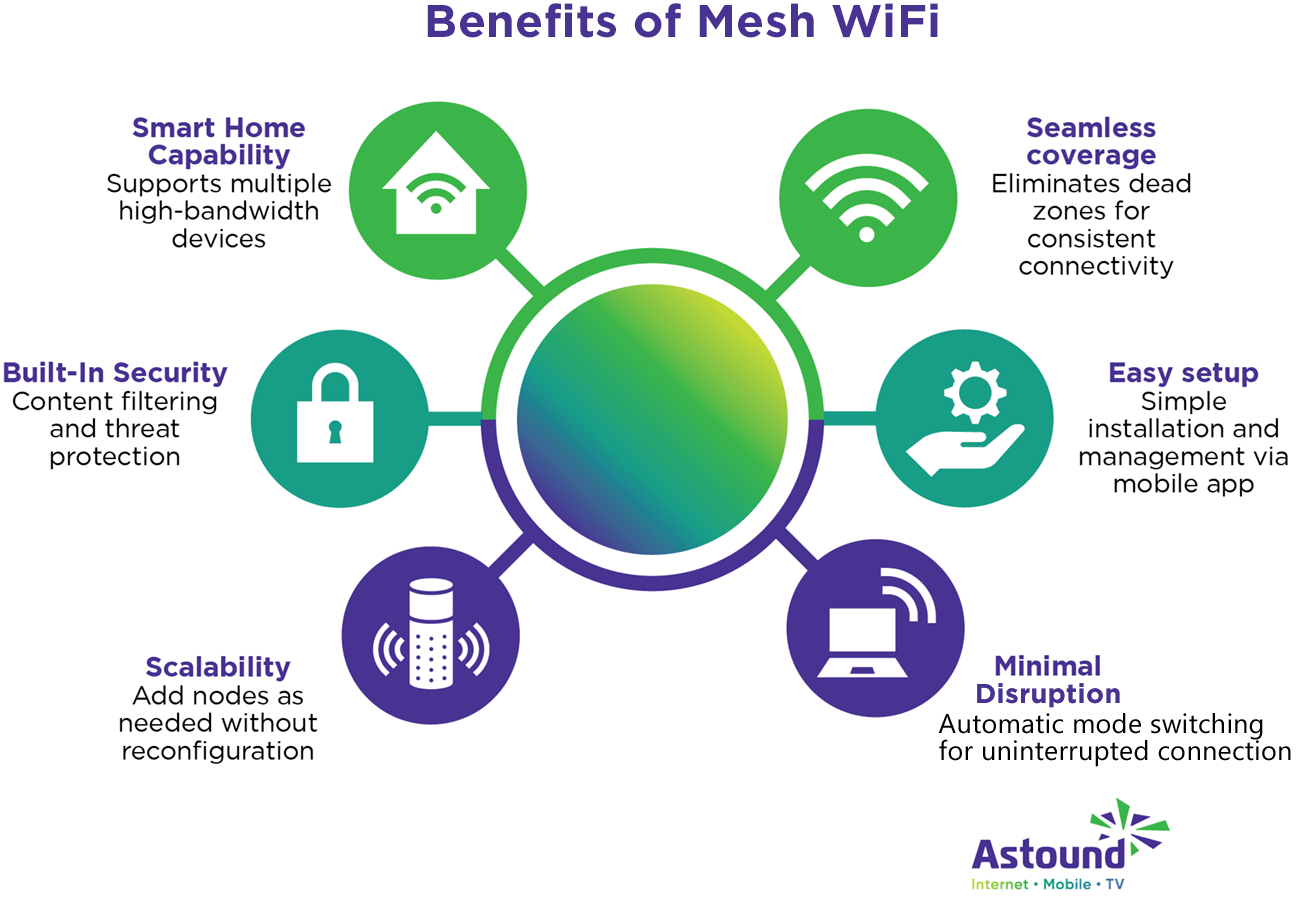
Benefits Over Traditional Wifi
Mesh wifi gives better coverage than a single router. It helps when walls or floors block signals.
It also makes it easy to add more nodes. This keeps your internet strong everywhere in your space.
- Eliminates wifi dead zones
- One network name for the whole area
- Easy to expand by adding nodes
- Automatic connection to the strongest node
- Better speed and reliability
Smart Device Connectivity
Mesh WiFi systems help smart devices work better at home. They spread WiFi signals evenly in every room.
Check if your smart devices can connect to mesh WiFi before setup. This avoids connection problems and slow speeds.
Common Smart Devices
Smart devices include phones, tablets, smart TVs, and home assistants. They all use WiFi to communicate.
Other devices like smart lights, security cameras, and thermostats also need WiFi. Their connection needs vary.
- Smartphones and tablets
- Smart TVs and streaming devices
- Voice assistants like Alexa and Google Home
- Smart lights and plugs
- Security cameras and doorbells
- Smart thermostats and sensors
Wifi Requirements For Smart Devices
Most smart devices work with 2.4 GHz WiFi. Some newer devices use 5 GHz for faster speed.
Check your mesh WiFi supports both 2.4 GHz and 5 GHz bands. Also, confirm the WiFi standard like WiFi 5 or WiFi 6.
- 2.4 GHz WiFi: Longer range, slower speed, good for simple devices
- 5 GHz WiFi: Faster speed, shorter range, good for streaming and gaming
- WiFi standards: WiFi 4, 5, and 6 affect speed and device support
- Security: Devices need WPA2 or WPA3 encryption for safe connection
- Device limits: Check how many devices your mesh system can handle
Compatibility Factors
Mesh WiFi systems help smart devices connect to the internet. To check compatibility, you need to know some key factors. These factors ensure your devices work well with your mesh network.
Understanding these factors can prevent connection problems. It also helps you choose the right mesh WiFi for your smart home.
Frequency Bands And Channels
Mesh WiFi systems use frequency bands to send data. The common bands are 2.4 GHz and 5 GHz. Some newer systems also use 6 GHz.
Smart devices must support the same bands to connect well. Also, channels within these bands must not overlap with other networks. This keeps the connection stable and fast.
- 2.4 GHz covers longer distances but is slower.
- 5 GHz offers faster speeds but covers less distance.
- 6 GHz is newest and less crowded, providing high speed.
Wifi Standards And Protocols
WiFi standards like 802.11n, 802.11ac, and 802.11ax define how devices communicate. Mesh WiFi systems often support multiple standards for better compatibility.
Your smart devices must use the same or older WiFi standard as your mesh system. This ensures they can connect without issues.
- 802.11n is older but widely supported.
- 802.11ac offers faster speeds and better range.
- 802.11ax (WiFi 6) is the newest and fastest standard.
Security Features
Security is important for mesh WiFi and smart devices. Common security features include WPA2 and WPA3 encryption. These protect your network from unauthorized access.
Check if your smart devices support the security protocols used by your mesh system. Using the same security features keeps your data safe and devices connected.
- WPA2 is widely used and secure enough for many devices.
- WPA3 is newer and offers stronger protection.
- Some devices may not support WPA3 yet.

Credit: dongknows.com
Checking Mesh Wifi Specs
Mesh wifi systems help you get better internet coverage at home. Before buying, you must check if your smart devices will work with the mesh wifi.
Checking the specs of your mesh wifi gives you clues about compatibility. Use reliable sources to find this information.
Manufacturer Documentation
Start by reading the manufacturer’s manual or website. They often list the wifi standards and device support.
- Look for wifi standards like 802.11ac or 802.11ax
- Check supported frequency bands such as 2.4 GHz and 5 GHz
- Note any special features like MU-MIMO or beamforming
- See if the mesh system supports your device’s connection type
Online Compatibility Lists
Many websites and forums have lists that show which devices work with specific mesh wifi systems. These lists can save you time.
| Mesh Wifi Model | Compatible Devices | Notes |
| MeshPro X10 | Smartphones, Laptops, Smart TVs | Supports 802.11ax, 2.4 & 5 GHz |
| WaveNet Plus | Smart Home Devices, Tablets | Works with 802.11ac, 2.4 GHz only |
| NetRange 360 | All common smart devices | Dual-band, MU-MIMO enabled |
Testing Device Connection
Checking if your smart devices work with mesh WiFi is important. It helps you avoid connection problems.
This guide explains how to test device connection with mesh WiFi networks.
Setting Up Mesh Wifi
First, install your mesh WiFi system correctly. Follow the instructions from the manufacturer.
Make sure all nodes are powered on and linked to each other. Place nodes where WiFi signal is weak.
- Connect the main node to your modem
- Place nodes around your home for full coverage
- Use the app to finish setup steps
Connecting Smart Devices
Turn on your smart device and open its WiFi settings. Look for your mesh network name (SSID).
Select the mesh network and enter the password. Wait until the device shows it is connected.
- Check if the device is in range of a mesh node
- Confirm device supports your WiFi band (2.4 GHz or 5 GHz)
- Restart the device if it does not connect
Troubleshooting Tips
If your device does not connect, try these fixes. These tips help identify common issues.
- Restart your mesh WiFi system and smart device
- Check if firmware on mesh nodes is up to date
- Move device closer to a mesh node
- Forget the network on your device and reconnect
- Disable any VPN or firewall on your device
- Reset network settings if problems continue
Credit: www.t-mobile.com
Optimizing Performance
Mesh WiFi systems can boost connectivity across your home. Ensuring compatibility with smart devices is key. Let’s explore how to optimize performance.
Follow these steps to check and enhance mesh WiFi compatibility. This helps in seamless device connections and improved user experience.
Placement Of Nodes
Correct node placement is crucial for strong signals. Nodes should be in open spaces without obstructions.
Avoid placing nodes near metal objects or thick walls. This ensures better connectivity across your home.
- Place nodes on shelves, not inside cabinets
- Keep them away from microwaves and cordless phones
- Position nodes centrally to cover all areas
Firmware Updates
Updating firmware is essential for compatibility. New updates improve performance and security.
Check for firmware updates regularly. Enable automatic updates if available in your system settings.
- Visit the manufacturer’s website for updates
- Follow instructions for manual updates if needed
- Ensure your system is connected during updates
Network Settings
Adjusting network settings can enhance performance. Use recommended settings for optimal results.
Ensure your network name and password are secure. Use WPA3 encryption for better security.
- Set your network to dual-band for better compatibility
- Use a simple SSID name for easy recognition
- Regularly change passwords to maintain security
Frequently Asked Questions
How Do I Verify Mesh Wifi Compatibility With My Device?
Check your device’s WiFi standards and frequency bands. Confirm they match your mesh network’s specifications. Consult the device manual or manufacturer website for details.
Can All Smart Devices Work With Mesh Wifi Systems?
Most smart devices support mesh WiFi if they use standard WiFi protocols. However, some older or specialized devices may not be compatible. Always check the device’s connectivity requirements.
What Wifi Bands Should My Smart Devices Support?
Smart devices typically support 2. 4 GHz and 5 GHz bands. Ensure your mesh WiFi system offers both bands for optimal compatibility and performance.
Does Mesh Wifi Improve Smart Device Connectivity?
Yes, mesh WiFi provides wider coverage and stronger signals. It reduces dead zones, enhancing the connection quality for smart devices throughout your home.
Conclusion
Checking mesh WiFi compatibility with smart devices is simple. Start by knowing your device’s WiFi standards. Match these with your mesh system’s specs. Use the manufacturer’s website for clear details. Testing the connection helps find any issues fast. A smooth network means better smart device use.
Keep your devices updated for best results. This way, your home stays connected without trouble. Easy steps lead to a strong, reliable WiFi setup.


