Are you tired of lag ruining your gaming experience? High ping can turn even the most exciting matches into frustrating battles against delay.
But what if you could fix that? Configuring your gaming modem for low ping is the secret to smoother, faster gameplay. You’ll discover simple steps that anyone can follow to reduce lag and boost your connection speed. Keep reading, and you’ll be ready to dominate your next game with lightning-fast responses.
Choosing The Right Modem
Choosing the right modem is vital for a smooth gaming experience. It directly affects your ping and connection stability. A good modem reduces lag and packet loss. This section covers key points to consider before buying a modem for gaming.
Gaming-specific Features
Some modems come with features designed for gamers. Look for Quality of Service (QoS) settings to prioritize gaming traffic. Low latency mode helps reduce delays during gameplay. Multiple antennas can improve signal strength and stability. These features help maintain a steady connection for online games.
Compatibility With Isp
Ensure the modem supports your Internet Service Provider (ISP). Check the list of approved modems on your ISP’s website. Using an incompatible modem may cause slow speeds or no connection. Confirming compatibility avoids setup problems and ensures smooth operation.
Speed And Bandwidth
Choose a modem that matches your internet plan speed. High bandwidth modems handle more data at once. This lowers the chances of bottlenecks during peak gaming moments. Even if your plan is slower, a modem with better specs prepares you for future upgrades.

Credit: www.privateinternetaccess.com
Optimizing Network Settings
Optimizing your network settings is crucial for achieving low ping and smoother gameplay. Small tweaks inside your gaming modem can make a significant difference in response times. These adjustments help prioritize gaming traffic and reduce lag spikes that can ruin your experience.
Setting Up Quality Of Service (qos)
Quality of Service (QoS) lets you prioritize gaming data over other internet traffic. Without QoS, streaming videos or downloads can cause your ping to spike unexpectedly. By assigning higher priority to your gaming devices or specific ports, your modem ensures your game packets get sent and received faster.
Look for a QoS section in your modem’s settings. You can add your gaming console or PC by its MAC or IP address and set it to the highest priority. This way, your modem knows to give your game data the fastest lane on your network.
Enabling Upnp
Universal Plug and Play (UPnP) automatically opens the ports your games need to communicate smoothly. Manually forwarding ports can be confusing and time-consuming, especially if you play multiple games with different requirements. UPnP handles this for you, reducing connection problems and lowering latency.
Enabling UPnP usually involves just toggling a setting in your modem’s interface. Once turned on, your gaming devices can request the ports they need without your intervention. This dynamic approach keeps your connection flexible and responsive.
Adjusting Mtu Size
The Maximum Transmission Unit (MTU) defines the largest packet size your network can send. If your MTU is set too high, packets may be fragmented, causing delays. If it’s too low, you’ll send more packets than necessary, which can also slow down your connection.
Try testing different MTU sizes starting around 1400 bytes and adjust in small increments. Many gamers find a sweet spot between 1400 and 1472 bytes that minimizes ping. You can use simple ping tests to check which MTU value works best for your setup.
Firmware Updates And Security
Keeping your gaming modem updated and secure is key to lowering ping and improving gameplay. Firmware updates fix bugs and boost performance. Security settings protect your network from unwanted access. Both help ensure a stable and fast connection for gaming.
Checking For Firmware Updates
Visit your modem manufacturer’s website regularly. Look for the latest firmware version for your model. Download updates only from official sources. Some modems offer automatic update options in their settings. Running the latest firmware fixes issues that slow your connection.
Securing Your Network
Set a strong password for your Wi-Fi and admin panel. Use WPA3 or WPA2 encryption for your wireless network. Disable remote management to block outside access. Limit device connections to trusted devices only. These steps protect your network from hackers and reduce interruptions.
Disabling Unnecessary Features
Turn off features you don’t need, such as guest networks or QoS if not used. Disable UPnP if you don’t require automatic port forwarding. These features can open security gaps and cause latency. Removing them keeps your modem focused on gaming traffic.
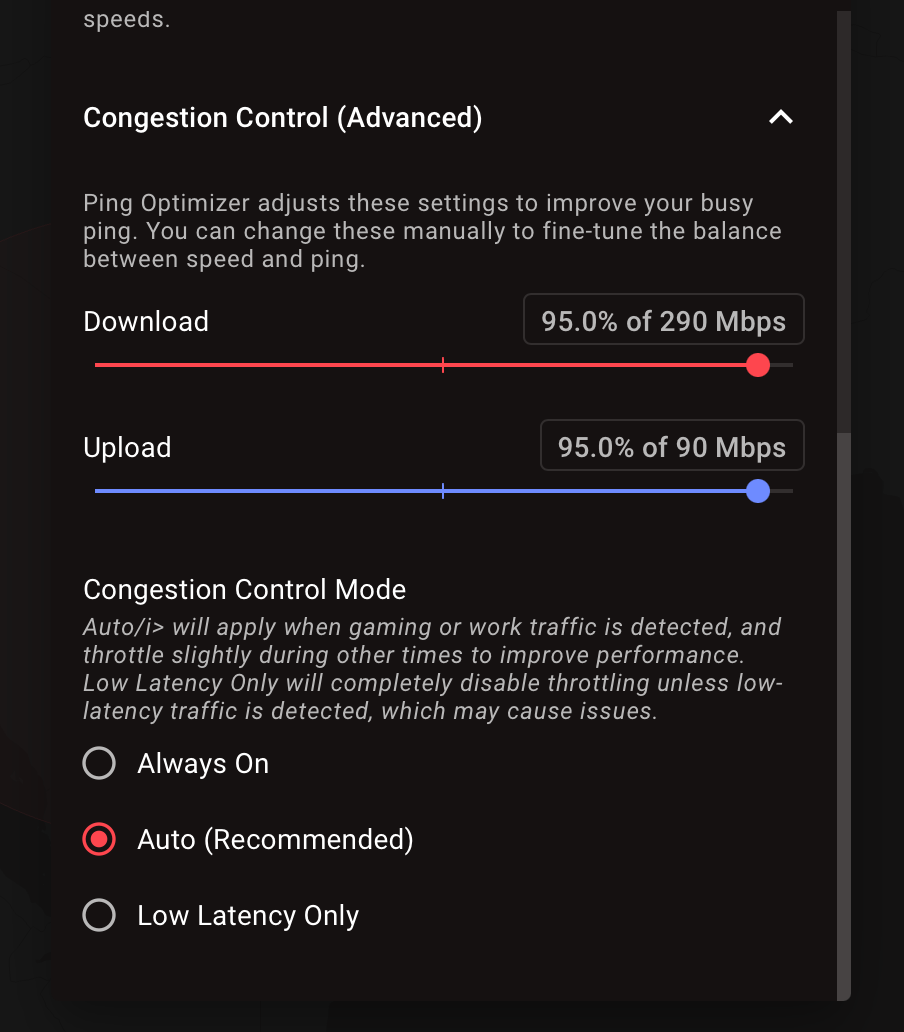
Credit: forum.netduma.com
Wired Vs. Wireless Connections
Choosing between wired and wireless connections affects your gaming experience. Wired connections use cables to link your device to the modem. Wireless connections use Wi-Fi signals for connectivity. Each option has pros and cons for gaming performance. Understanding these helps reduce ping and improve game response time.
Benefits Of Ethernet
- Offers stable and fast internet speed
- Reduces lag and packet loss
- Provides consistent connection without interruptions
- Less affected by external interference
- Ideal for competitive and fast-paced games
Improving Wi-fi Performance
- Place your modem in a central location
- Use the 5 GHz band for faster speeds
- Update router firmware regularly
- Limit the number of devices connected
- Use Wi-Fi extenders to cover dead zones
Reducing Interference
- Avoid placing the modem near microwaves or cordless phones
- Keep the router away from thick walls and metal objects
- Change Wi-Fi channel to avoid crowded frequencies
- Turn off unused wireless devices
- Use wired connections for devices close to the modem
Advanced Tweaks For Low Ping
Advanced tweaks can greatly reduce ping and improve gaming experience. These settings focus on optimizing your modem and network for faster data flow. Small changes can lead to smoother gameplay and less lag.
Adjusting your modem beyond basic setup helps prioritize gaming traffic. This approach minimizes delays by opening necessary ports and managing data paths. It also reduces interference from other applications running in the background.
Port Forwarding For Gaming
Port forwarding directs specific data to your gaming device quickly. It allows game servers to communicate without delay. To set up, log into your modem’s settings and find the port forwarding section.
- Identify the ports used by your game from official sources.
- Create new forwarding rules for those ports.
- Assign rules to your gaming device’s IP address.
- Save and restart your modem if needed.
This reduces ping spikes caused by blocked or delayed data packets.
Using Dmz Settings
DMZ, or Demilitarized Zone, places your gaming device outside the modem’s firewall. This removes most restrictions, letting data flow freely.
- Find the DMZ option in your modem settings.
- Enter your gaming device’s IP address.
- Enable DMZ for that device.
This option can lower ping but may reduce security. Use it only if port forwarding does not help.
Disabling Background Apps
Background apps consume bandwidth and increase ping. Close apps that use the internet while gaming.
- Check running applications on your device.
- Close or pause downloads, updates, or streaming services.
- Use task manager or system settings to stop unnecessary apps.
This frees up bandwidth and reduces network congestion, lowering ping times.

Credit: www.youtube.com
Monitoring And Testing Performance
Monitoring and testing your gaming modem’s performance is essential to maintain a low ping during gameplay. Without regularly checking your connection, you might miss sudden latency spikes that ruin your experience. Keeping an eye on how your modem handles data can help you make informed adjustments that lead to smoother, faster gaming sessions.
Ping Testing Tools
To measure your ping accurately, you need reliable tools. Popular options include PingPlotter, Speedtest by Ookla, and WinMTR. These tools provide real-time ping data and show packet loss, helping you identify if your modem or ISP is causing delays.
Try testing your ping at different times of the day to see how your connection performs under varying network loads. This simple habit reveals patterns you might otherwise overlook. Have you noticed your ping spikes during peak hours or only when multiple devices are active?
Analyzing Latency Spikes
Latency spikes can be frustrating, but spotting their cause is half the battle. Look for sudden jumps in ping that last more than a few seconds. These often indicate interference, network congestion, or issues with your modem’s firmware.
Check your modem’s logs or use tools that graph latency over time. This visual data can show if spikes happen regularly or randomly. Are the spikes happening while downloading updates or streaming videos in the background? Identifying these triggers helps you target the problem more effectively.
Adjusting Settings Based On Results
Once you have your ping data, tweak your modem settings to reduce latency. Consider enabling Quality of Service (QoS) to prioritize gaming traffic over less important data. Also, adjust channel settings to avoid Wi-Fi interference from neighboring networks.
Don’t forget to update your modem’s firmware regularly; newer versions often fix bugs that cause lag. If latency spikes persist, try changing DNS servers to faster alternatives like Google DNS or Cloudflare. What small change could you make right now to lower your ping based on what your tests reveal?
Frequently Asked Questions
How Do I Reduce Ping On My Gaming Modem?
To reduce ping, prioritize gaming traffic using Quality of Service (QoS) settings. Also, update your modem firmware and use a wired connection for stability.
What Settings Optimize A Modem For Gaming?
Enable QoS, disable unused services, and assign a static IP to your gaming device. These settings minimize latency and improve connection speed.
Can Modem Placement Affect Gaming Ping?
Yes, placing your modem centrally and away from obstructions reduces interference. A strong signal ensures lower ping and smoother gameplay.
Should I Update My Modem Firmware For Better Gaming?
Absolutely. Firmware updates fix bugs and improve performance, which can reduce latency and enhance your gaming experience.
Conclusion
Configuring your gaming modem is key for low ping. Follow the steps for smoother gameplay. Optimize settings to reduce lag and enhance online gaming experience. Remember, small adjustments can make a big difference. A well-configured modem ensures stable connections. Keep firmware updated for best performance.
Experiment with settings to find what works best. Enjoy faster response times and seamless gaming sessions. Happy gaming!