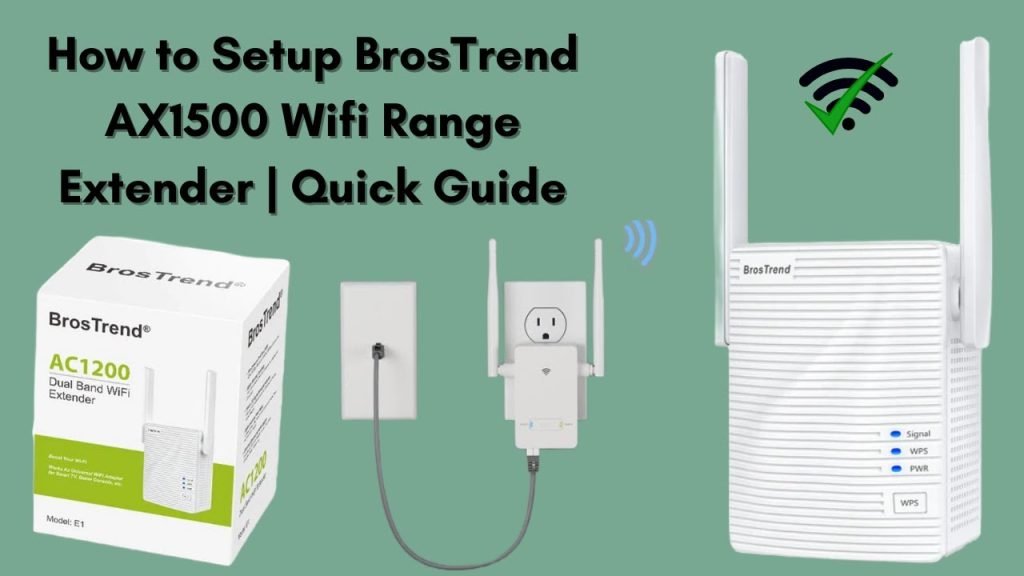
Are you tired of weak WiFi signals in certain corners of your home or office? A dual band WiFi extender could be the simple solution you need to boost your connection and enjoy faster internet everywhere.
But how do you connect it properly to get the best results? In this guide, you’ll discover easy, step-by-step instructions to set up your dual band WiFi extender quickly and without hassle. Keep reading, and by the end, you’ll have a stronger, more reliable WiFi network that keeps you connected without interruptions.

Credit: www.youtube.com
Benefits Of Dual Band Wifi Extenders
Dual band WiFi extendersboost your internet signal for better reach. They work on two frequencies, 2.4 GHz and 5 GHz, giving you faster speedsand stronger connections. This means fewer dead zones in your home or office.
These extenders help cut down on signal interference. Devices using the 2.4 GHz band avoid clashing with those on 5 GHz. This keeps your network stable and smooth, even with many devices connected.
- Works with many devices like phones, tablets, and laptops
- Supports both old and new WiFi standards
- Easy to connect to routers and smart home gadgets
Choosing The Right Location
Choose a spot that is halfway between your router and the weak signal area. The wifi extendermust get a strong signal from your router to boost it well. Place it where the signal is still strong but close enough to the area you want to cover.
Keep the extender away from walls, metal objects, and appliances like microwaves. These things can block or weakenthe wifi signal. Avoid placing the extender near thick walls or floors that can stop the signal from passing through.
- Place the extender high, like on a shelf or table.
- Avoid corners or closed spaces.
- Keep the extender away from other electronic devices.
- Test different spots to find the best signal strength.
Preparing Your Network
Check your router’s settings to ensure it supports dual-band WiFi. Access the router’s admin page using its IP address. Look for options related to 2.4 GHz and 5 GHz bandsand make sure both are enabled. Note the network names (SSIDs)and whether they are the same or different for each band.
Gather the necessary network credentials before starting. This includes the WiFi passwordsfor both the 2.4 GHz and 5 GHz networks. Keep the router’s admin username and passwordhandy for any changes needed later.
Connecting The Extender
Plug in the dual band wifi extender to a power outlet near your router. Wait for the power light to turn solid, indicating the device is ready. The extender is now powered on and ready to connect.
Press the WPS button on your router. Within two minutes, press the WPS button on the extender. Wait for the connection light to show a stable link. This connects the extender to your router quickly without typing passwords.
Open a web browser and enter the extender’s IP address or URL. Login using the default username and password found in the manual. Follow the on-screen setup wizard to select your wifi network and enter the password. Save settings and wait for the extender to connect.
Configuring Dual Band Settings
Choose the band that fits your needs. The 2.4 GHzband offers wider range but slower speed. The 5 GHzband gives faster speed but shorter range.
Many dual band extenders let you use both bands at the same time. This helps connect many devices easily.
Set a clear and easy-to-remember SSIDfor each band. This is the name you see when connecting to WiFi.
Use strong passwordsto keep your network safe. Avoid simple passwords like “123456”.
| Band | Range | Speed | Best Use |
|---|---|---|---|
| 2.4 GHz | Long | Slower | Phones, smart devices |
| 5 GHz | Short | Faster | Streaming, gaming |

Credit: www.youtube.com
Testing Connection And Speed
Check the signal strengthnear the extender using your device. Strong signals show good connection. Weak signals mean the extender is too far from the router.
Move the extender closer to the router if signals are weak. Avoid thick walls and metal objects that block WiFi.
Run speed teststo see internet performance. Use online tools or apps on your phone or computer.
Compare speeds near the router and near the extender. Speeds should improve near the extender compared to no extender.
- Test at different times of day for consistency.
- Check download and upload speeds.
- Note any drops or delays.
Repeat tests in different rooms to find the best extender spot. Adjust placement for the strongest signal and fastest speed.
Troubleshooting Common Issues
Extender Not Connecting:Check if the extender is within range of your router. Make sure the WiFi password entered is correct. Restart both the router and extender to refresh connections. Confirm that the extender is compatible with your router’s bands.
Slow Speeds or Drops:Place the extender away from walls and metal objects. Avoid placing it near microwaves or cordless phones. Connect to the 5 GHz band for faster speeds, but stay close to the extender. Use the 2.4 GHz band for longer range but slower speeds.
Resetting the Extender:Locate the reset button on the extender device. Press and hold the button for about 10 seconds until the lights blink. Release the button and wait for the extender to restart. Reconfigure the extender settings after reset for proper connection.

Credit: m.tvcmall.com
Frequently Asked Questions
What Is A Dual Band Wifi Extender?
A dual band WiFi extender boosts signals on 2. 4GHz and 5GHz bands. It improves coverage and reduces dead zones in your home or office. This device enhances internet speed and stability for multiple devices simultaneously.
How Do I Connect A Dual Band Wifi Extender?
To connect, plug in the extender near your router. Use the WPS button or access the setup page via a web browser. Follow the instructions to select your WiFi network and enter the password. Once connected, place the extender where the signal is weak.
Can A Dual Band Extender Improve Internet Speed?
Yes, it can improve internet speed by reducing interference. The 5GHz band offers faster speeds with less congestion. The extender amplifies signals, allowing devices to maintain better connections further from the router.
Where Should I Place My Dual Band Wifi Extender?
Place the extender halfway between your router and the weak signal area. Avoid physical obstructions and electronic devices that cause interference. Proper placement ensures maximum coverage and optimal performance of your WiFi network.
Conclusion
Connecting a dual band WiFi extender boosts your internet coverage. It’s a simple process. Follow the steps carefully. Read the manual for your specific model. Most require a WPS button press. Some need a setup via a web interface. Secure your network by setting a strong password.
Ensure the extender is placed correctly for best signal. Test the connection once setup is complete. Troubleshoot any issues with the help of guides or support. Enjoy a stronger, more reliable internet experience at home.


