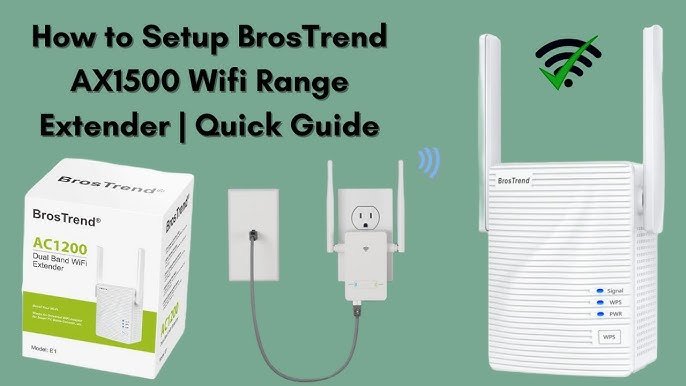
Are you struggling with weak WiFi signals in some parts of your home? You’re not alone.
Connecting a dual band WiFi extender to your mesh system can be the simple solution you need to boost your internet coverage and speed. Imagine having strong, reliable WiFi everywhere—no dead zones, no slowdowns. In this guide, you’ll learn exactly how to set up your dual band WiFi extender with your mesh network, step by step.
By the end, you’ll enjoy seamless internet that keeps up with your streaming, gaming, and working needs. Ready to unlock the full power of your WiFi? Let’s get started.
Credit: inseego.com
Dual Band Wifi Extender Basics
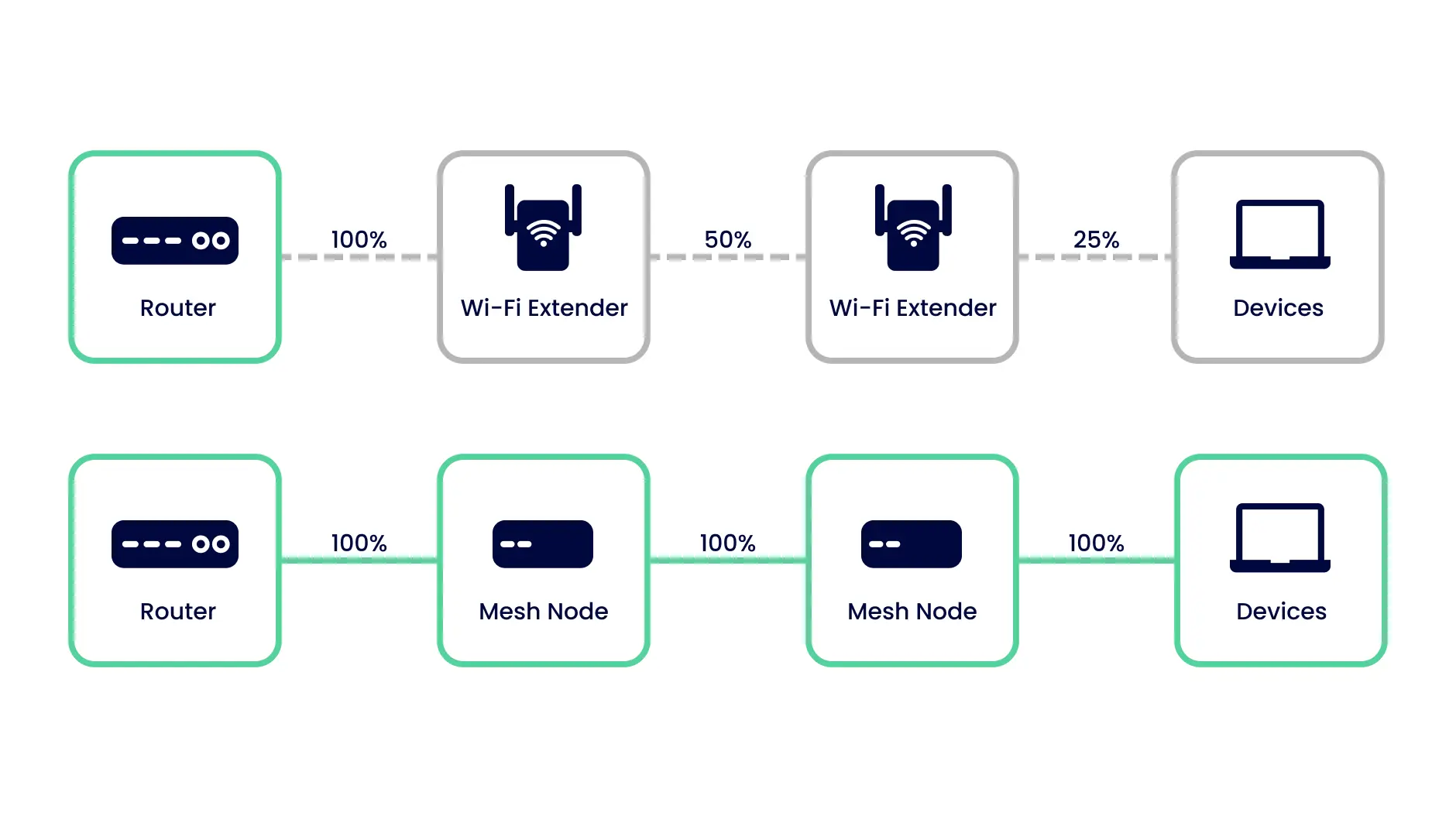
A dual band wifi extenderhelps boost your wifi signal on two frequencies: 2.4 GHz and 5 GHz. It connects to your main router or mesh system and spreads the internet signal farther. This helps cover areas with weak wifi.
Using a dual band extender means better speed and less interference. The 2.4 GHz band covers longer distances but can be slower. The 5 GHz band is faster but covers shorter distances. Together, they give a good balance.
- Stronger wifi signalin different rooms and floors.
- Less dead zones in your home or office.
- Supports more devices at once without slowing down.
- Works well with mesh systems to expand coverage.
Credit: www.youtube.com
Mesh System Essentials
A mesh networkis made of several devices called nodes. These nodes work together to spread a strong Wi-Fi signal across your home. Each node talks to others, creating a wide network that covers large areas without dead zones.
Mesh systems use a single network name (SSID) for all nodes. This means your device stays connected as you move around. No need to switch networks manually.
- Wide coverage:Covers large areas better than a single router.
- Easy setup:Simple to add more nodes to extend coverage.
- Stable connection:Nodes communicate to keep strong Wi-Fi signals.
- Single network name:Devices connect automatically to the best node.
- Better for many devices:Supports multiple users without slowing down.
Compatibility Check
Check if the dual band WiFi extendersupports the same frequency bandsas the mesh system. Most mesh systems work with 2.4 GHzand 5 GHzbands. The extender must match these to connect properly.
Look for compatibility with WiFi standards like 802.11acor 802.11ax. Both devices should use similar standards for best performance.
| Device | Frequency Bands | WiFi Standards |
|---|---|---|
| Mesh System | 2.4 GHz, 5 GHz | 802.11ac, 802.11ax |
| Dual Band Extender | 2.4 GHz, 5 GHz | 802.11ac, 802.11ax |
Matching these features helps avoid connection issues and improves network speed.
Preparation Steps
Place the extender where the WiFi signal is strong. Avoid walls or metal objects that block signals. The extender should be close enough to the mesh router to catch a good signal but far enough to extend coverage.
Power on both the mesh system and the dual band WiFi extender. Wait for the lights to show they are ready. Reset devices if needed by pressing the reset button for a few seconds. This clears old settings and prepares devices for connection.
Connecting Extender To Mesh
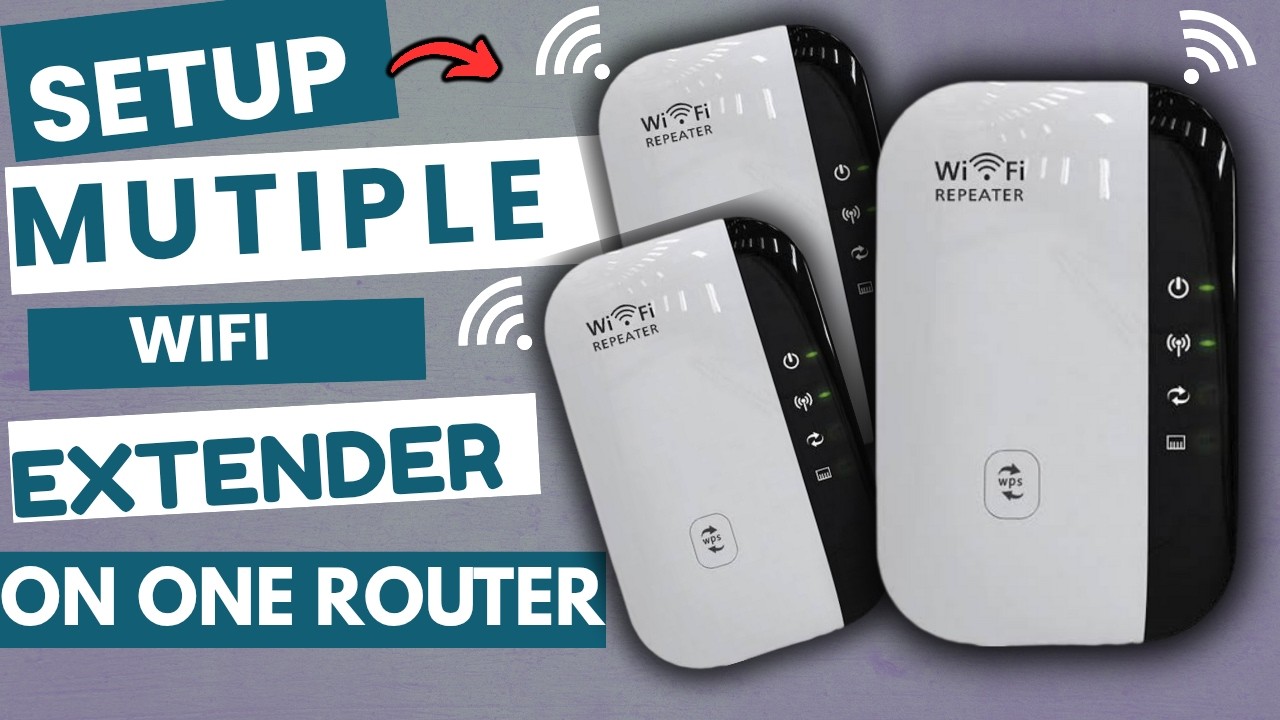
Press the WPS buttonon the mesh router first. Then, press the WPS button on the dual band extender within two minutes. The devices will connect automatically. This method is fast and easy. No need to enter passwords or IP addresses.
Open a web browser and type the extender’s IP addressin the address bar. Log in with the default username and password. Find the WiFi settingspage. Enter the mesh system’s network name (SSID) and password. Save the changes and wait for the extender to connect.
Download the extender’s mobile appfrom the app store. Open the app and follow the on-screen instructions to add the extender. Connect the extender to your mesh network by selecting the network name and entering the password. This method offers a guided and user-friendly setup.
Testing And Optimization
Check the signal strengthnear your extender. A weak signal means you should move it closer to the main router or mesh node. Strong signals help keep your internet fast and steady.
Try placing the extender in different spots. Avoid walls, metal objects, or appliances that block signals. A good spot is usually halfway between your router and the area needing better coverage.
| Firmware Updates | Why It Matters |
|---|---|
| Check for updates regularly | Improves speed and fixes bugs |
| Use the extender’s app or website | Makes updating easy and quick |
| Restart extender after updates | Ensures changes take effect |
Troubleshooting Tips
Common connection issuesinclude weak signals, device incompatibility, and incorrect settings. Sometimes, the extender may not connect to the mesh system due to IP conflicts or outdated firmware. Signal interference from walls or other devices can also cause problems.
Reset and reconfigure stepshelp solve many connection problems. Start by unplugging the extender and router for 30 seconds. Press the reset button on the extender for 10 seconds until the lights blink. Reconnect the extender to the mesh system using the app or web interface. Enter the correct WiFi name and password carefully. Make sure both devices are on the same frequency band, either 2.4 GHz or 5 GHz.
- Place extender near the router during setup
- Update firmware on both devices
- Check for correct network settings
- Restart devices if connection fails

Credit: www.youtube.com
Frequently Asked Questions
How Do I Connect A Dual Band Wifi Extender To Mesh?
To connect, place the extender near the mesh router. Use the extender’s WPS button or web interface to link it. Select the mesh network’s SSID for both 2. 4GHz and 5GHz bands. This boosts mesh coverage seamlessly.
Can A Dual Band Extender Improve Mesh Wifi Speed?
Yes, a dual band extender enhances mesh speed by reducing congestion. It uses separate bands for backhaul and device connections. This setup maintains high performance and wider coverage within your mesh system.
Where Should I Place My Dual Band Extender In A Mesh?
Place the extender midway between the mesh router and dead zones. Avoid walls or obstructions that block signals. Proper placement ensures strong, stable connections throughout your home.
Is Dual Band Extender Compatible With All Mesh Systems?
Most dual band extenders work with common mesh systems. Check compatibility on the extender’s specifications. Ensure both devices support similar WiFi standards for smooth integration.
Conclusion
Connecting a dual band WiFi extender to a mesh system boosts connectivity. It ensures a seamless internet experience throughout your home. Follow the steps carefully for a stable connection. Check your extender and mesh compatibility. Always update to the latest firmware.
Keep your devices in optimal locations. This enhances signal strength and coverage. Troubleshoot issues promptly to avoid disruptions. With practice, the process becomes easier. Reliable internet can improve your daily activities. Enjoy smoother video calls and faster downloads. Your connected home awaits a better online experience.


