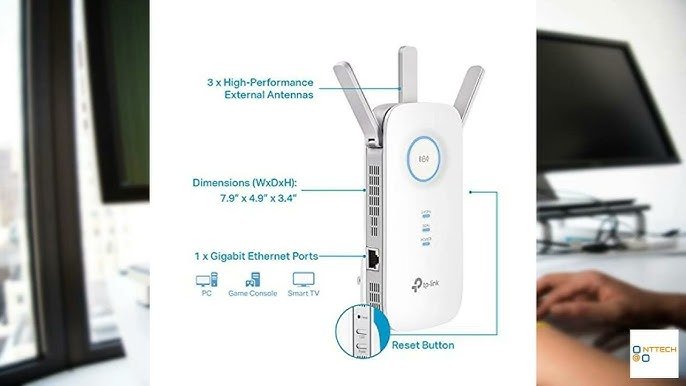
Are you tired of lagging game sessions or interrupted downloads just when you’re about to hit that crucial level? Connecting your gaming console to a dual-band WiFi extender might just be the game-changer you need.
Imagine seamless streaming, faster loading times, and an overall enhanced gaming experience. This guide will walk you through the simple steps to ensure your console is connected to the strongest signal available. You’ll learn how to maximize your gaming setup with ease, all while keeping frustration at bay.
Ready to unlock the full potential of your gaming sessions? Keep reading to discover how a dual-band WiFi extender can transform your gaming adventures.
Credit: www.wavlink.com
Benefits Of Using A Dual Band Wifi Extender
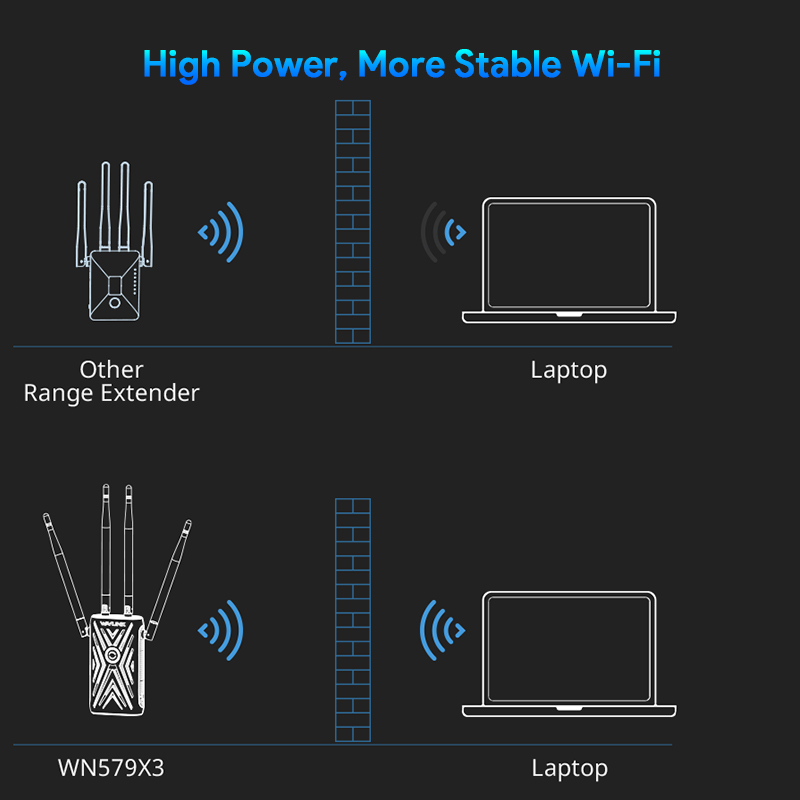
Dual band wifi extendersimprove your gaming experience by giving you stronger and faster internet. They send signals on two frequencies: 2.4 GHz and 5 GHz. The 2.4 GHz band reaches farther but is slower. The 5 GHz band is faster but covers less area.
Using both bands helps reduce lag and connection drops. This means games load quicker and play smoother. Also, these extenders can connect to many devices without slowing down your console.
- Better signal strengthin rooms far from the router
- Less interferencefrom other wireless devices
- More stableconnections for online gaming
- Easy setup with most gaming consoles
Check Your Console And Extender Compatibility
Check if your gaming console supports dual band WiFi. Most modern consoles work on both 2.4 GHz and 5 GHz bands. Your WiFi extender should also support these bands to connect well.
Look for the model numberon your console and extender. Visit their official websites to confirm compatibility. This helps avoid connection issues later.
Some older consoles may only connect to 2.4 GHz networks. Using a dual band extender means you can choose the best signal for smooth gaming. The 5 GHz band often gives faster speeds but shorter range.
| Device | Supported WiFi Bands | Notes |
|---|---|---|
| Gaming Console | 2.4 GHz / 5 GHz (depends on model) | Check console specs for band support |
| Dual Band WiFi Extender | 2.4 GHz and 5 GHz | Must support both for best performance |
Set Up Your Dual Band Wifi Extender
Place the dual band WiFi extenderwhere the signal is strong but not too close to the router. Avoid walls and large metal objects that block signals. A spot halfway between your router and gaming console works best.
Plug in the extender and turn it on. Wait for the power light to show it is ready. Use your phone or computer to find the extender’s WiFi network. Connect to it to start setup.
| Step | Action |
|---|---|
| 1 | Plug in the extender near the router for setup |
| 2 | Power on and wait for the ready light |
| 3 | Connect your device to the extender’s WiFi network |
| 4 | Open a browser and enter the setup address |
| 5 | Follow on-screen steps to link extender to your router |
| 6 | Move extender to the chosen spot for best coverage |
Credit: www.wavlink.com
Connect Your Console To The Extender
Start by opening the network settingson your gaming console. This is usually found in the settings or system menu. Look for options like Wi-Fior Internetsettings.
Select the dual-band WiFi extenderfrom the list of available networks. Dual-band extenders offer both 2.4 GHzand 5 GHzbands.
Choose the band that fits your needs:
- 2.4 GHzfor longer range but slower speeds.
- 5 GHzfor faster speeds but shorter range.
Enter the Wi-Fi passwordexactly as it is. Pay attention to capital letters and numbers. Confirm the connection to start using the extender’s network.
Test Your Connection And Performance
Test your connection speed and signal strength to ensure smooth gameplay. Check for any lag or interruptions after linking your console to the dual band WiFi extender. This helps confirm a stable and fast network for better gaming performance.
Running A Network Speed Test
Check your internet speed to see if it meets gaming needs. Use a trusted speed test site on your console or phone. Make sure the console connects to the extender’s WiFi network. Look for download and upload speeds above 20 Mbps for smooth gaming. Also, check the ping; it should be under 50 ms. A low ping means less delay during gameplay. Run the test a few times at different times of the day for best results.
Troubleshooting Common Issues
- Console won’t connect: Restart both console and extender.
- Slow speed: Move extender closer to console.
- Frequent disconnections: Check for WiFi interference from other devices.
- Wrong network: Confirm console uses the extender’s network, not the main router.
- Update firmware: Keep extender and console software up to date.
Tips To Improve Gaming Experience
Interferencefrom other devices can slow down your gaming connection. Keep the wifi extenderaway from microwaves, cordless phones, and Bluetooth devices. Place it in an open area to avoid walls and large metal objects blocking the signal. Choose a 5 GHz bandon your dual-band extender for less interference and better speed.
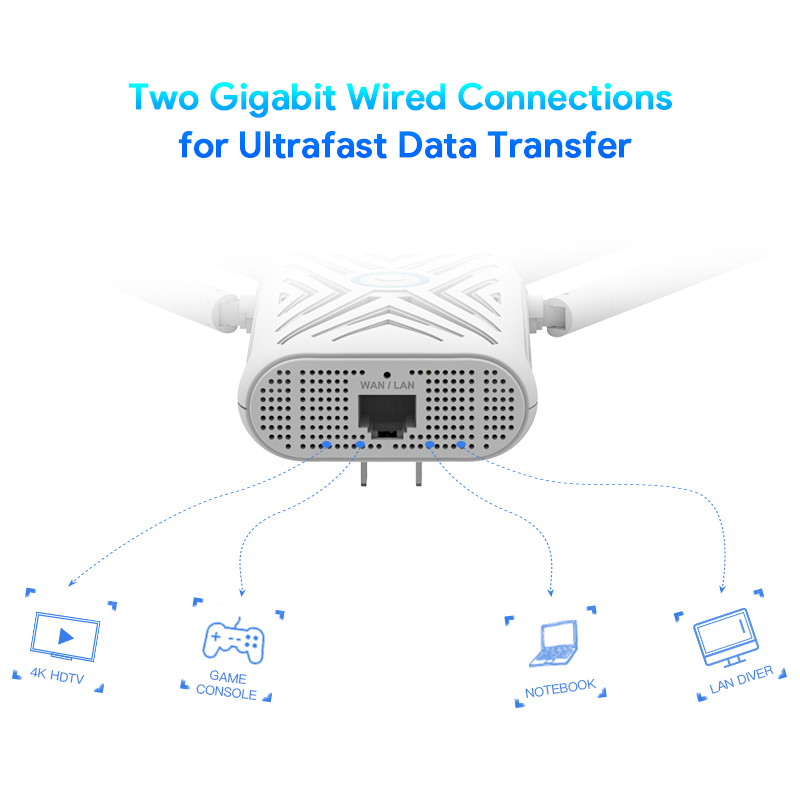
Using a wired connectionlike an Ethernet cable gives the best gaming experience. It offers a stable and fastconnection with less lag. If your console supports it, connect directly to the extender or router with a cable. This helps avoid wifi signal drops and keeps your game smooth.

Credit: m.tvcmall.com
Frequently Asked Questions
How Do I Connect My Console To A Dual Band Wifi Extender?
First, power on the WiFi extender and connect it to your router. Then, access your console’s network settings, find the extender’s WiFi name (SSID), and connect using the extender’s password. This boosts your console’s internet speed and reduces lag during gaming.
Why Use A Dual Band Wifi Extender For Gaming?
Dual band extenders provide both 2. 4 GHz and 5 GHz bands. This helps reduce interference and offers faster speeds. For gaming consoles, the 5 GHz band ensures a stable and low-latency connection, improving your overall gaming experience.
Can All Gaming Consoles Connect To Dual Band Extenders?
Most modern gaming consoles like Xbox, PlayStation, and Nintendo Switch support dual band WiFi. Check your console’s network settings to see available bands. If supported, connecting to a dual band extender enhances your connection quality and gaming performance.
How To Improve Wifi Extender Signal For Gaming Consoles?
Place the extender between your router and console to ensure a strong signal. Avoid obstacles like walls and electronic devices. Use the 5 GHz band for faster speeds and less interference, enhancing your gaming console’s network stability.
Conclusion
Connecting your gaming console to a dual band WiFi extender improves your internet signal. This helps reduce lag and buffering during play. The process is simple and quick to follow. Just ensure your extender is properly set up and within range.
Check your console’s network settings carefully. A strong connection makes your gaming experience more fun. Keep your devices updated for the best results. Enjoy smoother gameplay with fewer interruptions. Gaming online becomes easier and more stable. Your setup now supports faster speeds and better coverage.
Give it a try and see the difference.


