Are you ready to take your gaming experience to the next level? Connecting your gaming console to a gaming modem can make all the difference in speed, stability, and overall performance.
But if you’re not sure where to start or worried about complicated setups, don’t worry—you’re in the right place. This guide will walk you through each step, making it easy for you to get the fastest, most reliable connection possible.
Stick with me, and you’ll be dominating online games with minimal lag in no time!

Credit: www.amazon.com
Choosing The Right Gaming Modem
Choosing the right gaming modem is key for a smooth online gaming experience. A good modem can reduce lag and improve connection stability. It also handles high-speed internet efficiently, which many games require. Picking the right one means your console stays connected without interruptions.
Key Features To Look For
- Low latency and fast data transfer speeds
- Quality of Service (QoS) settings to prioritize gaming traffic
- Strong security features to protect your network
- Compatibility with high-speed internet plans
- Easy setup and management options
Compatibility With Consoles
Not all modems work well with every gaming console. Check if the modem supports your console’s network requirements. Most modern modems support Xbox, PlayStation, and Nintendo Switch. Verify if the modem handles IPv6, as many consoles use it for better connectivity. Also, ensure the modem supports both wired Ethernet and Wi-Fi connections.
Recommended Models
| Model | Speed | Best For |
|---|---|---|
| NETGEAR Nighthawk CM1200 | Up to 2 Gbps | High-speed fiber and cable plans |
| ARRIS SURFboard SB8200 | Up to 1 Gbps | Reliable cable internet |
| Motorola MB7621 | Up to 650 Mbps | Affordable and solid performance |
Preparing Your Console And Modem
Getting your gaming console and modem ready is a crucial first step before diving into the setup process. Proper preparation ensures a smooth connection and helps avoid common issues like lag or dropped signals. Taking a few moments now can save you hours of frustration later.
Checking Firmware Updates
Firmware updates improve your console’s and modem’s performance and security. Check the settings menu on your gaming console to see if any updates are available. Similarly, log into your modem’s admin panel or use its companion app to verify it’s running the latest firmware.
Outdated firmware can cause connectivity problems or slow speeds that impact your gaming experience. Have you ever noticed lag spikes only to find your modem needed a quick update? Keeping everything current is a simple step that makes a big difference.
Gathering Necessary Cables
Before you start connecting, make sure you have all the right cables on hand. Most gaming consoles require an Ethernet cable for the best connection to your modem, though some setups might use a USB or HDMI cable depending on your hardware.
Check the length of your cables too—nothing kills game night faster than a cable that’s too short to reach your console comfortably. Have you ever scrambled to buy a last-minute cable? Avoid that by preparing your cables ahead of time.
Setting Up Your Gaming Space
Think about where your console and modem will live. Place your modem in an open area with good ventilation to prevent overheating. Your console should be near the TV or monitor and close enough to the modem if you’re using a wired connection.
Organizing your space reduces clutter and makes troubleshooting easier. Do you know where you’ll place your console and modem for the clearest signal and easiest access? Setting this up now saves you headaches later.
Wired Connection Setup
A wired connection setup offers the most stable and fastest way to link your gaming console to your gaming modem. It minimizes lag and packet loss, which can ruin intense gaming moments. Setting it up properly ensures you get the most reliable performance out of your network.
Connecting Via Ethernet Cable
Start by plugging one end of a high-quality Ethernet cable into your gaming console’s Ethernet port. Connect the other end directly to an available LAN port on your gaming modem.
Make sure the cable fits snugly and isn’t damaged. A loose or faulty cable can cause connection drops or slow speeds.
Think about the cable length too—too long can affect speed, and too short might limit your console placement.
Configuring Network Settings
Once connected, power on your console and go to the network settings menu. Select the wired connection option to begin setup.
You might need to enter specific details like IP address or DNS settings. Most modems support automatic configuration via DHCP, so try that first.
If your gaming modem has Quality of Service (QoS) settings, prioritize your console’s connection to reduce lag.
Testing Connection Speed
After setup, test your connection speed directly from the console’s network menu. This gives you an idea of download and upload speeds as well as latency.
Run multiple tests at different times of the day to spot any fluctuations. If speeds are low, check your cable or modem settings again.
Ask yourself: Is the speed consistent enough for smooth gameplay? If not, adjusting modem settings or upgrading your cable might help.

Credit: www.amazon.com
Wireless Connection Setup
Setting up a wireless connection between your gaming console and modem lets you enjoy games without cables. A strong Wi-Fi link ensures smooth gameplay and faster downloads. Follow simple steps to connect and optimize your wireless setup.
Connecting To Wi-fi Network
Turn on your gaming console and go to the network settings menu. Select the option to connect to a wireless network. A list of available Wi-Fi networks will appear. Find your modem’s network name (SSID) and select it. Enter the Wi-Fi password carefully. Confirm the connection and wait for the console to connect. Check the connection status to make sure it is successful.
Optimizing Signal Strength
Place your modem in an open space, away from walls and metal objects. Keep the console near the modem for a stronger signal. Avoid placing the modem on the floor or inside cabinets. Use a Wi-Fi extender if the signal is weak in your gaming area. Change the modem’s channel to reduce interference from other networks. Regularly update your modem’s firmware to improve performance.
Dealing With Common Wi-fi Issues
Slow or unstable Wi-Fi can ruin gaming sessions. Restart your modem and console to refresh the connection. Check for network congestion by limiting other devices using Wi-Fi. Move devices causing interference, like microwaves or cordless phones, away from the modem. Reset your console’s network settings if connection problems persist. Contact your internet service provider for help if issues continue.
Troubleshooting Connection Problems
Encountering connection problems between your gaming console and gaming modem can be frustrating, especially when you’re ready to dive into your favorite game. Troubleshooting these issues doesn’t have to be complicated. Understanding where the problem lies can save you time and get you back to gaming faster.
Resetting Modem And Console
Sometimes, a simple reset works wonders. Power off both your gaming console and modem completely. Wait about 30 seconds before turning them back on to clear any temporary glitches.
Resetting helps refresh the network connection and can resolve many common issues. Have you noticed how your console sometimes struggles after long gaming sessions? A quick restart often fixes that.
Checking For Interference
Wireless interference can cause slow or dropped connections. Check if other devices like microwaves, cordless phones, or even nearby Wi-Fi networks might be interfering with your signal.
Try moving your modem closer to your console or use a wired Ethernet connection to avoid interruptions. Have you positioned your modem in a corner or behind furniture? That could block the signal more than you think.
Contacting Support
If resetting and interference checks don’t solve the problem, reaching out to customer support is a smart next step. Provide them with details about your modem model, console type, and the exact issue you’re facing.
Support teams have tools to diagnose deeper network problems that aren’t visible on your end. Don’t hesitate to ask for guidance—they’re there to help you get back online quickly.
Credit: www.netgear.com
Improving Gaming Performance
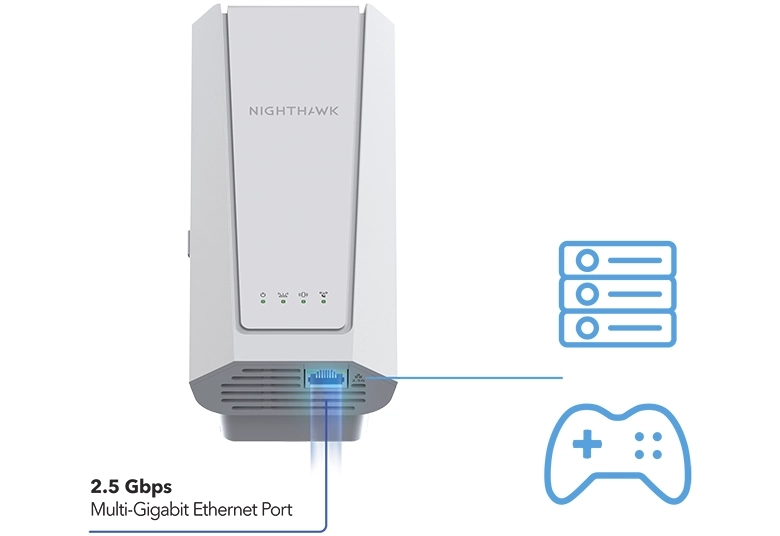
Improving gaming performance depends greatly on how your gaming console interacts with your modem. A stable and fast connection reduces interruptions and enhances gameplay. Tuning your modem settings helps optimize the network specifically for gaming needs. Small changes can lead to smoother and faster game sessions.
Prioritizing Gaming Traffic
Prioritizing gaming traffic ensures your console gets the best bandwidth. This prevents slowdowns caused by other devices using the network. Many modern gaming modems let you assign higher priority to your console’s IP address. This way, games load faster and stay responsive, even with other internet activities ongoing.
Using Quality Of Service (qos)
Quality of Service (QoS) manages how data flows through your network. It allocates more resources to important tasks like gaming. Setting QoS rules on your modem helps control traffic and reduce congestion. This makes your online games less prone to interruptions and lag spikes.
Reducing Latency And Lag
Latency and lag disrupt gaming by causing delays between actions and responses. Using a wired Ethernet connection reduces latency compared to Wi-Fi. Also, placing your modem closer to your console cuts down signal travel time. Regular modem firmware updates improve connection stability and lower lag.
Frequently Asked Questions
How Do I Connect My Gaming Console To A Gaming Modem?
To connect, use an Ethernet cable from your modem to the console’s LAN port. Alternatively, connect via Wi-Fi through the console’s network settings for wireless play.
Can A Gaming Modem Improve My Console’s Internet Speed?
Yes, gaming modems reduce lag and improve download speeds. They prioritize gaming traffic, ensuring smoother online gameplay and faster response times.
What Is The Best Way To Reduce Lag On Gaming Consoles?
Use a wired Ethernet connection to your gaming modem. This provides a stable, low-latency connection compared to Wi-Fi, minimizing lag and interruptions during gameplay.
Do I Need Special Settings On My Modem For Gaming?
Enable Quality of Service (QoS) on your modem to prioritize gaming traffic. This helps reduce lag and improves overall gaming performance for your console.
Conclusion
Connecting your gaming console to a modem is simple. Follow the steps carefully. Secure connections mean better gaming experiences. Ensure all cables are plugged in tightly. Adjust settings on your console for optimal performance. Check for firmware updates regularly. They can improve connectivity.
Troubleshoot connection issues by restarting devices. This simple step often resolves problems. Enjoy seamless gaming with a stable connection. Happy gaming!