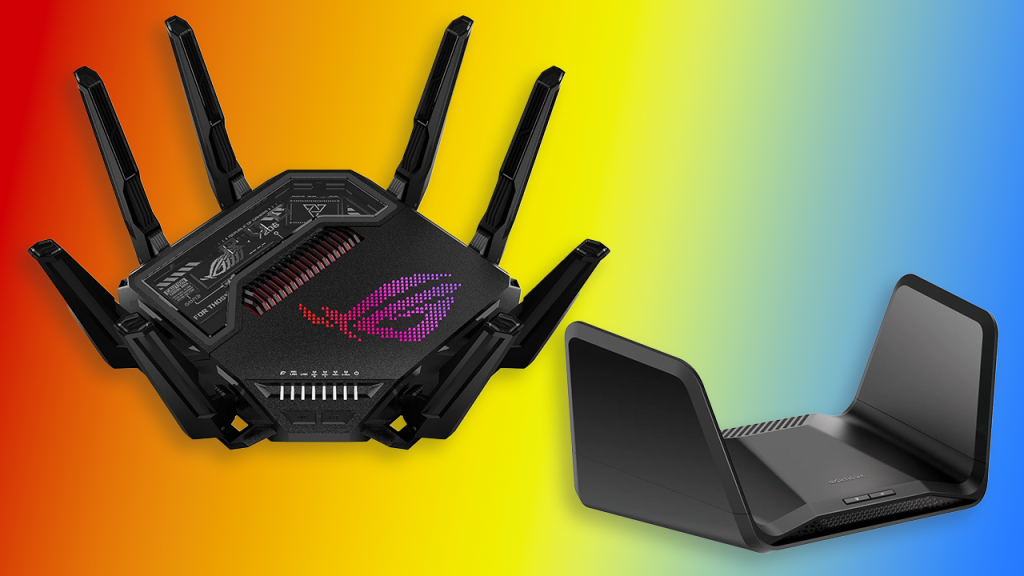
Are you ready to elevate your gaming experience by connecting multiple consoles to your gaming modem? Imagine the thrill of seamless transitions between your favorite gaming systems, all while maintaining top-notch performance.
You’re not alone in wanting to optimize your gaming setup. Whether you’re a seasoned gamer looking to enhance your current arrangement or a newcomer eager to dive into the world of gaming, we’ve got you covered. By the end of this guide, you’ll have the insights and tools needed to effortlessly connect multiple gaming consoles to your modem.
Let’s unlock the potential of your gaming environment and ensure you never miss a beat. Ready to level up your gaming space? Keep reading, and discover how to create the ultimate gaming hub.

Credit: www.youtube.com
Choosing The Right Gaming Modem
Choosing the right gaming modem is crucial when you want to connect multiple gaming consoles without lag or interruptions. The modem you pick impacts your gaming experience, especially if several devices are online at once. It’s not just about speed; it’s about stability and compatibility too.
Key Features To Look For
Look for a modem that supports high-speed internet plans to prevent bottlenecks during peak gaming sessions. Prioritize models with Quality of Service (QoS) settings, which allow you to prioritize gaming traffic over other uses. Low latency is essential; some modems advertise gaming-specific optimizations that reduce lag.
Consider the number of Ethernet ports available. More ports mean you can hardwire multiple consoles for a more stable connection. Dual-band or tri-band Wi-Fi support also helps if you want to connect wirelessly while avoiding interference.
Compatibility With Multiple Consoles
Not all gaming modems work seamlessly with every console brand. Check if the modem supports the networking standards used by your Xbox, PlayStation, or Nintendo Switch. Some modems come with pre-set profiles or firmware that optimize performance for specific consoles.
Think about future-proofing. Will your modem handle new console updates or additional devices you might add later? A modem compatible with universal plug-and-play (UPnP) features simplifies setting up multiple consoles simultaneously without manual configuration.
Have you checked the user reviews for real-life experiences connecting multiple consoles? Sometimes specs don’t tell the whole story, but other gamers’ feedback can highlight hidden compatibility issues or unexpected benefits.
Setting Up Your Network
Setting up your network is the key to ensuring smooth gameplay across multiple consoles. A well-organized network minimizes lag and keeps your gaming sessions uninterrupted. Before connecting several devices, focus on building a stable and efficient connection that suits your gaming setup.
Wired Vs Wireless Connections
Choosing between wired and wireless connections impacts your gaming experience significantly. Wired connections use Ethernet cables to link your consoles directly to the modem, offering lower latency and more stable speeds.
Wireless connections provide flexibility by eliminating cables, allowing you to place consoles anywhere within range. However, Wi-Fi can face interference from walls, other devices, or distance, which might cause slower speeds or lag.
If you’re serious about competitive gaming, consider using wired connections for at least one or two consoles. You can still use Wi-Fi for less demanding devices. How often do you experience lag spikes that could be fixed with a simple cable?
Optimizing Router Placement
The location of your gaming modem or router plays a crucial role in network performance. Place your router in a central, open area away from thick walls and metal objects to maximize signal strength.
Avoid putting the router near microwaves, cordless phones, or other electronics that can cause interference. Elevate your router on a shelf or table rather than on the floor for better coverage.
Think about where your consoles are located and aim to minimize obstacles between the router and devices. Have you checked if moving your router a few feet improves your connection quality?
Connecting Consoles Via Ethernet
Connecting gaming consoles via Ethernet offers a stable and fast network connection. It reduces lag and improves game performance. Using Ethernet cables ensures each console gets a direct link to the modem or router.
This setup is ideal for multiplayer gaming at home. It avoids wireless interference and provides a consistent speed. Multiple consoles can share the network without speed drops or interruptions.
Using A Network Switch
A network switch expands the number of Ethernet ports available. It connects multiple consoles to a single modem or router port. This device manages data traffic efficiently.
Simply plug the switch into your modem’s Ethernet port. Then connect each console to the switch with separate Ethernet cables. The switch directs data to the correct console quickly.
- Choose a switch with enough ports for all consoles.
- Use high-quality Ethernet cables for best performance.
- Place the switch near your gaming setup for easy cable management.
Benefits Of Wired Connections
Wired connections provide faster data transfer than Wi-Fi. They offer low latency, reducing delays during gameplay. This stability helps in competitive gaming and streaming.
Wired setups avoid common wireless issues like signal drop and interference. They maintain steady speeds even with multiple devices connected. This makes gaming smoother and more enjoyable.
- More reliable connection during peak internet usage.
- Consistent speed supports high-quality game streaming.
- Less chance of disconnects or network lag.

Credit: hulumarket.com.et
Connecting Consoles Via Wi-fi
Connecting multiple gaming consoles to your gaming modem via Wi-Fi can free you from messy cables and give you more flexibility in where you play. However, a smooth wireless connection depends on how well you set up your network. Let’s dive into key steps to make sure your consoles stay connected with minimal lag and interruptions.
Configuring Ssid And Password
Your SSID is your Wi-Fi network’s name, and it’s what your consoles will look for when connecting. Choose a clear, unique SSID that’s easy to recognize among other networks in your area.
Setting a strong password is crucial. Use a combination of letters, numbers, and symbols to keep your network secure from unwanted access. Remember, a secure network means less interference and better performance for your gaming sessions.
Have you ever struggled to find your Wi-Fi because your network name blends in with others? Changing your SSID to something memorable can save you time and confusion when connecting multiple devices.
Reducing Wireless Interference
Wireless interference can cause lag, disconnections, and slow speeds. To reduce interference, place your modem in a central, elevated spot away from thick walls, microwaves, and cordless phones.
Using the 5 GHz band rather than 2.4 GHz can also help since it’s less crowded and offers faster speeds over short distances. Check if your gaming modem supports dual-band Wi-Fi and connect your consoles to the 5 GHz network when possible.
Think about your environment: are there many Wi-Fi networks nearby or devices that might interrupt your signal? Simple adjustments like repositioning your modem or switching channels can improve your gaming experience significantly.
Managing Network Traffic
Managing network traffic is key to a smooth gaming experience on multiple consoles. It helps avoid lag and slowdowns during gameplay. Balancing bandwidth among devices ensures each console gets enough speed. This balance reduces interruptions and keeps connections stable.
Proper traffic management lets you control which devices get priority. It also helps maintain low latency, crucial for fast online games. Setting up the right settings on your gaming modem improves overall performance. Below are ways to manage network traffic effectively for gaming consoles.
Setting Up Quality Of Service (qos)
Quality of Service (QoS) lets your modem prioritize gaming traffic. It assigns higher priority to gaming packets over other data. This reduces lag by giving games faster access to bandwidth.
- Access your modem’s admin page using its IP address.
- Find the QoS settings section in the menu.
- Enable QoS and add your gaming consoles to the priority list.
- Save changes and restart your modem if needed.
QoS helps prevent slowdowns caused by downloads or video streaming on other devices. It makes sure gaming data moves quickly and smoothly.
Prioritizing Gaming Devices
Prioritizing gaming devices means giving them preferred access to the network. This avoids delays when multiple devices use the internet at once.
- Identify your consoles’ MAC addresses or IP addresses.
- Use your modem’s device management settings to assign high priority.
- Limit bandwidth for non-gaming devices if possible.
- Check priority settings regularly to maintain performance.
Prioritizing gaming consoles keeps your gameplay stable, even during heavy network use. It ensures your devices get the best possible connection quality.
Troubleshooting Common Issues
Troubleshooting common issues helps keep your gaming experience smooth. Multiple consoles on one modem can cause problems like lag and connection drops. Knowing how to fix these issues saves time and frustration. Start by identifying the cause of the problem. Then, apply simple fixes for better connectivity.
Dealing With Lag And Latency
Lag makes games slow and unresponsive. It happens when data takes too long to travel between your console and the server. Reduce lag by:
- Connecting consoles via Ethernet cables for stable signals.
- Closing other apps or downloads using bandwidth.
- Setting Quality of Service (QoS) on your modem to prioritize gaming traffic.
- Restarting your modem and consoles to clear temporary glitches.
- Checking for firmware updates on your modem to improve performance.
Lowering lag improves game responsiveness and enjoyment.
Fixing Connection Drops
Connection drops interrupt gameplay and cause frustration. Causes include weak signals, modem overload, or network interference. Fix drops by:
- Placing your modem in a central, open area away from walls and electronics.
- Limiting the number of devices connected to your network at once.
- Using wired connections instead of Wi-Fi for consoles.
- Changing Wi-Fi channels to avoid interference from other networks.
- Resetting the modem to refresh the network connection.
Stable connections keep games running without interruptions.
Enhancing Gaming Experience
Connecting multiple gaming consoles to a gaming modem can boost your playtime quality. A smooth connection reduces lag and keeps the action fast. Simple tweaks help create a better gaming atmosphere for everyone.
Firmware Updates For Modems
Modem firmware controls how your device handles internet data. Updated firmware fixes bugs and improves speed. Check your modem’s brand website for the latest updates. Installing updates often enhances connection stability. This helps keep your gaming sessions free from interruptions. Most modems notify users when updates are ready. Follow clear steps to update safely and quickly.
Using Gaming Vpns
Gaming VPNs protect your data and can reduce lag. They create a direct path between your consoles and game servers. This can lower ping times and improve response. Choose a VPN with servers near your location. Avoid free VPNs that slow down your connection. A reliable gaming VPN keeps your gameplay smooth and private. Test different servers to find the fastest one for your setup.

Credit: www.amazon.com
Frequently Asked Questions
How Many Gaming Consoles Can A Modem Support?
Most gaming modems support multiple consoles via Ethernet or Wi-Fi. Usually, up to 4-8 devices connect simultaneously without lag. Check your modem’s specifications for exact limits to ensure smooth gameplay.
Can I Use A Switch To Connect Multiple Consoles?
Yes, a network switch expands Ethernet ports from your modem or router. It allows multiple consoles to connect via wired connections, reducing latency and improving stability during online gaming sessions.
Does Connecting Multiple Consoles Affect Internet Speed?
Yes, multiple consoles share your internet bandwidth. Heavy usage on all devices can reduce speeds and cause lag. Ensure you have a high-speed plan and consider Quality of Service (QoS) settings to prioritize gaming traffic.
What Is The Best Setup For Low-latency Gaming?
Use wired Ethernet connections for each console to minimize latency. Connect through a high-quality gaming modem and switch. Avoid Wi-Fi for critical gaming to prevent interference and lag spikes.
Conclusion
Connecting multiple gaming consoles to your gaming modem is simple and effective. Use wired or wireless connections based on your setup. Ensure each console has a stable internet link for smooth gameplay. Adjust settings on your modem to avoid connection issues.
Test each console after setup to confirm they work well. This way, everyone can enjoy online games without lag. Keep your modem firmware updated for better performance. A good connection means better gaming fun for all players in your home.


