Are you struggling with weak WiFi signals outside your home or office? Connecting an outdoor WiFi extender to your mobile hotspot could be the simple solution you need.
Imagine boosting your internet coverage so you can stream, work, or browse without interruptions—right where you want it. This guide will walk you through easy steps to set up your outdoor WiFi extender with your mobile hotspot, so you get fast and reliable internet wherever you go.
Keep reading to unlock a stronger, wider connection that fits your lifestyle perfectly.

Credit: www.youtube.com
Choosing The Right Extender
Outdoor wifi extenders come in different typesto suit various needs. Some are plug-inmodels that are easy to set up. Others are weatherproofand designed for harsh outdoor conditions. Choosing the right type depends on your location and how far you want to boost your signal.
Compatibility with mobile hotspots is key. Not all extenders work well with every hotspot device. Check if the extender supports WiFi repeater modeor client mode. These modes help the extender connect directly to your mobile hotspot.
| Type of Extender | Best Use | Mobile Hotspot Compatibility |
|---|---|---|
| Plug-in Extenders | Easy setup, close to power source | Works if hotspot supports repeater mode |
| Weatherproof Extenders | Outdoor areas exposed to weather | Best if supports client mode |
| High-Gain Antenna Extenders | Long distance coverage | Depends on hotspot signal strength |

Credit: m.youtube.com
Preparing Your Mobile Hotspot
Check the signal strengthof your mobile hotspot first. It should be strong enough for the WiFi extender to catch. Move the hotspot to a place with fewer walls and less interference. A spot near a window or open area works best.
Adjust the hotspot settings to make the connection easier. Set the SSID (network name)to something simple and easy to find. Use WPA2 securityfor better protection. Make sure the hotspot’s passwordis easy to enter into the extender.
- Turn off hotspot power saving mode to keep it active.
- Choose a frequency band (2.4 GHz is better for range).
- Check if the hotspot allows multiple device connections.
Setting Up The Extender
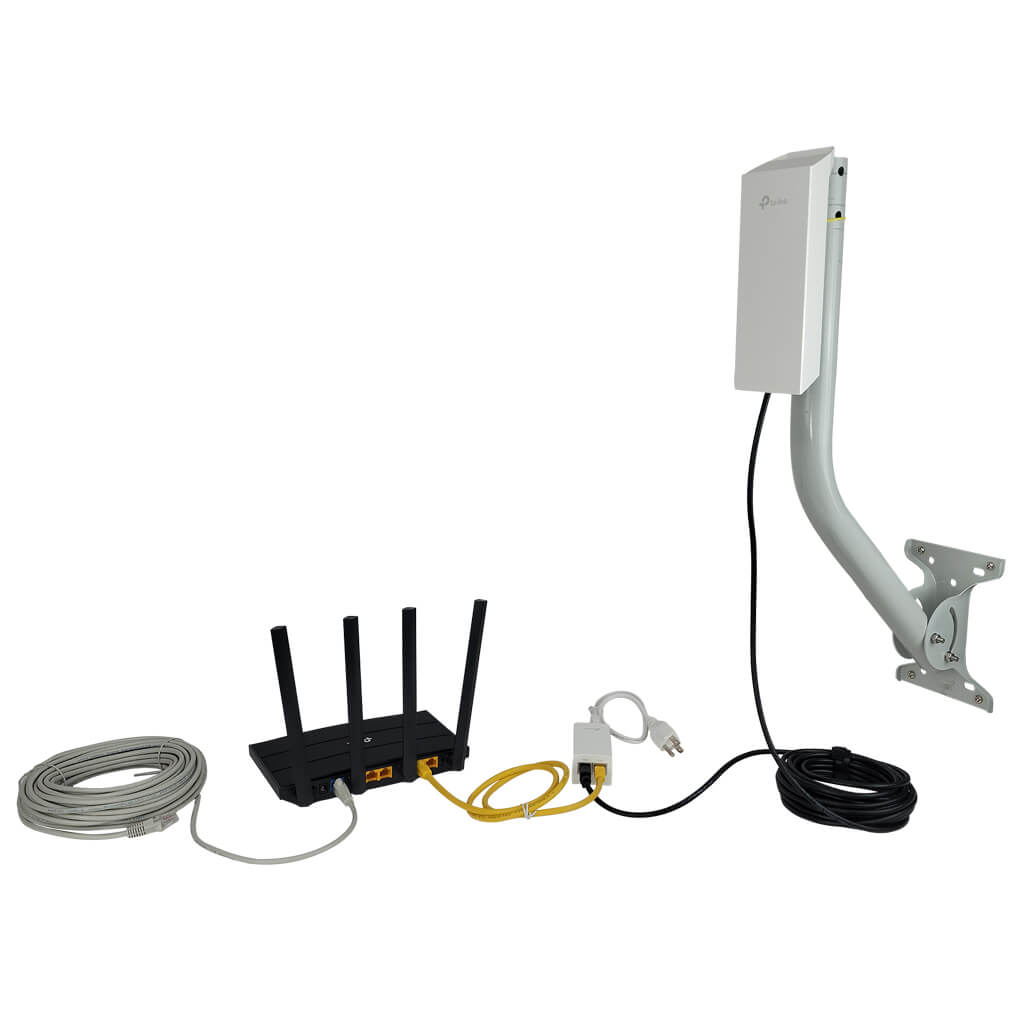
Plug the outdoor WiFi extender into a power source. Wait for the lights to turn on. This shows the device is ready. Use your phone or computer to connect to the extender’s network. Open the extender’s setup page in a browser. Enter the default username and password. Follow the instructions to link the extender to your mobile hotspot. This creates a strong connection between devices.
Choose a spot outside that gets good mobile signal. Avoid places with thick walls or metal objects. Keep the extender away from direct sunlight and rain. A higher position, like a wall or pole, works well. This helps the extender spread the WiFi signal far and wide.
Connecting Extender To Mobile Hotspot
Start by connecting your device to the extender’s Wi-Fi network. Open a web browser and enter the extender’s IP address in the address bar. This will open the setup interface where you can configure settings.
Find the list of available Wi-Fi networks. Select the name of your mobile hotspotfrom the list. Make sure the hotspot is active and within range for a strong signal.
Enter the hotspot’s passwordcarefully in the password field. Double-check for any typos to avoid connection errors. Save the settings and wait for the extender to connect to the hotspot.
Testing And Troubleshooting
Check the signal strengthon your outdoor WiFi extender. It should show strong bars or a high percentage. Move the extender closer to your mobile hotspot if the signal is weak. This helps improve connection speed and stability.
Test the internet by opening a website or app on your device. If pages load slowly or not at all, the connection might be weak or unstable. Restart both the extender and the mobile hotspot to refresh the connection.
- Weak signal:Move extender closer to hotspot or remove obstacles.
- No connection:Re-enter hotspot password on extender.
- Slow speed:Limit number of devices connected to hotspot.
- Extender not showing:Reset extender to factory settings and try again.
Maximizing Wifi Performance
Keep the firmware updatedon your outdoor WiFi extender. This helps improve speedand security. Check the manufacturer’s website or app for updates. Updates fix bugs and add new features.
Use strong passwordsto protect your hotspot and extender. Avoid easy passwords like “123456” or “password.” Turn on encryption(WPA2 or WPA3) for better safety. Disable WPSif you don’t need it, as it can be less secure.
- Limit the number of devices connected to your hotspot.
- Too many devices may slow down your internet speed.
- Use the extender’s app or web page to see connected devices.
- Remove devices you don’t recognize or no longer need.
Credit: simplewifi.com
Frequently Asked Questions
How Do I Connect An Outdoor Wifi Extender To A Mobile Hotspot?
To connect, first enable your mobile hotspot and turn on the extender. Access the extender’s setup page via a browser. Select your mobile hotspot’s SSID and enter the password. Save settings and wait for the connection confirmation.
Can I Use Any Outdoor Wifi Extender With A Mobile Hotspot?
Most outdoor WiFi extenders support mobile hotspot connections if they have a wireless repeater mode. Check your extender’s specifications to ensure compatibility. Using a compatible extender ensures stable and improved WiFi coverage outdoors.
What Is The Best Placement For An Outdoor Wifi Extender?
Place the extender within the mobile hotspot’s signal range but close to the outdoor area needing coverage. Avoid obstructions like walls or metal objects. Proper placement maximizes signal strength and extends WiFi range effectively.
Why Isn’t My Outdoor Wifi Extender Connecting To The Hotspot?
Connection issues may arise from incorrect password input, weak hotspot signal, or incompatible devices. Restart both devices and check settings. Ensure the extender supports hotspot connections and is within range for reliable connectivity.
Conclusion
Connecting your outdoor WiFi extender to a mobile hotspot boosts connectivity. It’s a simple process. First, ensure your devices are compatible. Follow the setup instructions carefully. Ensure both devices are within range. A stable connection enhances internet access outdoors. Troubleshoot any issues promptly.
Regularly check your connection for consistency. This ensures optimal performance. Remember, a strong signal provides better browsing. Enjoy seamless internet access in your outdoor space. Your devices should now connect easily and efficiently. Happy browsing!


