Struggling with weak WiFi signals while lounging in your garden or working in your garage can be frustrating. You deserve seamless internet connectivity, not just indoors but outdoors as well.
That’s where an outdoor WiFi extender comes into play. But how do you connect this handy device to your PC? Imagine the freedom of browsing, streaming, or working from anywhere around your home without interruptions. This guide will walk you through the simple steps to set up your outdoor WiFi extender with your PC, ensuring you stay connected wherever you choose to be.
Let’s dive in and unlock the full potential of your internet connection.
Preparing Your Outdoor Wifi Extender
Choose a locationwith good signal from your main router. Avoid walls, trees, and metal objects that block WiFi signals. Place the extender where it can cover outdoor areas well.
Connect the extenderto a power source using the provided adapter. Wait until the power light turns on. This means the device is ready to use.
| Device | Compatibility Check |
|---|---|
| PC | Must support WiFi or Ethernet connection |
| Extender | Should match your router’s WiFi standard (e.g., 802.11n/ac) |
| Router | Check frequency bands (2.4GHz or 5GHz) supported |
Credit: www.wavlink.com
Connecting Extender To Router
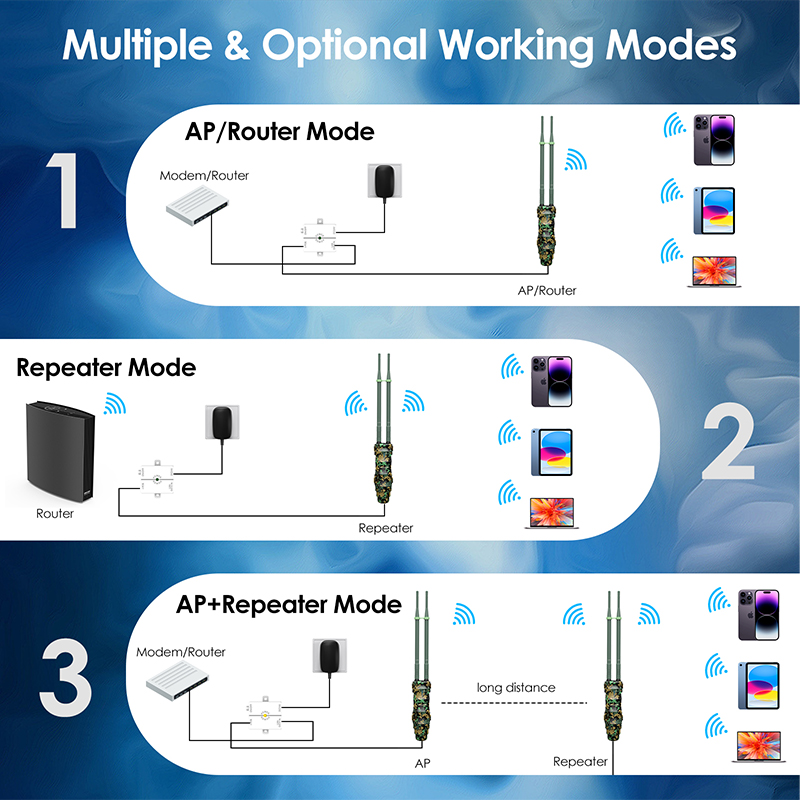
Press the WPS buttonon your router. Then, press the WPS buttonon the outdoor WiFi extender within two minutes. This will create a secure connectionbetween the router and extender. The extender’s light will blink and then stay solid when connected. This process is quick and does not need a password.
For manual setup, open a web browser on your PC. Type the extender’s IP address in the address bar. Enter the username and passwordfor the extender’s web interface. Navigate to the Wireless Settingssection. Choose your router’s WiFi network and enter its password. Save the changes and wait for the extender to connect. This method gives more control over settings but takes longer.
Linking Extender To Your Pc
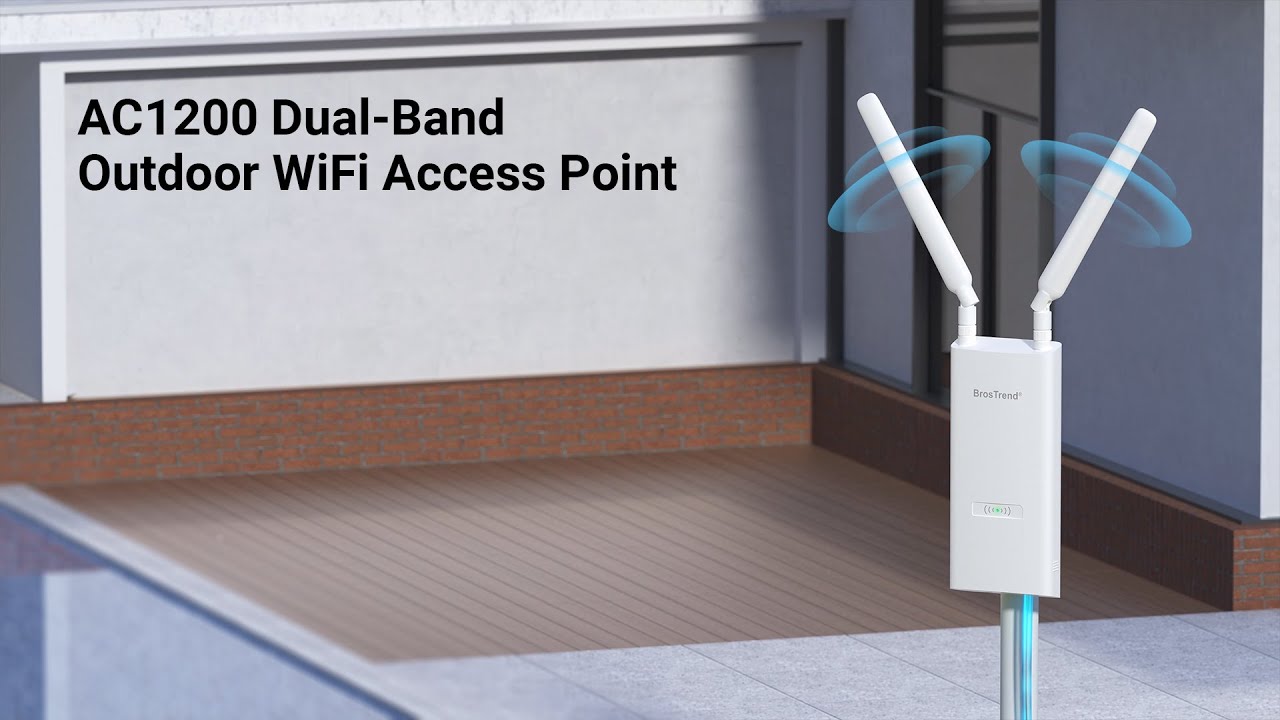
Use an Ethernet cableto link the outdoor wifi extender to your PC. Plug one end into the extender’s Ethernet port. Connect the other end to your PC’s Ethernet port. This gives a stable and fast connection. The PC will detect the extender as a wired network. No extra setup is usually needed.
To connect via wifi network, turn on your PC’s wifi. Find the extender’s wifi name in the list. Select it and enter the password shown on the extender or manual. Your PC will join the extender’s wifi network. This option works well if you want less cable clutter.
Credit: www.youtube.com
Configuring Network Settings On Pc
Open the Control Panelon your PC and select Network and Internet. Then, click on Network and Sharing Center. Choose Change adapter settingsfrom the left menu. Right-click on your network adapter and select Properties.
Scroll to find Internet Protocol Version 4 (TCP/IPv4). Click on it, then press Properties. To set a static IP address, select Use the following IP address. Enter the IP address, Subnet mask, and Default gateway provided by your WiFi extender’s manual.
Set the Preferred DNS serverto match your network or use a public DNS like 8.8.8.8. Click OKto save changes. Restart your network adapter if needed to apply settings. This helps your PC connect directly to the outdoor WiFi extender.
Testing The Connection
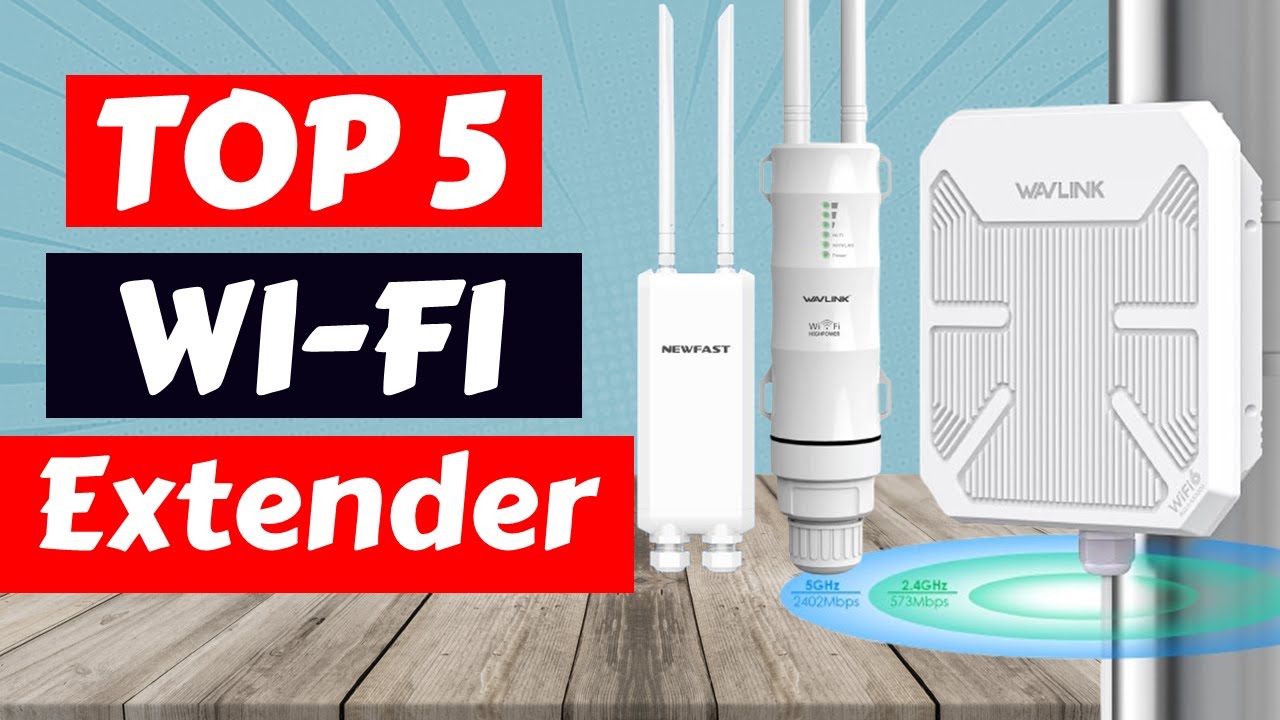
Check the signal strengthon your PC to ensure a good connection. Open the Wi-Fi settings and look for the extender’s network. A strong signal usually shows three or more bars. If the signal is weak, try moving your PC or the extender closer.
Run speed teststo check the internet quality. Use websites like Speedtest.net to measure download and upload speeds. Compare these speeds with your main router’s to see if the extender works well.
- Ensure your PC is connected to the extender’s Wi-Fi network.
- Check signal bars in network settings.
- Run a speed test online.
- Note download and upload speeds.
- Compare speeds to your main router’s connection.
Credit: www.youtube.com
Troubleshooting Common Issues
Extender Not Connecting to Router:Check if the extender is within the router’s range. Restart both devices. Confirm the extender’s network name matches the router’s SSID. Use the correct password for connection. Update firmware if needed.
PC Unable to Detect Extender:Make sure the PC’s Wi-Fi is turned on. Refresh the network list. Move closer to the extender for a stronger signal. Disable any VPNs or firewalls temporarily. Restart the PC if detection fails.
Slow Internet Speeds:Verify the extender is not too far from the router. Reduce obstacles like walls or metal objects. Limit the number of connected devices. Check for background downloads or updates. Reset the extender to improve speed.
Maintaining Your Outdoor Wifi Extender
Keeping your outdoor WiFi extenderupdated is very important. Firmware updates fix bugs and improve performance. Check the extender’s website or app often for new updates. Install updates quickly to keep the device working well.
Protect the extender from rain, snow, and sun. Use a waterproof cover or place it under a roof. Make sure it has good ventilation to avoid overheating. Avoid placing it near strong winds or direct sunlight.
Frequently Asked Questions
How Do I Connect An Outdoor Wifi Extender To A Pc?
To connect, power on your extender and link it to your PC via Ethernet or WiFi. Access its setup page to configure settings. Follow the extender’s manual for specific instructions. Ensure your PC detects the extender’s network for a stable connection.
Can I Use Ethernet Cable To Connect Extender To Pc?
Yes, using an Ethernet cable ensures a stable, fast connection between your extender and PC. Simply plug one end into the extender’s LAN port and the other into your PC’s Ethernet port. This method reduces interference and improves performance.
What Is The Best Wifi Extender Placement For Outdoor Use?
Place the extender within your router’s range but close to the outdoor area needing coverage. Avoid physical obstructions like walls or metal objects. Optimal placement ensures strong signal reception and effective extension to your PC.
How Do I Troubleshoot Wifi Extender Connection Issues?
Restart both your extender and PC. Check cables and wireless settings. Update extender firmware if needed. Ensure your PC’s network adapter is enabled. Reset the extender to factory settings if problems persist.
Conclusion
Connecting your outdoor WiFi extender to a PC is easy and useful. It helps improve your internet signal outside your home. Follow the steps carefully to avoid common mistakes. Check your connections and settings if the extender does not work at first.
A strong WiFi signal means better browsing, streaming, and gaming outside. Keep your devices updated for the best performance. Enjoy a wider internet range with your outdoor WiFi extender and stay connected wherever you go.


