Are you tired of dead zones and slow internet in parts of your home? Expanding your mesh WiFi coverage doesn’t have to break the bank.
Imagine streaming, gaming, or working smoothly from every corner without frustration. You’ll discover simple, budget-friendly ways to boost your mesh WiFi so your connection stays strong and reliable everywhere. Keep reading to unlock easy tips that can transform your WiFi experience without spending a fortune.
Choosing The Right Mesh System
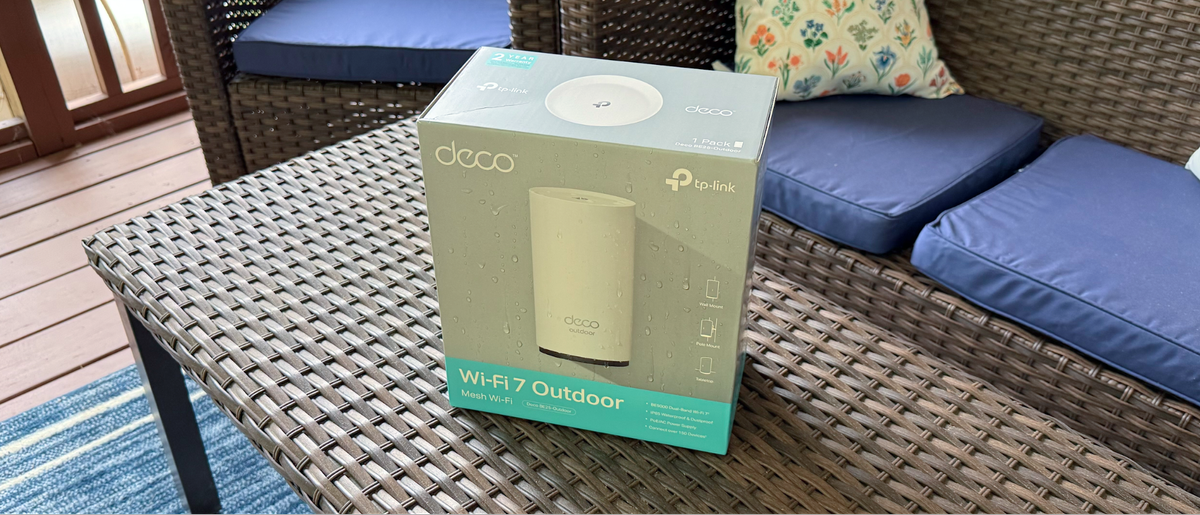
Expanding your mesh WiFi coverage starts with picking the right system. The right choice gives better speed and range. It also fits your budget and needs.
Many mesh WiFi systems are available. Some cost less but still work well. Others have many features that improve your network.
Budget-friendly Options
You can find mesh WiFi systems that cost less but cover your home well. These options save money and give good performance for small to medium homes.
- Look for systems with two or three units to cover your space.
- Choose brands known for reliable basic models.
- Check for easy setup to avoid extra costs.
- Consider models with essential security features.
- Read reviews to find affordable systems with good speed.
Key Features To Look For
Important features affect your mesh WiFi’s performance and ease of use. Pick a system with what you need most.
| Feature | Why It Matters | What to Check |
| Coverage Area | Covers your entire home without dead zones. | Check square footage coverage per unit. |
| Speed | Supports fast internet for all devices. | Look for WiFi 5 or WiFi 6 support. |
| Number of Units | More units can cover bigger areas. | Choose enough units for your home size. |
| Security | Keeps your network safe from threats. | Look for WPA3 and automatic updates. |
| App Control | Makes setup and management simple. | Check if the system has an easy-to-use app. |
Ideal Router Placement
Placing your mesh WiFi router in the right spot improves your home coverage. A good location helps signal reach all rooms.
Choosing the best place for your router can reduce dead zones and increase internet speed across your house.
Central Location Benefits
Putting your router in the center of your home helps spread the WiFi signal evenly. This way, devices far from the router still get good connection.
- Reduces distance to all devices
- Minimizes walls and obstacles
- Improves overall signal strength
- Helps mesh nodes connect better
Avoiding Interference
WiFi signals can weaken if your router sits near other electronics or thick walls. Avoid places with microwaves, cordless phones, or metal objects.
| Interference Source | Effect on WiFi | Placement Advice |
| Microwave Oven | Blocks signal in 2.4 GHz band | Keep router away by several feet |
| Cordless Phones | Cause signal drops and noise | Place router in a different room |
| Thick Walls | Weaken or block WiFi signal | Use open spaces or hallways |
| Metal Objects | Reflect or absorb signals | Avoid placing router near metal furniture |
Adding Extra Nodes
Adding extra nodes is a smart way to expand your cheap mesh WiFi coverage. It helps eliminate weak spots and improves your internet speed in larger areas.
You can add nodes easily, but where you place them matters a lot. Also, the type of connection between nodes affects performance.
Where To Position Nodes
Place nodes where the WiFi signal starts to weaken. Avoid thick walls and metal objects that block signals. A good spot is usually halfway between your main router and the area with poor coverage.
- Keep nodes in open spaces, away from appliances like microwaves
- Try to maintain a clear line of sight between nodes if possible
- Do not place nodes too close or too far from each other
- Use the mesh app or software to check signal strength before final setup
Wired Vs Wireless Backhaul
Backhaul is how nodes connect to each other or the main router. You can use wired or wireless backhaul. Each has pros and cons.
| Type | Advantages | Disadvantages |
|---|---|---|
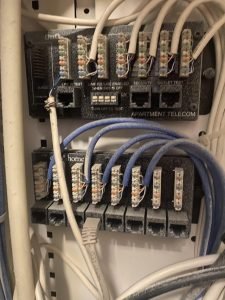
| Wired Backhaul | Stable connection, faster speed, less interference | Requires Ethernet cables, harder to install |
| Wireless Backhaul | Easy to set up, no cables needed | Slower speed, signal can drop with obstacles |

Credit: m.youtube.com
Optimizing Network Settings
Expanding your mesh WiFi coverage can be cost-effective. Optimizing network settings is key. This ensures better connectivity and performance.
Adjusting specific settings can help in making your network more efficient. Let’s explore some critical adjustments you can make.
Channel Selection
Choosing the right channel can reduce interference and improve signal strength. Many routers automatically select channels, but manual selection can be better.
- Use a WiFi analyzer to find less crowded channels.
- Switch to channels 1, 6, or 11 for 2.4 GHz band.
- For 5 GHz, choose channels with lower traffic.
Firmware Updates
Keeping your router’s firmware updated can enhance security and performance. Updates often include bug fixes and new features.
Check your router’s admin page regularly for updates. Manufacturers often release these on their websites.
Updating firmware ensures your network runs smoothly. It also helps in resolving connectivity issues you might face.
Using External Antennas And Extenders
Expanding your mesh WiFi coverage can be affordable and effective. Using external antennas and extenders can help boost your signal. Learn how these tools can enhance your network.
These solutions are cost-effective and easy to implement. They can improve connectivity in large homes or offices.
Affordable Antenna Upgrades
External antennas can increase your WiFi reach. They are easy to set up and require minimal technical skills.
- Choose antennas compatible with your router.
- Install antennas in open areas for better range.
- Adjust antennas to reduce interference.
When To Use Range Extenders
Range extenders can fill gaps in WiFi coverage. They are ideal for homes with thick walls or multiple floors.
| Area Size | Device Needed |
| Small | Single Extender |
| Medium | Dual Extenders |
| Large | Mesh System |
Reducing Signal Obstacles
Cheap mesh WiFi systems work best when signals travel freely. Obstacles can weaken the signal and reduce coverage. Reducing these obstacles helps improve your network’s strength.
This guide covers two main ways to reduce signal problems: minimizing physical barriers and managing electronic interference.
Minimizing Physical Barriers
Walls, floors, and furniture block WiFi signals. Some materials block signals more than others. Reducing these physical barriers lets your mesh system cover more area.
- Place mesh nodes in open spaces, not behind thick walls.
- Use rooms with fewer concrete or metal parts for better signal flow.
- Keep mesh devices away from large metal objects like filing cabinets.
- Raise mesh units off the floor to avoid carpet and low furniture blocking signals.
- Try to keep line of sight between mesh units if possible.
Managing Electronic Interference
Other electronics can cause interference with your WiFi signal. Managing these devices can help your mesh network run smoother and farther.
| Device Type | Interference Effect | How to Reduce |
| Microwaves | Block 2.4 GHz signals | Keep mesh nodes away from kitchen areas |
| Cordless Phones | Overlap WiFi channels | Use 5 GHz band on mesh or move phones |
| Bluetooth Devices | Compete for airwaves | Turn off unused devices or switch WiFi channels |
| Baby Monitors | Cause noise on WiFi frequencies | Place mesh devices far from monitors |
| Wireless Cameras | Use similar frequencies | Use wired cameras or different channels |
Monitoring And Testing Coverage
Expanding cheap mesh WiFi means checking how well the signal reaches every corner of your home. Testing coverage helps find weak spots and improves your network’s reach.
Monitoring tools give clear data about signal strength. You can use this data to adjust your setup and get better WiFi everywhere.
Apps For Signal Strength
Many apps show real-time WiFi signal strength on your phone or tablet. These apps help you find areas with poor coverage so you can fix them.
- WiFi Analyzer – shows signal strength and channel interference.
- NetSpot – maps WiFi coverage in your home.
- OpenSignal – tests speed and signal quality.
- Ekahau HeatMapper – creates heat maps of your WiFi.
Adjusting Based On Feedback
After testing, use the data to change your mesh WiFi setup. Move nodes to better spots or add more units for full coverage.
| Issue | Adjustment |
| Weak signal in a room | Place a mesh node closer to that room |
| Signal interference | Change WiFi channel on your router or nodes |
| Dead zones | Add an extra mesh node to cover the area |
| Slow speeds | Check for obstacles and move nodes if needed |

Credit: www.cnet.com
Credit: www.tomshardware.com
Frequently Asked Questions
How Can I Improve Cheap Mesh Wifi Coverage?
Place nodes centrally and avoid obstructions like walls. Update firmware and use wired backhaul if possible. Position nodes higher for better signal.
What Affects The Range Of Mesh Wifi Systems?
Physical barriers, interference from other devices, and node placement affect range. Distance between nodes also impacts signal strength.
Can Cheap Mesh Wifi Handle Multiple Devices?
Yes, but performance varies by model. Choose a system supporting your device count for stable connections.
Is Wired Backhaul Necessary For Mesh Wifi?
Not always, but it improves speed and stability. Use Ethernet cables to connect nodes when possible.
Conclusion
Expanding your cheap mesh WiFi coverage is simple and effective. Place nodes in open spaces for better signals. Avoid walls and metal objects that block WiFi. Test your network speed after adding each node. Adjust settings to keep connections strong and stable.
This method saves money and improves internet reach. Enjoy smooth browsing, streaming, and gaming everywhere in your home. Keep these tips in mind for reliable WiFi coverage.