Are you tired of WiFi dead zones ruining your smart home experience? Imagine controlling your lights, security cameras, and smart speakers without a single glitch or delay.
Extending your mesh WiFi network can make this a reality, giving every corner of your home a strong, reliable connection. In this guide, you’ll discover simple, effective ways to boost your mesh WiFi, so your smart devices work seamlessly wherever you are.
Keep reading to unlock the full potential of your smart home network.
Benefits Of Mesh Wifi In Smart Homes
Mesh wifi systems help smart homes work better. They connect all devices smoothly. This makes your home more efficient and easy to manage.
Using mesh wifi means fewer dead spots and better internet speed in every room. This is important for smart devices that need constant connection.
Seamless Connectivity
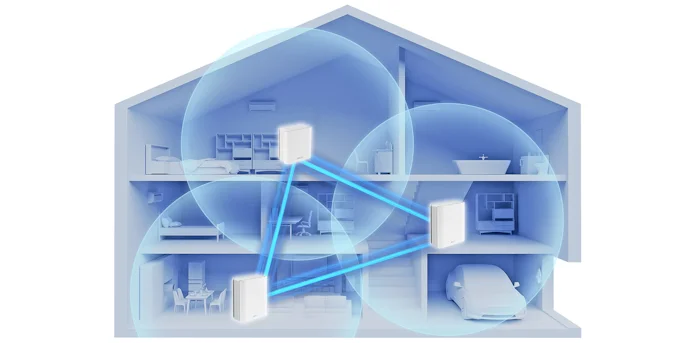
Mesh wifi creates one strong network. Devices switch between nodes without losing signal. This gives you steady internet everywhere in your home.
Improved Device Management
Mesh systems let you control all smart devices easily. You can monitor connections and set priorities. This keeps your network organized and fast.
- Check device status in one app
- Set limits on bandwidth for some devices
- Update system software automatically
- Block unwanted devices from the network
Enhanced Coverage Areas
Mesh wifi covers larger areas than regular routers. Nodes work together to spread the signal. This reduces dead zones and keeps your smart devices connected.
| Area Type | Coverage Benefit |
| Large Homes | Signal reaches all rooms |
| Multi-floor Houses | Strong connection on every floor |
| Outdoor Spaces | Wifi extends to yards and patios |

Credit: www.amazon.ca
Common Mesh Wifi Coverage Issues
Mesh wifi helps cover your home with strong internet signals. Still, some problems can limit its reach. Knowing these issues helps you fix them.
Understanding common coverage problems allows you to improve your mesh wifi for a smart home. This guide explains key challenges and what causes them.
Dead Zones And Signal Drops
Dead zones are areas in your home where wifi does not reach. Signal drops happen when the connection suddenly becomes weak or lost.
Dead zones and signal drops can stop smart devices from working well. These problems often occur because the mesh nodes are too far apart.
- Place mesh nodes closer to dead zones
- Check if nodes have power and are online
- Avoid placing nodes near thick walls or floors
Interference From Appliances
Many household appliances send signals that interfere with wifi. Microwaves, cordless phones, and baby monitors use the same frequencies as wifi.
This interference can cause slow speeds or dropped connections. Keeping mesh nodes away from these devices improves the signal.
- Avoid placing nodes near microwaves or cordless phones
- Keep mesh wifi away from Bluetooth devices
- Use 5GHz band if 2.4GHz is crowded
Distance And Obstruction Challenges
Wifi signals weaken over long distances. Walls, floors, and furniture block the signal. These obstacles cause slow or lost connections.
Metal and concrete block wifi more than wood or drywall. You can move mesh nodes to open spaces to reduce these challenges.
- Place nodes in central, open areas
- Reduce distance between mesh points
- Avoid thick walls or metal objects near nodes
Choosing The Right Mesh System
Extending mesh wifi helps cover your entire smart home. Picking the right system is key for smooth connections.
Consider your devices, home size, and internet speed before buying. This guide explains what to look for.
Compatibility With Smart Devices
Check if the mesh system works well with your smart home devices. Some systems support more brands and protocols.
Look for systems that support popular standards like Wi-Fi 5 or Wi-Fi 6. This helps connect devices faster and more reliably.
- Supports Wi-Fi standards used by your devices
- Works with smart assistants like Alexa or Google Home
- Compatible with smart bulbs, cameras, and sensors
Scalability Options
Choose a mesh system that lets you add more nodes easily. This helps cover bigger homes or hard-to-reach areas.
Some systems offer flexible plans for adding nodes. Others limit the number of devices you can connect.
- Supports adding extra nodes without extra setup
- Works well with multiple floors or large spaces
- Allows easy movement of nodes to improve coverage
Speed And Bandwidth Considerations
Pick a mesh system that matches your internet speed. High speeds keep your smart devices working smoothly.
Look for systems with enough bandwidth to handle many devices at once. This avoids slowdowns during busy times.
- Supports your internet plan’s maximum speed
- Offers dual-band or tri-band options for better performance
- Handles multiple devices streaming or gaming simultaneously

Credit: www.youtube.com
Placement Strategies For Mesh Nodes
Extending mesh WiFi for a smart home needs careful node placement. Good placement helps devices connect smoothly.
Follow simple tips to avoid signal drops and keep your home well covered. This guide explains the best ways to place mesh nodes.
Optimal Node Locations
Place mesh nodes in open, central spots to reach all rooms. Avoid corners or hidden areas where signals may weaken.
- Locate nodes near the middle of your home.
- Place nodes at a height, like on shelves or walls.
- Keep nodes away from thick furniture or large metal objects.
- Use nodes in rooms where smart devices connect most.
Avoiding Signal Barriers
Walls and floors can block WiFi signals. Materials like concrete and metal cause the most problems. Plan node placement to reduce these blocks.
| Barrier Type | Effect on Signal |
| Concrete Wall | High signal loss |
| Glass Window | Low signal loss |
| Metal Door | Very high signal loss |
| Wooden Wall | Moderate signal loss |
| Floor (Concrete) | High signal loss |
Balancing Coverage And Performance
Too many nodes can slow your network. Too few cause weak spots. Find a balance for good speed and full coverage.
- Start with one node near your router.
- Add nodes to cover far rooms.
- Keep nodes close enough to connect well.
- Test speed at different spots after placing nodes.
Using Mesh Extenders And Repeaters
Mesh WiFi systems help cover your home with a strong wireless signal. Sometimes, the signal needs a boost to reach every corner. Mesh extenders and repeaters can improve coverage for your smart home devices.
These devices catch your main WiFi signal and pass it on, making your connection better in hard-to-reach places. Understanding when and how to use them helps keep your smart home running smoothly.
When To Use Extenders
Use mesh extenders if your WiFi signal is weak in certain rooms. Large homes or buildings with thick walls often need extenders. They help reach areas that your main router cannot cover well.
- Rooms far from the main router
- Areas blocked by walls or furniture
- Places with many smart home devices
- Outdoor spaces like patios or gardens
Setup Tips For Repeaters
Place repeaters where the WiFi signal is still strong but near the weak zones. Avoid putting them too far from the main router. Connect repeaters to your mesh network for better speed and stability.
- Find a spot halfway between your router and the dead zone.
- Plug in the repeater and turn it on.
- Use the repeater’s app or web page to connect it to your main network.
- Test the signal strength in the weak areas after setup.
- Adjust the repeater’s location if needed for better coverage.
Limitations To Keep In Mind
Extenders and repeaters do not create new internet bandwidth. They share the same channel as your main router, which can reduce speeds. Some devices may not work well if placed too far from the main network.
| Factor | Impact |
|---|---|
| Distance from main router | Signal weakens if too far |
| Number of repeaters | More repeaters can cause delay |
| Interference | Walls and electronics reduce quality |
| Device compatibility | Some devices may disconnect |
Network Settings To Boost Coverage
Enhancing your mesh WiFi for a smart home is essential for seamless connectivity. Proper network settings can greatly improve signal strength and coverage.
Let’s explore key settings to ensure your smart home devices stay connected and function optimally.
Channel Selection
Choosing the right channel is vital to reduce interference and improve WiFi performance. Adjust the settings to find the least congested channel in your area.
- Access your router’s admin panel.
- Navigate to the wireless settings section.
- Select a channel with minimal traffic.
Firmware Updates
Keeping your router’s firmware updated ensures it operates efficiently. Updates can resolve bugs and improve security, contributing to better network stability.
Regularly check for firmware updates and apply them as needed to maintain optimal performance.
Prioritizing Smart Home Devices
Smart devices often require stable connectivity. Prioritizing these devices on your network can help maintain their function without interruption.
Use Quality of Service (QoS) settings to prioritize devices:
- Log into your router’s admin interface.
- Locate the QoS settings.
- Add your smart devices to the priority list.
Troubleshooting Mesh Network Issues
Mesh WiFi systems help cover your home with a strong internet signal. Sometimes, issues arise that need troubleshooting.
Understanding and fixing these problems ensures your smart home devices work well. Here are some ways to handle common mesh network issues.
Identifying Weak Signal Areas
Weak signal areas often lead to poor connectivity. Check each room for a strong WiFi signal.
Use a smartphone app to measure signal strength. This can help locate weak spots in your home.
- Walk around with a WiFi analyzer app
- Look for rooms with low signal bars
- Identify any interference from walls or furniture
Resetting And Reconfiguring Nodes
Sometimes, resetting nodes can resolve connectivity issues. Reconfigure them to ensure they are properly set up.
Follow the manufacturer’s instructions to reset and set up nodes again. This can improve the network.
- Unplug the nodes for 10 seconds
- Plug them back and wait for a reboot
- Use the app to reconfigure each node
Monitoring Network Performance
Regularly check the network performance to ensure all devices connect well. Use network monitoring tools for this.
These tools help you track speed and connectivity. This data helps in optimizing your network.
| Tool | Function |
| Speed Test App | Measures internet speed |
| Network Analyzer | Checks device connectivity |
| WiFi Scanner | Finds signal strength |
Credit: edgeup.asus.com
Future-proofing Your Mesh Network
Smart homes need strong and reliable WiFi to work well. Mesh WiFi systems spread internet across your home. Planning for the future keeps your network fast and safe.
Future-proofing means upgrading hardware, adding new devices, and planning for more users. These steps help your mesh network grow with your smart home.
Upgrading Hardware
Keep your mesh network ready by updating its parts. Newer hardware offers better speed and wider coverage. It also handles more devices at once.
- Replace old mesh nodes with models supporting WiFi 6 or 6E.
- Use wired backhaul for stable connections between nodes.
- Check for firmware updates regularly to improve performance.
- Choose devices with strong antennas and better processors.
Integrating New Smart Devices
Adding smart devices can slow your network if not planned well. Connect new devices carefully to keep the network smooth and responsive.
| Device Type | Recommended Connection | Notes |
| Security Cameras | Wired Ethernet | Reduces WiFi load and improves stability |
| Smart Lights | Mesh WiFi Node | Use low bandwidth, connect to nearest node |
| Voice Assistants | WiFi 5 or Higher | Ensure strong signal for fast response |
| Smart Thermostats | WiFi 4 or Higher | Low data use, flexible connection options |
Planning For Increased Usage
More users and devices mean your network needs to work harder. Plan for this growth to avoid slow internet or dropped connections.
- Calculate current and future device numbers in your home.
- Set up Quality of Service (QoS) to prioritize important traffic.
- Expand mesh nodes to cover new rooms or floors.
- Monitor network speed and adjust settings as needed.
Frequently Asked Questions
How Do I Extend Mesh Wifi For Smart Home Devices?
To extend mesh WiFi, add additional mesh nodes near weak signal areas. Place nodes strategically for optimal coverage. Ensure all devices connect seamlessly for smart home stability.
Can Mesh Wifi Improve Smart Home Device Performance?
Yes, mesh WiFi provides consistent coverage and reduces dead zones. This improves smart device response time and reliability throughout your home.
What’s The Best Placement For Mesh Wifi Nodes?
Place nodes in open spaces, away from thick walls or electronics. Ideally, nodes should be evenly spaced to cover your entire smart home area.
How Many Mesh Wifi Nodes Do I Need?
The number depends on your home size and layout. Typically, 2-3 nodes cover an average smart home effectively. Add more for larger or multi-story homes.
Conclusion
Extending your mesh WiFi helps keep your smart home connected. Place nodes near devices that need strong signals. Avoid walls and big metal objects that block WiFi. Use the app tools to check signal strength often. A good mesh network means fewer drops and faster speeds.
This makes your smart devices work smoothly. Simple steps can improve your home’s WiFi easily. Stay patient and adjust placement as needed. Enjoy a smarter, more reliable home network every day.