Struggling with weak WiFi in your basement? You’re not alone.
If your mesh WiFi system doesn’t reach those lower levels, it can be frustrating and slow down everything from work to streaming. But don’t worry—extending your mesh WiFi to the basement is easier than you think. In this guide, you’ll discover simple, effective ways to boost your signal and enjoy fast, reliable internet in every corner of your home.
Keep reading, and you’ll have a strong connection downstairs in no time.
Assessing Your Current Mesh Wifi Setup
Before extending your mesh wifi to the basement, you need to check your current setup. This helps find weak spots and improve coverage.
Assessing your mesh system includes looking at router placement and measuring signal strength. These steps guide you to better wifi in the basement.
Checking Router Placement
Router placement affects how far your wifi signals reach. A poorly placed router can cause weak signals in the basement.
- Place the router in an open, central location.
- Avoid placing routers near thick walls or metal objects.
- Keep the router away from electronics that cause interference.
- Elevate the router off the floor for better signal spread.
- Ensure the router antennas point in different directions.
Analyzing Signal Strength In Basement
Measuring signal strength in your basement shows if the mesh system covers it well or needs improvement.
| Location | Signal Strength (dBm) | Recommendation |
| Near Stairs | -60 | Good |
| Basement Center | -75 | Weak, needs extender |
| Basement Corner | -80 | Very weak, add mesh node |
Choosing The Right Mesh Wifi System
Extending mesh WiFi to your basement needs a good system choice. The right mesh system ensures strong signals in hard-to-reach places.
Not all mesh WiFi systems work the same. You should pick one that fits your basement’s size and walls.
Evaluating System Range
Check the range of each mesh WiFi unit before buying. A longer range covers more space and fewer dead spots.
Look for systems that offer strong signals over large areas. Some systems list their coverage in square feet or meters.
- Choose a system with enough range for your whole basement.
- Consider adding extra nodes if your basement is large.
- Remember, signals weaken with distance.
Considering Basement Materials
Basement walls and floors can block WiFi signals. Materials like concrete, brick, and metal reduce signal strength.
Choose mesh systems that handle tough materials well. Some systems have stronger antennas or better tech to go through walls.
- Concrete walls block signals more than drywall.
- Metal pipes and foil insulation create interference.
- Glass and wood let signals pass more easily.
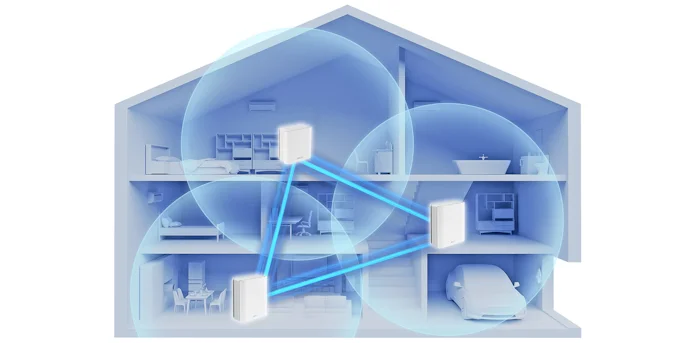
Optimal Placement Of Mesh Nodes
Extending mesh WiFi to your basement can improve connectivity. Proper placement of mesh nodes is essential for optimal performance.
Strategic positioning ensures strong signals reach all areas, including the basement.
Positioning Nodes For Maximum Coverage
To achieve maximum coverage, place nodes at even intervals. This helps in spreading the signal evenly throughout your home.
- Place the main node centrally in your home.
- Ensure line of sight between nodes where possible.
- Position nodes at similar heights for better connectivity.
Avoiding Signal Obstacles
Obstacles can weaken WiFi signals. It is important to identify and avoid these obstacles to maintain strong connectivity.
| Obstacle Type | Effect on Signal |
| Thick walls | High interference |
| Metal objects | Medium interference |
| Electronic devices | Low interference |
By understanding and mitigating these obstacles, you can ensure a robust WiFi signal in your basement.
Credit: edgeup.asus.com
Using Wired Backhaul For Stability
Extending your mesh WiFi to the basement can be tricky. Wireless signals often weaken through walls and floors.
Using a wired backhaul improves connection strength and reliability in hard-to-reach areas like basements.
Running Ethernet Cables To Basement
Running Ethernet cables to your basement creates a strong link for your mesh WiFi nodes. It gives a direct path for data to travel.
To do this, find a route through walls, floors, or crawl spaces. Use cable clips or conduits to keep cables neat and safe.
- Measure the distance from your router to basement location
- Choose the right Ethernet cable, like Cat5e or Cat6
- Use cable tools to drill small holes if needed
- Secure cables to avoid damage or tripping
- Test the cable connection before placing the mesh node
Benefits Of Wired Connections
Wired connections offer better speed and stability than wireless links. They reduce interference from walls and electronics.
Using wired backhaul helps keep your mesh network fast and reliable, especially in places like basements.
- Consistent internet speed without drops
- Lower network latency for smoother streaming and gaming
- Less signal interference from other devices
- Better coverage in difficult areas of your home
- Easy to expand network by adding more wired nodes
Configuring Mesh Network Settings
Extending your mesh WiFi to the basement needs proper setup. Adjusting network settings helps keep a strong signal.
Two key settings for better coverage are firmware updates and channel adjustments. These improve performance and reduce interference.
Updating Firmware
Keep your mesh system’s firmware up to date. Updates fix bugs and add new features that improve connectivity.
- Check for firmware updates in your mesh app or web interface.
- Download and install updates when available.
- Restart your mesh devices after updating.
- Repeat regularly to maintain the best performance.
Adjusting Channel Settings
Selecting the right WiFi channel reduces signal interference. This is important in crowded areas or basements with obstacles.
| Channel | Frequency Band | Best Use |
| 1 | 2.4 GHz | Less crowded, longer range |
| 6 | 2.4 GHz | Common default, moderate range |
| 11 | 2.4 GHz | Least interference, better speed |
| 36 | 5 GHz | Higher speed, short range |
| 149 | 5 GHz | Good for avoiding interference |
Use your mesh app to scan and select the best channel. Some systems do this automatically for you.
Testing And Troubleshooting Signal Issues
Extending mesh WiFi to the basement can be tricky. Testing the signal helps find weak spots.
Troubleshooting involves identifying and fixing signal problems. Use tools to improve the connection.
Using Wifi Analyzers
Wifi analyzers can check signal strength. They are easy to use and provide helpful data.
Install an analyzer app on your smartphone. Walk around your basement to test the signal.
- Identify areas with weak signals
- Find the best spot for your mesh extender
- Adjust settings based on the results
Resolving Common Problems
Signal issues can occur due to physical barriers. Walls and floors may block the WiFi signal.
Position your mesh nodes strategically. This helps avoid obstacles and improves coverage.
- Move nodes closer to each other
- Use Ethernet backhaul for better stability
- Ensure nodes have clear line-of-sight
Alternative Solutions For Basement Coverage
Basements often have weak WiFi signals. Walls and floors block wireless signals. This makes it hard to get good coverage.
Mesh WiFi systems sometimes struggle to reach basements. You can try other devices to improve your WiFi there. Two popular options are WiFi extenders and powerline adapters.
Installing Wifi Extenders
WiFi extenders pick up your main WiFi signal. Then, they boost it to reach farther places like basements. You place them between your router and basement.
Extenders are easy to set up. They plug into a power outlet and connect wirelessly to your router. This helps fill WiFi dead zones in basements.
- Place extender halfway between router and basement
- Use models that support your router’s WiFi standard
- Check signal strength before final placement
- Use extenders with Ethernet ports for wired devices
Using Powerline Adapters
Powerline adapters use your home’s electrical wiring to send internet signals. You plug one adapter near your router and connect it with a cable. Then, plug the second adapter in the basement.
This method creates a wired internet connection without running new cables. Some powerline adapters also offer WiFi in the basement. This gives good coverage and speed.
- Plug one adapter near your main router
- Connect it to the router with an Ethernet cable
- Plug the second adapter in the basement power outlet
- Connect devices via Ethernet or WiFi if supported
- Avoid power strips for better performance

Credit: www.reddit.com

Credit: www.reddit.com
Frequently Asked Questions
How Can I Improve Mesh Wifi In My Basement?
Place a mesh node closer to the basement entry. Avoid thick walls and metal objects. Use wired backhaul if possible for better stability.
What’s The Best Mesh Wifi Setup For Basements?
Use a mesh system with strong signal range. Opt for units that support wired backhaul. Position nodes to minimize obstacles like concrete or metal.
Can I Use Ethernet To Extend Mesh Wifi Downstairs?
Yes, connecting mesh nodes with Ethernet creates a stable, fast link. It reduces interference and improves overall basement coverage.
Why Is My Mesh Wifi Weak In The Basement?
Basements often have concrete, metal, and interference that weaken signals. Distance from the main router also reduces strength. Proper node placement helps fix this.
Conclusion
Extending your mesh WiFi to the basement improves your home’s internet. Place nodes carefully for the best signal strength. Avoid thick walls and metal objects that block WiFi. Use wired connections if possible for a stable link. Test your network speed after setup to check coverage.
Keep your devices updated for smooth performance. Enjoy faster internet in every corner of your house. A strong basement WiFi helps with work, streaming, and gaming. Simple steps lead to big improvements in your home network.