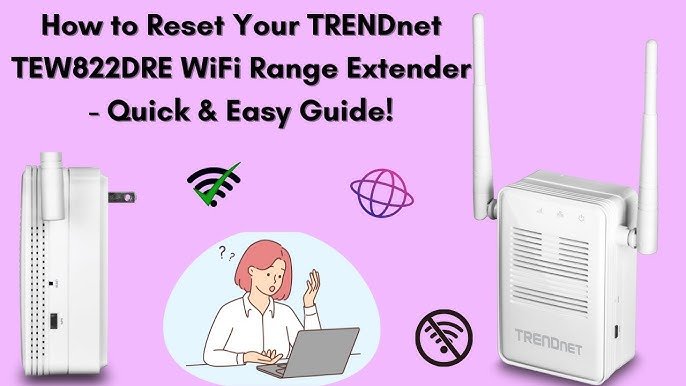
Are you tired of your dual band WiFi extender dropping connection just when you need it most? Struggling with slow speeds or unpredictable signals can be frustrating, especially when you rely on your internet for work, streaming, or gaming.
The good news is, fixing these issues is easier than you think. You’ll discover simple and effective steps to get your dual band WiFi extender working smoothly again. Keep reading, and you’ll soon enjoy a strong, stable connection throughout your home.
Common Connectivity Problems
Weak signal strengthis a common cause of poor connectivity. Walls, floors, and furniture can block the signal. Moving the extender closer to the router often helps.
Interference from other devicescan disrupt WiFi signals. Microwaves, cordless phones, and Bluetooth gadgets create noise. Keep the extender away from these devices for better results.
Incorrect extender placementleads to weak or no coverage. Avoid placing the extender too far from the router or in hidden spots. A clear line of sight improves signal strength.
Firmware and software glitchescan cause connection drops. Updating the extender’s firmware often fixes bugs. Restarting the device refreshes the connection and clears errors.

Credit: wifi-wavlinkext.com
Preparation Steps
Check if your router and WiFi extenderwork together. Not all devices are compatible. Visit the manufacturer’s website or read the manuals to confirm compatibility. This step helps avoid connection problems later.
Keep your devices updated. Firmware updatesfix bugs and improve performance. Check the router and extender settings for update options. Download and install any available updates to keep devices running smoothly.
Restart both devices to refresh their connection. Turn off the router and extender. Wait about 30 seconds, then turn them back on. This simple step can solve many connectivity issues by clearing temporary errors.
Optimizing Extender Placement
Place the extenderwhere it can catch a strong signal from your router. Avoid corners or rooms far from the router. Walls and floors can block the signal.
Keep the extender clear of large objects like metal shelves or thick walls. These can weakenthe WiFi signal. A spot with fewer obstacles works best.
Keep the extender away from devices like microwaves, cordless phones, and baby monitors. These devices cause interferenceand slow down WiFi speed.
- Choose a central spot between router and dead zones.
- Elevate the extender, not on the floor.
- Avoid placing near thick walls or metal objects.
- Keep distance from electronic devices that cause interference.
Configuring Extender Settings
Access the extender’s admin panel by typing its IP address in a web browser. Login using the default username and password found in the manual or on the device. This panel lets you change key settings to improve performance.
Set up the dual band correctly by selecting both 2.4 GHz and 5 GHz networks. Make sure the extender connects to your main router’s correct bands. This helps balance speed and range.
Adjust channel settings to avoid interference. Choose channels with less traffic in your area to get a stronger signal. Use tools or apps to find free channels easily.
Enable band steering to let the extender automatically guide devices to the best band. This feature improves speed and reduces connection drops by switching devices between 2.4 GHz and 5 GHz bands.
Troubleshooting Connectivity
Resetting the extender often fixes many connectivity problems. Press the reset button on the device for 10 seconds. Wait for the extender to restart fully before reconnecting.
Reconnecting devices helps clear any connection issues. Forget the extender network on your device and reconnect. Enter the password carefully to avoid errors.
| Test | What to Do | Why It Matters |
|---|---|---|
| Speed Test | Use an app or website to check internet speed | Shows if the extender slows down your connection |
| Signal Strength | Check WiFi bars on your device near extender | Helps find the best spot for the extender |

Credit: dlinkapnet.net
Advanced Solutions
WiFi analyzers help find the best channel for your extender. They show which channels are crowded or free. Choose a less busy channel to reduce interference. This improves signal strength and speed.
Switching between 2.4GHz and 5GHz bands can fix slow or unstable connections. Use 2.4GHz for longer range but slower speed. Use 5GHz for faster speed but shorter range. Test both to see which works better in your space.
Upgrading hardware may be needed if the extender is old or weak. Newer models support better speeds and stronger signals. Check if your router and extender support the latest WiFi standards like WiFi 5 or WiFi 6.
Preventive Measures
Keeping your dual band WiFi extenderup to date is very important. Regular firmware updatesfix bugs and improve performance. These updates also add new features and security patches.
Routine device rebootshelp clear temporary glitches. Restarting the extender once a week keeps it running smoothly. This simple step can fix many common connection problems.
Monitoring network performancehelps catch issues early. Use tools to check signal strength and speed. Spotting slowdowns or drops can guide you to fix problems faster.
- Update firmware regularly
- Reboot device weekly
- Check signal strength and speed
- Fix issues when noticed
Credit: www.pocket-lint.com
Frequently Asked Questions
How Do I Reset My Dual Band Wifi Extender?
To reset your extender, press and hold the reset button for 10 seconds. This restores factory settings and clears errors, helping fix connectivity issues quickly.
Why Is My Dual Band Wifi Extender Not Connecting?
Check if the extender is within range of your router. Also, verify correct network credentials and avoid interference from other devices.
How Can I Improve Dual Band Wifi Extender Signal?
Place the extender midway between your router and dead zones. Avoid obstacles and electronic interference for stronger, stable signals on both bands.
What Firmware Updates Fix Extender Connectivity Problems?
Visit the manufacturer’s website to download the latest firmware. Updates often resolve bugs and improve performance, ensuring your extender works smoothly.
Conclusion
Solving dual band WiFi extender issues can be simple. Follow clear steps. Check connections first. Move the extender closer to the router. Update the extender’s firmware regularly. Adjust settings for better performance. Restart both router and extender when needed. Use these tips for a stable connection.
Troubleshooting becomes easier with practice. Remember, patience helps. Stay connected and enjoy seamless browsing.


