Are you tired of your game lagging just when the action heats up? Your WiFi connection could be the hidden enemy stealing your wins.
Improving your WiFi on your gaming modem isn’t as complicated as it sounds. With a few simple tweaks, you can boost your speed, reduce delays, and enjoy smoother gameplay every time. Keep reading, and you’ll discover easy steps that will transform your gaming experience and keep you ahead of the competition.

Credit: www.reddit.com
Optimize Router Placement
Optimizing your router placement is key to boosting WiFi performance on a gaming modem. The right spot helps your signal reach all corners of your gaming area. Small changes in location can improve speed and reduce lag.
Think about where the router stands in your home. Avoid hidden corners or places with many walls. Let’s explore ways to place your router for the best WiFi coverage.
Choose Central Location
Place the router near the center of your home or gaming space. A central spot spreads the signal evenly in all directions. This reduces dead zones and weak signals in far rooms.
Try to keep the router away from outside walls. Signals lost through walls weaken the connection. A central location makes gaming smoother and more reliable.
Avoid Physical Obstructions
Keep the router clear of metal objects, thick walls, and appliances. These block or absorb WiFi signals. Common obstacles include refrigerators, microwaves, and filing cabinets.
Open spaces work best. Avoid placing the router inside cabinets or behind furniture. Remove anything that might block the path between the router and your gaming device.
Elevate The Router
Position the router off the floor, on a shelf or table. Elevation helps the signal travel farther with less interference. Signals spread downward and outward more effectively.
A higher spot also protects the router from dust and accidental bumps. Aim for a height close to where you play games for the strongest connection.
Update Firmware Regularly
Updating your gaming modem’s firmware is essential for strong and stable WiFi. Firmware updates fix bugs, improve security, and boost performance. Regular updates help your modem handle newer gaming demands smoothly. Skipping updates can cause slow speeds and connection drops.
Check For Updates
Access your modem’s settings through its web interface or app. Look for the firmware update section. Check if a newer version is available. Download and install updates as soon as possible. This process usually takes a few minutes and may restart the modem.
Enable Automatic Updates
Many modern modems offer automatic firmware updates. Turn on this feature to keep your device current without manual checks. Automatic updates save time and ensure you always have the latest fixes. Confirm your modem is connected to the internet during updates to avoid failures.
Adjust Channel Settings
Adjusting the channel settings on your gaming modem can greatly improve WiFi performance. Many routers use default channels crowded by other devices nearby. Changing to a less busy channel reduces interference. This helps your connection stay faster and more stable. It also lowers lag during gaming sessions.
Most gaming modems allow switching between 2.4 GHz and 5 GHz bands. Each band has different channel options and range. Choosing the best band and channel optimizes your WiFi for speed and reliability. This section explains how to pick the right channels and bands for better gaming.
Identify Less Crowded Channels
Many WiFi networks use the same channels in your area. This causes signal overlap and slows down your connection. Use a WiFi analyzer app or your modem’s settings to see channel traffic. Look for channels with fewer networks or less interference. Switching your modem to these channels improves speed and reduces lag.
- Scan for nearby WiFi networks and note their channels
- Select channels with the least number of networks
- Avoid channels used by many neighbors’ devices
Changing channels can be done in your modem’s admin panel. Save your settings and test your connection speed. Try different channels until you find the most stable one.
Switch Between 2.4 Ghz And 5 Ghz Bands
The 2.4 GHz band covers a wider area but has fewer channels. It is slower and often crowded with other devices like microwaves and Bluetooth gadgets. The 5 GHz band offers faster speeds and more channels but covers a smaller range. For gaming close to your modem, 5 GHz is usually better.
- Use 2.4 GHz for longer distance or through walls
- Choose 5 GHz for faster and cleaner connections nearby
- Check if your modem supports dual-band and switch accordingly
Test both bands to find which gives better performance for your gaming setup. Switching bands can reduce interference and improve your overall WiFi quality.
Credit: www.boltontechnical.co.za
Enhance Security Measures
Enhancing security measures on your gaming modem protects your network from unauthorized access. It also ensures stable and fast internet for gaming sessions. Strong security stops hackers from slowing down your connection or stealing data.
Simple steps can boost your modem’s security without technical skills. These steps help keep your WiFi safe and improve overall performance.
Set Strong Passwords
Use a password with at least 12 characters. Mix letters, numbers, and symbols for better security. Avoid easy words like “password” or your name. Change the default password given by your modem manufacturer. Update your password regularly to keep it strong.
Write down the password safely or use a password manager. This prevents forgetting it during quick game sessions.
Use Wpa3 Encryption
WPA3 is the latest WiFi encryption standard. It offers better protection than older versions like WPA2. Check your gaming modem settings to enable WPA3. This keeps your data safe from hackers trying to intercept it.
If your modem does not support WPA3, update its firmware or consider a newer model. Secure encryption helps maintain fast and stable WiFi for gaming.
Limit Bandwidth Drain
Limit bandwidth drain to keep your gaming connection fast and stable. Bandwidth drain happens when many devices or apps use internet at once. This slows down your gaming speed and causes lag. Controlling how much bandwidth each device uses helps your gaming modem work better. Below are ways to manage bandwidth for smooth gaming.
Manage Connected Devices
Check how many devices connect to your modem. More devices mean more bandwidth used. Disconnect devices not in use to free up space. Set limits on devices that use too much data. Use your modem’s settings to see connected devices. Block unknown or unwanted devices to protect your speed.
Use Quality Of Service (qos)
Quality of Service, or QoS, gives priority to gaming traffic. It lets your gaming data move first before other internet use. Turn on QoS in your modem’s settings. Assign high priority to your gaming console or PC. This reduces lag and keeps your game smooth. QoS controls bandwidth automatically for best gaming experience.
Upgrade Hardware Components
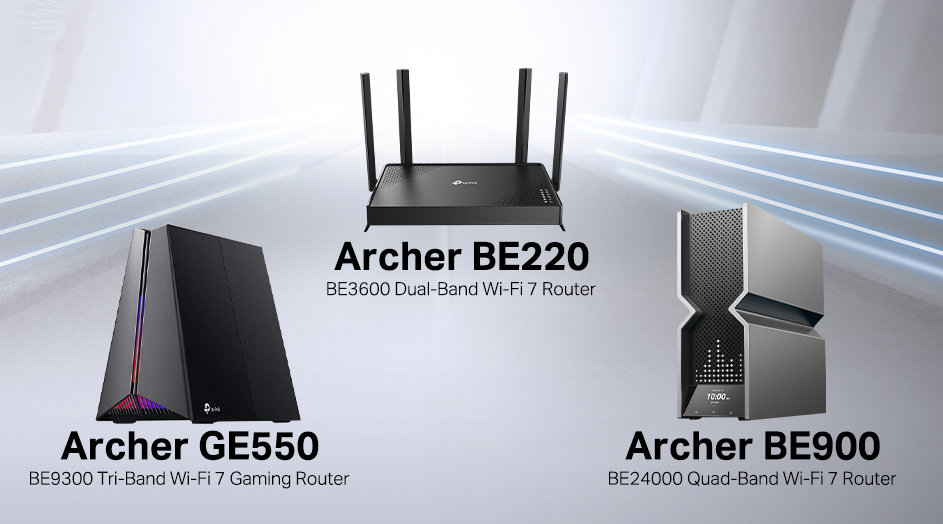
Upgrading your gaming modem’s hardware can dramatically boost your WiFi performance. Instead of just tweaking settings, improving the physical parts of your setup often delivers more reliable and stronger connections. Let’s look at some practical hardware upgrades that you can easily implement.
Replace Antennas
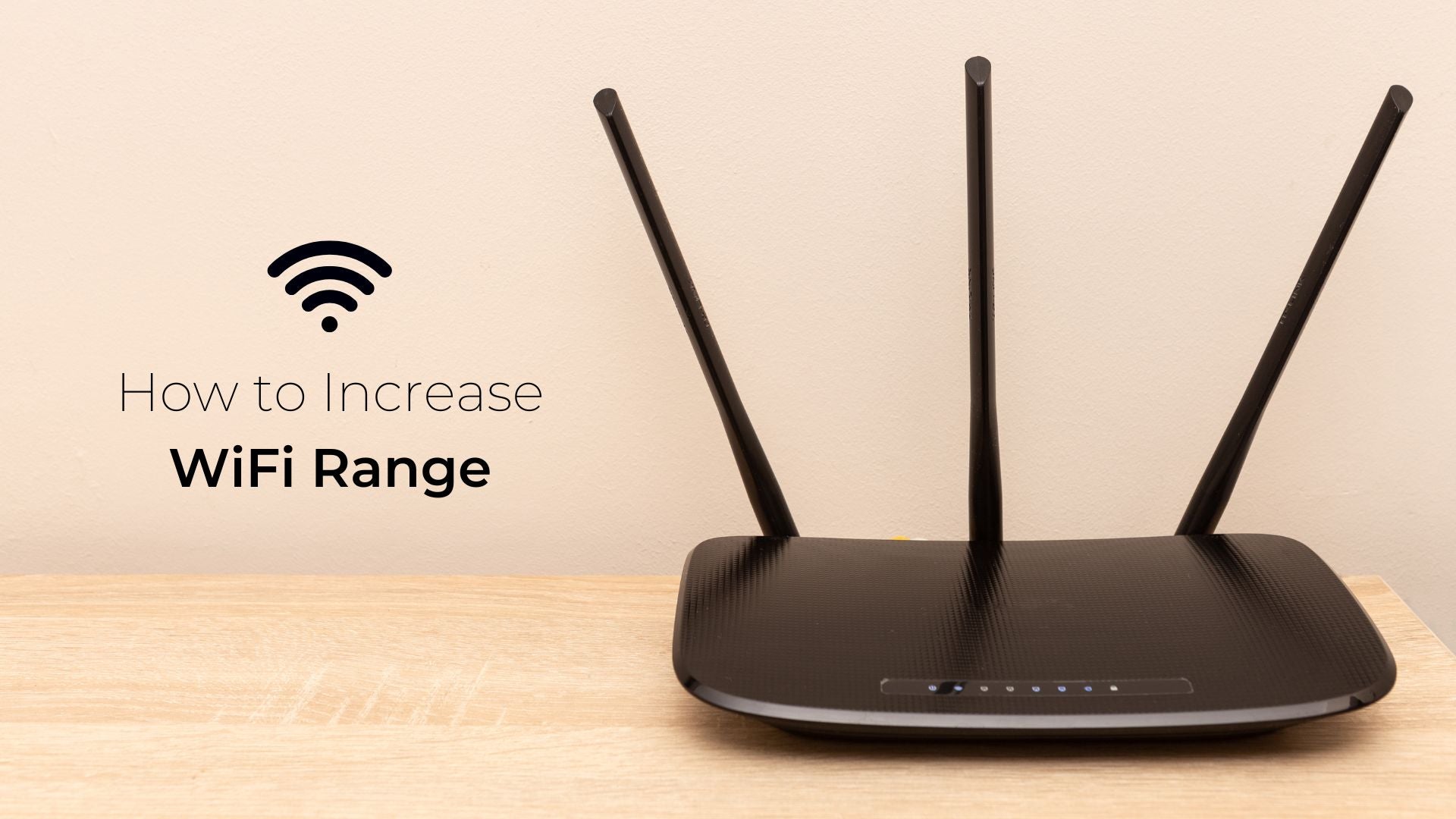
Stock antennas that come with gaming modems are usually basic and not optimized for long-range or high-speed gaming. Swapping them out for high-gain antennas can extend your WiFi coverage and improve signal strength in tricky spots.
High-gain antennas focus the signal in specific directions, which reduces interference and boosts performance where you need it most. You might notice fewer lag spikes and smoother gameplay after making this simple switch.
Have you checked if your modem’s antennas are detachable? If yes, upgrading could be as easy as ordering a compatible set online and screwing them on.
Consider Wifi Extenders Or Mesh Systems
If your gaming area is far from your modem or there are many walls in between, hardware upgrades like extenders or mesh systems can help. WiFi extenders pick up your existing signal and rebroadcast it to dead zones.
Mesh systems go a step further by using multiple nodes that work together to blanket your entire home with a strong, seamless signal. This means you can move around with your device without losing connection or speed.
Think about your home layout—do you have rooms or corners where your WiFi feels weak? Installing a mesh system or extenders there could solve those frustrating connection drops during intense gaming sessions.
Use Ethernet For Critical Devices
Using Ethernet for critical devices like gaming consoles or PCs ensures a stable connection. Wired connections reduce lag and interruptions during intense gaming sessions. This simple step improves your overall gaming experience by providing reliable internet access.
Wired Connection Benefits
Ethernet offers faster and more stable speeds than WiFi. It avoids interference from other devices and walls. This means fewer disconnects and lower latency. Gamers get smoother gameplay and quicker response times. A wired setup also frees up WiFi bandwidth for other devices.
Setting Up Ethernet For Gaming
Connect an Ethernet cable from the modem or router directly to your gaming device. Use high-quality cables like Cat5e or Cat6 for better performance. Check that your device’s network settings prioritize the wired connection. Place the modem in a central spot for easy cable routing. Test the connection speed after setup to confirm improvements.
Credit: www.tp-link.com
Frequently Asked Questions
How Can I Boost Wifi Speed On My Gaming Modem?
To boost WiFi speed, update your modem’s firmware regularly. Place the modem centrally and away from obstructions. Use the 5GHz band for faster, less congested connections. Limit connected devices and prioritize gaming traffic with Quality of Service (QoS) settings.
What Is The Best Wifi Channel For Gaming Modems?
The best WiFi channel depends on your location. Use channels 1, 6, or 11 for 2. 4GHz to avoid overlap. For 5GHz, select the least crowded channel using a WiFi analyzer. This reduces interference and improves gaming performance.
How Does Quality Of Service (qos) Improve Gaming Wifi?
QoS prioritizes gaming traffic over other data on your network. It reduces lag and latency by allocating bandwidth to games first. Enabling QoS on your gaming modem ensures smoother, uninterrupted gameplay even when multiple devices are connected.
Should I Use A Wired Connection Instead Of Wifi For Gaming?
Yes, a wired Ethernet connection is more stable and faster than WiFi. It reduces lag and packet loss, enhancing gaming performance. Use Ethernet cables whenever possible for competitive or high-speed gaming sessions.
Conclusion
Enhancing your gaming modem’s WiFi improves gameplay significantly. Strong signals ensure smoother gaming sessions. Try repositioning your router for better coverage. Consider upgrading your modem for improved performance. Adjust settings to reduce interference. Regular updates keep your device performing well.
Secure your network to protect against unwanted access. With these steps, gaming experiences become more enjoyable. Troubleshooting is easier with understanding. Stay informed on latest tech trends for continuous improvements. Enjoy seamless gaming with enhanced connectivity. Happy gaming!


