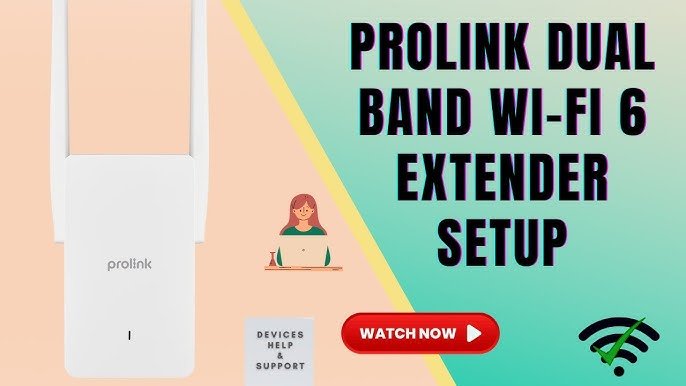
Are you struggling with weak WiFi signals in some parts of your home? A dual band WiFi extender can boost your internet connection, making your online experience smoother and faster.
But what if you don’t have a computer nearby to set it up? Don’t worry—you can install your dual band WiFi extender quickly and easily without using a computer. In this guide, you’ll discover simple steps that anyone can follow.
By the end, you’ll enjoy stronger WiFi coverage without any hassle. Ready to improve your internet right now? Let’s get started!
Credit: mywifiextlogn.com
Choose The Right Wifi Extender
Choose a wifi extender that matches your router. Check the router’s brand and model first. This helps avoid connection issues. Make sure the extender supports the same wifi standardslike 802.11ac or 802.11n.
Pick a dual band extenderto get better speed and range. Dual band means it uses two frequencies: 2.4 GHz and 5 GHz. The 2.4 GHz band covers longer distances but is slower. The 5 GHz band is faster but works in a shorter range.
- Check if the extender supports both 2.4 GHz and 5 GHz bands.
- Look for easy setup options without a computer, like WPS.
- Read product reviews for real user experience.

Credit: www.youtube.com
Prepare For Installation
Choose a spot where your current WiFi signal is strong. This helps the extender catch and boost the signal well. Avoid walls or thick objects that block the signal. Place the extender halfway between your router and the area with weak WiFi.
Check for a nearby power outlet. The extender must plug into a power source to work. Make sure the outlet is easy to reach and safe to use. Avoid spots where the extender might get wet or too hot.
Connect Extender To Power
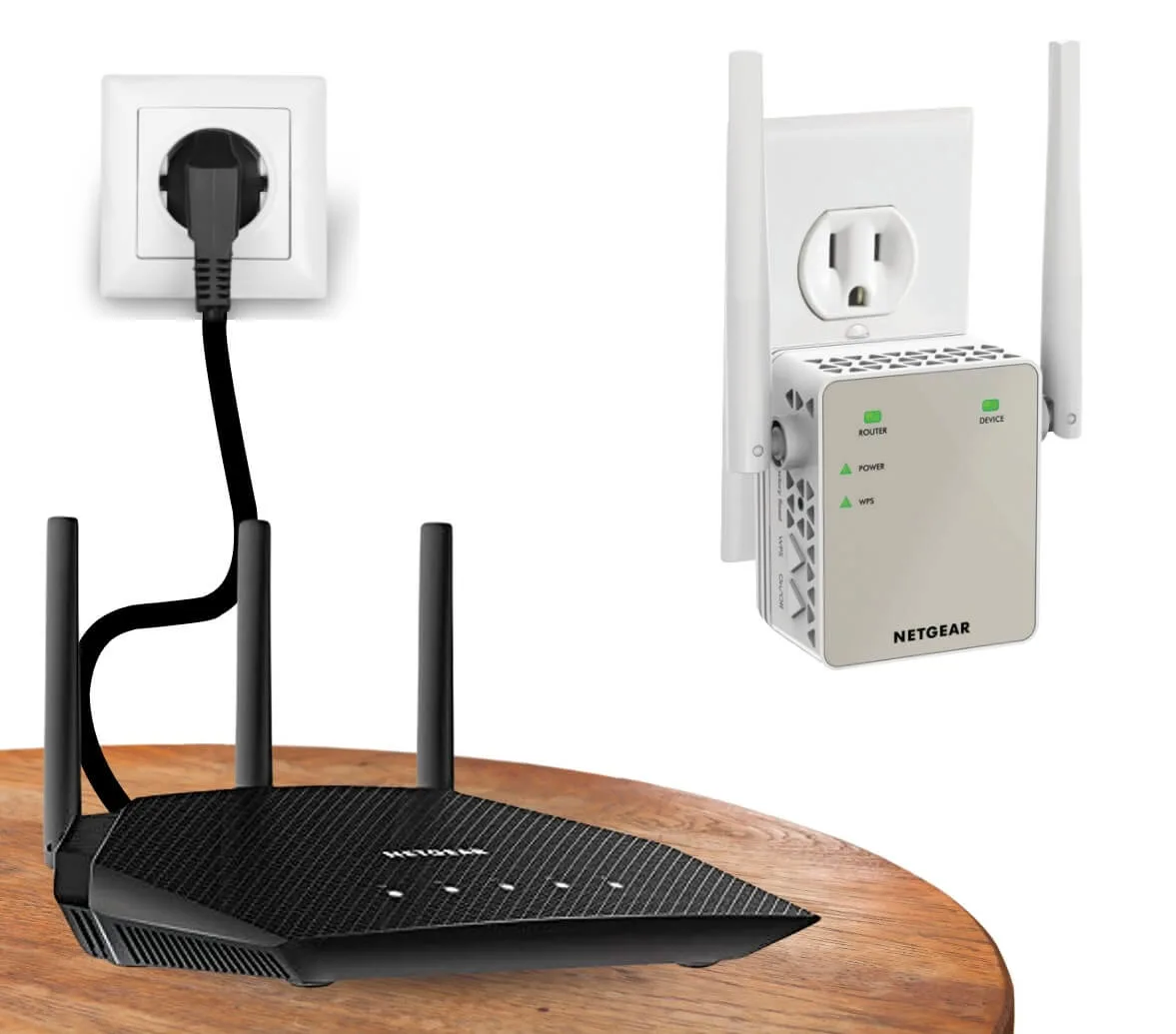
Plug the dual band WiFi extender into a power outlet. Make sure the outlet works and is easy to reach. The extender needs power to start working.
Wait a few seconds for the power light to turn on. This shows the extender is receiving electricity. Do not unplug it during this time.
Keep the extender close to your router for now. This helps with the initial setup and connection.

Credit: www.youtube.com
Use Wps Button For Setup
Press the WPS button on your router. This activates the connection mode. The router will now look for devices to connect.
Within two minutes, press the WPS button on your extender. This lets the extender link to the router. You will see lights blink on both devices, showing they are connecting.
Wait a moment. The connection is secure when the lights stop blinking and stay solid. This means your extender is now connected to the router without using a computer.
Manual Setup Via Mobile App
Download the extender appfrom your phone’s app store. The app works on both Android and iOS devices. Open the app after installation.
Follow the easy in-app instructionsto connect your extender to the WiFi network. The app guides you step-by-step. Just tap and enter simple info like your WiFi name and password.
The app helps you find the best spot for your extender. It shows signal strength to pick the ideal place. This process makes setup quick and simple.
- Open app and create an account if asked
- Choose your home WiFi network
- Enter WiFi password carefully
- Wait for the extender to connect
- Check signal strength on app
Verify Connection And Signal
Check the LED indicatorson your extender. A solid green or blue light usually means the connection is good. Flashing lights can show issues with setup or signal strength. Refer to your extender’s manual for exact meanings.
Test the internet speedby connecting a device to the extender’s network. Use a simple speed test app or website. Compare the results with your main router’s speed to see if the extender works well.
Walk around your home to check signal coverage. The extender should boost WiFi in weak areas. Notice if the connection is steady or drops often. Adjust the extender’s position if needed.
Troubleshoot Common Issues
Resetting the extendercan fix many problems quickly. Press the reset button with a paperclip for 10 seconds. This clears old settings and starts fresh. After reset, you need to set up the extender again.
Repositioning the extenderhelps improve the signal strength. Place it halfway between your router and the area with weak WiFi. Avoid walls, metal objects, and large furniture. Try different spots to find the best signal.
- Keep extender within router’s range.
- Use a high place like a shelf.
- Stay away from microwaves and cordless phones.
Frequently Asked Questions
How To Set Up A Dual Band Wifi Extender Without A Computer?
To set up a dual band wifi extender without a computer, plug it into a power outlet near your router. Press the WPS button on your router and then on the extender. The devices will connect automatically, extending your wifi signal.
Can I Install A Wifi Extender Using A Smartphone?
Yes, you can install a wifi extender using a smartphone. Connect your phone to the extender’s default network, open a browser, and follow the setup wizard to connect to your home wifi.
What Is The Easiest Way To Install A Dual Band Wifi Extender?
The easiest way is using the WPS button method. Press WPS on your router, then on the extender. Wait for the connection to establish, and place the extender where the signal is weak.
Do I Need Special Apps To Install A Wifi Extender?
Most dual band wifi extenders do not need special apps. You can use your phone’s browser or the WPS button for setup, making installation quick and hassle-free.
Conclusion
Installing a dual-band WiFi extender without a computer is simple. Anyone can do it with ease. Follow the step-by-step guide provided above. Ensure you place the extender in the right location. This helps boost your WiFi signal effectively. Use your smartphone or tablet for setup.
Most extenders have user-friendly apps. These apps guide you through the process. Enjoy a stronger, more reliable internet connection. No more dead zones in your home. Stay connected everywhere you need.


