Are you tired of dead zones and slow internet in parts of your home? You don’t have to spend a fortune to get strong, reliable WiFi everywhere.
With a cheap mesh WiFi system, you can boost your coverage and enjoy seamless connections. But how do you make sure you get the best performance without breaking the bank? You’ll discover simple, effective tips to optimize your mesh WiFi.
By the end, you’ll know exactly how to set it up so every corner of your space stays connected. Ready to unlock faster, smoother internet without extra costs? Let’s dive in.
Choosing The Right Mesh System
Mesh WiFi systems help spread internet signals in your home. Choosing the right system is important to get good coverage without spending too much.
This guide explains what to look for in a mesh system. It also shows how to balance cost and performance. Finally, it lists budget-friendly models to consider.
Key Features To Look For
Look for mesh systems with strong signal range. They should cover all rooms and floors in your home. Easy setup is also helpful for quick use.
Check if the system supports the latest WiFi standards. Fast speeds and stable connections depend on this. Multiple nodes help improve coverage.
- Wide signal range for full home coverage
- Supports WiFi 5 or WiFi 6 standards
- Easy to set up and manage
- Multiple nodes for better signal spread
- Good security features to protect your network
Balancing Cost And Performance
Cheap mesh systems may save money but lack some features. More expensive models offer faster speeds and more nodes. Find a system that fits your needs and budget.
Consider how many devices connect to your WiFi. Also, think about the size of your home. These factors help decide the right balance between cost and performance.
- Choose based on home size and device count
- Cheaper models may suit small homes
- More nodes improve coverage but cost more
- Look for systems with good reviews for speed
Top Budget-friendly Models
Some mesh systems offer good value without a high price. These models provide stable coverage and easy setup. They work well in small to medium homes.
| Model | Max Speed | Number of Nodes | Approximate Price |
|---|---|---|---|
| TP-Link Deco M4 | 1167 Mbps | 2-3 | $100-$150 |
| Google Nest Wifi | 2200 Mbps | 2-3 | $150-$200 |
| Amazon Eero 6 | 900 Mbps | 2-3 | $120-$180 |
| Netgear Orbi RBK13 | 1200 Mbps | 2 | $130-$170 |

Credit: www.cnet.com
Ideal Router Placement
Good router placement helps improve your mesh WiFi coverage. A well-placed router sends signals evenly around your home.
Cheap mesh WiFi systems work better when you position routers carefully. This guide shows tips for better placement.
Centralizing Your Router
Place your router near the center of your home. This helps signals reach every room evenly.
A router at one end of the house causes weak signals on the far side. Central placement reduces dead spots.
- Find a central room, like a living room or hallway.
- Avoid placing routers in basements or corners.
- Keep routers away from outside walls for better reach.
Avoiding Physical Obstacles
Physical objects block WiFi signals and lower speed. Avoid thick walls, metal, and large furniture near routers.
Materials like concrete, brick, and metal reflect or absorb signals. Keep routers away from these obstacles.
- Place routers in open spaces, not behind TVs or cabinets.
- Avoid metal shelves and mirrors near routers.
- Keep routers away from microwaves and cordless phones.
Height And Orientation Tips
Place your router off the floor for better signal spread. Higher positions reduce interference from furniture.
Orient antennas vertically for wide horizontal coverage. Adjust antennas if your router has them.
- Set routers on shelves or high tables.
- Keep antennas upright for better signal flow.
- Experiment with antenna angles to find the best signal.
Optimizing Node Placement
Placing mesh WiFi nodes correctly helps improve your network coverage. Good placement reduces dead zones and speeds up your connection.
This guide explains how to optimize node placement for cheap mesh WiFi systems. Focus on spacing, avoiding interference, and using tools for best results.
Spacing Between Nodes
Keep nodes close enough to share signals but far enough to cover more area. Too close causes overlap; too far causes weak signals.
- Place nodes about 30 to 50 feet apart indoors.
- Check signal strength at each node location.
- Avoid placing nodes behind thick walls or metal objects.
Minimizing Interference
Interference from devices and objects can block mesh signals. Keep nodes away from microwaves, cordless phones, and large metal appliances.
| Source of Interference | Recommended Distance |
| Microwave Oven | At least 10 feet |
| Bluetooth Devices | Keep separate or switch channels |
| Thick Walls | Try to avoid direct placement behind |
| Metal Shelves | Place nodes away or relocate shelves |
Using Signal Strength Apps
Signal strength apps help find the best spots for nodes. They show where the WiFi signal is strong or weak.
- Download apps like NetSpot or WiFi Analyzer.
- Walk around your home checking signal levels.
- Move nodes to spots with the highest signal strength.
- Test after placement to ensure good coverage.
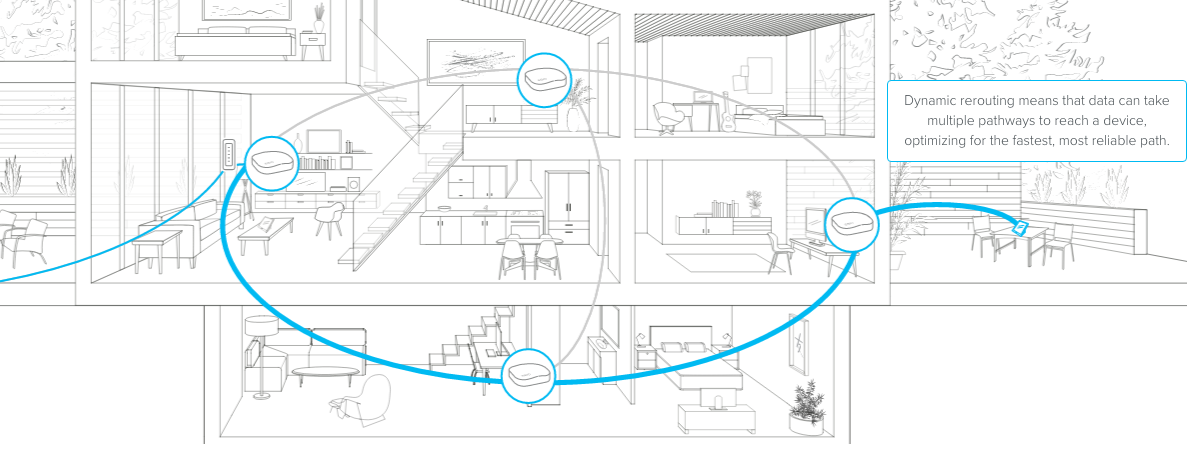
Credit: blog.eero.com
Configuring Network Settings
Setting up your mesh WiFi network correctly improves coverage and speed. Adjusting network settings helps avoid interference and connects devices efficiently.
Focus on choosing the right channels, enabling band steering, and keeping your firmware updated. These steps make your mesh system work better.
Selecting The Best Channels
WiFi channels can overlap and cause interference. Selecting the best channel reduces this problem and improves signal strength.
- Use a WiFi analyzer app to check channel usage around you.
- Pick channels with the least traffic, usually 1, 6, or 11 for 2.4 GHz.
- For 5 GHz bands, choose channels that are not crowded.
- Avoid channels used by nearby networks and devices.
Enabling Band Steering
Band steering helps your devices switch between 2.4 GHz and 5 GHz bands automatically. This keeps your network balanced and fast.
| Band | Speed | Range | Best Use |
|---|---|---|---|
| 2.4 GHz | Lower | Longer | Smartphones, IoT devices |
| 5 GHz | Higher | Shorter | Streaming, gaming |
Enable band steering in your router’s settings to let it guide devices to the best band. This reduces congestion and keeps connections smooth.
Updating Firmware Regularly
Firmware updates fix bugs and add improvements. Keeping your mesh WiFi firmware current enhances security and performance.
- Check your mesh system’s app or website for updates.
- Download and install updates as soon as they are available.
- Restart your devices after updating to apply changes.
Boosting Signal With Accessories
Cheap mesh WiFi systems can cover large areas, but sometimes signals are weak. Using accessories helps improve coverage and speed.
These tools extend your network range and reduce dead zones in your home or office.
Using Wifi Extenders
WiFi extenders receive your router’s signal and rebroadcast it. They increase the coverage area for your mesh system.
Place extenders where the original signal is still strong. Avoid putting them too far from the main router.
- Boost weak signals in distant rooms
- Easy to install and move
- Works well with most mesh systems
Adding External Antennas
Some mesh devices allow external antennas. These antennas help focus and spread the signal better.
You can replace small internal antennas with bigger, stronger ones to improve signal strength and range.
- Improves signal direction and reach
- Good for obstacles like walls
- Requires compatible hardware
Employing Powerline Adapters
Powerline adapters use electrical wiring to send internet signals. They connect your router to distant rooms through power outlets.
This method avoids WiFi interference and keeps a strong connection in hard-to-reach places.
- Works well in buildings with thick walls
- Simple to set up with plug-and-play
- Supports wired or wireless access points
Managing Device Connections
Optimizing mesh WiFi means managing how devices connect. This ensures a stable network for everyone. Focus on managing connections for better performance.
Consider how many devices are on your network. Each device uses bandwidth. Too many devices can slow down your WiFi.
Prioritizing Bandwidth Usage
Some devices need more bandwidth than others. You can prioritize important devices. This helps them work faster.
Check your router settings. Look for Quality of Service (QoS). Use it to set device priority.
- Video calls
- Gaming consoles
- Streaming devices
Limiting Background Apps
Background apps can slow your internet. They use data even when not in use. Limiting these apps can free up bandwidth.
Turn off auto-updates on devices. Close apps running in the background. This helps your network run smoothly.
- Check app settings
- Disable auto-sync features
- Close unused apps
Scheduling Network Access
Control when devices can access the network. This helps manage overall bandwidth usage. Scheduling can prevent network congestion.
Use your router’s parental controls to set times for device access. This is useful for managing kid’s internet time too.
- Set bedtime schedules
- Limit daytime access
- Restrict weekend use
Troubleshooting Common Issues
Optimizing mesh WiFi coverage can be challenging. Sometimes, you face slow speeds, connection drops, or interference. Here’s how to troubleshoot these common issues.
Resolving Slow Speeds
Slow speeds can frustrate users. Check the distance between mesh units. Too far apart can weaken the signal.
Make sure your devices support the latest WiFi standards. Older devices may not utilize full speed.
- Place mesh units in open areas
- Update device software regularly
- Restart your router frequently
Fixing Connection Drops
Connection drops can interrupt tasks. Ensure mesh units are properly placed. Avoid walls and metal objects.
Check for firmware updates on your mesh devices. Outdated firmware can cause instability.
- Keep devices within range
- Avoid placing units near microwaves
- Use quality cables for connections
Handling Interference Problems
Interference can degrade WiFi quality. Identify and eliminate sources of interference. Cordless phones and baby monitors are common culprits.
Change WiFi channels to minimize interference. Use a WiFi analyzer app to find less crowded channels.
- Switch to 5GHz band for less interference
- Relocate devices that cause interference
- Install mesh units at different heights

Credit: www.reddit.com
Frequently Asked Questions
How To Place Mesh Wifi Nodes For Best Coverage?
Place nodes centrally and evenly throughout your home. Avoid walls and large obstacles. Ensure nodes have clear line-of-sight for strong signals.
Can Cheap Mesh Wifi Systems Cover Large Homes?
Yes, affordable mesh wifi can cover large homes with multiple nodes. Adding more nodes improves signal strength and coverage significantly.
How To Boost Cheap Mesh Wifi Signal Strength?
Update firmware regularly and position nodes higher. Reduce interference from other electronics. Use wired backhaul if possible for better speed.
What Affects Cheap Mesh Wifi Performance Most?
Interference, node placement, and network congestion greatly impact performance. Proper setup and avoiding signal blockers enhance speed and reliability.
Conclusion
Optimizing cheap mesh WiFi coverage improves your internet experience. Place nodes in open areas for better signals. Avoid thick walls and metal objects that block WiFi. Keep your devices updated and secure your network. Test different setups to find the best coverage.
Small changes bring big improvements. Enjoy steady and fast WiFi throughout your home. Simple steps can fix most connection issues. Stay connected without spending too much money.