Is your dual band WiFi extender acting up? Maybe it’s not connecting properly or your internet speed has dropped.
Resetting your device might be the quick fix you need. In this guide, you’ll discover simple, step-by-step instructions to reset your dual band WiFi extender and get your connection back on track. Keep reading, and you’ll have your network running smoothly again in no time.
Why Reset Your Wifi Extender
Resetting a dual band wifi extendercan fix many common problems. It helps clear errors and restores original settings. Sometimes, the extender stops working or loses connection. A reset can solve issues like slow internet or weak signals.
- Extender not connecting to the router
- Slow internet speeds
- Frequent disconnections
- Forgotten password or settings
- Firmware update problems
Resetting brings back default factory settings. This can improve performance and fix bugs. It also helps clear any incorrect setup. After reset, the extender is like new and ready to connect again.
Types Of Reset Methods
A soft resetrestarts the wifi extender without erasing settings. It often fixes small connection problems. You can do this by unplugging the device for about 30 seconds and then plugging it back in. This method is quick and safe.
A hard resetrestores the extender to factory settings. It deletes all saved data, including passwords and custom settings. Usually, you press and hold a small reset button for 10-15 seconds. Use this if the extender is not working properly or you want to start fresh.
Preparing For Reset
First, find your dual band WiFi extender. It is usually near your router or in a spot with poor WiFi signal. Look for the brand name and model number on the device. This helps in finding the right reset instructions.
Before resetting, backup current settings. This saves your WiFi name and password. You can do this by logging into the extender’s web page. Write down or take a screenshot of the settings. This step prevents losing important information.

Credit: m.youtube.com
Step-by-step Reset Process
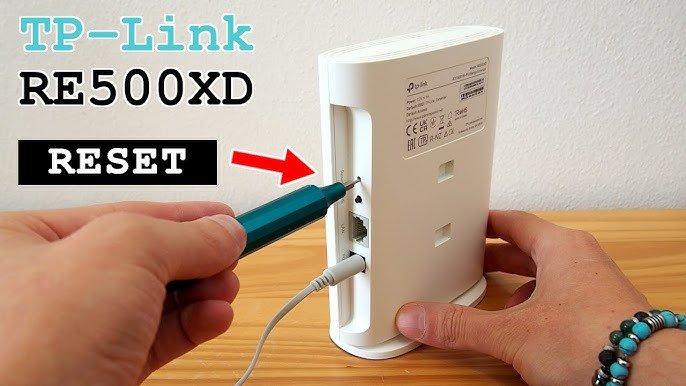
The easiest way to reset a dual band wifi extender is by using the reset button. Find a small hole on the device, usually at the back or bottom. Use a paperclip or pin to press and hold the button for about 10 seconds. Release it when the lights blink, showing the extender is resetting. This clears all settings and restores factory defaults.
Reset via the web interfacerequires logging into the extender’s control panel. Open a browser and enter the device’s IP address. Use the username and password to sign in. Navigate to the system or settings tab and look for the reset option. Click it and confirm. The extender will reboot and reset to factory settings.
Reset using the mobile appis simple if your extender supports it. Open the app connected to your extender. Find the device settings menu. Tap the reset or factory reset option. Confirm the action. The app will send the command and the extender will restart with default settings.
Reconfiguring Your Extender
Start by placing your wifi extendernear the main router. This helps to get a strong signal during setup. Connect your device to the extender’s network using a phone or computer. Open a browser and enter the extender’s IP address to access settings.
Choose your main router’s network from the list of available WiFi networks. Enter the correct passwordto connect the extender to the main router. Wait for the extender to confirm the connection before moving on.
- Select whether to use the same network name (SSID) for both bands or create new ones.
- Set different namesfor the 2.4 GHz and 5 GHz bands if you want to distinguish them.
- Choose a strong passwordto keep your network secure.
- Save the settings and allow the extender to reboot if needed.

Credit: www.youtube.com
Troubleshooting Reset Issues
Reset button not workingcan happen if the button is stuck or dirty. Try pressing it with a thin object like a paperclip. Hold it for about 10 seconds until the lights flash. If it still does not work, unplug the extender and plug it back in. Then try again.
Unable to access web interfaceoften means the extender is not connected properly. Check your device’s WiFi settings and connect to the extender’s network. Enter the IP address or URL given in the extender’s manual. Clear your browser cache or try a different browser if the page doesn’t load.
Extender not reconnectingcan occur after a reset. Move the extender closer to the main router. Make sure the WiFi password is correct. Restart both the router and the extender. Try setting up the extender again using the app or web interface.
Tips For Maintaining Your Extender
Regular firmware updateskeep your extender working well and safe. Updates fix bugs and add new features. Check the manufacturer’s website or app for updates often.
Optimal placementhelps the extender cover more area. Place it where the main WiFi signal is strong but near the weak spots. Avoid walls and metal objects that block signals.
Periodic resetsclear out any temporary issues. Resetting restores settings to default and can fix slow speeds or connection drops. Do this every few months or if problems start.

Credit: www.youtube.com
Frequently Asked Questions
How Do I Reset A Dual Band Wifi Extender?
To reset, locate the reset button on the extender. Press and hold it for 10-15 seconds. Release when the LED lights blink. This restores factory settings and clears previous configurations.
Why Reset A Dual Band Wifi Extender?
Resetting fixes connectivity issues and removes incorrect settings. It helps refresh the device when it stops working properly. It’s useful before reconfiguring the extender for a new network.
What Happens After Resetting A Wifi Extender?
The extender erases all saved networks and settings. It returns to default factory mode. You must set it up again for your WiFi to work properly.
Can Resetting Improve Wifi Extender Speed?
Yes, resetting can clear glitches and improve performance. It can solve slow or unstable connections caused by software errors. However, speed also depends on your internet and router.
Conclusion
Resetting a dual band WiFi extender is simple and quick. Follow the steps provided for a hassle-free reset. First, locate the reset button on your device. Then, press and hold it for a few seconds. This action restores factory settings.
Your WiFi extender will reboot. Once done, reconnect it to your network. Check your internet connection to ensure it’s working. Regular resets can resolve connectivity issues. Keep your extender updated for optimal performance. With these steps, you ensure a stable and strong WiFi signal at home.
Enjoy seamless browsing with your reset extender.


