Struggling to remember your gaming modem password? You’re not alone.
Losing access to your modem can disrupt your gaming sessions and slow down your connection. But don’t worry—resetting your gaming modem password is easier than you think. You’ll discover simple, step-by-step instructions to get back online quickly and securely. Keep reading, and you’ll be back in the game in no time.
Reasons To Reset Your Modem Password
Resetting your gaming modem password might seem like a simple task, but knowing why you should do it is just as important. Your modem password is the key to your network’s security and performance. Ignoring it can lead to slow connections, unauthorized access, or even data breaches.
Understanding the reasons to reset your modem password helps you take control of your gaming setup and keep your online experience smooth and safe. Let’s look at some key scenarios where resetting the password is necessary.
Security Breach Or Suspicious Activity
Have you noticed unusual devices connected to your network? Or maybe your internet feels slower even when you’re not using it heavily.
These could be signs someone else is using your Wi-Fi without permission. Resetting your modem password immediately helps block unauthorized users and protects your personal data.
Forgotten Or Lost Password
It happens to the best of us—losing track of your modem password can lock you out of essential settings. Without the password, you can’t change important configurations or update security features.
Resetting the password restores your access and lets you set a new, memorable password that you can manage easily.
Improving Network Performance
Sometimes, your modem’s performance might lag because of outdated or weak passwords attracting unwanted connections. Changing your password can limit the number of devices connected and improve your gaming speed.
Think about how smoother gameplay feels when your network isn’t crowded. Resetting the password is an easy step to optimize your connection.
After Sharing Passwords With Guests
Did you share your modem password with friends or family during a visit? While sharing is kind, it also increases the risk of your network being accessed later without your knowledge.
Resetting the password after guests leave ensures that only your trusted devices remain connected and your network stays secure.
Routine Security Maintenance
Just like you update your gaming software regularly, you should also update your modem password periodically. Regular resets prevent long-term vulnerabilities and keep your network protected.
How often do you think about changing your passwords? Making it a habit improves your overall online safety.
Credit: www.youtube.com
Prepare For Password Reset
Preparing for a gaming modem password reset is crucial to avoid losing your custom configurations and ensure a smooth transition. Taking the right steps before you reset can save you time and frustration. Are you ready to make sure nothing important gets lost in the process?
Gather Required Information
Start by collecting all the details related to your modem and network. This includes your current modem username and password, the default login credentials (usually found on the modem’s label), and your ISP account details if needed.
Having this information ready prevents you from getting stuck midway. It’s like having a map before starting a journey—you’ll know exactly where to go.
- Modem model and serial number
- Current login username and password
- Default login credentials (check the modem’s sticker)
- ISP account information
Backup Current Settings
Before resetting, save your modem’s current settings. Many gaming modems offer an option to export or back up configuration files through their admin interface.
This backup lets you restore your settings quickly after the reset. Imagine losing your custom port forwarding or QoS rules—backup prevents this headache.
If you’ve never backed up your modem before, now is the time. Look for the “Backup” or “Save Settings” option in the modem’s admin page, and store the file safely on your computer or cloud storage.
Access The Modem Settings
Accessing your gaming modem’s settings is the first crucial step to resetting its password. Without entering the modem’s control panel, you can’t make any changes or improve your network’s security. It’s simpler than you might think, but it requires connecting to your modem and logging into the admin panel correctly.
Connect To Your Modem
Start by ensuring your device is linked to the modem’s network. This can be through a wired Ethernet connection or a wireless Wi-Fi link. Wired connections often provide a more stable and faster connection, which is helpful during settings adjustments.
If you’re using Wi-Fi, check that you’re connected to the correct network, especially if multiple networks are nearby. Sometimes, default modem names (SSID) can be confusing. You can find the network name and password on a sticker usually attached to the modem.
Login To Admin Panel
Once connected, open a web browser and type the modem’s IP address into the address bar. Common IPs include 192.168.0.1or 192.168.1.1, but you should confirm this from your modem’s manual or the sticker on the device.
Next, you’ll see a login prompt asking for a username and password. If you haven’t changed these, the default credentials are often “admin” for both fields or “admin” for username and “password” for password. These defaults can be found on your modem’s label or user guide.
Have you ever wondered why the default passwords are so easy to guess? It’s a reminder to change them immediately after your first login to keep your gaming network secure. If you’ve forgotten your custom credentials, resetting the modem physically might be necessary before trying to log in again.
Credit: www.online-tech-tips.com
Reset Password Via Admin Panel
Resetting your gaming modem password through the admin panel offers direct control. This method is secure and fast. It lets you change settings without extra tools. Access the admin panel using your browser and the modem’s IP address. You need the current username and password to log in. After login, find the password settings to start the reset process.
Navigate To Password Settings
Locate the menu or tab labeled “Security” or “Administration.” This section holds password options. Look for “Change Password” or “Password Settings.” Sometimes it is under “Account” or “User Settings.” Click on the correct link to open the password form.
Check carefully for any warnings about password rules. These rules help keep your network safe. Note any required password length or character types. Make sure to follow these rules when creating a new password.
Create A Strong New Password
Use a mix of letters, numbers, and symbols. Avoid common words or easy sequences like “1234.” A strong password has at least 8 characters. Longer passwords provide better security.
Write down the new password and store it safely. You might want to use a password manager tool. After entering the new password, confirm it by typing it again. Save the changes and wait for the modem to update.
The modem may restart to apply new settings. Once done, connect your devices using the new password. This simple process keeps your gaming connection secure and private.
Factory Reset As Alternative
Resetting your gaming modem password can sometimes be tricky. A factory reset offers a simple alternative. It restores the modem to its original settings. This process removes all custom passwords and configurations. You start fresh with default access details. Use this method when other password recovery options fail. Follow these steps carefully for a smooth reset.
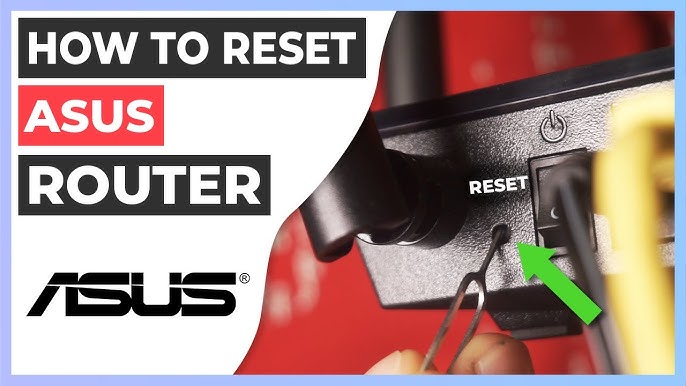
Locate Reset Button
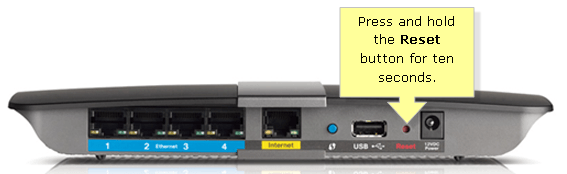
Find the reset button on your modem. It is usually small and recessed. Check the back or bottom of the device. Use a paperclip or pin to press it. Keep the modem powered on during this process.
Perform Hard Reset
Press and hold the reset button for about 10 to 30 seconds. Release it once the lights on the modem start flashing. This signals the reset process has begun. Wait for the modem to reboot completely. The reset may take a few minutes.
Reconfigure Modem After Reset
After resetting, connect to the modem using a wired or wireless connection. Open a web browser and enter the modem’s default IP address. Log in with the default username and password found on the modem label. Change the modem password to a new one. Reapply any custom settings needed for your gaming setup.
Credit: www.online-tech-tips.com
Tips For A Secure Password
Creating a strong password keeps your gaming modem safe from unwanted access. A secure password protects your network and personal data. Simple passwords are easy to guess. Follow these tips to build a password that is tough to crack but easy for you to remember.
Use Complex Combinations
Choose a mix of letters, numbers, and symbols. Combine uppercase and lowercase letters to add variety. Avoid using common words or simple sequences like “1234”. Use at least 8 characters. The longer, the better. Complex passwords slow down hackers and bots trying to break in.
Change Password Regularly
Update your password every few months. Changing passwords often reduces the risk of long-term access. Use a different password than before. Keep track of your new passwords safely. Regular updates stop hackers from using old passwords to enter your system.
Troubleshooting Common Issues
Troubleshooting is a key skill when resetting your gaming modem password. Issues can pop up that block your progress or cause frustration. Knowing how to handle common problems saves time and keeps your gaming setup running smoothly.
Forgot Admin Credentials
It happens to the best of us—you forget your modem’s admin username or password. Instead of giving up, check if your modem has a sticker on the back or bottom. Many manufacturers print default credentials there.
If the default credentials don’t work, you might have changed them in the past. Try recalling any common passwords you use or variations of them. If nothing works, performing a factory reset on the modem usually restores the default admin login.
- Press and hold the reset button (usually a small hole) for about 10-15 seconds.
- Wait for the modem to reboot completely before trying to log in again.
- Remember, this erases all custom settings, so be ready to reconfigure your network.
Modem Not Responding
If your modem fails to respond during the reset process, it can be frustrating. Start by checking the power connection—ensure the modem is plugged in and the power light is on.
Sometimes, the reset button may be stuck or faulty. Try using a pointed object like a paperclip and apply steady pressure. If the modem still doesn’t respond, unplug it for a minute and then plug it back in before attempting the reset again.
Have you checked if your modem’s firmware is up to date? Outdated software can cause unresponsiveness. Visit your modem’s support page on the manufacturer’s website to download the latest firmware and follow their update instructions.
Frequently Asked Questions
How Do I Reset My Gaming Modem Password?
To reset your gaming modem password, log into the modem’s admin panel using its IP address. Navigate to the wireless settings, find the password section, and change it. Save the settings, then reconnect your devices using the new password.
What Is The Default Gaming Modem Password?
The default gaming modem password is often printed on the modem’s label. It usually includes a combination of letters and numbers. If you haven’t changed it, check the user manual or sticker on the device for this information.
Can I Reset My Gaming Modem Password Without Losing Settings?
Yes, you can change the password via the admin panel without resetting the entire modem. This keeps your network settings intact while updating the password for security reasons.
How Often Should I Change My Gaming Modem Password?
It’s best to change your gaming modem password every 3 to 6 months. Regular updates help protect your network from unauthorized access and maintain optimal security.
Conclusion
Resetting your gaming modem password is simple and quick. Follow the steps carefully. First, locate the reset button on your modem. Press and hold it for 10 seconds. Wait for the modem to restart. Access the modem settings through your browser.
Enter the default login details. Change your password to something unique and secure. Remember to save your new password in a safe place. Regularly updating your password enhances security. Enjoy uninterrupted gaming with a secure network. Stay safe and game on!