Setting up your gaming modem without WPS might sound tricky, but it doesn’t have to be. If you want a fast, stable connection for smooth gameplay, you need the right steps to get it done quickly and correctly.
This guide will walk you through easy methods to connect your modem without relying on WPS, so you can avoid security risks and enjoy uninterrupted gaming. Keep reading, and you’ll have your gaming setup ready in no time.
Prepare Your Gaming Modem
Preparing your gaming modem sets the stage for a smooth setup without WPS. This step ensures your device connects well and delivers fast, stable internet for gaming. Taking time here reduces connection errors and lag during play.
Gather Necessary Equipment
Collect all items before starting. Essential equipment includes:
- Gaming modem
- Router (if separate)
- Ethernet cable
- Power adapter for modem and router
- Computer or smartphone for configuration
Having these ready avoids delays and frustration during setup.
Locate Modem And Router Details
Find important network information printed on your devices. Look for:
- SSID (network name)
- Default IP address
- Username and password for modem login
- Wi-Fi password
Keep this information handy. It helps you access settings and connect your modem properly.
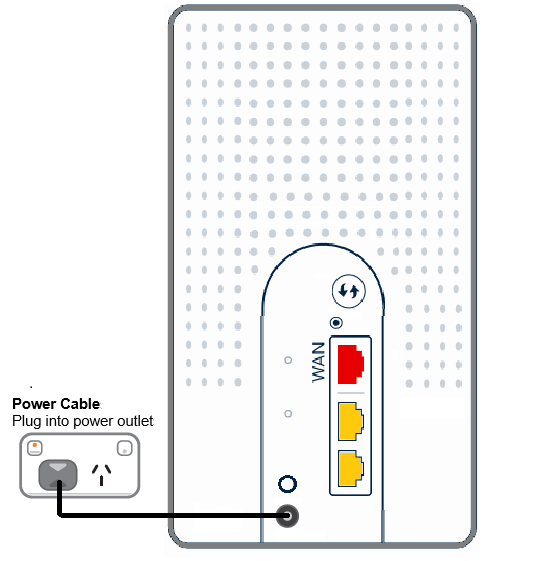
Credit: support.tpg.com.au
Access Modem Settings
Accessing your modem settings is essential if you want to optimize your gaming experience, especially when you can’t use WPS. Getting into the admin panel allows you to tweak configurations like port forwarding, QoS (Quality of Service), and security settings that can make a real difference during gameplay.
Before you dive in, you need a stable connection to the modem itself. This connection can be through a wired Ethernet cable or a wireless Wi-Fi link. Choosing the right one depends on your setup and what’s most reliable at your location.
Connect Via Ethernet Or Wi-fi
Connecting with an Ethernet cable is often the fastest and most stable way to access your modem. Just plug one end into your computer and the other into the modem’s LAN port. If you prefer going wireless, make sure your device is connected to the modem’s Wi-Fi network.
Wired connections avoid dropouts and interference, which can save time troubleshooting later. But Wi-Fi can be more convenient if your modem is in a hard-to-reach spot. What’s your current setup like?
Find Modem Ip Address
Next, you need to find your modem’s IP address, which acts like the gateway to its settings. This is usually a private IP like 192.168.0.1 or 192.168.1.1, but it can vary.
On Windows, open Command Prompt and type ipconfig. Look for the “Default Gateway” under your active network adapter—that’s your modem’s IP.
Mac users can open Terminal and type netstat -nr | grep defaultor check Network Preferences for the router address. Without this IP, you won’t be able to log in and change anything.
Login To Admin Panel
Open a web browser and enter the modem’s IP address into the address bar. This should bring up a login screen where you’ll enter your admin username and password.
Default credentials are often “admin” for both fields or “admin” and “password,” but check your modem’s manual or the label on the device. If you’ve changed these before, use the updated ones.
Once logged in, you’ll see the dashboard with options to adjust settings. If you can’t log in, have you tried resetting the modem to factory defaults? Just be aware this wipes all your custom settings.
Configure Network Settings
Configuring network settings is crucial for a smooth gaming experience. Proper setup ensures stable connections and faster speeds. This step involves setting your network name and password, securing your connection, and assigning a fixed IP address to your gaming device. These settings help reduce lag and connection drops during gameplay.
Set Up Ssid And Password
The SSID is your network’s name. Choose a simple, clear name to find your network easily.
Create a strong password to protect your network from unauthorized access. Use a mix of letters and numbers. Avoid common words or simple sequences.
Adjust Security Protocols
Select the right security protocol to keep your network safe. WPA2 is a good balance of security and speed.
WPA3 offers better protection but may not work with all devices. Avoid using WEP as it is outdated and weak.
Check your router’s settings to enable the chosen security protocol.
Assign Static Ip For Gaming Device
Assigning a static IP prevents your gaming device’s address from changing. This helps maintain a stable connection.
Access your router’s DHCP settings. Reserve an IP address for your device using its MAC address.
Use an IP address outside the DHCP range to avoid conflicts. This keeps your gaming device connected without interruptions.
Connect Gaming Device Manually
Connecting your gaming device manually might feel tricky at first, but it gives you full control over your setup. Without relying on WPS, you ensure a more secure and stable connection, especially important for intense gaming sessions. Let’s dive into how you can do this step-by-step, making sure your gaming experience is smooth and lag-free.
Enter Network Credentials
First, access the network settings on your gaming device. This is usually found under Wi-Fi or Internet options.
Look for the list of available networks and select your home network by its name (SSID). You’ll need to type in the password carefully—remember, it’s case-sensitive.
If you’re unsure about the password, check your router or ask whoever set up your internet. Avoid guessing; multiple failed attempts can lock you out temporarily.
Verify Connection Status
Once your device attempts to connect, check the connection status immediately. Most devices show a status icon or message indicating success or failure.
If the connection fails, review the network name and password you entered. A quick double-check often fixes the problem.
After successful connection, run a simple speed test or try loading a game online. This helps confirm your setup is ready for gaming without interruptions.
Optimize Modem For Gaming
Optimizing your modem for gaming improves speed and lowers lag. A well-tuned modem keeps your connection steady during intense gameplay. Focus on settings that prioritize gaming traffic and reduce disruptions.
Enable Quality Of Service (qos)
QoS lets your modem prioritize gaming data over other internet traffic. This means your game packets get faster delivery. Log in to your modem’s settings and find the QoS section. Enable it and set your gaming device or game ports as high priority. This reduces lag and keeps your gameplay smooth.
Update Firmware
Firmware controls your modem’s functions. Updated firmware improves performance and security. Check the manufacturer’s website or modem interface for updates. Download and install the latest version carefully. Updated firmware can fix bugs that slow your connection during gaming.
Reduce Interference
Wireless interference causes slow speeds and dropped packets. Place your modem away from microwaves, cordless phones, and thick walls. Use a wired Ethernet connection for the best stability. If wireless is necessary, choose a less crowded Wi-Fi channel in your modem settings. This cuts down interference and improves your gaming experience.

Credit: www.youtube.com
Troubleshoot Connection Issues
Troubleshooting connection issues is key to setting up your gaming modem without WPS. Problems can arise from simple hardware faults or network settings. Fixing these can restore smooth and fast internet for gaming.
Check Cable And Hardware
Start by inspecting all cables connected to the modem. Look for loose or damaged wires. Ensure the power cable is firmly plugged in. Check the Ethernet cables between the modem and your device. Replace any worn or broken cables. Also, verify if the modem’s lights show normal operation. A blinking or red light may indicate a hardware issue.
Reset Network Settings
Resetting network settings can clear errors blocking your connection. On your device, go to network settings and find the reset option. This removes saved Wi-Fi networks and custom settings. After reset, reconnect to your modem manually by entering the password. Restart your device and modem to refresh the connection. This simple step often fixes many network problems.
Contact Isp If Needed
Sometimes, connection issues come from your internet provider. Contact your ISP if problems persist after hardware checks and resets. Ask if there are outages or maintenance in your area. Request help with modem configuration or signal strength. Your ISP can run diagnostics and guide you through advanced troubleshooting steps.

Credit: device.report
Frequently Asked Questions
How Do I Connect A Gaming Modem Without Wps?
To connect without WPS, use the modem’s web interface. Enter the IP address in your browser, log in, and manually configure your Wi-Fi settings. Set your SSID and password to secure your connection for gaming.
Can I Set Up A Gaming Modem Using Ethernet Cable?
Yes, using an Ethernet cable is a reliable method. Connect the cable from the modem to your gaming device. This avoids wireless setup and provides a stable, low-latency connection ideal for gaming.
What Are The Manual Steps To Configure Gaming Modem Wi-fi?
Access the modem’s settings via its IP address. Navigate to wireless settings, choose your SSID, set a strong password, and select the right security mode. Save changes and restart the modem to apply settings.
Why Is Wps Not Recommended For Gaming Modem Setup?
WPS can pose security risks and is often slower. Manual setup ensures stronger encryption and better control over settings. This improves connection stability and security, enhancing your gaming experience.
Conclusion
Setting up a gaming modem without WPS is simple. Follow the steps carefully. Ensure all cables are connected properly. Configure settings through the modem interface. Most modems have user-friendly guides. Check your internet provider’s website for extra help. Use an Ethernet cable for a stable connection.
Avoid wireless if possible. Test your setup by playing a game. Troubleshoot if you face issues. Restart the modem for a fresh start. Enjoy smooth gaming with your new setup. Remember, patience and practice make it easier. Happy gaming!