Are you tired of weak WiFi signals and dead zones in your multi-story house? Setting up a mesh WiFi system might be the solution you’ve been searching for.
Imagine seamless internet coverage on every floor, whether you’re working upstairs, streaming in the living room, or gaming in the basement. You’ll discover simple, step-by-step instructions to set up mesh WiFi that works perfectly for your home. Keep reading, and you’ll soon enjoy fast, reliable internet everywhere—no more frustration, no more dropped connections.
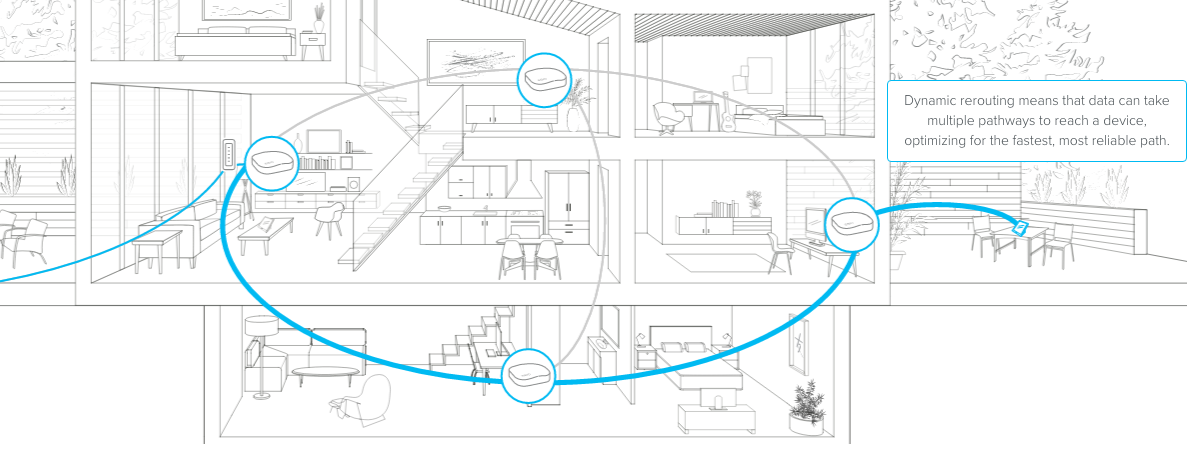
Credit: blog.eero.com
Choosing The Right Mesh Wifi System
Setting up mesh wifi in a multi-story house needs the right system. The system must cover all floors well.
This guide helps you pick a mesh wifi system that fits your home’s needs and size.
Factors To Consider
Choose a system that covers your whole house. Look for easy setup and good speed.
- Coverage area to reach all floors
- Speed that supports your internet plan
- Number of nodes for better signal
- Compatibility with your devices
- Security features like automatic updates
- Price and warranty options
Popular Mesh Wifi Brands
| Brand | Key Features | Best For |
| Netgear Orbi | Strong signal, easy app setup | Large homes with many devices |
| Google Nest Wifi | User-friendly, integrates with smart home | Simple setup, good coverage |
| TP-Link Deco | Affordable, solid security | Budget-friendly homes |
| Asus ZenWiFi | High speed, advanced controls | Tech-savvy users |

Credit: www.reddit.com
Preparing Your Multi Story House
Setting up mesh WiFi in a multi story house needs good planning. You must prepare your home to get the best WiFi coverage. This guide helps you understand what to do first.
Two key tasks help you prepare: finding WiFi dead zones and mapping your home layout. These tasks show where to place mesh WiFi nodes for strong signals.
Assessing Wifi Dead Zones
WiFi dead zones are spots with weak or no wireless signal. These zones can cause slow internet or dropped connections. Find these areas before installing mesh WiFi.
- Use a smartphone or laptop to check WiFi signal in each room.
- Walk around each floor to test signal strength.
- Note places where the signal drops or is very low.
- Check areas behind thick walls or metal objects carefully.
- Mark dead zones on a paper or digital map of your house.
Mapping Your Home Layout
Mapping your home helps you decide the best spots for mesh WiFi nodes. You need to know the size and shape of each floor and the locations of walls and obstacles.
| Area | Details to Note |
| Floor Dimensions | Measure length and width of each floor |
| Wall Types | Note which walls are thick or made of concrete |
| Obstacles | List large furniture or appliances that block signals |
| Power Outlets | Find outlets near central locations for node placement |
| Dead Zones | Mark areas with weak WiFi signals from your assessment |
Placing Mesh Nodes For Optimal Coverage
Setting up mesh WiFi in a multi-story house needs careful node placement. This helps cover all floors with a strong signal.
Good placement avoids dead zones and keeps your internet fast and stable everywhere.
Ideal Locations On Each Floor
Place one mesh node on each floor for the best coverage. Try to put nodes in open spaces, not inside cabinets or behind furniture.
- Put the main node near your modem on the first floor.
- Place the second node in the middle of the second floor.
- If you have a third floor, set the third node near the stairs or elevator.
- Avoid placing nodes in basements or attics with thick walls.
Avoiding Interference
Interference can weaken your WiFi signal. Keep mesh nodes away from devices that create electrical noise or block signals.
| Source of Interference | How to Avoid |
| Microwave ovens | Do not place nodes near the kitchen. |
| Thick walls or metal objects | Place nodes in open areas with fewer barriers. |
| Wireless phones and baby monitors | Keep mesh nodes at least 3 feet away. |
| Bluetooth devices | Separate nodes from Bluetooth gadgets. |
Setting Up The Mesh Network
Setting up a mesh WiFi system in a multi-story house improves internet coverage. It helps connect all floors with strong signals.
This guide explains how to connect the main router and add extra nodes for a smooth network.
Connecting The Primary Router
Place the primary router near your modem. This device controls your whole mesh network.
Use an Ethernet cable to connect the router to the modem. Plug the router into a power source and turn it on.
- Find a central spot on the middle floor if possible
- Keep it away from thick walls or metal objects
- Make sure it has good ventilation to avoid overheating
Adding Secondary Nodes
Secondary nodes extend the WiFi signal to other floors. Place them where the signal from the primary router is still strong.
Connect each node to power and follow the setup instructions in your mesh system app. The nodes will link to the primary router automatically.
- Put nodes on different floors for best coverage
- Avoid placing nodes too close or too far from the primary router
- Test signal strength in each area to adjust node placement
Configuring Network Settings
Setting up your mesh WiFi in a multi-story house needs careful network configuration. This helps your devices connect smoothly on every floor. Two key parts are naming your network and setting strong security.
Let’s look at how to name your network and protect it with a good password. These steps keep your WiFi safe and easy to find for all your devices.
Naming Your Network
Choose a clear and simple name for your mesh network. This name is what you will see on your devices when connecting. Avoid using personal info in the name to stay safe.
- Keep the name short and easy to remember.
- Use letters and numbers only; avoid special characters.
- If your mesh system allows, use the same name for all nodes.
- Use different names for 2.4 GHz and 5 GHz bands if needed.
- Change the default name from the router to something unique.
Setting Passwords And Security
Strong security stops others from using your WiFi without permission. Set a password that is hard to guess but easy for you to remember. Use WPA3 if your mesh system supports it for best protection.
| Security Setting | Recommended Use |
| WPA3 | Best for strong security and modern devices |
| WPA2 | Good backup if WPA3 is not available |
| WEP or None | Not recommended due to weak protection |
Change your WiFi password regularly. Avoid easy passwords like “password123” or your birthdate. Use a mix of uppercase, lowercase, numbers, and symbols. Keep your router firmware updated for security fixes.

Credit: manuals.plus
Testing And Troubleshooting
Setting up mesh WiFi in a multi-story house can be tricky. Testing and troubleshooting ensure your connection is strong everywhere. Let’s explore how to check signal strength and fix common issues.
Checking Signal Strength
Signal strength is crucial for a smooth internet experience. You need to check if every corner of your house has a strong connection.
Use a WiFi analyzer app to measure signal strength. Walk around your house and check signal levels in different rooms.
- Good signal: -30 dBm to -67 dBm
- Weak signal: -68 dBm to -90 dBm
- No signal: -91 dBm and below
Fixing Common Issues
Sometimes the mesh network doesn’t work as expected. Common issues can disrupt your connection, but they are often easy to fix.
First, check if your mesh devices are placed correctly. They should be in open areas, away from walls and metal objects.
- Restart your router and nodes
- Ensure firmware is up to date
- Check for interference from other devices
Maintaining Strong Wifi Coverage
Setting up a mesh Wifi system in a multi-story house helps maintain strong coverage. This system uses multiple nodes to ensure every corner of your home has a reliable connection.
Strong Wifi coverage is essential for streaming, gaming, and work. Follow these steps to keep your network running smoothly.
Regular Firmware Updates
Firmware updates improve your mesh Wifi system’s performance. They fix bugs and add new features.
Check for updates regularly to keep your network secure and efficient. Updated firmware can enhance speed and reliability.
- Check the router’s app for updates
- Schedule automatic updates, if possible
- Follow manufacturer instructions for manual updates
Optimizing Node Placement Over Time
Placing nodes correctly is crucial for strong Wifi coverage. As your needs change, adjust node positions for optimal performance.
Experiment with different locations to minimize dead zones. Consider the distance between nodes and obstacles like walls.
- Place nodes in open areas
- Avoid metal objects and thick walls
- Keep nodes at least two rooms apart
Frequently Asked Questions
What Is The Best Mesh Wifi System For Multi-story Houses?
The best mesh WiFi system offers strong coverage and easy setup. Look for dual-band or tri-band options with multiple nodes. Popular brands include Google Nest WiFi, Eero, and Netgear Orbi. These systems effectively eliminate dead zones in multi-story homes.
How Do I Position Mesh Wifi Nodes In A Multi-story House?
Place one node near the main router on the first floor. Distribute other nodes evenly on different floors and rooms. Avoid walls and metal objects that block signals. Proper placement ensures seamless coverage and fast speeds throughout your home.
Can Mesh Wifi Improve Slow Internet In Upstairs Rooms?
Yes, mesh WiFi extends coverage to upstairs rooms. It creates a strong network by using multiple nodes. This setup reduces dead zones and boosts WiFi speeds where the main router’s signal is weak. Mesh networks are ideal for multi-story homes.
Do I Need Ethernet Backhaul For Mesh Wifi In Multi-story Homes?
Ethernet backhaul is recommended but not mandatory. It connects nodes via cables for stable, fast communication. This reduces wireless interference and improves overall performance. If running Ethernet cables is difficult, rely on wireless backhaul with good node placement.
Conclusion
Setting up mesh WiFi in a multi-story house improves your internet everywhere. Place nodes on each floor for strong signals. Keep devices away from thick walls or metal objects. Test the connection in different rooms to ensure good coverage. A simple setup can solve many WiFi problems at home.
Enjoy faster, stable internet on every device you use. This small effort makes a big difference in daily online activities.