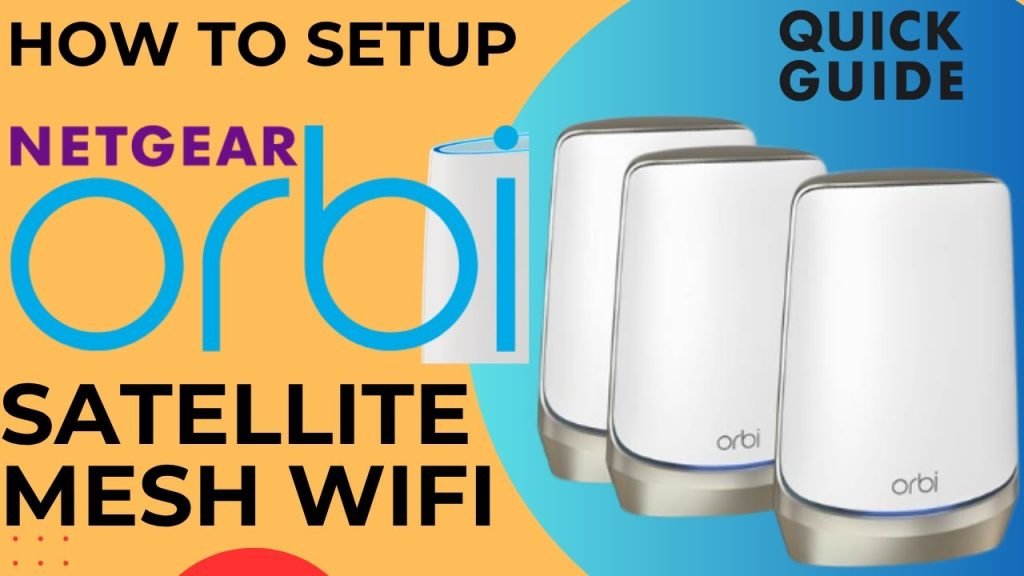
Are you tired of slow WiFi and dead zones in your home? Setting up your Orbi Mesh WiFi system can transform your internet experience, giving you strong, reliable coverage everywhere.
Imagine streaming, gaming, and browsing without interruptions or frustrating buffering. In this guide, you’ll learn exactly how to set up your Orbi Mesh WiFi quickly and easily—no tech headaches, just clear steps that anyone can follow. Ready to unlock seamless WiFi that works for you?
Let’s get started.

Credit: www.youtube.com
Choosing The Right Orbi Model
Selecting the correct Orbi model is important for good wifi coverage in your home.
This guide helps you choose the best Orbi system based on your needs and home layout.
Comparing Orbi Options
Orbi offers several models with different speeds, coverage, and features.
| Model | Max Speed | Coverage Area | Best For |
| Orbi RBK50 | Up to 3Gbps | Up to 5,000 sq ft | Large homes with many devices |
| Orbi RBK752 | Up to 4.2Gbps | Up to 5,000 sq ft | Homes needing WiFi 6 support |
| Orbi RBK13 | Up to 1.2Gbps | Up to 3,000 sq ft | Small homes or apartments |
| Orbi RBK853 | Up to 6Gbps | Up to 7,500 sq ft | Very large homes with many users |
Assessing Home Size And Layout
Measure your home’s size and think about walls and floors that block wifi.
- For homes under 3,000 sq ft, a simple Orbi kit is enough.
- Homes between 3,000 and 5,000 sq ft need a mid-range Orbi model.
- Large homes over 5,000 sq ft benefit from high-end Orbi systems with more satellites.
- Open layouts need fewer satellites than homes with many walls.
- Homes with thick walls or multiple floors require more satellites for strong signal.
Preparing For Installation
Before setting up your Orbi Mesh Wifi, you need to prepare your space and equipment. Proper preparation helps the installation go smoothly.
Check your internet connection and gather all necessary items. This will save time and avoid interruptions.
Checking Internet Connection
Make sure your internet service is active and working properly. A stable connection is essential for the Orbi system to work well.
- Confirm your modem is connected to the internet.
- Test your current connection with a computer or phone.
- Restart your modem if the connection is slow or not working.
- Keep your internet provider’s contact information handy.
Gathering Required Equipment
Collect all the tools and devices needed to install the Orbi Mesh Wifi system. Having everything ready helps avoid delays.
| Equipment | Description |
| Orbi Router | Main device connecting to your modem |
| Orbi Satellite(s) | Additional units to extend wifi coverage |
| Ethernet Cable | Used to connect the router to the modem |
| Power Adapters | For router and satellites |
| Smartphone or Computer | For setup and configuration |
Connecting The Orbi Router
The Orbi Router helps you create a strong WiFi network at home. This guide shows how to connect it properly. Follow these steps to get started with your Orbi mesh system.
We will cover placing the router in the right spot and powering it up for the first time. This will ensure your Orbi works well and gives good coverage.
Placing The Router
Put the Orbi Router in a central location in your home. Avoid placing it near thick walls or metal objects. This helps the signal reach all rooms better.
- Choose a high and open place, like a shelf or table
- Keep it away from microwaves and cordless phones
- Place it near your modem for easy connection
- Do not hide it inside cabinets or behind furniture
- Make sure it is close to where you use WiFi most
Powering Up And Initial Setup
Connect the Orbi Router to power and your modem. Turn it on and wait for the lights to show it is ready. Next, use the Orbi app or web interface to finish setup.
| Step | Action | Indicator |
| 1 | Plug in power to the Orbi Router | Power LED glows white |
| 2 | Connect the Orbi Router to your modem with Ethernet cable | Internet LED lights up |
| 3 | Wait for the Router LED to turn solid blue | Ready for setup |
| 4 | Use the Orbi app or browser to complete setup | Follow on-screen instructions |
Credit: www.netgear.com
Adding Satellite Units
Adding satellite units extends your Orbi mesh WiFi coverage. Satellites work with the main router to create a strong network.
Follow simple steps to place and sync satellites for the best WiFi signal in your home.
Optimal Satellite Placement
Place satellites where they get a clear signal from the main router. Avoid walls and metal objects that block WiFi.
Keep satellites near areas where you need better WiFi, like living rooms or offices.
- Place satellites halfway between the router and dead zones
- Avoid placing satellites in basements or behind thick walls
- Keep satellites away from microwaves and cordless phones
- Elevate satellites on shelves or tables for better signal
Syncing Satellites With Router
Turn on the satellite unit near the router to start syncing. Wait for the LED light to blink.
Press the sync button on both the router and satellite. The LED will turn solid when they connect.
- Power on the satellite near the router
- Wait for the satellite’s LED to blink white
- Press the sync button on the router
- Press the sync button on the satellite within two minutes
- Wait for the LED to turn solid blue or white, showing connection
- Move the satellite to the chosen location once synced
Configuring Network Settings
Setting up your Orbi Mesh WiFi involves configuring network settings. This ensures your network is secure and performs well.
Follow these steps to access the settings and optimize your Orbi network.
Accessing Orbi App Or Web Interface
You can access the Orbi settings using the Orbi app or through a web interface. Both methods are straightforward.
To use the Orbi app:
- Download the Orbi app on your smartphone.
- Open the app and log in with your admin credentials.
- Navigate to network settings from the dashboard.
Setting Ssid And Password
Changing your network’s SSID and password can enhance security. Use unique and strong credentials.
- Log into your Orbi account.
- Go to the WiFi settings section.
- Enter a new SSID for your network.
- Set a strong password with a mix of letters and numbers.
- Save the changes to apply them.
Enabling Security Features
Security features protect your network from unauthorized access. Activate these options for enhanced safety.
| Feature | Description |
| WPA3 Encryption | Offers advanced security for your network. |
| Guest Network | Allows visitors to connect without accessing main network. |
| Firewall | Blocks malicious attacks and unauthorized access. |

Credit: www.netgear.com
Testing And Optimizing Network
After setting up your Orbi mesh WiFi, it is important to test and optimize the network. This ensures you get the best speed and coverage throughout your home.
Testing helps find weak spots, and optimizing improves the signal strength. Follow these steps to keep your network fast and reliable.
Running Speed Tests
Speed tests show how fast your internet is at different locations. Use a device connected to your Orbi network to run tests.
Try testing near the router and near each satellite. This helps identify areas with slower speeds.
- Use apps like Speedtest by Ookla or Fast.com
- Run tests at different times of day
- Compare results from router and satellites
- Note any locations with weak speed
Adjusting Satellite Positions
Positioning satellites correctly improves WiFi coverage and speed. Move satellites if speed tests show weak signals.
Try placing satellites midway between the main router and areas with poor coverage. Avoid placing them near thick walls or metal objects.
- Place satellites in open areas
- Keep satellites within range of the main router
- Avoid placing satellites near microwaves or cordless phones
- Test speed after moving satellites
Updating Firmware
Firmware updates improve device performance and fix bugs. Check for updates regularly on your Orbi router and satellites.
Updating firmware keeps your network secure and running smoothly. Use the Orbi app or web interface to check for updates.
- Open Orbi app or log into router dashboard
- Look for firmware update section
- Download and install the latest updates
- Restart devices after updates finish
Troubleshooting Common Issues
Setting up an Orbi Mesh Wifi system can improve your home network. Sometimes, you might face common issues. Here’s how to troubleshoot them.
Follow these simple steps to resolve problems like connection drops, sync issues, and resetting the system.
Resolving Connection Drops
If your connection drops, check the placement of your Orbi units. They should be central in your home. Avoid walls and metal objects that block signals.
Ensure your firmware is up-to-date. Sometimes, outdated firmware causes issues. Check the Orbi app for updates.
- Restart your modem and Orbi devices
- Check for interference from other devices
- Use the Orbi app to diagnose problems
Fixing Sync Problems
Sync problems occur when Orbi units cannot connect. Make sure the units are within range of each other. Move them closer if needed.
Try syncing the units manually. Press the sync button on the main unit first, then on the satellite unit. Wait for them to connect.
- Ensure all units are powered on
- Verify that the sync buttons are working
- Check for any physical damage to units
Resetting The Orbi System
Sometimes a reset is needed to fix issues. To reset, locate the reset button on the back of your Orbi unit.
Press and hold the reset button for about 10 seconds. Wait for the lights to stabilize. This resets the system to factory settings.
- Back up your settings before resetting
- Reconfigure your network after a reset
- Ensure all devices reconnect to the network
Frequently Asked Questions
How Do I Start Setting Up Orbi Mesh Wifi?
Begin by connecting your Orbi router to the modem. Power on both devices. Download the Orbi app on your smartphone for guided setup. Follow the app’s step-by-step instructions to complete the initial configuration quickly and easily.
What Is The Best Location For Orbi Satellites?
Place Orbi satellites halfway between your router and WiFi dead zones. Avoid placing them near thick walls or electronic devices. This ensures optimal signal strength and seamless coverage throughout your home or office.
How Do I Update Orbi Mesh Wifi Firmware?
Open the Orbi app or log into the router’s web interface. Navigate to the Firmware Update section. Check for available updates and follow prompts to install. Regular updates improve performance and security.
Can I Manage Orbi Mesh Wifi Remotely?
Yes, you can manage your Orbi network remotely through the Orbi app. Enable remote management in settings. This allows you to monitor and control your WiFi from anywhere, providing flexibility and convenience.
Conclusion
Setting up Orbi Mesh WiFi is simple and quick. Follow each step carefully. You can enjoy strong WiFi in every room. No more dead zones or weak signals. This system fits well in most homes. Keep your devices connected smoothly all day.
Stay patient during setup for best results. Enjoy faster internet and better coverage now.


