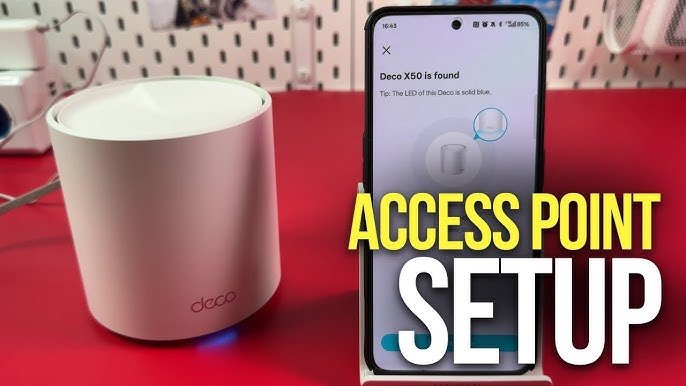
Are you tired of dead zones and slow internet in your home? Setting up your TP-Link Deco Mesh WiFi can change that fast.
Imagine seamless, strong WiFi in every corner without constant buffering or drops. This guide will walk you through each simple step to get your Deco system up and running quickly. By the end, you’ll enjoy smooth streaming, faster downloads, and reliable connections everywhere.
Keep reading to discover how easy it is to boost your home WiFi today.

Credit: www.youtube.com
Choosing The Right Deco Model
Choosing the correct Deco model is important for a strong Wi-Fi connection. Different models suit different needs and spaces.
This guide helps you pick the best Deco device by comparing series and checking your home size.
Comparing Deco Series
Deco offers several series with different speeds and features. Knowing these helps you decide which fits your needs.
| Deco Series | Speed | Coverage | Best For |
|---|---|---|---|
| Deco S Series | Up to 1200 Mbps | Up to 5,500 sq ft | Small to medium homes |
| Deco M Series | Up to 1750 Mbps | Up to 6,500 sq ft | Medium homes with many devices |
| Deco X Series | Up to 3000 Mbps (Wi-Fi 6) | Up to 7,000 sq ft | Large homes, faster speeds |
| Deco P Series | Up to 1200 Mbps (Powerline) | Up to 5,000 sq ft | Homes with thick walls |
Assessing Home Size And Layout
Measure your home’s size and consider its layout. This helps pick the right number of Deco units.
- Small homes (up to 2,000 sq ft) need 1 or 2 Deco units
- Medium homes (2,000–5,000 sq ft) need 2 to 3 units
- Large homes (over 5,000 sq ft) need 3 or more units
- Homes with many walls or floors may need extra units
- Open floor plans need fewer units than divided spaces
Preparing For Setup
Setting up your Tp-Link Deco Mesh Wifi system starts with good preparation. This helps you avoid problems and get fast internet.
Read these tips to check your internet and place your Deco units well before setup.
Checking Internet Connection
Make sure your internet connection is active before setting up the Deco system. A stable connection ensures smooth setup and usage.
Test your internet by connecting a device directly to your modem or router. Check if websites load and videos play without issues.
- Confirm your modem is powered on and connected to the internet.
- Use a laptop or phone to test internet speed and stability.
- Restart your modem if the connection is slow or unresponsive.
Unboxing And Placement Tips
Carefully unbox your Tp-Link Deco units and check all parts are included. This helps avoid missing items during setup.
Place your Deco units in open spaces for best wifi coverage. Avoid hiding them inside cabinets or behind objects.
- Keep Deco units away from metal objects and thick walls.
- Place the main Deco near your modem for easy connection.
- Space out additional Decos evenly around your home.
- Elevate units on shelves or tables for better signal strength.
Installing The Deco App
The Deco app helps you set up your TP-Link Deco Mesh WiFi system. It guides you through each step to get your network ready.
Before you start, make sure your mobile device has a stable internet connection to download the app easily.
Downloading On Mobile Devices
You can download the Deco app from the app store on your phone or tablet. It is available for both Android and iOS devices.
- Open the Google Play Store on Android or the App Store on iOS.
- Search for “TP-Link Deco”.
- Tap the install or get button to download the app.
- Wait for the app to finish installing.
- Open the app to start the setup process.
Creating A Tp-link Account
After installing the app, you need a TP-Link account to use all the features. Creating an account is simple and free.
| Account Setup Step | Details |
| Open the Deco app | Tap “Sign Up” on the welcome screen. |
| Enter your email | Use a valid email address for verification. |
| Create a password | Choose a strong password with letters and numbers. |
| Agree to terms | Read and accept TP-Link’s terms and privacy policy. |
| Verify email | Check your email inbox for a verification code. Enter it in the app. |
| Complete registration | Your account is ready to use for the Deco setup. |

Credit: www.youtube.com
Connecting The Main Deco Unit
Setting up the main Deco unit is the first step to start your mesh WiFi system. This guide covers how to connect it properly and get it running.
Follow the instructions below to wire your Deco unit and power it on for initial syncing.
Wiring To The Modem
Use an Ethernet cable to connect the main Deco unit to your modem. This connection allows the Deco to share internet access throughout your home.
- Unplug your modem from the power source.
- Connect one end of the Ethernet cable to the modem’s LAN port.
- Connect the other end of the Ethernet cable to the WAN port on the Deco unit.
- Make sure the cable is securely plugged in on both ends.
- Keep the modem close to the Deco unit for easy wiring.
Powering On And Initial Sync
After wiring, power on the Deco and wait for it to sync with the network. This process sets up your mesh WiFi system properly.
| Action | What to Expect |
|---|---|
| Plug in the Deco’s power adapter | The LED light will turn on, indicating power |
| Wait for the LED to blink blue | This shows the Deco is syncing with the modem |
| When the LED turns solid blue | The Deco is ready and connected |
| Open the Deco app on your phone | Follow app instructions to complete setup |
Adding Additional Deco Units
Setting up additional Deco units can enhance your Wi-Fi coverage. This makes your internet connection smoother throughout your home.
Follow the steps below to add Deco units and improve your home network.
Optimal Location Selection
Choosing the right place for your Deco units is crucial. It affects the Wi-Fi strength and coverage.
- Place the Deco units in open areas.
- Avoid corners or closed spaces.
- Keep them away from metal objects.
- Position them at an equal distance from each other.
Syncing With Main Unit
Syncing your additional units with the main Deco ensures a seamless network. Follow these steps to achieve this.
- Power on the additional Deco unit.
- Open the Deco app on your phone.
- Select the option to add a new Deco unit.
- Follow the in-app instructions to sync.

Credit: www.youtube.com
Configuring Network Settings
Setting up your Tp-Link Deco Mesh WiFi requires configuring network settings. These settings help you control your WiFi connection and keep it safe.
Two important parts of this setup are naming your WiFi network and setting a secure password. These steps make your network easy to find and protect it from unwanted users.
Naming Your Wifi Network
Your WiFi network name is called the SSID. It helps you and others find your network on devices. Choose a name that is easy to remember but not too personal.
A clear and simple name avoids confusion, especially if many networks appear nearby. Avoid using your full name or address in the network name.
- Keep the name short and simple
- Use letters and numbers only
- Avoid personal information
- Make it unique to your home or office
Setting A Secure Password
A strong password protects your WiFi from strangers. It stops others from using your internet without permission.
Create a password that is hard to guess. Use a mix of letters, numbers, and symbols. Avoid common words or easy patterns.
- Use at least 8 characters
- Include uppercase and lowercase letters
- Add numbers and special characters
- Do not use simple words or sequences
- Change your password regularly
Optimizing Performance
Setting up your TP-Link Deco Mesh WiFi can enhance your internet experience. Optimizing performance is key for seamless connectivity.
Let’s explore how using QoS and parental controls, along with regular firmware updates, can improve your network.
Using Qos And Parental Controls
Quality of Service (QoS) and parental controls can help manage your WiFi network. These tools prioritize devices and control access effectively.
- QoS ensures important devices get more bandwidth.
- Parental controls limit internet access for kids’ devices.
- Set time limits for internet usage to encourage offline activities.
Firmware Updates And Maintenance
Keeping your firmware up-to-date is crucial for security and performance. Regular updates fix bugs and add new features.
| Task | Frequency |
| Check for firmware updates | Monthly |
| Restart your router | Weekly |
| Inspect hardware for damage | Quarterly |
Troubleshooting Common Issues
Setting up your Tp-Link Deco Mesh Wifi is easy, but problems can happen. This guide helps fix common issues.
Follow these tips to solve connection drops and slow speeds. These fixes improve your wifi experience.
Connection Drops
Connection drops happen when devices lose wifi signal suddenly. It may be caused by interference or weak signals.
Try moving your Deco units closer or away from walls and metal objects. Also, check for firmware updates.
- Place Deco units in open areas
- Keep units away from microwaves and cordless phones
- Restart Deco units regularly
- Update Deco firmware in the app
- Reset the network if problems continue
Slow Speeds
Slow speeds can happen if many devices use the network at once. It can also be due to poor signal quality.
Check your internet plan speed and compare it to what you get. Move Deco units for better coverage.
- Limit devices using the wifi
- Move Deco closer to where you need speed
- Use Ethernet backhaul if possible
- Change wifi channels in the app
- Restart the modem and Deco units
Frequently Asked Questions
How Do I Start Setting Up Tp-link Deco Mesh Wifi?
Begin by downloading the Deco app on your smartphone. Follow the app’s step-by-step instructions to connect your Deco units. Make sure your modem is connected and powered on before starting setup.
Can I Use Multiple Deco Units For Better Coverage?
Yes, you can add multiple Deco units to extend your mesh network. Place additional units strategically around your home for seamless WiFi coverage. The Deco app guides you through the process of adding units.
What Is The Best Placement For Tp-link Deco Units?
Place Deco units in open, central locations away from thick walls and electronic devices. Avoid placing units near microwaves or cordless phones. Proper placement ensures maximum WiFi coverage and stable connections.
How Do I Manage My Tp-link Deco Network Remotely?
Use the Deco app to manage your network from anywhere. You can monitor devices, set parental controls, and prioritize bandwidth. The app also provides notifications for network status and security alerts.
Conclusion
Setting up your Tp-Link Deco Mesh Wifi is simple and quick. Follow the steps carefully and stay patient. You will enjoy better wifi coverage in every corner of your home. No more weak signals or slow internet. Just connect, configure, and relax.
Your devices will run smoothly with strong wifi. Keep your Deco units updated for best performance. Enjoy a faster, reliable internet experience every day.


