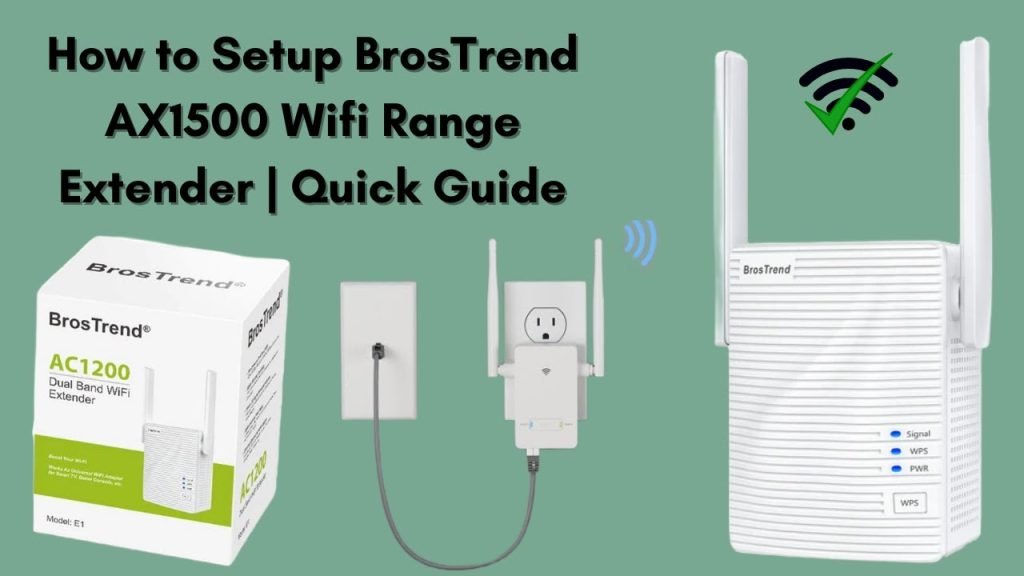
Struggling with weak WiFi signals in certain areas of your home? You’re not alone.
Many people face this frustrating issue, especially in larger homes or spaces with thick walls. The good news is, a dual-band WiFi extender might be just the solution you need. By boosting your WiFi signal, you can enjoy seamless internet access in every corner of your home.
Imagine streaming your favorite shows without interruptions, or working from your home office without worrying about connection drops. In this guide, you’ll learn how to set up a dual-band WiFi extender easily, ensuring strong, reliable internet wherever you need it. Keep reading to discover the simple steps that will transform your internet experience.

Credit: www.youtube.com
Choosing The Right Dual Band Extender
Dual band extendersuse two frequency bands: 2.4 GHzand 5 GHz. The 2.4 GHz band covers a larger area but has slower speeds. The 5 GHz band provides faster speeds but covers a smaller area. Choosing the right frequency depends on your needs for speed and coverage.
Check if the extender is compatible with your router. Most dual band extenders work with common router brands. Make sure your router supports both 2.4 GHz and 5 GHz bands for best results.
Range and coveragedepend on the size of your home and walls. Extenders with higher range cover bigger spaces. Keep the extender near the router but within the weak signal area for best performance.

Credit: www.youtube.com
Preparing For Installation
Choose a spot where your wifi signalis still strong. Avoid thick walls or large metal objects. Place the extender halfway between your router and the weak signal area.
Make sure there is a power outletnearby. Check the signal strength at the chosen spot using your phone or laptop. The extender needs a good signal to boost.
| Information Needed | Why It’s Important |
|---|---|
| Router SSID (Network Name) | To connect the extender to your main wifi |
| Wifi Password | For secure access to your network |
| Extender Model Details | Helps during setup and troubleshooting |
Connecting The Extender
First, plug the dual band WiFi extenderinto a power outlet near your router. Wait until the power light turns solid, which means the device is ready.
Using WPS for Quick Setupis fast and easy. Press the WPS button on your router, then press the WPS button on the extender within two minutes. Lights will blink and then stay solid when connected.
Manual Setup via Web Interfacerequires connecting to the extender’s WiFi network. Open a web browser and enter the extender’s IP address. Log in using default credentials, then select your home WiFi network. Enter your WiFi password and save settings. The extender will reboot and connect to your router.
Configuring Network Settings
Choosing the right bandis key. The 2.4 GHz band covers longer distances but is slower. The 5 GHz band is faster but covers less area. Pick based on your home’s size and device needs.
Set a unique SSIDto identify your extender easily. Use a name similar to your main WiFi but add “_EXT” or “_5G” for clarity. Create a strong passwordwith letters, numbers, and symbols to keep your network safe.
| Security Option | Description | Recommended Use |
|---|---|---|
| WEP | Old and less secure | Avoid if possible |
| WPA | Better security than WEP | Use if WPA2 not available |
| WPA2 | Strong security and widely supported | Best choice for most users |
| WPA3 | Latest and strongest security | Use if all devices support it |
Choose the highest security levelyour devices support. This keeps your network safe from unwanted access.
Testing And Optimizing Signal
Check the signal strengthusing a WiFi analyzer app. This app shows if the extender gets a strong or weak signal. Strong signal means better internet speed.
Move the extender around to find the best spot. Place it where it gets a clear signal from your router but also covers the weak WiFi areas in your home.
- Keep the extender away from thick walls and large metal objects.
- Avoid placing it near microwaves or cordless phones.
- Try different heights: higher places often work better.
Common problems include no connection or slow speed. Restart the extender and router to fix this. Make sure the extender’s firmware is up to date.
| Issue | Possible Cause | Fix |
|---|---|---|
| No Signal | Too far from router | Move extender closer to router |
| Slow Speed | Interference from devices | Change extender location |
| Connection Drops | Old firmware | Update extender firmware |
Maintaining Your Extender
Keeping your dual band WiFi extender working well needs regular care. Updating the firmwareis important. Firmware is the software inside the device. Check the extender’s website or app for updates. Updates fix bugs and add new features. This keeps your extender secure and fast.
Do performance checksoften. Test the WiFi speed and signal strength in different rooms. If the signal is weak, try moving the extender closer to the router. This helps keep a strong connection.
Resetting and reconfiguringthe extender can solve many problems. Press the reset button if the extender stops working. Then, set it up again using the instructions. This clears errors and refreshes the device.

Credit: www.youtube.com
Frequently Asked Questions
What Is A Dual Band Wifi Extender?
A dual band WiFi extender boosts signals on both 2. 4 GHz and 5 GHz bands. It improves coverage and reduces interference for better internet speeds.
How Do I Connect A Dual Band Wifi Extender?
Plug in the extender near your router, connect via WPS or WiFi settings, then place it where signal is weak but still strong enough.
Can Dual Band Extenders Improve Slow Internet?
Yes, they enhance coverage and reduce dead zones, leading to faster and more stable internet, especially in large homes or offices.
Is Setup Different For 2.4 Ghz And 5 Ghz Bands?
No, most dual band extenders configure both bands simultaneously via one setup process for seamless network extension.
Conclusion
Setting up a dual band WiFi extender improves your home internet. It helps reduce dead zones and boosts signal strength. Follow the steps carefully for the best results. Place the extender where the signal is still strong. Connect to both 2.
4 GHz and 5 GHz bands for better speed. Test the connection after setup to ensure it works well. Enjoy faster, more reliable WiFi in every room. Simple steps lead to better internet coverage. Your online experience will feel smoother and more stable.


