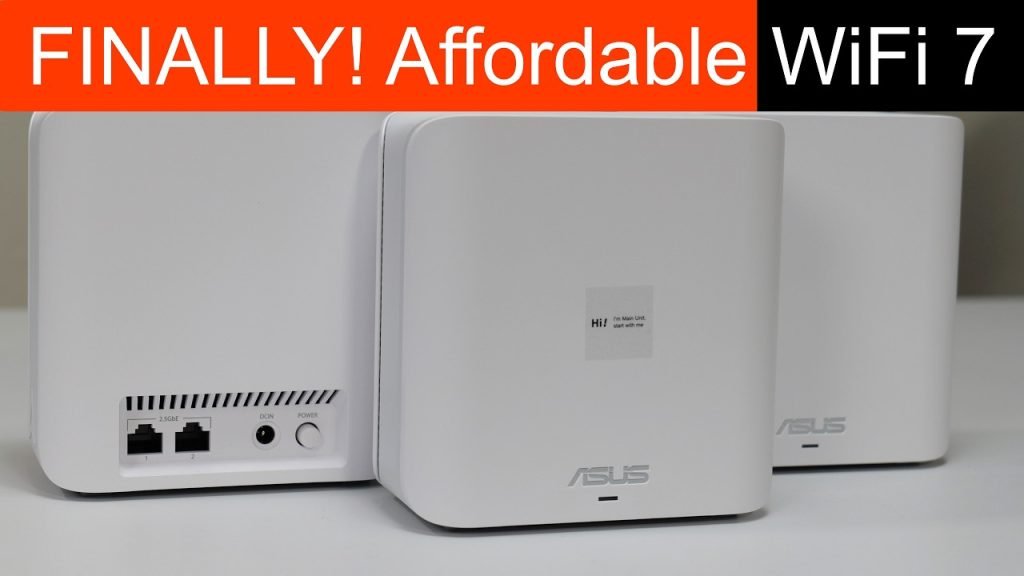
Are you wondering if your budget mesh WiFi is really delivering the speed and coverage you need? Testing your mesh network doesn’t have to be confusing or time-consuming.
In this guide, you’ll discover simple, practical steps to check your WiFi’s performance right now. By the end, you’ll know exactly how to spot weak spots, improve your connection, and get the most out of your setup—without spending extra money.
Ready to make your WiFi work smarter for you? Let’s dive in.
Choosing Budget Mesh Wifi
Budget mesh wifi systems help spread wifi signals across your home. They are cheaper than high-end models. Testing these systems ensures you get good coverage and speed.
Choosing the right budget mesh wifi means looking at important features. This guide helps you pick and test the best system for your needs.
Key Features To Consider
Look for features that improve wifi strength and ease of use. Check how many devices can connect without slowing down.
Consider the wifi speed, coverage area, and setup process. Good features make your network faster and easier to manage.
- Coverage area matching your home size
- Speed that supports your internet plan
- Number of devices supported
- Simple setup and app control
- Security options like encryption
Popular Budget Models
Several budget mesh wifi models offer good value. These models balance price and performance for small to medium homes.
Check these popular options to compare features before testing your mesh system.
- TP-Link Deco M4
- Google Nest Wifi (basic pack)
- Netgear Orbi RBK13
- Amazon Eero 6 (basic model)
- Tenda Nova MW3
Setting Up Your Mesh Network
Setting up a mesh WiFi network helps improve internet coverage in your home. It uses multiple nodes that work together to create a strong signal.
Follow simple steps to place nodes correctly and connect your devices for the best performance.
Placement Of Nodes
Place your mesh nodes in open spaces to avoid signal blocks. Keep nodes away from thick walls and metal objects that can weaken WiFi signals.
- Put the main node near your modem or router.
- Place additional nodes in areas with weak WiFi.
- Keep nodes at least 30 feet apart for good coverage.
- Avoid placing nodes near microwaves or cordless phones.
- Elevate nodes on shelves or tables for better signal flow.
Connecting Devices
After placing nodes, connect your devices to the mesh network. Use the network name and password set during the setup.
| Device Type | Connection Tips |
| Smartphones | Use WiFi settings to select the mesh network. |
| Laptops | Connect via WiFi or Ethernet if supported. |
| Smart TVs | Ensure strong signal near the TV for smooth streaming. |
| Smart Home Devices | Check compatibility with mesh WiFi systems. |
Tools For Testing Wifi Performance
Testing your budget mesh WiFi helps you see how well it works. You can find weak spots and fix slow areas. Using the right tools makes this easy and clear.
There are many tools to check WiFi speed and strength. Some show your internet speed. Others analyze your network for problems.
Speed Test Apps
Speed test apps measure how fast your WiFi connection is. They check download and upload speeds. They also show ping or delay time.
These apps help you see if your mesh WiFi gives good internet speed in different rooms. You can run tests near each WiFi node.
- Check download speed to see how fast you get data.
- Upload speed shows how fast you send data.
- Ping measures delay, important for games and calls.
- Run tests at different times for accurate results.
Network Analyzers
Network analyzers give detailed info about your WiFi network. They show signal strength and channel use. This helps find interference and weak spots.
These tools help you see how your mesh nodes connect. You can check if any node is too far or blocked. They often show device info and connection quality.
- View WiFi signal strength in different rooms.
- Check which channels your WiFi uses to avoid overlap.
- Find devices connected to your mesh network.
- Identify interference from other networks or electronics.
Conducting Speed Tests
Testing the speed of your budget mesh WiFi helps you understand its performance. Speed tests show how fast your internet works at different points in your home.
These tests can reveal areas with weak signals or slow speeds. Use this information to improve your WiFi setup.
Testing At Different Locations
Test your mesh WiFi speed in several places around your house. This shows how well the mesh nodes share the connection.
- Start near the main router node for a baseline speed.
- Test at the farthest mesh point from the main node.
- Try rooms in the middle of the house.
- Check areas with walls or obstacles.
- Test outside if you use outdoor mesh nodes.
Interpreting Results
Compare speed test results to find where your WiFi is slow. Look at download speed, upload speed, and ping.
| Result | What It Means |
| High download and upload | Good connection and fast internet |
| Low download speed | Possible signal loss or interference |
| High ping time | Delay in data transfer, may cause lag |
| Big speed differences between nodes | Mesh nodes may need repositioning |
Checking Network Stability
Testing your budget mesh WiFi’s network stability is important. It helps find any weak spots or interruptions in your connection.
You can check stability by watching for connection drops and measuring latency or ping times.
Monitoring Connection Drops
Connection drops happen when your device loses WiFi signal briefly. These drops cause slowdowns or lost data.
- Use your device normally and watch for any lost internet moments.
- Check your router’s admin panel for logs about disconnections.
- Test at different distances from the mesh points.
- Record the time and frequency of any drops to spot patterns.
Latency And Ping Tests
Latency shows how long data takes to travel from your device to the internet and back. Ping tests help measure this time.
| Test Type | Description | What to Look For |
| Ping Test | Sends small data packets to a server | Low ping times mean good connection |
| Latency Test | Measures delay in milliseconds (ms) | Stable low latency means steady network |
| Jitter Check | Measures variation in ping times | Low jitter means smooth performance |
Credit: www.tomsguide.com
Optimizing Mesh Network Settings
Testing a budget mesh WiFi can enhance your internet experience. Proper settings help in achieving the best performance.
Adjusting the right settings ensures that your mesh network operates efficiently. You can improve speed and coverage by optimizing these settings.
Adjusting Channel And Frequency
Channels and frequencies impact the performance of your mesh WiFi. Selecting the right channel reduces interference from other networks.
Use the 5GHz frequency for faster speeds. The 2.4GHz frequency covers a wider area but is slower.
- Select a less crowded channel for better performance
- Use 5GHz for devices needing high speed
- Use 2.4GHz for devices that are far from the router
Firmware Updates
Keeping firmware updated is crucial for your mesh network. Updates improve security and performance.
Check for updates regularly to ensure your mesh WiFi runs on the latest version. This helps in fixing bugs and enhancing features.
- Check for updates in the router’s app or website
- Enable automatic updates if available
- Restart the network after updating
Troubleshooting Common Issues
Testing your budget mesh WiFi can help solve common issues. This guide covers slow speeds, dead zones, and interference problems.
Follow these steps to ensure your mesh WiFi performs optimally. Each section will address specific issues and offer solutions.
Slow Speeds
Slow internet speeds can be frustrating. Check your mesh system and internet plan first. Make sure your hardware supports the speeds you need.
- Restart your router and nodes.
- Check for firmware updates.
- Disconnect unused devices.
Dead Zones
Dead zones are areas with no WiFi signal. These often occur in larger homes. Proper placement of mesh nodes is crucial.
| Node Placement | Signal Strength |
| Near thick walls | Weak |
| Central location | Strong |
| High shelves | Moderate |
Interference Problems
Interference from other devices can disrupt your WiFi. Devices like microwaves and cordless phones can cause issues.

Credit: dongknows.com
Comparing Budget Mesh To Premium Options
Testing budget mesh WiFi systems helps you see how they work versus premium options. You can find out if cheaper models meet your needs.
This guide looks at key differences in performance and cost to help you decide which system fits your home.
Performance Differences
Premium mesh WiFi usually offers faster speeds and better coverage. Budget models may have slower connections and smaller range.
- Premium systems often use stronger antennas.
- They support more devices at once without slowing down.
- Budget options might struggle with many devices or large homes.
- Premium gear updates firmware more frequently for security and fixes.
Cost Vs Value
Budget mesh WiFi costs less but may offer fewer features. Premium options cost more but often deliver better value over time.
| Feature | Budget Mesh | Premium Mesh |
| Price Range | $50 – $150 | $200 – $500+ |
| Speed | Up to 300 Mbps | Up to 1200 Mbps or more |
| Coverage | Small to medium homes | Large homes and multi-floors |
| Device Support | Fewer devices | Many devices simultaneously |
| Firmware Updates | Less frequent | Regular and fast |

Credit: www.pcmag.com
Frequently Asked Questions
How Do I Test Mesh Wifi Speed Accurately?
Use speed test apps like Ookla or Fast. com near each mesh node. This shows real-time upload and download speeds for accuracy.
What Tools Help Test Budget Mesh Wifi Coverage?
WiFi analyzer apps help map signal strength across your space. They identify weak spots and optimize node placement for better coverage.
How To Check Mesh Wifi Stability And Reliability?
Run continuous ping tests to your router or nodes. Consistent low latency and no packet loss indicate stable, reliable mesh performance.
Can I Test Mesh Wifi Device Handoff Quality?
Move between mesh nodes while streaming or video calling. Smooth transitions without lag or dropouts mean effective device handoff.
Conclusion
Testing your budget mesh WiFi helps ensure good home internet. Check signal strength in every room for coverage. Run speed tests to see if internet meets your needs. Watch for dead zones and weak connections. Adjust node placement to improve performance.
Regular testing keeps your network stable and fast. A well-tested mesh system makes daily tasks easier. Stay patient and try different setups for best results. Simple steps make a big difference in WiFi quality.


