
Are you struggling with weak WiFi signals in some parts of your home or office? A tri band WiFi extender can boost your network, but how do you know if it’s covering every corner effectively?
Testing your extender’s coverage is key to making sure you get the strong, reliable connection you deserve. In this guide, you’ll discover simple steps to check your tri band WiFi extender’s reach and performance. By the end, you’ll have the confidence to optimize your WiFi setup and enjoy faster, uninterrupted internet wherever you are.
Keep reading to unlock the full potential of your WiFi extender!
Tri Band Wifi Extender Basics
A Tri Band Wifi Extenderuses three separate frequency bands to boost WiFi signals. One band connects to your router, while the other two send signals to your devices. This helps keep your connection strong and fast.
Compared to Dual Band Extenders, tri band models reduce network congestion. They offer better speed and support more devices at once. This means less lag and smoother streaming or gaming.
| Key Features | Why It Matters |
|---|---|
| Separate Backhaul Band | Keeps connection between router and extender stable |
| Multiple Device Support | Handles many devices without slowing down |
| High Speed | Better for streaming and online games |
| Easy Setup | Saves time and effort when installing |

Credit: www.amazon.ca
Preparing For Coverage Testing
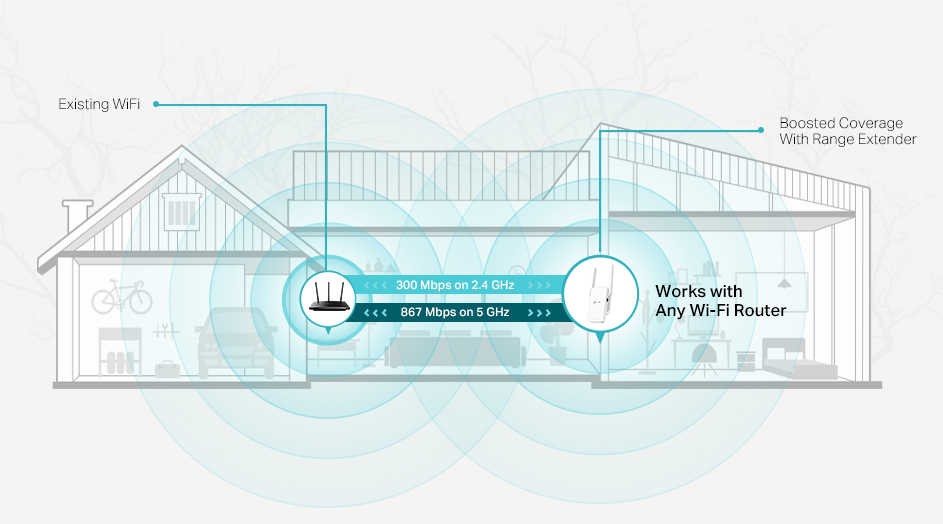
Choose a place that is open and central for the extender. Avoid walls and metal objects that block signals. A spot near the main router usually works well.
Use apps like WiFi Analyzer or NetSpot to check signal strength. These tools show where the signal is strong or weak. Keep a phone or laptop handy for testing.
Plug in the extender and follow the setup steps carefully. Make sure it connects to the main router’s 2.4 GHz, 5 GHz, and 6 GHz bands. Check the extender’s lights to confirm a good connection.
Methods To Test Coverage
Test tri-band WiFi extender coverage by walking through your home while checking signal strength on your device. Use apps to measure speed and signal quality in different rooms. Notice weak spots and adjust the extender’s position to improve coverage.
Signal Strength Measurement
Use a WiFi analyzer app to check the signal strengthat different spots. Move around your home or office and note the signal bars. Strong signals mean better coverage. Weak signals show where the extender might not reach well. Testing multiple places helps find dead zones.
Speed And Bandwidth Testing
Run speed tests using online tools to measure downloadand upload speeds. Test near the extender and far from it. Compare results to see if the extender keeps speeds high. This shows if the extender improves your internet bandwidtheffectively.
Interference And Obstruction Checks
- Check for walls, furniture, or devices blocking the signal.
- Avoid placing the extender near microwaves or cordless phones.
- Test coverage in different rooms to find interference spots.
- Try moving the extender to reduce signal blockage.
Credit: www.tp-link.com
Interpreting Test Results
Signal metricsshow the strength and quality of your WiFi. Look at RSSI (Received Signal Strength Indicator)values; closer to zero means a stronger signal. Signal-to-Noise Ratio (SNR)measures how clear the signal is. A higher SNR means better performance. Check speed test resultsto see real download and upload speeds at different spots.
Dead zonesare areas where WiFi signal is weak or lost. These spots show very low RSSI or no connection. Mark these zones on your map to find where the extender needs adjustment. Moving the extender closer to dead zones can improve coverage.
| Band | Frequency | Range | Speed | Best Use |
|---|---|---|---|---|
| 2.4 GHz | Low | Long | Slow | Good for far areas |
| 5 GHz | Medium | Medium | Fast | Good for close devices |
| 6 GHz | High | Short | Very fast | Best for high speed needs |
Compare the bands by testing speeds and coverage in your home. Use the 2.4 GHz band for longer reach but slower speeds. The 5 GHz band works well for mid-range and faster speeds. The 6 GHz band offers the fastest speeds but covers less distance. Choose the band based on where you need coverage and speed.
Optimizing Extender Placement
Place the extenderwhere the main router signal is still strong. Avoid walls and thick objects that block signals. High spots like shelves or walls work best. Keep the extender away from microwaves and cordless phones to stop interference.
Common placement mistakesinclude putting the extender too far from the router. This weakens the signal it can boost. Also, placing it near metal objects or inside cabinets can cause poor coverage.
Using heatmapshelps visualize WiFi strength. Apps can show areas with weak or strong signals. Move the extender and check the heatmap until coverage looks good everywhere.
| Ideal Spots | Common Mistakes |
|---|---|
| Near a strong router signal | Too far from the router |
| High places like shelves | Near metal or inside cabinets |
| Away from microwaves and phones | Behind thick walls or objects |

Credit: www.screenbeam.com
Troubleshooting Coverage Issues
Signal dropscan happen due to walls or distance. Keep the extender close to your router for strong signals. Avoid places with many electronics that cause interference. Test the WiFi signal in different rooms to find weak spots. Move the extender slightly and check if the signal improves. Use a WiFi analyzer app to see signal strength and drops clearly.
Devices may not work well with all extenders. Check if your devices support tri-band WiFi. Older devices might connect only to one band, causing slower speeds or drops. Restart devices and reconnect to the extender to fix minor issues. Make sure the extender supports the same WiFi standards as your devices.
| Action | Purpose |
|---|---|
| Check for firmware updates | Fix bugs and improve performance |
| Reset extender to factory settings | Clear old settings that cause problems |
| Reconfigure extender | Ensure proper setup after reset |
Advanced Testing Techniques
Professional WiFi analyzershelp check signal strength and interference. They show real-time data and heat maps of coverage areas. This helps find weak spots quickly. Testing multiple extenders at once reveals how well they work together. Overlapping signals can cause problems. Testing shows the best placement for each device.
Long-term monitoring tracks changes over days or weeks. It helps spot patterns like slowdowns or outages at certain times. Setting up continuous tests gives better insights than quick checks. This approach ensures stable and reliable WiFi coveragein your home or office.
Frequently Asked Questions
How Do I Measure Tri Band Wifi Extender Coverage?
Use a WiFi analyzer app to check signal strength at various locations. Measure download and upload speeds to ensure consistent coverage throughout your space.
What Tools Help Test Wifi Extender Performance?
Apps like NetSpot, WiFi Analyzer, and Speedtest. net provide detailed coverage maps and speed tests. These tools identify weak spots and confirm optimal extender placement.
Why Is Signal Strength Important For Wifi Extenders?
Strong signals ensure fast and stable connections. Poor signal strength leads to slow speeds, dropped connections, and limited coverage, reducing the extender’s effectiveness.
How Often Should I Test My Wifi Extender Coverage?
Test coverage after installation and periodically, especially if you rearrange furniture or add devices. Regular checks help maintain optimal network performance.
Conclusion
Testing your tri-band WiFi extender ensures optimal coverage. Start with device placement. Keep it central for best results. Use speed tests at different spots. This checks signal strength effectively. Walls and furniture can block signals. Consider their impact carefully. Adjust settings as needed.
Regularly update your extender’s firmware. This enhances performance and security. Testing isn’t a one-time task. Monitor regularly for consistent WiFi strength. Troubleshoot issues promptly for smooth connectivity. Reliable WiFi boosts productivity and enjoyment. Implement these steps for better coverage today.
Enjoy seamless internet across your home or office.


