Is your gaming modem acting up right when you need it most? You’re not alone, and the frustration can be real.
But don’t worry—fixing your gaming modem doesn’t have to be complicated. In this guide, you’ll discover simple, effective steps to troubleshoot your modem and get back to smooth, lag-free gaming. Keep reading, because mastering these quick fixes could save you hours of downtime and endless frustration.
Your next win is just a few clicks away!
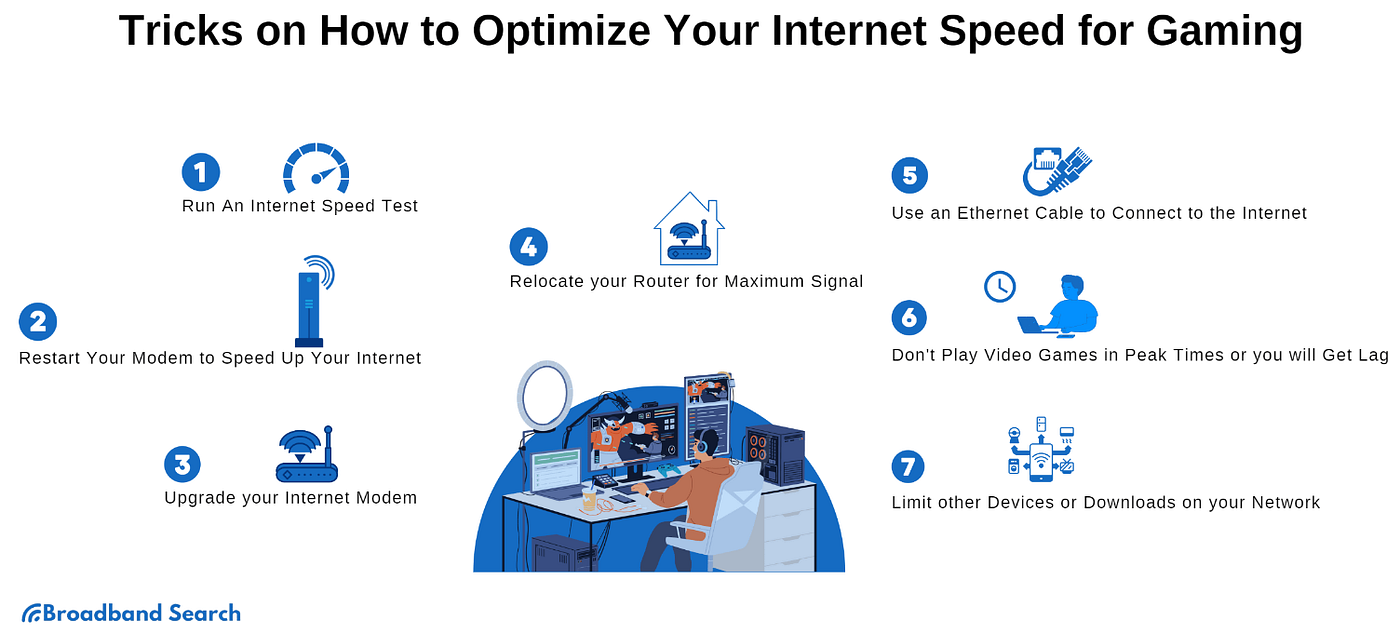
Credit: medium.com
Identify Lag Causes
Lag can ruin any gaming experience. Identifying its causes helps fix the problem fast. The source of lag might be your internet speed, network traffic, or hardware issues. Narrowing down the cause saves time and effort. Start by examining these key areas to find what slows your connection.
Check Internet Speed
Run a speed test using a trusted website or app. Look at download and upload speeds. Compare these numbers to your internet plan. Speeds lower than promised often cause lag. Also, check your ping or latency. High ping means delay in data travel. Aim for a ping below 50 ms for smooth gaming. Repeat tests at different times to spot patterns.
Assess Network Congestion
Too many devices online can slow your network. Streaming videos or downloads use bandwidth. This leaves less for gaming, causing lag spikes. Check how many gadgets connect to your modem. Pause or stop heavy internet use during gaming. Try gaming at different times with less traffic. This helps confirm if congestion affects your gameplay.
Evaluate Hardware Issues
Outdated or faulty hardware also causes lag. Inspect your modem and router for damage or dust. Restart them to clear temporary glitches. Verify cables are secure and in good condition. Use Ethernet cables instead of Wi-Fi for stable connection. Update your modem’s firmware for better performance. Faulty hardware needs repair or replacement to fix lag.

Credit: www.youtube.com
Optimize Modem Settings
Optimizing your modem settings can significantly improve your gaming experience by reducing lag and increasing connection stability. Tweaking a few key options often brings noticeable results without needing new hardware. Have you ever wondered if your modem is truly working at its best during intense gaming sessions?
Update Firmware
Firmware updates fix bugs and enhance your modem’s performance. Check your manufacturer’s website or modem interface regularly for new versions. I once ignored updates for months, and after finally installing one, my connection became much smoother during multiplayer games.
Updating firmware is usually straightforward. Download the update, access your modem’s settings via your browser, and follow the prompts. This simple step can solve many hidden issues affecting your gaming.
Adjust Quality Of Service
Quality of Service (QoS) settings prioritize gaming traffic over other internet use. Enabling QoS can reduce lag by ensuring your game data gets through first, especially when others are streaming or downloading. Think about how frustrating it is to lose a match because your roommate started a large download.
Within your modem’s interface, locate the QoS section and add your gaming devices or specific game ports. Set them to high priority to keep your gameplay smooth even when the network is busy.
Change Wireless Channels
Wireless interference often causes unstable connections and lag spikes. Modems broadcast on channels, and if yours overlaps with neighbors’ devices, performance drops. I switched my channel after noticing frequent disconnects, and the difference was immediate.
Access your modem’s Wi-Fi settings and scan for the least crowded channel. Switching to channels 1, 6, or 11 often helps since they don’t overlap. This quick adjustment can significantly improve your wireless gaming connection.
Improve Connection Stability
Improving your gaming modem’s connection stability can transform your gaming experience from frustrating to flawless. Unstable connections cause lag, disconnects, and lost progress, making it vital to stabilize your setup. Simple tweaks can lead to noticeable improvements that keep you in the game without interruptions.
Use Wired Connections
Relying on a wired Ethernet connection significantly boosts stability compared to Wi-Fi. Wired connections avoid interference and provide consistent speeds, which is crucial for fast-paced games. Have you noticed how your Wi-Fi drops just when the action heats up? Plugging directly into your modem or router often solves this.
If your setup allows, use a high-quality Ethernet cable rated for gigabit speeds. This small change can reduce packet loss and latency spikes, giving you a smoother gaming session.
Reduce Interference
Wireless signals are vulnerable to interference from household devices and neighbors’ networks. Microwaves, cordless phones, and even Bluetooth devices can disrupt your Wi-Fi signal. Have you checked if your router shares its channel with nearby networks? Using a Wi-Fi analyzer app can help identify and switch to a less crowded channel.
Another trick is to minimize physical obstacles between your modem and your gaming device. Thick walls and metal objects weaken the signal, so clear the path as much as possible.
Position Modem Strategically
Where you place your modem matters more than many realize. Positioning it in a central, elevated spot can improve coverage and reduce dead zones in your gaming area. Avoid placing it inside cabinets or behind large furniture that blocks signals.
Think about your typical gaming location. If your modem is in another room or far from your setup, consider moving it closer. Even a few feet can make a difference in connection quality and stability.
Restart And Reset Techniques
Restart and reset techniques are essential for fixing common modem issues. These simple steps often clear errors and improve connection speed. Restarting refreshes the device without changing settings. Resetting returns the modem to its original factory state. Both can solve many gaming connection problems quickly.
Soft Restart
A soft restart turns the modem off and on without erasing settings. This process clears temporary glitches and refreshes the network. Follow these steps:
- Unplug the modem’s power cable.
- Wait 30 seconds to 1 minute.
- Plug the power cable back in.
- Wait until all lights stabilize.
After the restart, test your gaming connection for improvements.
Factory Reset
A factory reset restores the modem to default settings. This removes custom configurations and fixes deeper issues. Use this only if the soft restart does not work. The reset process usually involves:
- Locating the reset button on the modem.
- Using a small object to press and hold the button for 10-30 seconds.
- Releasing the button and waiting for the modem to reboot.
Note: Save your network details before resetting. You will need to set up the modem again.
Reconfigure Network
After resetting, reconfigure the modem to restore your gaming setup. This includes:
- Connecting to the modem’s web interface via a browser.
- Entering your ISP credentials if required.
- Setting up Wi-Fi names and passwords.
- Enabling any gaming features like Quality of Service (QoS).
Proper reconfiguration ensures stable and fast gaming connections.
Check For External Factors
External factors often cause gaming modem issues. These factors affect your connection quality and speed. Checking them helps identify problems outside your device. It saves time and avoids unnecessary repairs.
Inspect Cables And Ports
Loose or damaged cables cause poor connections. Check all cables linked to your modem and router. Look for frayed wires, bends, or cracks. Firmly push cables into ports to secure them. Examine ports for dust or dirt buildup. Clean gently with a soft brush or compressed air.
Limit Background Applications
Many apps running use bandwidth and slow your game. Close apps that download or upload files in the background. Pause or stop streaming services on other devices. This frees up network resources for your gaming modem. A clear network boosts gaming performance and reduces lag.
Coordinate With Isp
Your internet service provider (ISP) may have outages or maintenance. Contact them to check for known issues in your area. Ask about your modem’s connection status from their end. Request help if your connection drops frequently. ISP support can often fix external problems quickly.
Use Diagnostic Tools
Using diagnostic tools is essential to find problems with your gaming modem. These tools help check connection quality and spot issues fast. They provide clear information about your network’s health and performance.
These tools are easy to use and give detailed data. They help you understand if the modem or the internet connection is causing trouble. Regular use can keep your gaming smooth and lag-free.
Ping And Traceroute Tests
Ping tests measure the time it takes for data to travel between your device and a server. A low ping means faster response times, which is key for gaming. High ping can cause delays and lag.
Traceroute shows the path data takes across the internet. It helps find where delays or drops happen. This test points out if the modem or your internet service provider has issues.
Modem Logs Review
Modem logs keep records of all connection events and errors. Checking these logs can reveal frequent disconnections or hardware problems. Some modems have built-in tools to access logs easily.
Look for repeated error messages or warnings. These indicate ongoing issues needing attention. Reviewing logs helps decide if a reset or firmware update is necessary.
Speed And Latency Monitors
Speed monitors check your internet download and upload rates. Gaming needs fast and stable speeds for good performance. Slow speeds affect game updates and online play.
Latency monitors track delays in data transfer. Lower latency means smoother gameplay with less lag. Use these monitors regularly to spot when your modem slows down.

Credit: www.youtube.com
Frequently Asked Questions
How Do I Reset My Gaming Modem Safely?
To reset your gaming modem safely, power it off, unplug it, wait 30 seconds, then plug it back in. This clears temporary glitches without losing saved settings, improving connection stability and gaming performance.
Why Is My Gaming Modem Causing High Latency?
High latency often results from network congestion, outdated firmware, or poor signal strength. Restart your modem, update its firmware, and minimize other device usage to reduce lag and enhance gaming experience.
How Can I Update My Gaming Modem Firmware?
Access your modem’s admin panel via its IP address in a browser. Navigate to the firmware update section, download the latest version, and follow on-screen instructions to install updates securely.
What Causes Frequent Gaming Modem Disconnections?
Frequent disconnections may stem from overheating, faulty cables, or ISP issues. Check for adequate ventilation, replace damaged cables, and contact your provider if problems persist to maintain stable gameplay.
Conclusion
Troubleshooting a gaming modem can seem tough at first. But with patience, it becomes easier. Start with basic checks like cables and connections. Resetting the modem often solves many problems. Make sure your firmware is up-to-date. This boosts performance and security.
Consult your modem’s manual for specific tips. Online forums and support can offer more help. Remember, solving modem issues improves your gaming experience. Keep experimenting and learning. You’ll get better over time. Happy gaming!