
Is your Google Nest mesh WiFi suddenly running slower than usual? You rely on a fast, steady connection for work, streaming, and staying in touch, so a lagging network can be incredibly frustrating.
But don’t worry—slow WiFi doesn’t have to mean giving up on your online activities. In this guide, you’ll learn simple, effective steps to identify and fix the issues slowing down your mesh network. By the end, your Google Nest system will be performing at its best, keeping your home connected smoothly and effortlessly.
Keep reading—your faster WiFi is just a few tweaks away.
Common Causes Of Slow Mesh Wifi
Slow mesh wifi can make internet use frustrating. Understanding common causes helps fix problems fast.
This guide covers key reasons why your Google Nest mesh wifi might be slow. Learn how to spot and solve them.
Interference From Other Devices
Other electronics can block your mesh wifi signals. Devices like microwaves and cordless phones cause interference.
- Keep Nest points away from microwaves and Bluetooth devices
- Turn off unused wireless devices near your router
- Use the 5 GHz wifi band to avoid common interference
- Check for neighbors’ wifi on the same channel and change yours if needed
Poor Placement Of Nest Points
Where you place your Nest points impacts speed. Walls and floors block wifi signals.
| Good Placement | Poor Placement |
|---|---|
| Open areas with few walls | Basements or closets |
| Central locations in the house | Behind large furniture |
| Elevated spots like shelves | Near metal objects |
Place Nest points in open, elevated spots for best coverage.
Firmware Issues
Old firmware may slow your network. Updates fix bugs and improve speed.
Check the Google Home app regularly. Update Nest points when updates appear.
Network Congestion
Too many devices online at once can slow your wifi. Streaming, gaming, and downloads use bandwidth.
- Limit device connections during heavy use
- Schedule large downloads for off-peak hours
- Use Quality of Service (QoS) settings to prioritize traffic
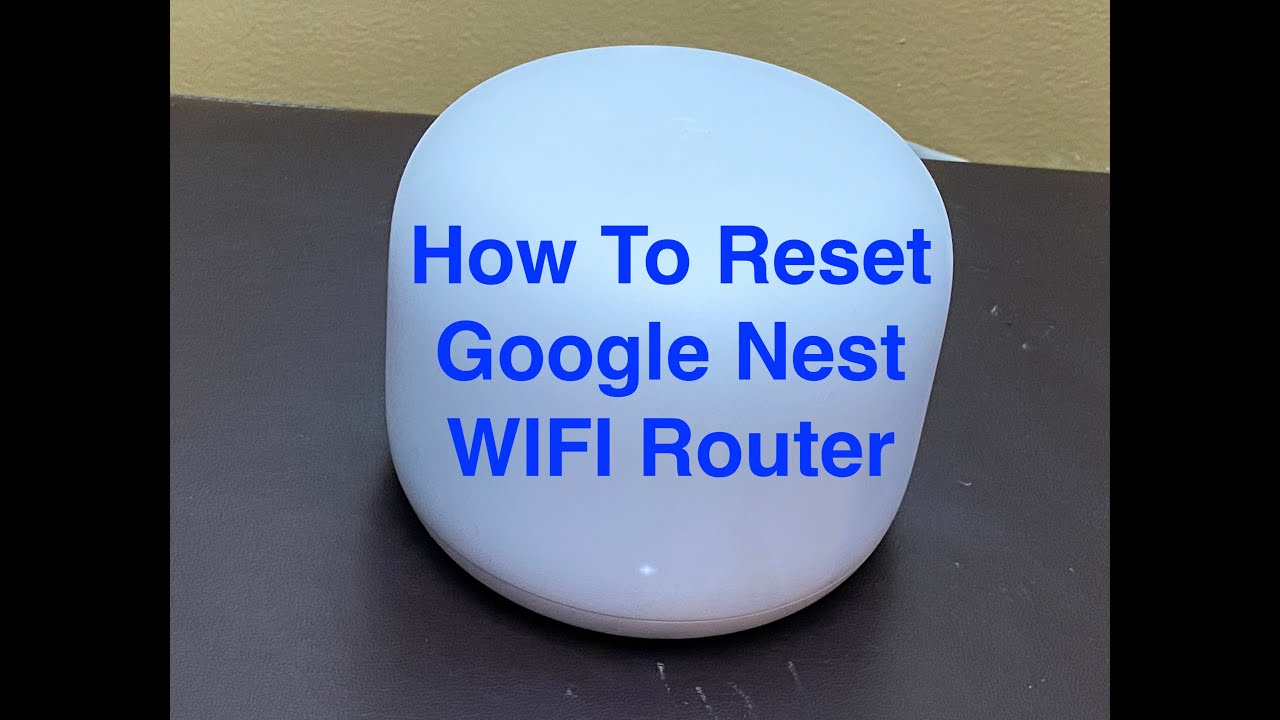
Credit: www.youtube.com
Quick Restart Techniques
Experiencing slow mesh WiFi with Google Nest can be frustrating. Quick restart techniques can help improve your network performance.
This guide will walk you through restarting your router and power cycling your Nest points effectively.
Restarting The Router
Restarting your router can clear up network congestion and improve speed. It’s a simple process that involves just a few steps.
- Unplug the router from the power source.
- Wait for about 30 seconds.
- Plug the router back in and wait for it to fully restart.
Power Cycling Nest Points
Power cycling your Nest points helps refresh connections and can fix slow speeds. Follow these easy steps to ensure a successful reset.
| Action | Time Required |
| Unplug Nest point | 10 seconds |
| Plug back in | Wait for lights to stabilize |
| Check connection status | Immediate |
Optimize Nest Point Placement
Slow mesh WiFi on your Google Nest can happen if the Nest points are not placed well. Good placement helps your WiFi signal spread evenly in your home.
By placing Nest points in the right spots, you can get faster and more stable internet. This guide focuses on how to find the best locations for your Nest points.
Ideal Locations For Coverage
Put Nest points where they can cover most of your home. Place them in open areas, not in corners or behind furniture. Keep them at about eye level or higher.
Try to space Nest points evenly. This helps the WiFi signals reach every room without weak spots. Avoid putting Nest points too close to each other.
- Place Nest points in the center of rooms
- Keep them away from walls and windows
- Space Nest points 30-50 feet apart
- Use higher shelves or tables for placement
Avoiding Physical Obstacles
Physical barriers can block WiFi signals. Avoid placing Nest points near thick walls, metal objects, or large appliances. These obstacles reduce signal strength.
Try to keep Nest points away from microwaves and cordless phones. These devices can cause interference. Clear paths between points help your mesh network work better.
- Do not place Nest points inside cabinets or behind TVs
- Avoid metal doors and mirrors near points
- Keep Nest points away from microwaves and cordless phones
- Remove clutter around Nest points for better signals
Update Firmware And Software
Slow Google Nest mesh WiFi may result from outdated software or firmware. Keeping your devices updated can fix bugs and improve performance. This guide explains how to check and set updates.
Regular updates ensure your network runs smoothly and securely. Follow the steps below to manage updates on your Google Nest mesh system.
Checking For Updates
Google Nest devices usually update automatically. You can check for updates manually using the Google Home app. This helps confirm if your system uses the latest firmware.
- Open the Google Home app on your phone or tablet.
- Tap on your Nest WiFi device.
- Go to the settings menu.
- Look for the firmware version and update status.
- If an update is available, follow the prompts to install it.
Automatic Update Settings
Google Nest mesh WiFi automatically installs updates by default. You can check or change these settings for convenience. This ensures your network stays current without extra steps.
| Setting | Description | Recommendation |
|---|---|---|
| Auto-Update | Enables or disables automatic firmware updates. | Keep enabled for security and speed. |
| Notification | Alerts when an update is available or installed. | Enable to stay informed. |
| Manual Update | Option to update firmware manually via app. | Use if auto-update is off. |
Manage Network Traffic
Slow Mesh WiFi on your Google Nest can happen if too many devices use the network. Managing network traffic helps keep your connection fast.
By controlling how much data each device uses, you can improve overall WiFi speed and reduce delays.
Prioritizing Devices
Prioritize devices that need the best connection. This gives important devices faster internet access.
You can set priority for work computers, smart TVs, or gaming consoles to avoid slow speeds.
- Open the Google Home app
- Go to WiFi settings
- Find Device Priority
- Select devices to prioritize
- Set priority time and save
Limiting Bandwidth Hogs
Devices that use a lot of data can slow down your network. Limit their bandwidth to keep WiFi fast for others.
You can restrict data-heavy apps or pause updates on some devices to reduce traffic.
- Check which devices use most data
- Limit video streaming quality
- Pause automatic updates
- Set time limits on heavy apps
- Use parental controls if needed
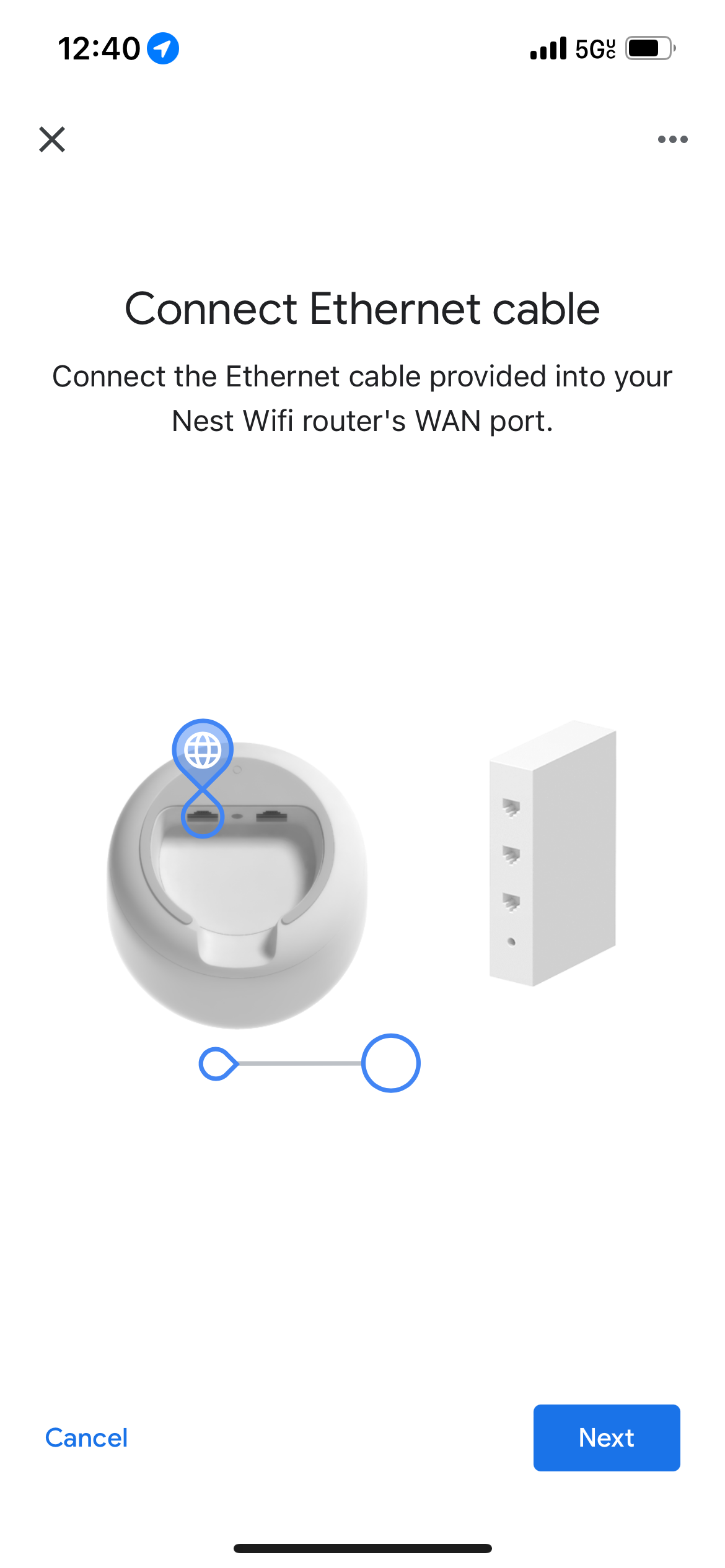
Credit: community.surfboard.com
Reset Mesh Network
If your Google Nest Wifi is slow, resetting the mesh network can help. This process refreshes connections and settings.
Follow the steps carefully to ensure your network runs smoothly again.
Factory Reset Process
Performing a factory reset will erase all current settings. This is useful if the network is unresponsive.
- Open the Google Home app on your phone.
- Tap on the device you want to reset.
- Go to settings and select “Factory Reset”.
- Confirm the reset and wait for the process to finish.
Reconfiguring Network
After a factory reset, you need to set up your network again. Follow these steps to reconfigure your mesh network.
| Action | Description |
| Reconnect Devices | Connect all your devices to the newly set up network. |
| Check Signal | Ensure the signal strength is strong in all areas. |
| Adjust Settings | Customize settings like network name and password. |
Use Google Home App Tools
The Google Home app helps you check and improve your Google Nest mesh WiFi. It has tools to find slow speeds and connection issues.
Use these tools to see how fast your internet is and which devices are connected to your network. This information helps fix slow WiFi problems.
Running Speed Tests
Open the Google Home app and select your WiFi network. You can run a speed test to check your current internet speed.
- Tap on your WiFi point in the app.
- Choose the option to run a speed test.
- Wait for the test to finish and see the results.
- If speeds are low, try restarting your router or moving closer.
- Repeat the test to check for improvement.
Viewing Device Connections
The app shows all devices connected to your Google Nest mesh WiFi. Check this list to find devices using too much bandwidth.
| Device Name | Connection Type | Data Usage |
| John’s Laptop | WiFi | 1.2 GB |
| Living Room TV | WiFi | 3.5 GB |
| Smart Thermostat | WiFi | 150 MB |
| Kitchen Speaker | WiFi | 300 MB |
When To Contact Support
Slow mesh WiFi on your Google Nest can be frustrating. Knowing when to seek help saves time and stress.
This guide helps you decide if the problem needs expert support or can be fixed at home.
Identifying Persistent Issues
Some network issues are temporary. If slow speeds last more than a day, it may be a persistent problem.
- Your Google Nest stops connecting frequently.
- Speed stays slow even after restarting devices.
- Multiple devices experience poor WiFi at the same time.
- Settings reset or lost without your input.
Gathering Diagnostic Information
Before contacting support, gather key details about your network and the issue.
| Information | Details to Note |
| Device Model | Google Nest Wifi or Nest Wifi Pro version |
| Network Setup | Number of mesh points and wired or wireless backhaul |
| Issue Timing | When slow speeds occur and for how long |
| Troubleshooting Steps | Actions tried like rebooting or resetting |
| Connected Devices | Number and type of devices using the network |

Credit: www.reddit.com
Frequently Asked Questions
Why Is My Google Nest Wifi Slow?
Your Google Nest Wifi may be slow due to interference, distance, or outdated firmware. Check device placement and update software. Also, ensure your internet plan supports your speed needs and restart your router to refresh connections.
How To Improve Google Nest Wifi Speed?
Place Google Nest Wifi points in open areas away from walls. Reduce device interference and update firmware regularly. Use Ethernet backhaul for stable connections and limit bandwidth-heavy activities during peak times.
Can Restarting Google Nest Wifi Fix Slow Speeds?
Yes, restarting Google Nest Wifi clears temporary glitches and refreshes network connections. Power cycle your router and points by unplugging for 30 seconds, then reconnecting to improve speed and stability.
Does Firmware Update Affect Google Nest Wifi Performance?
Firmware updates fix bugs and enhance performance. Regularly updating your Google Nest Wifi ensures optimal speed, security, and new features that can resolve slow network issues.
Conclusion
Troubleshooting slow Google Nest mesh WiFi takes patience and simple steps. Restart your devices and check connections first. Move the mesh points closer to each other. Clear any device or network interferences around your home. Keep your Google Nest system updated to the latest software.
Test your internet speed regularly to spot issues early. These actions can help improve your WiFi speed and reliability. Stay calm and follow each step carefully. Good WiFi makes daily tasks easier and more enjoyable.


