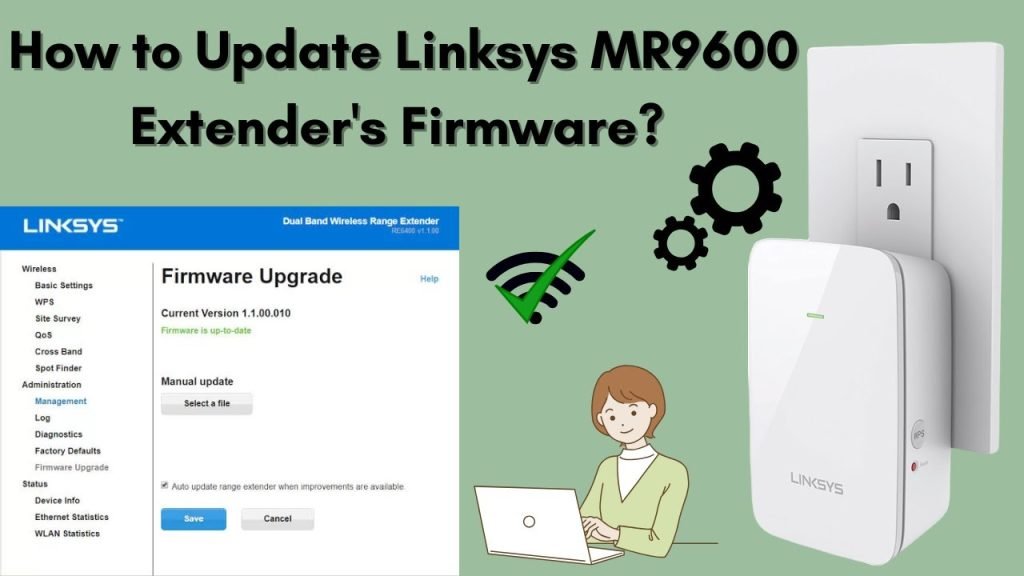
If your dual band WiFi extender isn’t working as smoothly as before, updating its firmware might be the fix you need. Keeping your device’s software up to date ensures better performance, improved security, and access to new features.
But how exactly do you update the firmware without getting lost in confusing tech jargon? This guide will walk you through simple, step-by-step instructions so you can boost your WiFi extender’s power quickly and easily. By the end, you’ll feel confident handling updates on your own and enjoy a stronger, more reliable internet connection.
Keep reading to unlock the full potential of your dual band WiFi extender!
Prepare For Firmware Update
Check the current firmware versionon your extender’s settings page. This helps to know if an update is needed. Usually, the version info is under the Aboutor Statussection.
Backup all your extender settings before starting the update. This keeps your network details safe in case something goes wrong. You can save settings as a file on your computer.
Ensure your extender is plugged into a stable power source. Avoid power cuts during the update. Also, use a wired or a strong Wi-Fi connection to prevent interruptions.
Download Latest Firmware
First, find the model numberof your wifi extender. This is usually on a label at the back or bottom. Knowing the exact model helps in getting the right firmware.
Next, go to the official websiteof the extender’s manufacturer. Look for the support or downloads section. This is where firmware updates are stored.
Then, download the firmware filethat matches your extender model. Make sure the file is for your device and the correct version. Using the wrong file can cause issues.
Access Extender Settings
First, connect your device to the extender’s WiFi network. This network usually has the extender’s name in it. Open your WiFi settings and select it.
After connecting, open a web browser. Type the extender’s IP addressin the address bar. Common IPs are 192.168.0.1or 192.168.1.1. Press Enter.
You will see the login page. Enter your usernameand password. These are often found on the extender label or manual.
- Username is often admin
- Password may also be adminor blank
After login, you can access all settings of the extender. Make sure to stay connected to the extender network during this process.
Credit: www.netgear.com
Install Firmware Update
Access the extender’s settings page through your web browser. Use the IP address found in the manual or on the device label. Log in with your username and password.
Find the Firmware Updatesection inside the settings menu. This area lets you upload new firmware files to improve device performance.
Click the button to upload the firmware file. Browse your computer to select the downloaded firmware file. The file should match your device model.
Press the Start Updatebutton to begin the process. Do not turn off or unplug the extender during this time. Wait until the update finishes and the device restarts.
Post-update Steps
After updating, the extender will reboot automatically. This may take a few minutes. Do not turn off or unplug the device during this time. Waiting patiently ensures the update installs correctly.
Check the firmware versionnext. Log into the extender’s admin page. Locate the firmware info in the settings menu. Confirm the version matches the one you installed. This step confirms the update was successful.
If you saved your old settings, you can now restore them. Use the backup file from before the update. Upload it through the extender’s interface. This saves time and keeps your preferences intact.

Credit: www.youtube.com
Troubleshoot Firmware Issues
Failed firmware updates can cause your extender to stop working properly. Try to restart the extenderby unplugging it and waiting 30 seconds before plugging it back in. This simple step can fix many update problems.
If restarting doesn’t help, perform a factory reset. Hold the reset button for 10-15 seconds until the lights blink. This will erase all settings and restore the device to its original state.
Still facing issues? Contact customer supportof the extender’s brand. They can guide you through special fixes or replace the device if needed.

Credit: dlinkapnet.net
Frequently Asked Questions
How Do I Check The Current Firmware Version?
Access your extender’s web interface via its IP address. Navigate to the “Firmware” or “About” section. The current version will be displayed there. Always note it before updating to ensure the process is necessary and successful.
Where Can I Download The Latest Firmware Update?
Visit the official website of your extender’s manufacturer. Locate the “Support” or “Downloads” section. Search for your specific model and download the latest firmware file. Ensure the file matches your device model to avoid compatibility issues.
What Is The Step-by-step Firmware Update Process?
Log into the extender’s admin panel. Go to the firmware upgrade section and upload the downloaded file. Follow on-screen instructions carefully. Do not interrupt the update to prevent device damage or malfunction.
How Often Should I Update My Extender’s Firmware?
Check for updates every 3 to 6 months or when facing connectivity issues. Regular updates improve security, fix bugs, and enhance performance. Always update only with official firmware versions.
Conclusion
Updating firmware on your dual band WiFi extender is important. It ensures better performance and security. Follow the steps mentioned in this guide carefully. Always check for the latest firmware version. Download it from the manufacturer’s website. Use the extender’s interface to install updates.
Regular updates keep your extender running smoothly. Avoid interruptions during the update process. This prevents potential issues. A well-maintained extender boosts your internet experience. Stay informed and proactive. Protect your network with timely updates. Happy browsing!


