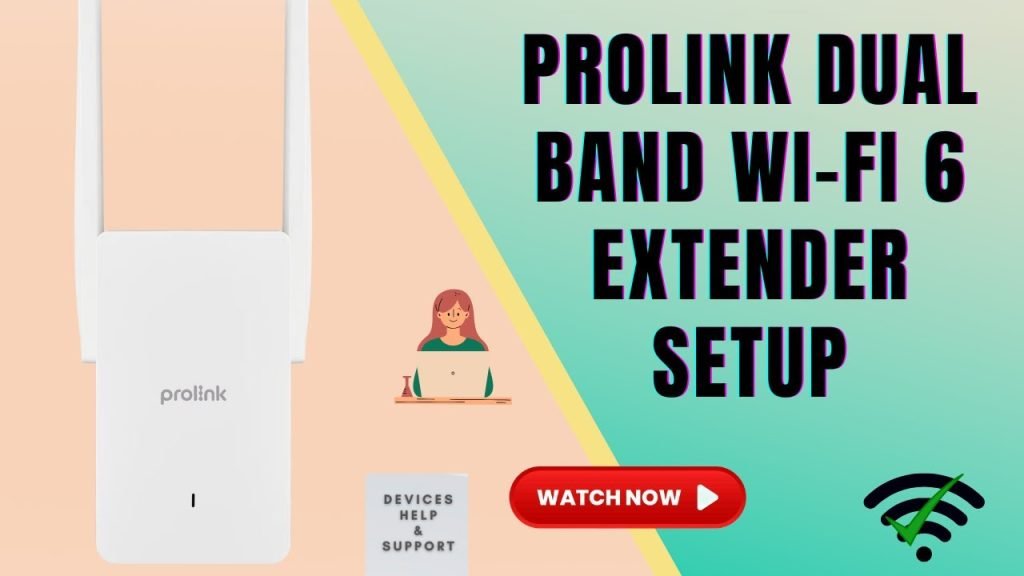
Are you tired of buffering screens interrupting your favorite shows? Or maybe your video calls keep dropping right when you’re about to make an important point?
These frustrating scenarios often result from weak Wi-Fi signals. But don’t worry, there’s a simple solution: a dual band WiFi extender. Imagine seamless streaming, uninterrupted gaming, and crystal-clear video calls, all because you’ve optimized your network. You’ll discover how to use a dual band WiFi extender to enhance your streaming experience, and unlock the full potential of your home internet.
Let’s dive in and transform your connectivity woes into a smooth, streaming paradise.

Credit: www.youtube.com
Benefits Of Dual Band Wifi Extenders
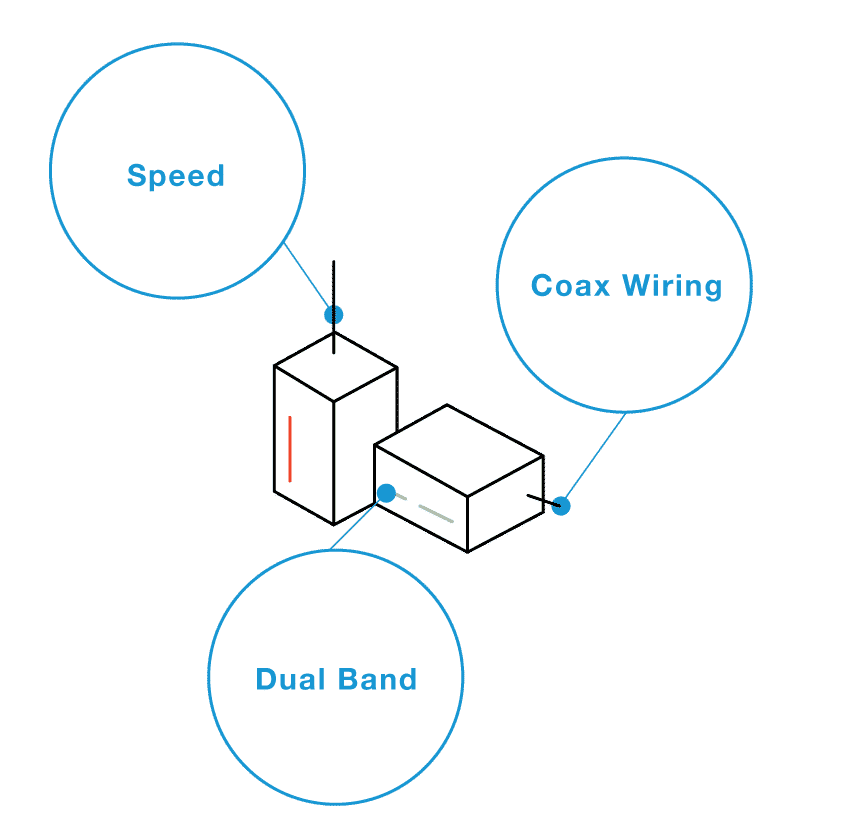
Dual band wifi extendersoffer two main frequency bands: 2.4 GHz and 5 GHz. This helps provide faster speeds for streaming. The 5 GHz band is faster and less crowded. It is perfect for HD video and online games. The 2.4 GHz band covers longer distances but is slower.
Reduced interferenceis another key benefit. Using two bands means less chance of signals clashing with other devices. This makes streaming smoother and less likely to drop.
The extended coverage areameans wifi reaches farther parts of your home. Walls and furniture can block signals, but dual band extenders push the signal deeper. This helps avoid buffering in rooms far from your main router.
Credit: www.screenbeam.com
Choosing The Right Wifi Extender
Choose a wifi extenderthat matches your router type. Some extenders work only with certain brands or models. Check if your router supports dual band(2.4 GHz and 5 GHz) for better performance.
Look at the rangeand speedthe extender offers. A longer range covers more area in your home. Higher speed helps with smooth streaming without buffering.
| Feature | Why It Matters |
|---|---|
| Ethernet Port | Connect devices directly for faster, stable internet |
| Easy Setup | Quick installation saves time and effort |
| Signal Indicator | Shows best spot to place the extender |
| Security | Supports WPA2 or higher to keep your network safe |
Setting Up Your Dual Band Extender
Place the dual band extender where the WiFi signal is strong. Avoid walls and metal objects. Keep it near the area where you want better streaming. A good spot is halfway between your router and the streaming device. This helps cover both 2.4 GHz and 5 GHz signals well.
Plug in the extender and turn it on. Use your phone or computer to find the extender’s network. Connect to it and open the setup page in a browser. Follow the instructions to link the extender to your main router.
| Band | Frequency | Best Use | Range |
|---|---|---|---|
| 2.4 GHz | 2.4 billion cycles/second | Longer range, slower speed | Good for larger areas |
| 5 GHz | 5 billion cycles/second | Faster speed, shorter range | Ideal for close devices |
Choose the right band for your device. Connect to 2.4 GHz for longer distance streaming. Use 5 GHz for faster speed near the extender. Switching bands helps keep your streaming smooth.
Configuring For Maximum Streaming Performance
Prioritizing streaming deviceshelps reduce buffering and lag. Access your extender’s settings and find the Quality of Service (QoS) option. Assign higher priority to devices used for streaming, such as smart TVs or streaming boxes. This ensures smoother video playback.
Adjusting band settingsoptimizes speed and connection. Use the 5 GHz band for streaming because it offers faster speeds but shorter range. The 2.4 GHz band covers larger areas but is slower. Choose the band based on your device location and network needs.
| Band | Best For | Range | Speed |
|---|---|---|---|
| 2.4 GHz | Long distance, basic devices | Wide | Slower |
| 5 GHz | High-speed streaming | Short | Faster |
Firmware updateskeep your extender secure and efficient. Check for updates regularly in the admin panel. Updated firmware fixes bugs and improves performance. Strong security settings protect your network from unauthorized access. Use a strong password and enable encryption like WPA3 if available.
Troubleshooting Common Issues
Signal drops and lagcan happen if the extender is too far from the router or device. Place the extender closer to the router. Keep it away from thick walls or metal objects that block signals. Restart the extender and router to refresh connections. Check if the extender firmware is up to date for better performance.
Slow speeds despite extender use may result from network congestion. Limit the number of devices connected to the extender at once. Connect devices using the 5 GHz band for faster speeds. Use an Ethernet cable for devices that need steady, high-speed internet.
| Interference Source | How to Fix |
|---|---|
| Microwave ovens | Keep extender away from kitchen appliances |
| Bluetooth devices | Change extender channel or move devices apart |
| Other Wi-Fi networks | Set extender to a less crowded channel |
Tips To Maintain High Streaming Speeds
Restarting devices regularlycan fix slow streaming issues. It clears temporary data and refreshes connections. This simple step helps keep your dual band WiFi extenderworking well. Try restarting your router, extender, and streaming device once a week.
Monitoring network trafficshows what uses the most internet. Too many devices or apps running can slow speeds. Use your router’s app or website to check. Pause or stop apps that use a lot of data during streaming.
Upgrading equipmentmatters as tech improves. Old routers or extenders may not support faster internet. Choose devices that match your internet speed and home size. This helps keep your streaming smooth and fast over time.

Credit: m.tvcmall.com
Frequently Asked Questions
What Is A Dual Band Wifi Extender?
A dual band WiFi extender boosts both 2. 4 GHz and 5 GHz signals. It improves internet speed and reduces dead zones. This helps maintain stable connections for streaming devices.
How Do I Set Up A Dual Band Wifi Extender?
Plug the extender near your router, connect via WPS or web setup. Choose the best band for your device. Follow the manufacturer’s instructions to complete configuration easily.
Can Dual Band Extenders Improve Streaming Quality?
Yes, they reduce buffering by providing strong, consistent signals on both bands. This ensures smooth HD or 4K streaming without interruptions or lag.
Which Band Is Better For Streaming, 2.4 Ghz Or 5 Ghz?
Use 5 GHz for faster speeds and less interference. Use 2. 4 GHz for longer range but slower speed. Choose based on your streaming device location.
Conclusion
Using a dual band WiFi extender can improve your streaming experience. It helps reduce buffering and keeps your connection stable. Place the extender where the signal is still strong. Connect your devices to the extender’s network for better speed. This simple step makes watching movies and shows much smoother.
Enjoy your favorite content without constant interruptions. A good WiFi signal matters a lot for streaming quality. Try these tips and see the difference yourself. Streaming should be easy and fun.


