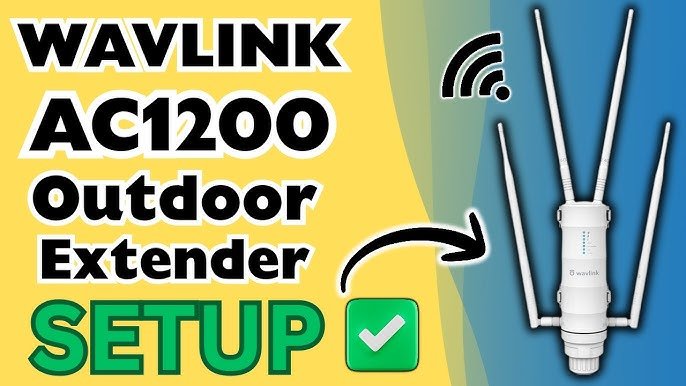
Are you struggling with weak WiFi signals in certain parts of your home or office? You’re not alone.
If you want a simple way to boost your internet range and connect multiple devices seamlessly, using a long range WiFi extender with a network switch could be the solution you need. Imagine having strong, reliable WiFi everywhere without interruptions or slowdowns.
You’ll discover easy steps to set up your long range WiFi extender with a switch, making your network faster and more stable. Keep reading to unlock the secret to better connectivity and enjoy smooth internet no matter where you are.

Credit: www.amazon.ca
Benefits Of Long Range Wifi Extenders
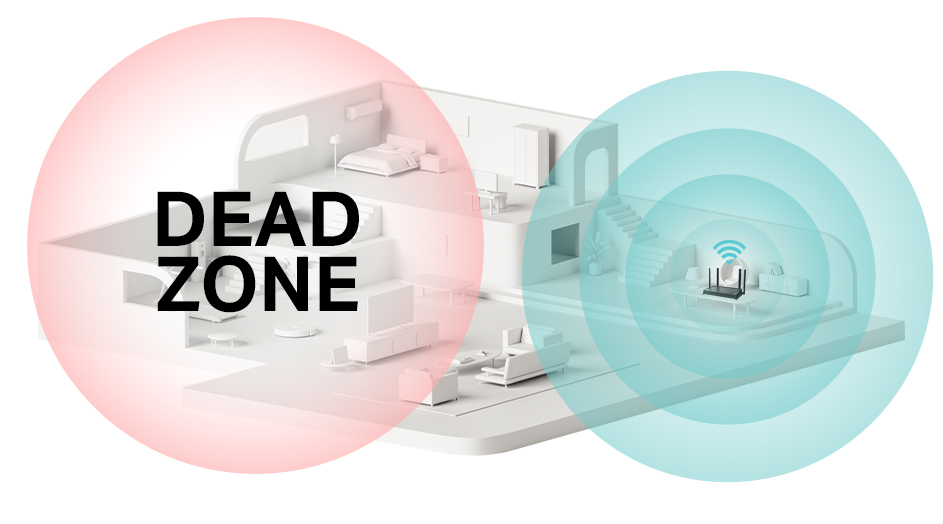
Long range WiFi extendershelp improve your internet connection across large spaces. They boost the signal to reach areas far from your router. This means fewer dead spots and better coverage in every room.
They also provide better signal stability. This keeps your connection steady, so you don’t lose internet during calls or streaming. A stable signal means less buffering and faster speeds.
Using these extenders is cost-effective. You don’t need to buy new routers or pay for extra internet plans. Simply add the extender to your current setup and enjoy wider coverage at a low cost.
Choosing The Right Wifi Extender
Choosing a long-range WiFi extender helps connect devices far from the main router. Connect the extender to a network switch to boost internet access in large spaces. This setup improves signal strength and keeps your devices online without interruption.
Compatibility With Your Router
Check if the WiFi extender supports your router’s brand and model. Make sure both devices use the same WiFi standards like 802.11ac or 802.11n. This helps to avoid connection problems. Some extenders work better with certain routers.
Range And Speed Considerations
Choose an extender with a range that covers your entire home or office. Look for speed ratings to match your internet plan. A slow extender can limit your internet speed even if your router is fast.
Additional Features To Look For
- Easy setup options such as WPS button
- Multiple Ethernet ports for wired connections
- Signal strength indicators to find the best spot
- Support for dual-band (2.4 GHz and 5 GHz)
- Security features like WPA3 encryption
Connecting Wifi Extender To A Switch
To connect a long range WiFi extenderto a switch, certain equipment is essential. You need the WiFi extender, a network switch, and Ethernet cables. A power source for the extender is also required. The switch must be connected to the main router or modem.
Start by plugging one end of the Ethernet cable into the WiFi extenderand the other end into the switch. Power on the extender and wait for it to boot up. Access the extender’s setup page using a browser on a connected device. Follow the on-screen instructions to complete the setup.
Wired connections use Ethernet cables between devices. They are more stableand offer faster speeds. Wireless connections use WiFi signals and are easier to set up. Choose wired for better performance, wireless for convenience.

Credit: www.youtube.com
Configuring The Extender For Optimal Performance
Access the extender’s interface by typing its IP address in a web browser. Use the default username and password to log in. This allows you to change settings and monitor the device.
Adjust network settings for better signal and speed. Set the extender to the same WiFi channel as your main router to avoid interference. Change the SSID (network name) if needed to match your main network or create a new one. Enable security features like WPA2 to keep your network safe.
| Firmware Updates | Maintenance Tips |
|---|---|
| Check for updates regularly on the extender’s interface. | Keep the extender in a cool, dry place. |
| Install updates to fix bugs and improve performance. | Restart the extender periodically to refresh connection. |
| Follow manufacturer instructions carefully during updates. | Clean dust from vents to prevent overheating. |
Troubleshooting Common Issues
Connection dropsoften happen due to weak signals or interference. Place the wifi extender closer to the main router. Avoid walls and metal objects between devices. Restart the extender and switch to refresh the connection. Check cables for damage or loose plugs. Firmware updates can fix bugs causing drops.
Slow speedscan result from many devices using the network at once. Limit the number of connected devices. Change the extender’s channel to a less busy one. Keep the extender away from electronics like microwaves that cause interference. Use an Ethernet cable for a more stable connection with the switch.
| Compatibility Problems | Solutions |
|---|---|
| Extender not working with switch | Check if both support the same network standards (e.g., 802.11ac). Update device firmware. |
| Switch not detecting extender | Try a different Ethernet cable. Confirm the switch port is active. |
| IP address conflicts | Set extender to use a different IP range or enable DHCP. |
Enhancing Network Security
Secure your WiFi extenderto keep your network safe. Use strong passwordsthat mix letters, numbers, and symbols. Avoid easy-to-guess passwords like “123456” or “password”. Change passwords regularly to block unauthorized access.
Keep your extender’s firmware updated. Firmware updates fix bugs and close security holes. Check for updates on the extender’s website or app. Install updates as soon as they are available to protect your device from threats.
Tips For Maximizing Extender Range
Place the extenderin an open area, away from walls and metal objects. Keep it halfway between the router and the area needing better signal. Avoid placing it near devices that cause interference, like microwaves or cordless phones. This helps the signal stay strongand clear.
Use external antennasto improve signal strength. These antennas can be adjusted to point toward the desired area. They help the extender cover a larger spaceand reduce weak spots.
- Keep the extender high, such as on a shelf.
- Ensure no thick walls block the signal.
- Turn off or move devices that cause interference.
- Adjust external antennas for best coverage.
Credit: www.tp-link.com
Frequently Asked Questions
What Is A Long Range Wifi Extender?
A long range WiFi extender boosts your wireless signal over greater distances. It improves coverage in large areas or buildings. This device connects to your main router and retransmits the signal to hard-to-reach places, ensuring stable internet for devices like switches and gaming consoles.
How To Connect A Wifi Extender To A Switch?
First, connect the WiFi extender to your router wirelessly. Then, use an Ethernet cable to link the extender’s LAN port to the switch. This setup extends your network’s reach, allowing devices on the switch to access the internet via the extender’s improved signal.
Can A Wifi Extender Improve Gaming On A Switch?
Yes, a WiFi extender can reduce lag and improve gaming experience on a switch. It ensures a stronger and more stable internet connection, especially if the router is far away. This helps maintain faster speeds and lower latency during online gameplay.
Do I Need Ethernet Cables With A Wifi Extender And Switch?
Yes, Ethernet cables are recommended for connecting the WiFi extender to the switch. A wired connection between them provides faster and more stable data transfer than wireless alone. This setup reduces interference and ensures reliable internet for all devices on the switch.
Conclusion
A long-range WiFi extender with a switch boosts internet coverage. It connects multiple devices seamlessly. Setting it up is simple and effective. Just follow the steps carefully. This solution improves connectivity in large areas. Say goodbye to weak signals and dead zones.
Enjoy fast and reliable internet everywhere. Ideal for homes and offices. Make sure to choose the right extender for your needs. Consult the user manual for any doubts. Enhance your internet experience today. Reliable connectivity is just a setup away.
Enjoy browsing, streaming, and working without interruptions.


