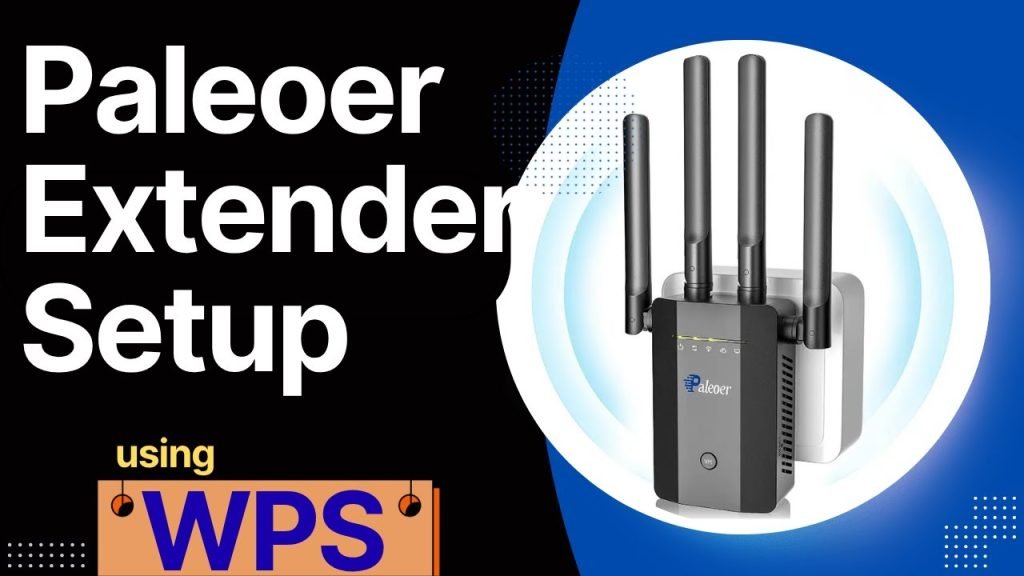
Are you struggling with weak Wi-Fi signals in certain areas of your home? It can be incredibly frustrating when you’re trying to stream a movie or join an important video call, only to be let down by poor connectivity.
The good news is, there’s a simple solution that can help you boost your Wi-Fi strength: using WPS with a dual-band Wi-Fi extender. This method can make a huge difference in your internet experience, transforming dead zones into high-speed surfing spots.
Imagine seamless browsing, uninterrupted streaming, and reliable connections in every corner of your home. Curious about how to make this happen? Dive into our guide to discover how easy it is to use WPS with your dual-band Wi-Fi extender and enhance your online experience.

Credit: www.youtube.com
What Is Wps And Dual Band Wifi Extender
WPSstands for Wi-Fi Protected Setup. It helps connect devices to Wi-Fi easily. You press the WPS button on the router and the extender. This makes the connection fast without typing a password.
A dual band WiFi extenderworks on two frequencies: 2.4 GHz and 5 GHz. It helps improve Wi-Fi coverage in your home or office.
- Better speed:5 GHz band offers faster internet.
- Less interference:2.4 GHz works well with walls and devices.
- More devices:Connects many gadgets smoothly.
- Improved coverage:Extends Wi-Fi to hard-to-reach spots.

Credit: www.youtube.com
Preparing For Wps Setup
Check if your router supports WPSfor easy connection. Many modern routers have this feature, but older models might not. Look for a WPS buttonon your router or check the manual.
Find the WPS buttonson both your router and dual band WiFi extender. These buttons are usually small and labeled “WPS”. Sometimes, they might be behind a pinhole.
Place the extender in a spot where it can get a strong signal from the router. Avoid walls or metal objects that block the signal. Proper placement helps the extender work better.
Step-by-step Wps Connection
Press the WPS buttonon your router. It usually has a label or icon. The light will start blinking, signaling that WPS is active. This means the router is ready to connect.
Next, press the WPS buttonon your dual band wifi extender. The extender will search for the router’s signal. The light on the extender will blink during this process. Wait a few seconds for the connection to complete.
Once the connection is successful, the lights on both devices will stop blinking and stay solid. This confirms your extender is linked to your router. Now, your wifi signal should be stronger in more areas of your home.
Troubleshooting Common Issues
No Connection Established:Check if the extender is powered on and near the router. Make sure WPS is enabled on both devices. Press the WPS button on the router, then on the extender within two minutes. Wait a moment for connection. Restart both devices if no connection occurs.
Slow Internet Speeds:Place the extender halfway between the router and the area with weak signal. Avoid walls and metal objects blocking signals. Use the 5 GHz band for faster speeds, but the 2.4 GHz band covers a wider area. Restart the extender and router to clear temporary issues.
Extender Not Showing Networks:Refresh the WiFi list on your device. Make sure the extender is in range of the main router. Check if the extender’s firmware needs updating. Reset the extender to factory settings if networks still don’t appear.
Maximizing Extender Performance
Select a channel with the least interference for better speed.
Use a WiFi analyzer app to find free channels on both bands.
Keep your extender’s firmware up to date.
Updates fix bugs and improve connection quality.
- Place the extender halfway between your router and the weak signal area.
- Avoid walls and metal objects that block signals.
- Higher placement often gives better coverage.

Credit: www.youtube.com
Frequently Asked Questions
What Is Wps On A Dual Band Wifi Extender?
WPS (Wi-Fi Protected Setup) simplifies connecting devices to your WiFi extender. It allows a quick, secure link without entering passwords manually.
How Do I Activate Wps On My Wifi Extender?
Press the WPS button on both your router and extender within two minutes. This initiates an automatic, secure connection between devices.
Can Wps Work With Both 2.4ghz And 5ghz Bands?
Yes, WPS supports connecting your extender to both 2. 4GHz and 5GHz bands, enabling dual band functionality for better coverage and speed.
Is Wps Connection Secure For My Dual Band Extender?
WPS uses WPA/WPA2 security, ensuring a safe connection. However, it’s less secure than manual password entry, so use it cautiously.
Conclusion
Using WPS with a dual band WiFi extender is simple and quick. Just press the WPS buttons on both devices to connect them. This helps improve your WiFi signal without complicated steps. A stronger connection means better internet in every corner of your home.
Keep your devices close during setup for the best results. Enjoy faster speeds and fewer dead zones with ease. Now, your WiFi extender works smoothly with minimal effort. Try it today and feel the difference in your network!


