
Are you tired of slow internet or dead zones in your smart home? Your mesh WiFi system should make life easier, not more frustrating.
But when your devices keep dropping connection or streaming buffers endlessly, it’s time to fix the problem. You’ll find simple, effective troubleshooting tips that anyone can use. Whether you’re new to mesh WiFi or just need quick solutions, these tips will help you get your smart home back online smoothly.
Keep reading to discover how to enjoy fast, reliable WiFi in every corner of your home.

Credit: helpcentre.primus.ca
Common Mesh Wifi Issues
Mesh wifi systems help cover your entire home with internet. They use multiple devices to spread the signal. But sometimes, problems can still happen.
Understanding common issues can help you fix your mesh wifi quickly. This guide covers slow speeds, connection drops, dead zones, and device compatibility.
Slow Speeds
Slow internet speeds can make streaming and browsing frustrating. Many factors cause this, like interference or too many devices.
- Place mesh nodes closer to each other for better signal.
- Limit the number of devices connected at the same time.
- Check if your internet plan matches your speed needs.
- Update firmware on your mesh devices regularly.
Connection Drops
Sometimes your device may lose connection to the wifi. This can happen if a node is too far away or there is interference from other electronics.
- Move mesh nodes away from walls and metal objects.
- Restart your mesh system to refresh connections.
- Change the wifi channel to avoid interference.
- Check for software updates on your devices.
Dead Zones
Dead zones are areas with no wifi signal. They happen when the mesh nodes do not cover all corners of your home.
| Cause | Fix |
|---|---|
| Node placed too far | Move node closer to the dead zone |
| Thick walls blocking signal | Place nodes in open spaces |
| Too few mesh devices | Add more nodes to cover all areas |
| Interference from appliances | Keep nodes away from microwaves and cordless phones |
Device Compatibility
Not all devices work well with every mesh wifi system. Some older devices may struggle to connect or stay online.
- Check if your device supports the mesh system’s wifi standards.
- Update device software to improve compatibility.
- Use the 2.4 GHz band for older devices if 5 GHz does not work.
- Restart devices that have trouble connecting.
Basic Troubleshooting Steps
Mesh WiFi systems help keep your smart home connected. Sometimes, issues can occur that slow down or interrupt your network.
Try simple troubleshooting steps first to fix common problems quickly.
Restarting Devices
Restart your mesh WiFi router and satellite units to clear temporary glitches. This often fixes slow or spotty connections.
- Turn off the main router and all mesh nodes.
- Wait about 30 seconds to one minute.
- Turn the main router back on first.
- Wait for it to fully power up.
- Turn on each mesh node one at a time.
- Check if the connection improves.
Checking Firmware Updates
Firmware updates fix bugs and improve network performance. Keep your mesh system’s software up to date.
| Device | How to Check | Why Update |
|---|---|---|
| Main Router | Use router app or web panel | Fix bugs and security issues |
| Mesh Nodes | Check app notifications or settings | Improve coverage and speed |
Optimizing Router Placement
Place your mesh WiFi devices where signals travel best. Avoid obstacles and interference.
- Keep routers in open areas, not inside cabinets.
- Place main router near the center of your home.
- Avoid thick walls and metal objects.
- Keep devices away from microwaves and cordless phones.
- Elevate routers off the floor for better coverage.
Advanced Fixes
Troubles with your mesh WiFi can get tricky. Basic fixes might not always work.
Advanced fixes help improve your smart home network’s performance and reliability.
Adjusting Channel Settings
Your mesh WiFi uses wireless channels to send data. Changing channels can reduce interference.
- Access your router’s admin panel.
- Find the wireless settings section.
- Change the channel to one less crowded, like 1, 6, or 11 for 2.4 GHz.
- Save settings and restart the router.
- Test your WiFi speed and stability.
Managing Network Traffic
Too many devices or heavy use can slow your mesh network. Managing traffic keeps it smooth.
| Action | Effect |
| Prioritize important devices | Ensures better speed for key devices |
| Limit bandwidth for non-essentials | Prevents slowdowns during heavy use |
| Set schedules for guest access | Controls when guests use the network |
| Monitor device activity | Helps spot any unusual or heavy use |
Using Wired Backhaul
Wired backhaul connects mesh nodes with cables. It boosts speed and cuts WiFi noise.
Use Ethernet cables to link your mesh units. This method improves:
- Network stability
- Data transfer speed
- Coverage in large homes
Check your router and nodes for Ethernet ports. Use quality cables for best results.

Credit: www.sumzeroenergysystems.com
Smart Home Integration Tips
Mesh WiFi systems help connect many smart devices in your home. Keeping these devices working well takes some planning.
Use the right tips to avoid connection problems and make your smart home reliable.
Prioritizing Smart Devices
Some smart devices need faster and more stable connections than others. You can set your mesh WiFi to give these devices priority.
- Assign higher priority to security cameras and smart locks
- Lower priority for devices like smart speakers or lights
- Use your router’s settings to manage device priority
- Check device manuals for network needs
Ensuring Stable Connections
Keep your mesh WiFi system strong to avoid smart device disconnects. Place nodes where signal reaches all parts of your home.
| Tip | Reason |
| Place nodes in open areas | Reduces signal blocks |
| Keep nodes away from metal objects | Prevents interference |
| Use wired backhaul if possible | Improves speed and stability |
| Check signal strength often | Identify weak spots early |
Updating Smart Device Software
Smart devices need software updates to fix bugs and improve performance. Regular updates keep your home system secure and smooth.
- Check for updates weekly
- Enable automatic updates if available
- Restart devices after updates
- Backup important settings before updating
When To Contact Support
Mesh WiFi systems help smart homes stay connected. Sometimes, problems need expert help. Knowing when to contact support saves time and frustration.
Support teams can fix issues that are hard to solve alone. They have tools and knowledge to get your network working well again.
Persistent Connectivity Problems
If your WiFi keeps dropping or devices cannot connect, it is time to get help. Basic resets might not fix these issues.
Support can check your network settings and find hidden problems. They can also guide you to improve your WiFi coverage.
- Frequent disconnections across many devices
- Slow internet speeds that do not improve
- Devices unable to join the network at all
Hardware Malfunctions
Hardware problems like broken routers or damaged cables need expert help. If your mesh nodes do not power on, support should be contacted.
Support can advise if you need repairs or replacements. They can also help check if your devices are working correctly.
- Mesh nodes not powering up or lighting up
- Unusual noises or overheating devices
- Physical damage to hardware parts
Firmware Issues
Firmware controls how your mesh WiFi works. If updates fail or cause errors, support can help fix these problems.
They can guide you through safe update steps or restore your system. This keeps your network secure and stable.
- Failed or stuck firmware updates
- New features not working after update
- Unexpected error messages during use
Preventative Measures
Mesh WiFi systems help smart homes stay connected. Keeping them running smoothly is important. Preventative measures can stop problems before they start.
Follow these tips to maintain your mesh network. This will ensure a strong and reliable connection throughout your home.
Regular Maintenance
Regular maintenance keeps your mesh network in top shape. Check for firmware updates often. Updates improve performance and security.
Make sure to clean your devices. Dust and debris can block signals. Keep the router and nodes in open spaces for better air circulation.
- Update firmware monthly
- Clean devices with a soft cloth
- Place devices in open areas
Monitoring Network Health
Monitoring network health helps spot issues early. Use apps or software provided by your mesh WiFi manufacturer. These tools show network speed and device connections.
Look for unusual activity. Slow speeds or sudden drops in connection are warning signs. Address issues promptly to keep your network strong.
- Use manufacturer’s app for monitoring
- Check for slow speeds regularly
- Investigate unusual network activity
Securing Your Mesh Network
Securing your mesh network protects your smart home. Use strong, unique passwords for your WiFi. Change them every few months.
Enable network encryption to safeguard data. WPA3 offers the best protection. Limit access to trusted devices only.
- Use strong passwords
- Enable WPA3 encryption
- Restrict network access to trusted devices
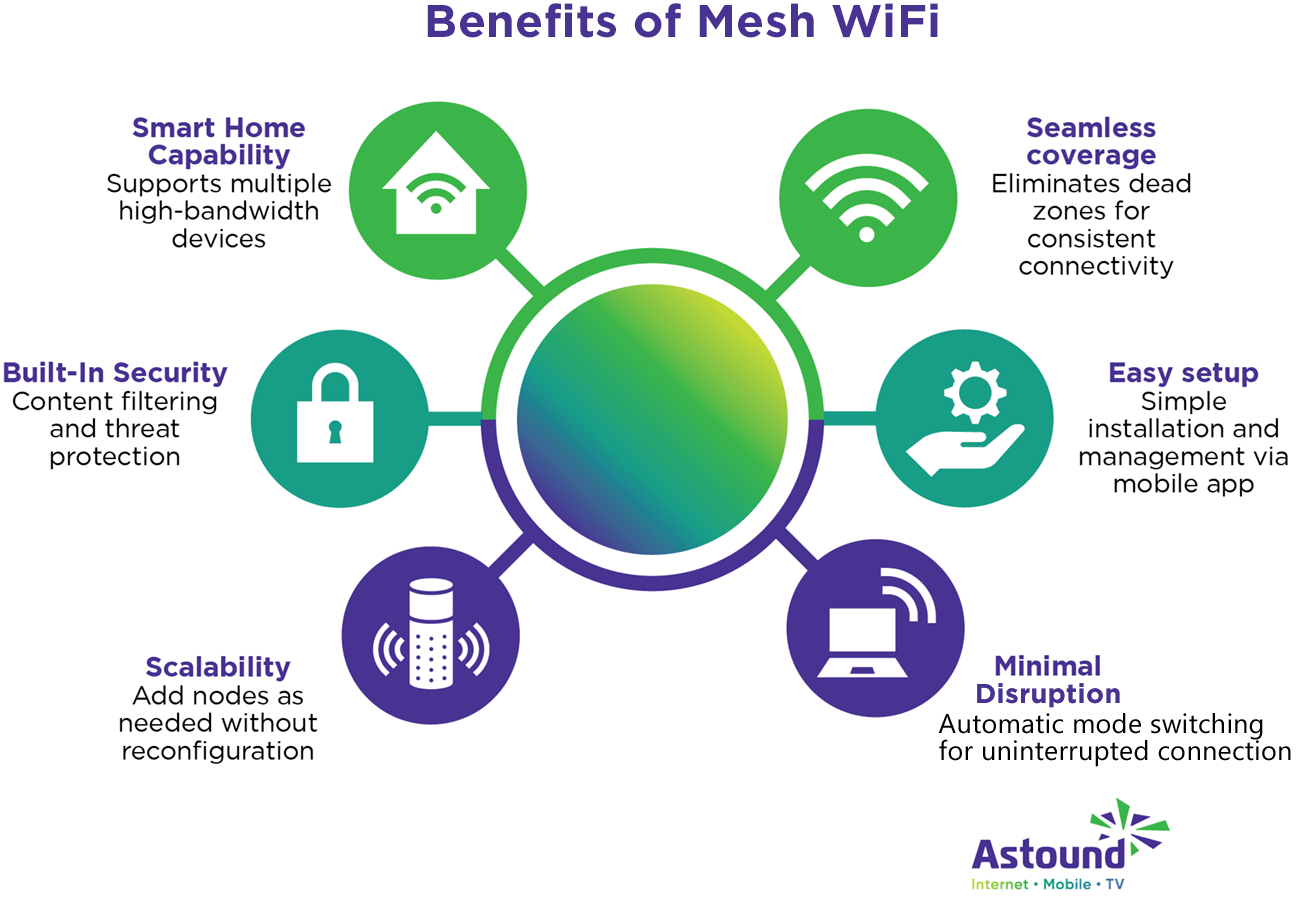
Credit: www.astound.com
Frequently Asked Questions
How To Improve Mesh Wifi Signal In A Smart Home?
Place mesh nodes centrally and away from obstacles. Avoid interference from other electronics. Update firmware regularly for better performance.
Why Is My Mesh Wifi Slow In Certain Rooms?
Weak signals, physical barriers, or outdated devices cause slow speeds. Reposition nodes or add more for better coverage.
How To Fix Frequent Mesh Wifi Disconnections?
Restart your router and nodes. Check for firmware updates. Reduce device overload and ensure stable internet service.
Can Mesh Wifi Handle Many Smart Home Devices?
Yes, mesh WiFi supports multiple devices efficiently. Ensure your system’s capacity matches your device count for optimal performance.
Conclusion
Troubles with mesh WiFi can disrupt your smart home’s flow. Simple checks often fix common problems fast. Restart devices, check connections, and update software regularly. Keep nodes close but not too close to avoid interference. Clear obstacles that block WiFi signals around your home.
A steady, strong WiFi helps all smart gadgets work well. Regular maintenance keeps your network smooth and reliable. Stay patient and try these tips step-by-step. Your smart home deserves the best connection possible.


