Are you tired of slow internet and dropped connections while working from home? Your router settings might be the hidden culprit holding back your productivity.
Getting the best router settings for remote work can make a huge difference in your connection speed, security, and overall work experience. Imagine having a smooth, reliable network that keeps up with all your video calls, file uploads, and online meetings without a hiccup.
You’ll discover simple tweaks and powerful tips to optimize your router, so you can focus on what matters most—your work. Keep reading to unlock the secrets to a faster, safer home network today!
Credit: www.esecurityplanet.com
Optimize Router Placement
Place the router in a central spotinside your home. This helps the signal reach all rooms evenly. Avoid placing it near thick walls or metal objects. These block the Wi-Fi signaland reduce speed.
Keep the router off the floor. Put it on a shelf or table instead. Higher placement lets the signal travel farther. Also, avoid putting the router inside cabinets or behind large furniture.
- Choose a central location in your home.
- Keep the router away from walls and metal objects.
- Place it high, like on a shelf or desk.
- Avoid enclosed spaces such as cabinets.

Credit: www.expressvpn.com
Update Firmware Regularly
Keep your router’s firmware up to dateto protect your remote work setup. Check for updates often. New firmware fixes bugs and improves security.
Enable automatic updates. This saves time and ensures your router gets the latest fixes. It helps prevent hackers from accessing your network.
- Go to your router’s settings page.
- Find the firmware updatesection.
- Check for updates manually or turn on automatic updates.
- Restart the router after updating.
Enhance Wi-fi Security
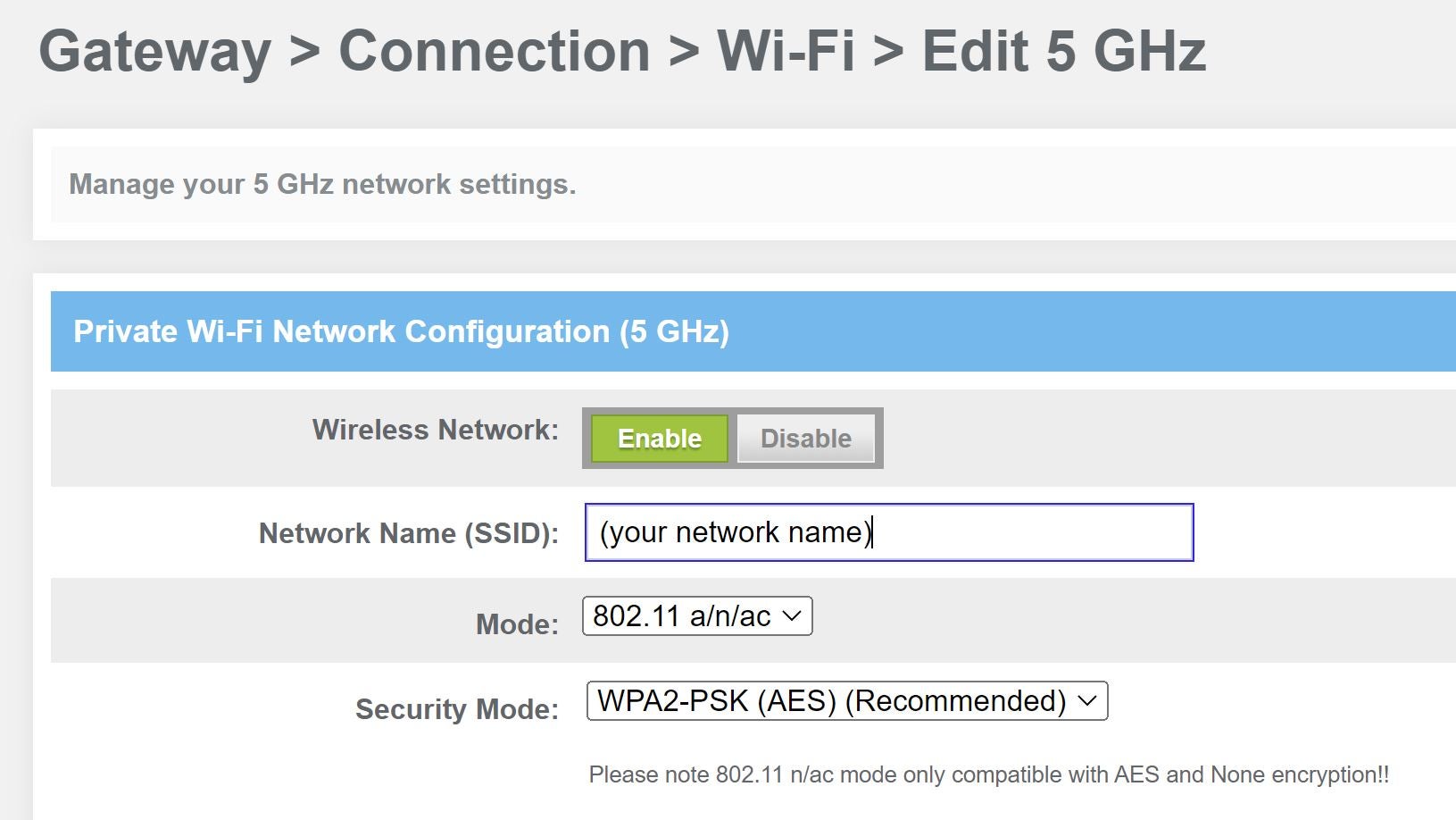
Strong passwordsprotect your Wi-Fi from hackers. Use a mix of letters, numbers, and symbols. Avoid common words like “password” or “123456”. Change passwords regularly to keep your network safe.
Enable WPA3 encryptionon your router. It is the latest and most secure Wi-Fi security protocol. It helps keep your data private and protects devices from attacks.
Disable WPS (Wi-Fi Protected Setup). WPS can be an easy target for hackers. Turning it off improves your network’s security and reduces risks of unwanted access.

Credit: www.reddit.com
Configure Network Settings
Setting up a guest networkkeeps your main network safe. Guests get internet access without seeing your private files or devices. This helps protect your work data from unwanted access.
Managing DHCP settingscontrols how devices get IP addresses. You can set the range of IP addresses your router hands out. This helps avoid conflicts and keeps your network organized.
Assigning static IPsto important devices makes them easy to find. Devices like printers or work computers keep the same address every time. This improves connection reliability for remote work.
Prioritize Work Devices
Quality of Service (QoS)helps give priority to work devices on your network. This means important tasks get faster internet. Set up QoS in your router settings to assign higher priority to work computers or phones. This keeps video calls and file uploads smooth.
Limiting bandwidth for non-essential devices stops them from using too much internet. You can set limits for smart TVs, gaming consoles, or guest devices. This way, your work devices get more bandwidth and stay fast.
- Assign high priority to work devices with QoS
- Set bandwidth limits for non-work devices
- Keep internet speed steady during work hours
Use Vpn For Secure Access
Setting up a router-based VPNis crucial for safety. It encrypts your data traffic. This means your online actions stay private. You need to access your router’s admin page. Find the VPN setup section there. Enter the VPN details provided by your service. Save the changes. Your home network is now more secure.
Choosing a reliable VPN provideris important. Look for good reviews online. Make sure the VPN has a no-log policy. This means they don’t save your data. Check if they offer strong encryption. Customer support should be available 24/7. This helps if you face issues. A good VPN provider keeps your data safe.
Monitor Network Activity
Router logs help check the network activityat home. They show who is using the internet. Logs also show when each device connects. This helps find out if someone else uses your internet. It is easy to view these logs. Just access the router settings page. Here, you can see all devices listed. You can also see when they were last online.
Unauthorized devices can slow down your internet. They might also be a security risk. Check the list of connected devices regularly. Look for any unknown device names. If something seems wrong, change your Wi-Fi password. This will kick out any unauthorized devices. Make sure to use a strong password. A mix of letters and numbers works best.
Troubleshoot Common Issues
Restarting your router often can fix many connection problems. It clears the memory and stops slowdowns caused by long use. Turn it off for 10 seconds before turning it back on. This simple step can improve speed and reliability.
Resetting to factory settings helps when issues last long. It erases all custom settings and restores the router’s original state. Use this only if other fixes don’t work. Remember to save your settings before resetting to avoid losing them.
Frequently Asked Questions
What Are The Best Router Settings For Remote Work?
The best router settings include enabling QoS for bandwidth priority, using WPA3 security, and setting a strong password. Also, update firmware regularly and configure a guest network to separate work devices from personal ones.
How To Optimize Wi-fi For Video Conferencing?
Prioritize video conferencing apps with QoS settings to reduce lag. Use the 5GHz band for faster speeds and minimal interference. Position your router centrally for better signal strength during calls.
Why Enable Quality Of Service (qos) On Routers?
QoS prioritizes important traffic like video calls and file sharing. This reduces buffering and lag during remote work. It ensures stable and fast connections for work-critical applications.
How Often Should Router Firmware Be Updated?
Update router firmware every 3-6 months or when notified. Firmware updates fix security vulnerabilities and improve performance. Keeping firmware current ensures a secure and smooth remote work experience.
Conclusion
Choosing the right router settings improves your remote work experience. A strong Wi-Fi signal keeps your calls clear and files fast. Secure your network to protect important data from threats. Prioritize work devices to avoid slowdowns during busy hours. Simple changes can make your home office more reliable.
Stay connected and productive with these easy tips. Your workday will feel smoother and less stressful. Small steps lead to better online performance every day.