Are you wondering if a travel router can share USB internet? If you rely on USB internet dongles while on the move, knowing how to spread that connection to multiple devices can make your trips smoother and more productive.
Imagine connecting your laptop, phone, and tablet all at once without juggling cables or extra gadgets. You’ll discover how travel routers work with USB internet, the benefits, and what to look out for. Keep reading to unlock a simple way to stay connected anywhere you go.
Travel Router Basics
Understanding the basics of a travel router helps you use it better. A travel router is a small device that shares internet with multiple devices. It makes internet access easier in hotels, airports, or public places. These routers are compact and designed for travelers who need reliable Wi-Fi on the go.
What Is A Travel Router?
A travel router connects to the internet and creates a private Wi-Fi network. It can share internet from wired or wireless sources. This means you can connect your phone, laptop, or tablet to the router’s Wi-Fi. The router then shares the internet with all connected devices.
Travel routers often have USB ports for extra functions. Some support USB internet sharing, which means they can use a USB modem or phone as the internet source. This is useful in places without Wi-Fi or Ethernet cables.
Key Features To Look For
- Portability:Small size and light weight for easy carrying.
- Multiple Connection Types:Supports Ethernet, Wi-Fi, and USB internet sources.
- Security:WPA2 encryption to keep your connection safe.
- Battery or USB Power:Operates on battery or USB power for flexibility.
- Easy Setup:Simple interface to connect and configure quickly.
- Speed:Supports fast Wi-Fi standards like 802.11ac for smooth browsing.

Credit: gstylemag.com
Usb Internet Explained
Understanding USB internet is key if you want to know how a travel router can share this type of connection. USB internet means connecting to the internet through a device plugged into your router’s USB port, rather than through traditional wired or wireless signals. This setup can be handy when you’re on the go or in places without stable Wi-Fi.
Types Of Usb Internet Connections
USB internet connections come in several forms, each serving different needs and devices.
- USB Modems (Dongles):These are small devices that plug into your travel router’s USB port and connect to cellular networks, like 4G or 5G. They act as portable hotspots, giving you internet access via mobile data.
- USB Tethering:This lets you share your smartphone’s mobile data by connecting it directly to a travel router via USB cable. It’s useful when Wi-Fi is weak or unavailable, but you still want stable internet.
- USB Ethernet Adapters:Some routers support USB Ethernet adapters that allow a wired internet connection through the USB port if the main Ethernet port is busy or unavailable.
How Usb Internet Differs From Wi-fi
USB internet and Wi-Fi might both get you online, but they work in distinct ways. USB internet is a direct, physical connection, which often means more stable and secure internet access.
Wi-Fi, on the other hand, is wireless and depends on signal strength and interference. This can sometimes cause slower speeds or drops in connection, especially in crowded or large spaces.
Have you ever noticed how your phone’s hotspot can be faster when connected via USB tethering compared to just Wi-Fi? That’s because USB tethering reduces signal loss and interference.
Sharing Usb Internet Via Travel Router
Sharing USB internet through a travel router lets you connect multiple devices to one USB modem or dongle. This setup is useful during travel or in places without Wi-Fi. A travel router acts as a bridge, turning USB internet into a wireless signal. It helps share internet easily with smartphones, tablets, and laptops.
Compatibility Requirements
Not all travel routers support USB internet sharing. Check the router’s specifications before buying. Look for these key points:
- USB port that supports modem or dongle connections
- Firmware that recognizes your USB internet device
- Compatibility with the network type (3G, 4G, LTE)
- Support for your USB device’s brand and model
- Ability to handle multiple connected devices
Ensure your USB modem is unlocked and active. The travel router should have updated firmware for smooth operation.
Setup Steps For Usb Internet Sharing
Start by plugging your USB modem into the travel router’s USB port. Turn on the travel router and wait for it to recognize the device.
Access the router’s admin panel through a web browser. Use the router’s IP address, usually found in the manual.
- Login using the default username and password
- Navigate to the internet or USB settings section
- Select the USB internet as the primary connection type
- Configure APN settings if required by your carrier
- Save and apply the changes
Restart the router if needed. Connect your devices to the travel router’s Wi-Fi. Your USB internet should now be shared wirelessly.

Credit: gstylemag.com
Benefits Of Usb Internet Sharing
Sharing USB internet via a travel router offers many benefits. It creates a simple way to connect multiple devices using one USB internet source. This method enhances internet access during travel, work, or at home. It also improves convenience and flexibility for users on the move.
Enhanced Connectivity On The Go
Travel routers with USB internet sharing keep you connected almost anywhere. They allow easy access to internet from USB modems or dongles. This means you can have a stable connection without relying on public Wi-Fi. It helps avoid weak signals or data limits from mobile phones. The router boosts the signal and spreads it over a wider area.
Multiple Device Access
A travel router sharing USB internet allows many devices to connect at once. Laptops, tablets, and smartphones can all use the same internet source. This saves data cost and avoids the need for multiple USB modems. It also helps share internet with family, friends, or colleagues easily. Everyone can browse, stream, or work without interruption.
Common Challenges And Fixes
Travel routers often face issues sharing USB internet due to compatibility problems. Ensuring proper settings and updated firmware can help. Testing different configurations may also resolve connectivity challenges.
Sharing USB internet using a travel router can be a game-changer for those constantly on the move. However, it’s not without its challenges. Understanding these common issues and knowing how to fix them can make your travel router experience smoother and more reliable. Let’s dive into some of the challenges you might face and how to address them effectively.Connection Stability Issues
Frequent disconnections can be a major headache when relying on a travel router to share USB internet. One common cause is interference from other electronic devices. Try positioning your router away from gadgets like microwaves and cordless phones to reduce signal disruption. Another factor is the router’s firmware. Make sure it’s updated to the latest version. Manufacturers often release updates to fix bugs and improve performance. If your connection drops often, check for firmware updates in the router’s settings menu.Troubleshooting Usb Compatibility
Not all travel routers are compatible with every USB modem. Before purchasing a travel router, verify the compatibility with your specific USB device. This small step can save you a lot of frustration later. If your travel router isn’t recognizing the USB modem, ensure the modem is working properly by testing it on a computer. Sometimes, using a different USB port or cable can make a difference. Also, confirm that the router supports the modem’s network band. Have you ever faced these challenges while using a travel router? What solutions worked best for you? Engaging with these questions can help other readers find new solutions and improve their own experiences.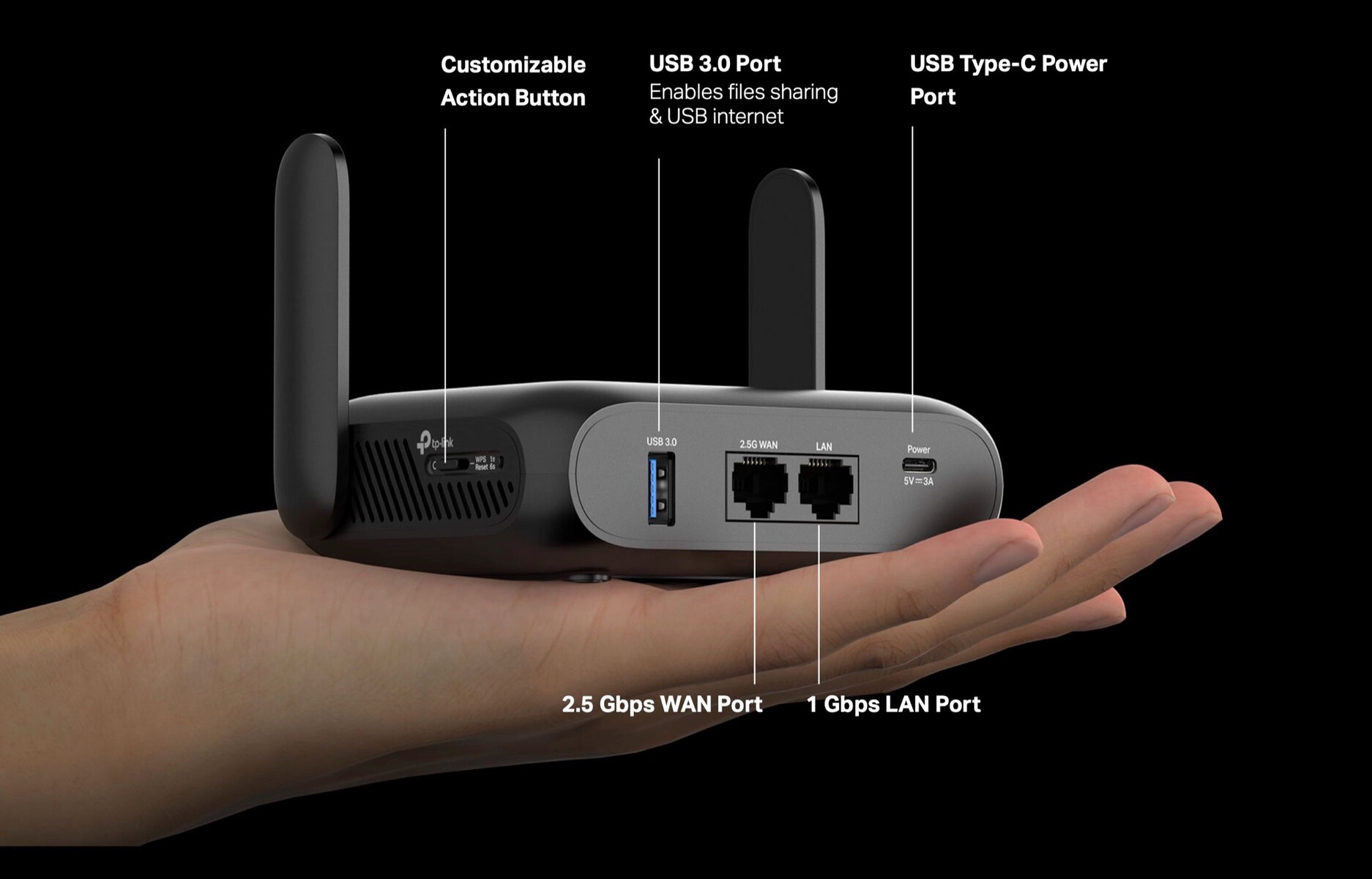
Credit: www.notebookcheck.net
Top Travel Routers For Usb Internet
Travel routers that support USB internet are essential for reliable connections abroad. They let you share mobile data or wired USB internet with multiple devices. Choosing the right travel router improves your online experience on the go.
These routers are compact, easy to carry, and designed for quick setup. They support various USB modems or tethering from smartphones. Power efficiency and strong signal range matter for travel needs.
Recommended Models
- GL.iNet GL-AR750S-Ext:Supports 4G USB modems, dual-band WiFi, and VPN.
- TP-Link TL-MR3020:Compact, with 3G/4G USB modem support and easy setup.
- HooToo TripMate Titan:Offers USB tethering, file sharing, and power bank features.
- Netgear Nighthawk M1:Supports USB tethering and 4G LTE with fast speeds.
- RAVPower FileHub:Combines USB internet sharing and media streaming.
Price And Feature Comparison
| Model | USB Internet Support | WiFi Bands | Battery | Price Range |
|---|---|---|---|---|
| GL.iNet GL-AR750S-Ext | 4G USB modem | Dual-band (2.4 & 5 GHz) | No | $$ |
| TP-Link TL-MR3020 | 3G/4G USB modem | Single-band (2.4 GHz) | No | $ |
| HooToo TripMate Titan | USB tethering | Single-band (2.4 GHz) | Yes (6000mAh) | $$ |
| Netgear Nighthawk M1 | USB tethering & 4G LTE | Dual-band (2.4 & 5 GHz) | Yes (5040mAh) | $$$ |
| RAVPower FileHub | USB tethering | Single-band (2.4 GHz) | Yes (6700mAh) | $$ |
Tips For Optimizing Usb Internet Use
Optimizing USB internet use with a travel router improves your connection and experience. Small changes can boost speed, extend coverage, and keep your network safe. Follow practical tips to get the best from your setup.
Maximizing Speed And Coverage
Place the travel router in an open space, avoiding walls and metal objects.
Use a high-quality USB cable to connect the internet source for stable signals.
Keep the router firmware updated to ensure better performance and compatibility.
Limit the number of devices connected to reduce congestion and maintain speed.
Select the right wireless band: 2.4 GHz for range, 5 GHz for faster speeds.
Security Considerations
Set a strong, unique password for your travel router’s Wi-Fi network.
Enable WPA3 or WPA2 encryption to protect data from unauthorized access.
Disable remote management features to avoid external threats.
Turn off the router when not in use to reduce security risks.
Regularly check connected devices and block any unknown users immediately.
Frequently Asked Questions
Can A Travel Router Share Usb Internet Connections?
Yes, many travel routers can share USB internet by connecting a USB modem or tethered smartphone. This allows multiple devices to access the internet through the router’s Wi-Fi network.
Which Usb Devices Work With Travel Routers For Internet?
Travel routers typically support USB dongles, 3G/4G modems, or tethered smartphones. Check the router’s compatibility list to ensure your USB internet device is supported.
How Do I Set Up Usb Internet On A Travel Router?
Connect your USB modem or phone to the router’s USB port. Access the router’s settings via a browser and enable USB internet sharing under WAN or USB settings.
Are There Speed Limits When Using Usb Internet On Travel Routers?
Speed depends on the USB modem’s network and the router’s hardware. Some routers may limit throughput, so expect slightly reduced speeds compared to direct USB connections.
Conclusion
Travel routers can share USB internet in many cases. This makes them useful for travel and remote work. You just need to check if your router supports USB sharing. Not all models do. Using a travel router helps connect multiple devices easily.
It also saves your phone’s battery. Remember, speed and stability depend on your USB internet source. Choose a reliable device for the best experience. Sharing USB internet through a travel router is simple and practical. It keeps you connected wherever you go.