Are you wondering if a dual band router can work with your DSL internet? You’re not alone.
Many people ask this question because they want faster speeds and better connectivity at home. Using the right router can make a huge difference in how smoothly your internet runs. You’ll discover how a dual band router works with DSL, what benefits it can bring, and what you need to watch out for.
By the end, you’ll know exactly if upgrading your router is the right move for your internet setup. Keep reading to find out!
How Dsl Internet Works
Understanding how DSL internet works helps you see its connection with routers. DSL uses existing phone lines to deliver internet service. It sends digital data over the same lines used for voice calls. This allows internet and phone service to work at the same time.
Basics Of Dsl Technology
DSL stands for Digital Subscriber Line. It provides internet by splitting the phone line signals. One part carries voice calls. The other part carries internet data. This separation keeps calls clear while you browse online.
DSL speeds vary based on distance from the provider’s central office. The closer you are, the faster your connection. DSL is always on, unlike dial-up connections. It offers stable internet without interrupting phone use.
Dsl Modem And Router Roles
The DSL modem connects your home to the internet through the phone line. It translates DSL signals into data your devices can use. Without a modem, your devices cannot access the DSL network.
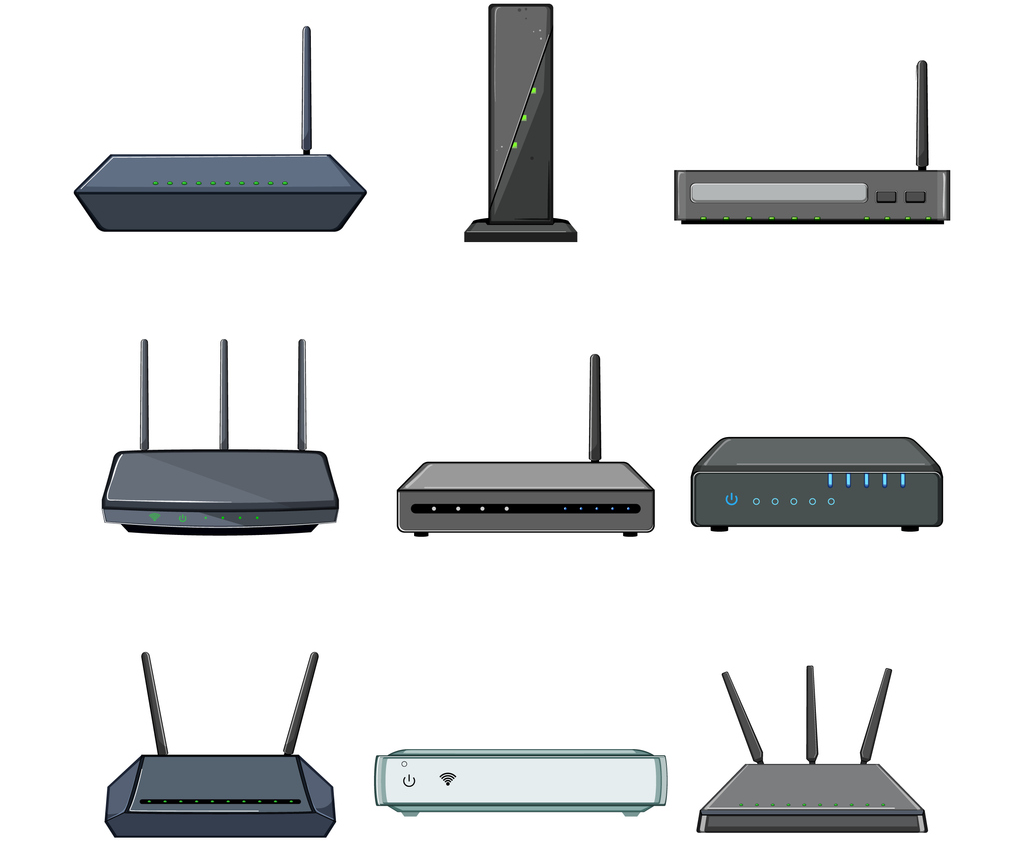
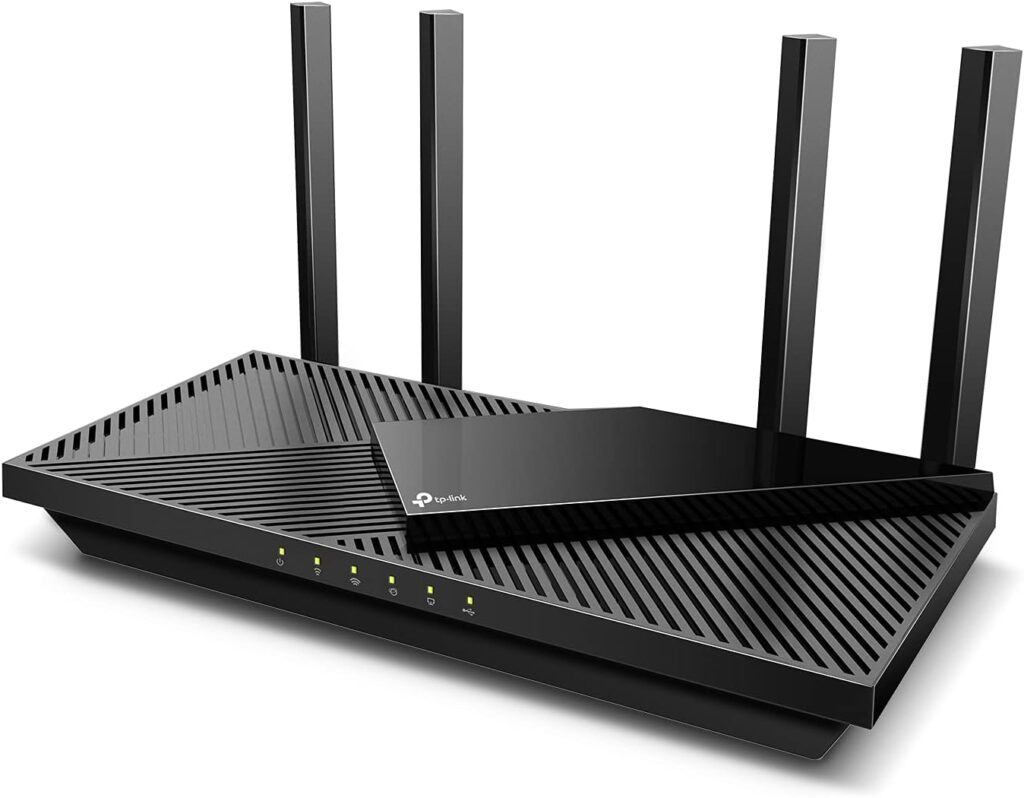
The router shares this internet connection with multiple devices. It manages data traffic between devices and the modem. A dual band router can broadcast on 2.4 GHz and 5 GHz frequencies. This improves connection speed and reduces interference for your devices.
Credit: linuxblog.io
Dual Band Router Features
A dual band router offers more than just a connection to your DSL internet; it provides flexibility and improved performance tailored to your home or office needs. Understanding its features can help you decide if it’s the right choice for your setup. Let’s break down what makes these routers stand out and how they handle the different Wi-Fi bands.
2.4 Ghz Vs 5 Ghz Bands
The 2.4 GHz band covers a wider range but often suffers from more interference. This frequency passes through walls and obstacles better, making it suitable for larger spaces or devices far from the router.
On the other hand, the 5 GHz band offers faster speeds with less interference, but its range is shorter. It’s perfect for activities like streaming or gaming when you’re closer to the router.
Have you noticed your connection slow down when many devices are connected? Switching between these bands can help balance your network traffic efficiently.
Benefits Of Dual Band Routers
Dual band routers allow you to connect devices to either the 2.4 GHz or 5 GHz band based on their needs. This means your smartphone might use 5 GHz for quick downloads, while a smart thermostat could stay on 2.4 GHz to maintain a steady connection.
They reduce congestion by spreading devices across two frequencies. This leads to fewer dropped connections and better overall speed, especially during peak usage times.
Plus, many dual band routers come with advanced features like Quality of Service (QoS) to prioritize important traffic. This ensures your video calls or online gaming sessions stay smooth, even if others are browsing the web.
Compatibility Of Dual Band Routers With Dsl
Dual band routers work well with DSL internet connections. They support both 2.4 GHz and 5 GHz wireless frequencies. This helps improve Wi-Fi performance and reduce interference. Most DSL services provide internet through a modem. The modem connects to your router to share the internet across devices. Compatibility depends on how you connect the router to the DSL modem and how the router is set up.
Connecting Dual Band Routers To Dsl Modems
First, link the DSL modem to the router using an Ethernet cable. Plug one end into the modem’s LAN port. Connect the other end to the router’s WAN or Internet port. Power on both devices and wait for them to start. The router will receive the internet signal from the modem. This setup allows your router to share internet over both Wi-Fi bands.
- Use a good quality Ethernet cable for stable connection.
- Ensure the modem is in bridge mode if required.
- Check that the router’s WAN port is active.
Router Configuration For Dsl
Access the router’s settings through a web browser. Enter the router’s IP address, often 192.168.1.1 or 192.168.0.1. Login with the default username and password. Set the internet connection type based on your DSL provider’s details. Common types are PPPoE or Dynamic IP. Enter your DSL username and password if PPPoE is needed. Save the settings and restart the router. This process ensures the router communicates properly with the DSL service.
- Enable both 2.4 GHz and 5 GHz bands for best coverage.
- Change default Wi-Fi names and passwords for security.
- Update router firmware to improve performance and fix bugs.
Credit: www.highspeedoptions.com
Setting Up A Dual Band Router On Dsl
A dual band router works well with DSL internet to improve wireless performance. It supports both 2. 4 GHz and 5 GHz bands, offering better speed and less interference. Setting it up involves connecting to the DSL modem and configuring the router settings.
Setting up a dual band router on DSL can enhance your internet experience by offering better speed and reduced interference. Dual band routers allow you to separate devices across two frequencies: 2.4GHz and 5GHz. This ensures that your bandwidth-intensive activities don’t slow down simple tasks. Let’s explore the steps to get your dual band router up and running with DSL.Wiring And Physical Setup
Begin by connecting your DSL modem to the dual band router. Use an Ethernet cable to link the modem’s LAN port to the router’s WAN port. Ensure all cables are snugly fitted and the router is positioned in a central location for optimal signal coverage. Place your router in an open area, away from walls or large metal objects, to prevent signal obstruction. Consider elevating the router on a shelf or desk for better range. If your home has multiple floors, try to position the router on the floor that requires the strongest signal.Accessing Router Settings
To access your router’s settings, you need to connect a device via Wi-Fi or Ethernet. Open a web browser and type in the router’s IP address, often found on the device label or manual. This will take you to the router’s login page where you enter the default username and password. Once logged in, explore the dashboard to familiarize yourself with the different settings. Change the default login credentials to something secure and unique. This step protects your network from unauthorized access.Configuring Wireless Bands
After securing your router, it’s time to configure the wireless bands. Locate the Wi-Fi settings on your router’s dashboard and enable both the 2.4GHz and 5GHz bands. Assign distinct names (SSIDs) to each band for easy identification. Decide which devices should connect to each band. The 2.4GHz band is ideal for devices that require longer range, like smart home gadgets. Meanwhile, the 5GHz band offers faster speeds for streaming and gaming but works best over shorter distances. By following these steps, your dual band router will be well-integrated with your DSL internet, offering a seamless online experience. Have you considered how a dual band router could optimize your household’s internet usage?Optimizing Performance
Optimizing performance is key to getting the best from a dual band router with DSL internet. The right setup helps devices run smoothly and keeps your connection stable. Small changes can make a big difference in speed and coverage. Focus on how you choose bands, boost signal strength, and manage traffic for a balanced network.
Choosing The Right Band For Devices
Dual band routers use 2.4 GHz and 5 GHz bands. The 2.4 GHz band covers longer distances but is slower. The 5 GHz band is faster but works best close to the router. Assign devices based on their needs and location.
- Use 2.4 GHz for phones and smart home devices far from the router.
- Use 5 GHz for laptops and streaming devices near the router.
- Switch devices to 5 GHz for tasks needing higher speed.
Improving Signal Strength
Signal strength affects internet quality and speed. Place the router in a central, open spot. Avoid walls, metal objects, and appliances that block signals. Adjust router antennas for better coverage. Consider range extenders for large homes.
Managing Network Traffic
Network traffic impacts how fast your internet feels. Too many devices can slow the connection. Limit high-data tasks like video calls or downloads during busy times. Use Quality of Service (QoS) settings to give priority to important devices or apps. This keeps your network running smoothly for all users.
Common Issues And Fixes
Using a dual band router with DSL internet can bring faster speeds and better coverage, but it’s not without its hiccups. You might face issues that slow down your connection or cause it to drop unexpectedly. Knowing what to look for and how to fix these common problems can save you a lot of frustration and get your internet running smoothly again.
Connection Problems
Sometimes your dual band router may struggle to maintain a steady connection with your DSL line. This can happen if the router settings don’t match your DSL modem’s requirements or if there’s a mismatch in the frequency band used.
Try checking your router’s WAN settings to ensure they align with your ISP’s recommended configuration. Switching between the 2.4 GHz and 5 GHz bands might also help if one band isn’t connecting well. Have you noticed if your connection drops more often on one band? Testing this can pinpoint the issue.
Interference And Signal Drops
Interference is a common culprit behind weak signals and sudden drops, especially on the 2.4 GHz band, which many household devices share. Microwaves, cordless phones, and even neighboring Wi-Fi networks can disrupt your signal.
Place your router away from other electronics and high-traffic areas. Changing the Wi-Fi channel in your router’s settings can reduce interference. Don’t forget to test how the signal performs in different rooms—sometimes a simple repositioning solves the problem.
Firmware Updates
Firmware is the software that controls your router’s functions. Outdated firmware can cause bugs, security issues, and poor performance. Many people overlook updates, but they often contain fixes for common problems that affect DSL connectivity.
Check your router manufacturer’s website or the admin panel for available firmware updates. Installing the latest version can improve stability and speed. Have you ever ignored a firmware update only to regret it later? Staying current helps avoid many avoidable issues.
When To Upgrade Your Router
Knowing when to upgrade your router can improve your internet experience. An outdated router may slow down your DSL connection or cause frequent disconnects. Upgrading can bring better speeds, stronger signals, and new features. Keep an eye on your current router’s performance and features to decide the right time to switch.
Signs Your Router Is Outdated
- Slow internet speeds despite your DSL plan
- Frequent connection drops or interruptions
- Router feels hot or overheats often
- Limited Wi-Fi range or weak signal in parts of your home
- Incompatibility with newer devices or standards like Wi-Fi 5 or 6
- Router firmware no longer receives updates
- Too many devices cause the network to lag
Features To Look For In New Routers
- Dual-band support for both 2.4 GHz and 5 GHz frequencies
- Compatibility with your DSL internet service
- Latest Wi-Fi standards like Wi-Fi 5 (802.11ac) or Wi-Fi 6 (802.11ax)
- Strong security features such as WPA3 encryption
- Easy setup and user-friendly management apps
- Good range to cover your entire home or office
- Multiple Ethernet ports for wired connections
- Support for guest networks and parental controls

Credit: device.report
Frequently Asked Questions
Can A Dual Band Router Improve Dsl Internet Speed?
Yes, a dual band router can enhance DSL speed by reducing interference. It offers 2. 4 GHz and 5 GHz bands for stable connections and faster data transfer, improving overall internet performance.
Is A Dual Band Router Compatible With All Dsl Modems?
Most dual band routers are compatible with DSL modems. Ensure the router supports your DSL connection type. Proper setup between the modem and router is essential for seamless internet access.
Does Using A Dual Band Router Affect Dsl Internet Stability?
Using a dual band router generally improves DSL stability. It balances network traffic across two bands, reducing congestion and interference, which leads to a more reliable and consistent internet connection.
Can I Connect Multiple Devices With A Dual Band Dsl Router?
Yes, dual band routers support multiple devices efficiently. They allocate devices to different frequency bands, minimizing network congestion and maintaining fast, stable internet for all connected gadgets.
Conclusion
A dual band router works well with DSL internet. It gives you better speed and less interference. You can connect many devices at once. This helps with streaming, gaming, and browsing. Just make sure your router supports DSL settings. Setup is usually simple and quick.
A dual band router can improve your home network easily. It makes your internet experience smoother and more reliable. So, using a dual band router with DSL is a smart choice.