Are you tired of slow Wi-Fi in some parts of your home? Maybe you’ve heard about mesh Wi-Fi systems and wonder if they can work with your existing router.
The good news is, you don’t always have to replace everything to get better coverage. But how does that setup actually work? And will it really improve your internet experience? Keep reading to find out how mesh Wi-Fi can boost your signal without throwing away your current equipment.
You might be surprised at how simple and effective the solution can be.

Credit: www.reddit.com
Mesh Wifi Basics
Mesh WiFi is a modern solution for home internet coverage. It extends WiFi signals through several devices called nodes. These nodes work together to cover large spaces with strong signals. Mesh WiFi helps remove dead zones and slow connections in your home.
Understanding the basics of mesh WiFi is important before using it with your existing router. The technology is simple but powerful. It creates a single, seamless network that devices connect to automatically.
What Is Mesh Wifi
Mesh WiFi is a system of multiple WiFi nodes. Each node acts as a mini router to spread internet signals. Nodes communicate with each other to share internet access. This setup creates a large, unified WiFi network.
Unlike traditional WiFi routers, mesh networks do not rely on one device. The system adjusts signals for the best connection. Users move around without losing connection or switching networks.
How Mesh Networks Operate
Mesh networks use many nodes placed around your home. These nodes send data between each other and to your internet modem. This creates multiple paths for data to travel.
- If one node fails, data takes another route.
- Nodes talk to each other to find the fastest path.
- The system balances load for better speed and reliability.
Devices connect to the closest node automatically. The network works as a single WiFi system with one name and password. This makes managing your home WiFi easier and more reliable.
Router Types And Compatibility
Understanding your router type and its compatibility with mesh WiFi systems is key to improving your home network. Not all routers play nicely with mesh nodes, so knowing what you have and what works can save you frustration and boost your WiFi performance.
Common Router Models
Most homes use either a standard wireless router or a modem-router combo provided by their internet service provider. Popular models include brands like Netgear Nighthawk, TP-Link Archer, Asus RT series, and Linksys Velop.
These routers often support dual-band or tri-band WiFi, which is important for mesh compatibility. However, some older models or ISP-provided gateways might limit your options. Identifying your model helps you determine if you can add mesh nodes directly or need to adjust settings.
Compatibility Factors
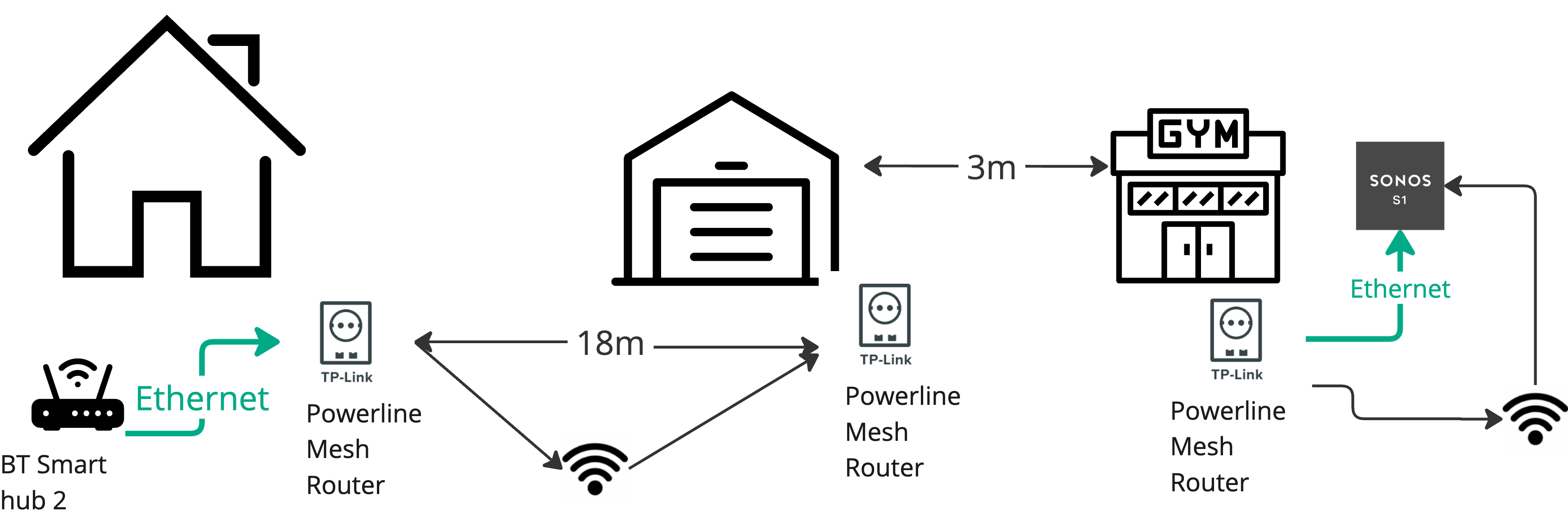
Mesh WiFi systems generally connect to your existing router via Ethernet or work in bridge mode to extend your network. Compatibility hinges on features like bridge mode support, DHCP settings, and firmware flexibility.
For example, if your router doesn’t support bridge mode, you might face double NAT issues, which can slow down or disrupt your network. Check if your router allows disabling its WiFi to let the mesh system handle wireless connections fully.
Have you checked your router’s manual or online forums to see if others have successfully paired it with a mesh system? This simple step can reveal hidden compatibility quirks and save you from buying incompatible gear.
Connecting Mesh Wifi To Existing Router
Connecting mesh WiFi to an existing router helps extend your network coverage. This setup allows the mesh system to work alongside your current router. It improves WiFi signals in hard-to-reach places. Proper connection ensures a smooth and fast internet experience throughout your home.
Setup Modes
Mesh systems offer different setup modes for connection. The most common mode is Access Point (AP) mode. In AP mode, the mesh acts as a WiFi extender. It relies on your existing router for managing network settings.
Router mode lets the mesh system handle all network tasks. Use this mode if you want to replace your old router. Bridge mode connects mesh nodes without creating a new network. This mode keeps your current router as the main device.
Wired Vs Wireless Backhaul
Backhaul is the link between mesh nodes and the main router. Wired backhaul uses Ethernet cables for connection. It offers faster speeds and more stable signals.
Wireless backhaul connects nodes through WiFi signals. This option is easier to set up but may have lower speeds. Wireless backhaul depends on signal strength and distance between nodes.
Choosing the right backhaul depends on your home layout and network needs. Wired backhaul suits larger homes with Ethernet ports. Wireless backhaul fits smaller spaces or places without cables.
Benefits Of Using Mesh With Current Router
Integrating a mesh Wi-Fi system with your existing router offers many advantages. It enhances the home network without replacing the current setup. Users can experience better connectivity, broader coverage, and more stable internet connections. Let’s explore these benefits in detail.
Coverage Expansion
A mesh Wi-Fi system extends the reach of your current network. It eliminates dead zones in your home. Each mesh unit acts as a mini router. Together, they form a strong network blanket. This ensures every corner of your home receives a steady signal. No more weak signals in distant rooms.
Improved Network Stability
Mesh Wi-Fi boosts network stability by managing traffic efficiently. It connects devices to the nearest node. This reduces congestion and ensures smooth data flow. The system handles multiple devices without lag. Enjoy seamless streaming and gaming experiences. It keeps your internet connection reliable and fast.
Potential Challenges And Solutions
Setting up a mesh WiFi system alongside your existing router can improve coverage, but it may also bring a few technical hiccups. Knowing the common challenges helps you avoid frustration and keeps your network running smoothly. Let’s look at some issues you might face and how to tackle them effectively.
Ip Address Conflicts
IP address conflicts occur when two devices on your network try to use the same IP address. This can cause connection drops or slowdowns, especially if your existing router and mesh system both assign IPs independently.
To fix this, you can switch your mesh WiFi into bridge mode. This lets the original router handle IP assignments, avoiding conflicts. Another tip is to reserve IP addresses in your router’s settings for critical devices, ensuring they don’t clash.
Network Speed Issues
Adding mesh WiFi can sometimes slow down your internet if the system isn’t set up correctly. A common mistake is placing mesh nodes too far apart or too close to other electronics that cause interference.
Try positioning your mesh units in open areas, away from thick walls or microwaves. Also, check if your mesh system supports dual-band or tri-band setups and use backhaul connections (wired or dedicated wireless) to maintain top speeds.
Firmware Updates
Firmware updates keep your mesh WiFi and router secure and functioning well. But skipping updates or mismatched versions can cause compatibility issues between devices.
Regularly check for updates on both your router and mesh system. Set reminders or enable automatic updates if possible. Staying current can prevent bugs and improve performance without you having to troubleshoot later.

Credit: www.amazon.ca
Best Practices For Seamless Integration
Integrating a mesh WiFi system with an existing router can improve your home network. The key is to ensure both devices work well together without causing issues. Following best practices helps avoid common problems like slow speeds or dropped connections. Focus on optimizing settings and placing devices carefully. This approach ensures smooth performance across your entire space.
Optimizing Settings
Start by accessing your router’s settings page. Disable the router’s WiFi feature to prevent signal interference. Let the mesh system handle all wireless connections. Set the mesh network’s SSID (network name) and password to something easy to remember. Use the same network name across all mesh nodes for seamless roaming.
Adjust the router’s IP address range if needed. This avoids conflicts between the router and mesh devices. Enable DHCP on the mesh system to assign IP addresses automatically. Check for firmware updates on both your router and mesh system. Updates often fix bugs and improve compatibility.
Placement Tips
Place the main mesh unit near your existing router. Use a wired Ethernet connection between them if possible. This creates a strong backhaul link for better speed. Avoid placing mesh nodes near thick walls or metal objects. These materials block WiFi signals and reduce coverage.
Distribute additional mesh nodes evenly throughout your home. Aim for open spaces like hallways or living rooms. Keep nodes within a good range of each other. This keeps the mesh network stable and fast. Avoid hiding nodes in cabinets or behind furniture. They need clear paths to send and receive signals.
Popular Mesh Wifi Systems For Existing Routers
Mesh WiFi systems can boost your home network without replacing your current router. They work by connecting with your existing router to expand coverage. Many popular mesh systems offer easy setup and strong signals throughout your home. Choosing the right system depends on your needs and current router compatibility.
Top Brands
- Google Nest Wifi– Known for simple setup and reliable coverage.
- Netgear Orbi– Offers strong signals with a dedicated backhaul channel.
- TP-Link Deco– Provides budget-friendly options with good performance.
- Amazon Eero– Easy to use and integrates with smart home devices.
- Linksys Velop– Modular system with flexible placement options.
Feature Comparisons
| Brand | Setup Type | Coverage Area | App Control | Compatibility with Routers |
|---|---|---|---|---|
| Google Nest Wifi | Easy, app-guided | Up to 4400 sq ft (2-pack) | Yes | Works well with most routers |
| Netgear Orbi | Moderate, app-assisted | Up to 5000 sq ft (2-pack) | Yes | Compatible with existing routers |
| TP-Link Deco | Simple, app-based | Up to 5500 sq ft (3-pack) | Yes | Supports router mode and access point mode |
| Amazon Eero | Very easy, guided setup | Up to 5000 sq ft (3-pack) | Yes | Compatible with most routers |
| Linksys Velop | Moderate, app setup | Up to 6000 sq ft (3-pack) | Yes | Works in bridge mode with routers |
Credit: en.community.sonos.com
Frequently Asked Questions
Can Mesh Wifi Systems Work With Existing Routers?
Yes, mesh WiFi systems can work with existing routers. You connect the mesh router to your current router via Ethernet. This setup extends your WiFi coverage without replacing your existing router entirely.
Do I Need To Disable My Old Router’s Wifi?
It’s recommended to disable your old router’s WiFi to avoid interference. This allows the mesh system to manage wireless signals efficiently and improves overall network performance.
Will Mesh Wifi Improve My Current Internet Speed?
Mesh WiFi can improve coverage and reduce dead zones but may not increase your internet speed. Your speed depends on your ISP plan and connection quality.
Can I Use Multiple Mesh Nodes With One Router?
Yes, multiple mesh nodes can connect to one existing router. This setup creates a seamless network and expands WiFi coverage throughout your home or office.
Conclusion
Mesh WiFi can work well with your existing router. It helps cover weak signal areas in your home. You just need to set it up correctly. This setup improves your internet speed and connection. It also keeps your devices connected smoothly.
No need to replace your router right away. Just add mesh nodes where you need better WiFi. This way, your network stays strong and reliable. Simple steps lead to a better internet experience. Try it to see how your WiFi improves today.