Are you tired of weak WiFi signals that make your online activities frustrating? You’re not alone.
Many people struggle with poor connectivity, especially in larger homes or office spaces. Long range WiFi extenders promise a solution, but here’s a question you might be asking: do they require WPS (Wi-Fi Protected Setup) to work? Understanding this can save you time and ensure you get the most out of your devices.
We’ll break down the essentials, so you can make an informed decision. Stick with us, and by the end, you’ll know exactly what you need to boost your WiFi coverage efficiently.

Credit: www.amazon.ca
Long Range Wifi Extenders Basics
Wifi extenders help boost signal to reach far places. They pick up the main router’s wifi signal. Then, they repeat it to cover weak spots. This helps devices connect where the signal is low or missing.
Long range wifi extenders work the same but cover larger areas. They use stronger antennas or better tech to send signals farther. This is good for big homes, offices, or outdoor spaces.
Benefits of Long Range Extenders:
- Stronger wifi signalin distant rooms or floors.
- Better internet speedin far corners.
- Easy setupwith or without WPS button.
- Less dead zonesaround the house or office.
- Supports multiple devicesat once.
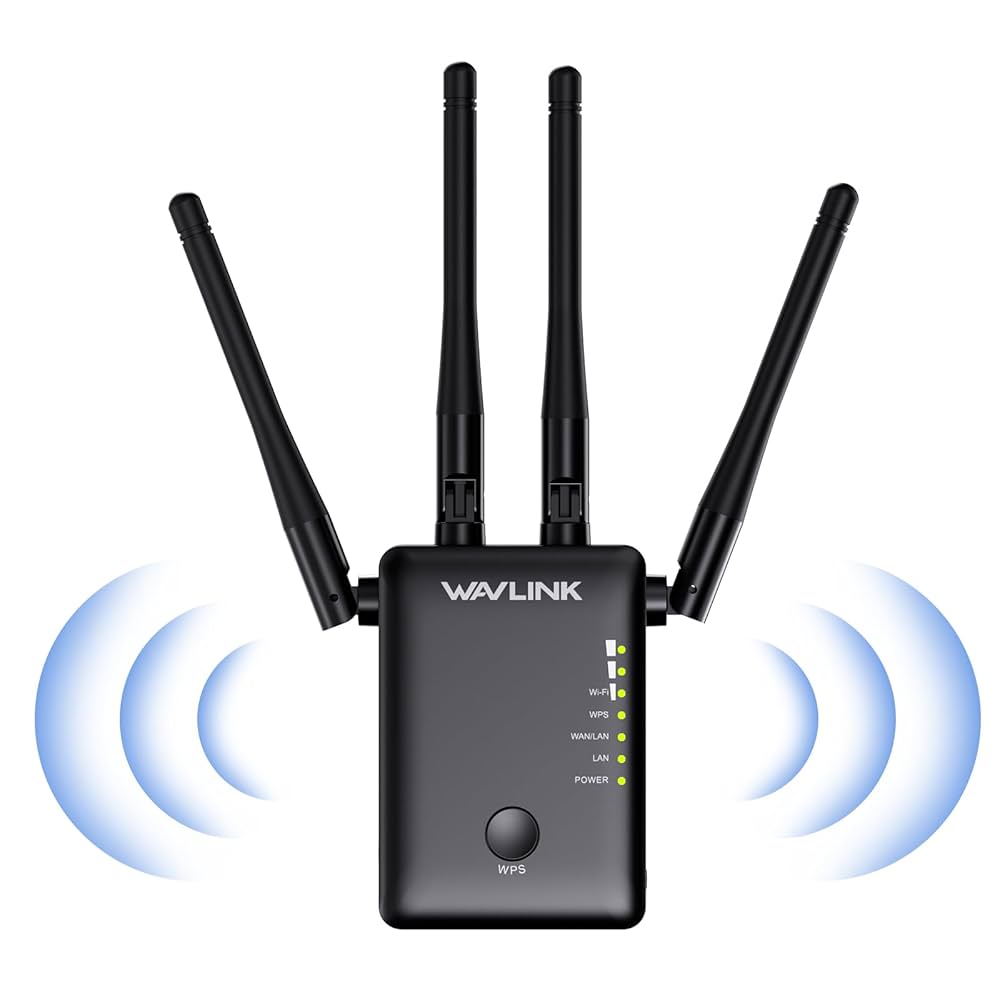
Credit: www.amazon.ca
Role Of Wps In Wifi Extenders
WPSstands for Wi-Fi Protected Setup. It helps devices connect to a Wi-Fi network easily. By pressing a button or entering a PIN, devices can join without typing the password.
Many Wi-Fi extenderssupport WPS. This makes setup faster and simpler. Just press the WPS button on the router and extender. They connect automatically.
Some extenders do not have WPS. In that case, manual setup is needed. This means entering the Wi-Fi name and password manually.
Securitycan be a concern with WPS. The PIN method is weaker and can be hacked. Many experts suggest turning off WPS after setup. Use a strong Wi-Fi password to stay safe.
Setting Up Without Wps
Some long range WiFi extenders do not need WPS to connect. You can set them up using their web interface. Open a browser and type the extender’s IP address. This address is often found in the extender’s manual or on a sticker.
Log in with the default username and password. These details are usually “admin” or “user” for both fields. After login, find the wireless settings menu. Select your main WiFi network from the list of available networks.
- Enter your WiFi password manually.
- Choose the same security type as your main router (WPA2, for example).
- Save your settings and wait for the extender to reboot.
This manual setup helps when WPS is not available or not working. It gives more control over your extender’s connection.
Using Wps For Quick Setup
WPSlets you connect your long range WiFi extender quickly. Press the WPS buttonon the router first. Then, press the WPS button on the extender. The devices will find each other and link automatically. This is faster than typing passwords.
Some routers or extenders may not have a visible WPS button. In that case, you can activate WPS from the device’s settings menu. Usually, this is done through a web interface or app. Check the user manual for exact steps.
- Make sure both devices support WPS.
- Keep devices close during setup.
- Wait a few minutes for connection.
TroubleshootingWPS connection problems:
- Restart both router and extender.
- Check if WPS is enabled on both devices.
- Try pressing buttons again within two minutes.
- Reset devices if connection fails repeatedly.
Optimizing Extender Placement
Placing a long-range WiFi extender near your router improves connection strength. WPS helps quick setup but isn’t always needed for good placement. Choose a spot with clear signals for best results.
Finding The Best Location
Place the extender halfway between your router and the area with weak signal. Walls and large objects can block WiFi signals. Choose a spot with clear line of sight to both router and target area. Avoid placing extenders near metal objects or appliances that emit signals.
Avoiding Interference
- Keep extenders away from microwaves and cordless phones.
- Reduce signals from other wireless devices to prevent interference.
- Select a channel with less traffic on your router and extender.
- Test different locations to find where the signal is strongest.

Credit: www.amazon.ca
Maintaining And Updating Extenders
Long-range WiFi extenders often connect without needing WPS. Regular updates and simple maintenance keep them working well over time.
Firmware Updates
Firmware updateskeep extenders working well and fix bugs. They add new features and improve security. Check the extender’s website or app for updates. Download and install updates carefully. Don’t turn off the extender during update. Doing this helps avoid problems.
Regular Performance Checks
Test your extender’s signal strength often. Move it if the signal is weak. Restart the extender sometimes to keep it fast. Clean dust off the device to stop overheating. Watch for slow internet or dropped connections. These signs mean it’s time for a check-up.
Frequently Asked Questions
Do Long Range Wifi Extenders Need Wps To Connect?
No, long range WiFi extenders do not always require WPS. Many support manual setup via web interfaces. WPS simplifies connection but is not mandatory for all extenders.
Can I Set Up Long Range Extenders Without Wps Button?
Yes, you can set up extenders without a WPS button. Use the device’s app or web setup page to connect to your router manually.
Is Wps Safer For Long Range Wifi Extender Setup?
WPS is convenient but can have security risks. Manual setup is often safer as it uses stronger passwords and encryption methods.
What Are Alternatives To Wps For Long Range Extenders?
Alternatives include manual configuration through the extender’s web portal or mobile app. These methods offer more control and security than WPS.
Conclusion
Long range WiFi extenders do not always need WPS to work. Many models offer manual setup options. WPS can make connecting faster but is not required. Some extenders may not even support WPS. Always check your device’s instructions before trying to use WPS.
Using a password and manual setup is often safer. This way, you keep control over your network. Understanding these basics helps you choose the best setup for your needs. Simple steps lead to better WiFi coverage at home or work.