Setting up a reliable internet connection in your office is not just important—it’s essential. If you want smooth video calls, fast downloads, and multiple devices running without a hitch, a dual band router could be your best friend.
But how do you get it right? This guide will walk you through the simple steps to set up your dual band router so your office network works faster and smarter. Keep reading, and you’ll soon enjoy a stronger, more stable Wi-Fi experience that keeps your workday running without interruptions.

Credit: www.amazon.com
Benefits Of Dual Band Routers
Dual band routers offer many benefits for office networks. They provide better performance and support more devices. Businesses can enjoy faster connections and fewer interruptions. These advantages help maintain smooth workflow and improve productivity.
Faster Speeds For Multiple Devices
Dual band routers use two frequency bands: 2.4 GHz and 5 GHz. This allows devices to connect on different bands. The 5 GHz band delivers faster speeds for high-demand tasks. The 2.4 GHz band handles devices that need less speed. This setup prevents network slowdowns during busy office hours.
Reduced Interference And Better Range
The 2.4 GHz band is more crowded with other devices like microwaves and cordless phones. The 5 GHz band faces less interference, leading to clearer signals. Dual band routers switch devices to the best band. This reduces signal drops and extends the Wi-Fi range across the office.
Improved Network Stability
With dual bands, the network load spreads evenly. This prevents congestion on one frequency band. Devices stay connected with fewer interruptions. Stable connections support better video calls, file sharing, and cloud access. The office network runs smoothly even with many users.
Credit: www.coolblue.nl
Choosing The Right Dual Band Router
Choosing the right dual band router for your office can make a significant difference in your network’s performance and reliability. The perfect router balances speed, range, and compatibility to support your daily business activities. Understanding what features matter most helps you avoid common pitfalls and ensures smooth connectivity for all your devices.
Key Features To Look For
Focus on routers that offer simultaneous dual band operation, allowing your network to handle both 2.4 GHz and 5 GHz frequencies at the same time. Look for models with strong security protocols like WPA3 to keep your office data safe.
Consider routers with Quality of Service (QoS) settings. These let you prioritize bandwidth for video calls or cloud services, reducing lag during critical tasks.
- Dual-band simultaneous support
- Advanced security features (WPA3)
- Quality of Service (QoS) controls
- Multiple Ethernet ports for wired connections
- Easy-to-use management interface
Compatibility With Office Devices
Not all routers play well with every device. Check that the router supports the latest Wi-Fi standards, such as Wi-Fi 5 (802.11ac) or Wi-Fi 6 (802.11ax), to accommodate modern laptops, smartphones, and printers.
Think about the number of devices your office uses simultaneously. A router with a higher device capacity prevents slowdowns when multiple employees connect at once.
Have you ever experienced a dropped connection during an important meeting? That’s often due to incompatibility or limited device support. Choosing the right router avoids this frustration.
Budget Considerations
Your budget shapes your options, but it doesn’t mean you must compromise on essential features. Basic dual band routers can be affordable and still deliver solid performance for small offices.
For larger teams or offices with heavy internet use, investing a bit more in a higher-end router pays off in reliability and speed. Compare prices against features to find what offers the best value for your specific needs.
Remember, an expensive router that you don’t fully utilize can be a waste. Focus on what your office truly requires, not just on the latest gadgets.
Preparing For Router Setup
Getting your dual band router ready for office use requires some thoughtful preparation. This phase sets the stage for a smooth setup and optimal network performance. Taking time now to prepare will save you from common headaches like weak signals or incompatible equipment later.
Gathering Necessary Equipment
Before you plug anything in, make sure you have all the right gear. Besides the dual band router, you’ll need an Ethernet cable, a power adapter, and possibly a network switch if your office has many wired devices.
Don’t forget to keep your internet service provider’s (ISP) modem handy, as it’s essential for connecting your router to the internet. Having these items ready means you won’t interrupt your setup flow looking for missing parts.
Checking Internet Service Requirements
Verify what kind of internet connection your office has—DSL, cable, fiber, or satellite. Each type may have different setup needs, such as specific cables or login credentials.
Check your ISP’s documentation or contact support to confirm compatibility with your new router. Are there any special configurations needed, like PPPoE login details or static IP addresses? Knowing this upfront prevents connectivity issues.
Planning Router Placement
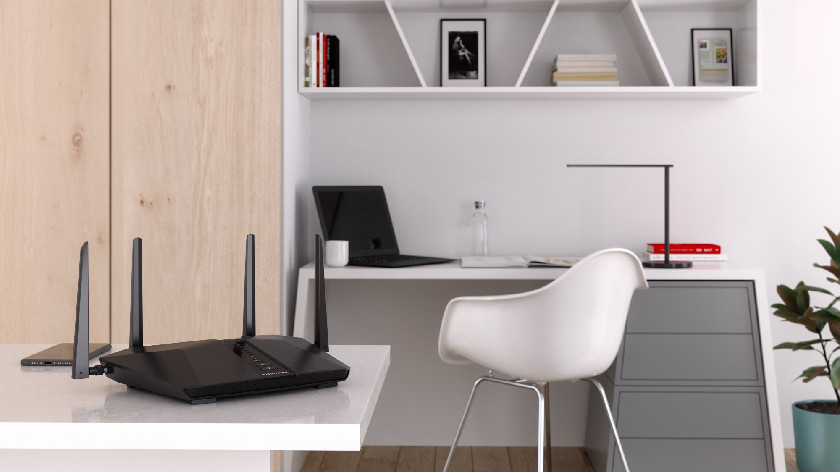
Where you place your router influences your entire office’s Wi-Fi performance. Aim for a central, elevated spot away from thick walls or electronic devices that cause interference.
Consider the size and layout of your office. Could a single router cover all work areas, or will you need additional access points? Think about where employees use their devices most and position your router to serve those zones effectively.
Credit: www.tomshardware.com
Step-by-step Setup Guide
Step-by-Step Setup Guide Setting up a dual band router for office use improves internet speed and connectivity. Begin by connecting the router to your modem using an Ethernet cable. Access the router’s settings through a web browser and configure the network names for both bands.
Save your settings to complete the setup.
Setting up a dual-band router for your office can boost internet speed. This guide will walk you through setting up your router step-by-step. Follow these simple instructions to ensure a smooth installation process.Connecting Hardware Components
First, gather all necessary equipment. You’ll need the router, power adapter, and Ethernet cables. Connect the power adapter to the router and plug it into a power source. Use an Ethernet cable to connect your modem to the router’s WAN port. This will establish an internet connection. Ensure all connections are secure.Accessing The Router Interface
Open a web browser on a connected device. Enter the router’s IP address in the address bar. You can find this address in the router’s manual or on a label. A login page will appear. Enter the default username and password. This information is also in the manual or on the router.Configuring Ssids And Passwords
Once logged in, locate the wireless settings section. Here, you can set up SSIDs for both bands. Create a unique name for each band to differentiate them. This helps in easily identifying your networks. Set strong, secure passwords to protect your network from unauthorized access.Setting Up 2.4ghz And 5ghz Bands
Go to the frequency settings in the router interface. Enable both 2.4GHz and 5GHz bands for optimal performance. The 2.4GHz band is ideal for wider coverage. The 5GHz band offers faster speeds. Choose channels with minimal interference for each band. Save your changes to apply the settings.Optimizing Router Settings
Optimizing your dual band router settings is key to ensuring a fast and stable connection throughout your office. Small tweaks can make a big difference in network performance and user experience. Let’s look at practical ways to fine-tune your router for maximum efficiency.
Selecting Channels To Minimize Interference
Wireless interference slows down your network and causes connection drops. Choosing the right channels on both 2.4 GHz and 5 GHz bands reduces this issue significantly.
Use tools like Wi-Fi analyzers to scan which channels are crowded in your office area. Aim for channels with the least traffic—on 2.4 GHz, channels 1, 6, and 11 are usually best as they don’t overlap.
Keep in mind that neighboring offices or devices like microwaves can interfere. Changing channels might feel like trial and error but it’s worth the effort. Have you checked your Wi-Fi channels recently?
Enabling Quality Of Service (qos)
Quality of Service (QoS) lets you prioritize certain types of traffic over others. This is essential in offices where video calls, file transfers, and browsing happen simultaneously.
Set QoS rules to give priority to critical applications like VoIP or video conferencing. This way, your meetings won’t freeze while someone downloads large files.
Most routers offer simple QoS setup through their admin panel. Spend a few minutes configuring it—your team will notice the smoother performance immediately.
Updating Firmware Regularly
Firmware updates fix bugs, patch security holes, and often improve router performance. Skipping updates can leave your network vulnerable or slow.
Check your router’s admin interface for update notifications at least once a month. Some routers can auto-update, which saves time and ensures you’re always protected.
Remember, a well-maintained router is the backbone of your office network. Don’t let outdated software hold your team back.
Troubleshooting Common Issues
Troubleshooting common issues with your dual band router setup in the office can save you hours of frustration. Problems like slow speeds, frequent disconnections, or device compatibility glitches often pop up unexpectedly. Knowing how to quickly identify and fix these issues keeps your network running smoothly and your team productive.
Dealing With Slow Speeds
Slow internet speeds can kill your workflow. Start by checking if your router firmware is up to date—outdated software can drag down performance. Also, consider the placement of your router; walls and electronic devices can interfere with the signal.
Try switching between the 2.4 GHz and 5 GHz bands to see which offers better speed for your devices. The 5 GHz band usually provides faster speeds but shorter range, while 2.4 GHz covers a wider area but is slower. Are you running bandwidth-heavy apps on multiple devices at once? Prioritize critical devices or limit background downloads.
Resolving Connection Drops
Connection drops can be maddening, especially during important calls or file transfers. Check if your router overheats; excessive heat can cause instability. Restarting the router often clears temporary glitches.
Interference from nearby networks or devices like microwaves can disrupt your signal. Changing the Wi-Fi channel in your router’s settings might reduce these interruptions. Also, inspect cables and power sources—loose connections can cause sudden drops.
Addressing Device Compatibility Problems
Some older devices struggle to connect or maintain a stable link with dual band routers. Make sure your devices support the bands you are using—some only connect to 2.4 GHz. Updating device drivers or network adapters can improve compatibility.
If a device consistently fails to connect, try forgetting the network and reconnecting with the correct password. Consider creating separate SSIDs for each band to force devices onto the best frequency. What devices are causing the most trouble in your office setup?
Maintaining Network Security
Maintaining network security is crucial for any office using a dual band router. Protecting sensitive data and ensuring smooth operations depend on a secure wireless connection. Weak security can lead to unauthorized access, data breaches, and network slowdowns.
Taking simple steps can strengthen your office network. Focus on encryption, credentials, and device monitoring. These actions keep your connection safe and reliable.
Using Strong Encryption Methods
Encryption is the first line of defense for your network. Use WPA3 encryption if your router supports it. It offers better protection than older standards like WPA2.
Set your router to use the highest encryption level available. Avoid outdated protocols like WEP, which are easy to crack.
Changing Default Credentials
Routers come with default usernames and passwords. These are easy targets for hackers. Change these credentials immediately after setup.
Create a strong password with letters, numbers, and symbols. Avoid common words or simple sequences. This reduces the chance of unauthorized access.
Monitoring Connected Devices
Keep track of all devices connected to your network. Regularly check your router’s admin panel for unknown devices. Remove any suspicious connections.
Set up alerts for new device connections if your router allows it. This helps detect intruders early and keeps your network secure.
Expanding Network Coverage
Expanding network coverage in an office environment is crucial to maintain seamless connectivity across different rooms and floors. A dual band router provides the foundation, but extending its reach ensures every corner receives a strong and stable signal. This section offers practical ways to enhance your network’s footprint effectively.
Using Wi-fi Extenders
Wi-Fi extenders are simple devices that capture your existing router signal and rebroadcast it to areas with weak or no coverage.
They are easy to set up and cost-effective, especially for small to medium-sized offices. However, placing them strategically is key—you want to position extenders where they still receive a strong signal from your router but close enough to the dead zones.
Have you noticed a spot in your office where the Wi-Fi drops? Using an extender can bridge that gap without complex wiring or expensive upgrades.
Setting Up Mesh Networks
Mesh networks use multiple nodes working together to create a unified Wi-Fi network across large spaces.
Unlike traditional extenders, mesh systems offer consistent speed and seamless roaming as you move around your office. Each node communicates with others, ensuring devices always connect to the strongest signal.
If your office has several floors or spread-out rooms, a mesh network can eliminate dead zones more effectively than a single router or extender. Have you considered how much smoother your meetings and downloads would be with uninterrupted coverage?
Optimizing Router Placement
Sometimes, simply moving your dual band router can make a big difference in coverage.
Place your router in a central, elevated location free from obstructions like thick walls or metal cabinets. Avoid placing it near microwaves, cordless phones, or other electronics that cause interference.
Try walking around your office with a mobile device to identify weak spots, then experiment with different router positions. You might be surprised how a small adjustment improves your entire network’s performance.
Frequently Asked Questions
What Is A Dual Band Router For Office Use?
A dual band router operates on 2. 4 GHz and 5 GHz frequencies. It offers faster speeds and reduced interference, ideal for office networks with multiple devices.
How To Set Up A Dual Band Router For Office?
Connect the router to your modem, access its admin panel via browser, and configure SSIDs and passwords for both bands. Ensure firmware is updated for security and performance.
Why Use A Dual Band Router In An Office Environment?
Dual band routers reduce network congestion and improve connectivity. They support more devices and provide better performance for video calls and large file transfers.
Can Dual Band Routers Improve Office Wi-fi Speed?
Yes, by using the 5 GHz band, dual band routers deliver faster speeds and less interference. This enhances overall office productivity and user experience.
Conclusion
Setting up a dual band router boosts office internet speed and reliability. It helps separate devices for better performance. Easy setup means less downtime and fewer tech problems. Both 2. 4 GHz and 5 GHz bands work well for different needs.
Clear steps ensure smooth installation and strong signals everywhere. A well-set router supports your work and keeps connections steady. Enjoy faster downloads, clearer calls, and better online meetings. This simple setup improves daily office tasks. A stable network means less frustration and more productivity.