Are you struggling to get your dual band router to work smoothly? It can be frustrating when your internet connection drops or speeds slow down without warning.
But don’t worry—this troubleshooting guide is here to help you fix common issues quickly and easily. By the end of this article, you’ll know exactly how to identify problems and get your router back to delivering fast, reliable Wi-Fi. Keep reading to regain control over your home network and enjoy seamless internet like never before.

Credit: manuals.plus
Common Dual Band Router Issues
Dual band routers offer two frequency bands to improve wireless performance. Yet, users often face common issues that affect their network experience. Understanding these problems helps fix them faster and keeps your internet stable and fast.
These issues range from losing connection to slow speeds and signal conflicts. Some problems arise from settings, others from interference or hardware glitches. Identifying the root cause is key to solving them effectively.
Connection Drops
Connection drops happen when your device suddenly loses Wi-Fi access. Causes include interference from other devices, outdated router firmware, or weak signal strength. Moving closer to the router or restarting it often helps. Keeping the firmware updated also reduces this problem.
Slow Internet Speeds
Slow speeds reduce your browsing and streaming quality. This issue may stem from network congestion, distance from the router, or the wrong frequency band. Using the 5 GHz band for close devices improves speed. Rebooting the router and limiting heavy downloads can also help.
Frequency Band Conflicts
Conflicts occur when devices clash over the 2.4 GHz and 5 GHz bands. Overlapping channels or many devices on one band cause interference. Separating device connections across bands balances traffic. Changing channel settings in the router’s menu can minimize conflicts.
Router Not Broadcasting Ssid
Sometimes, the router stops showing the network name (SSID). This issue hides the Wi-Fi network from devices. It may result from disabled SSID broadcast settings or firmware bugs. Enabling SSID broadcast in settings usually fixes this. Restarting the router can restore the signal too.
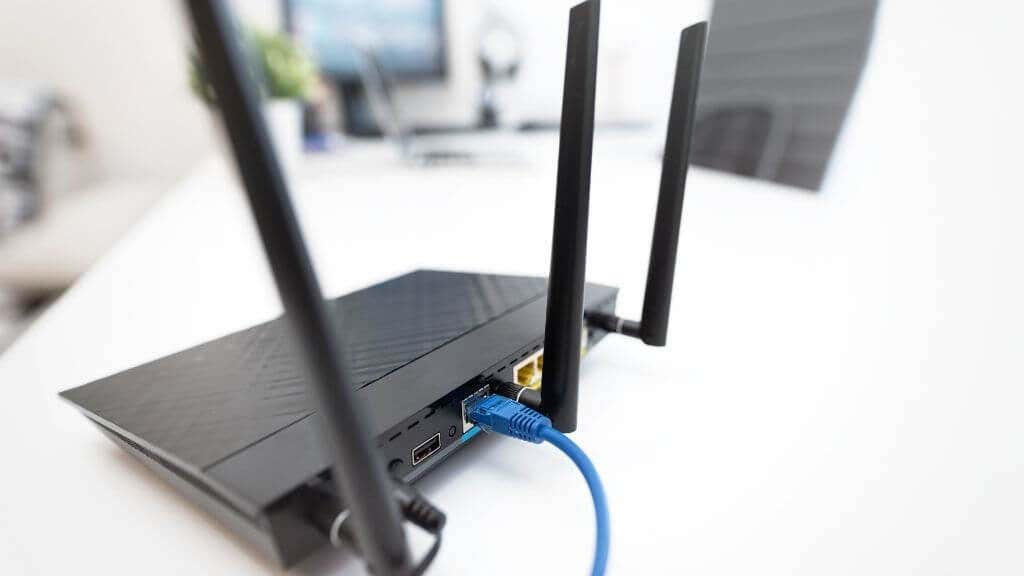
Credit: helpdeskgeek.com
Basic Troubleshooting Steps
Basic troubleshooting steps are your first line of defense when your dual band router acts up. They help identify simple issues that might be causing connection problems. These steps often fix the problem quickly without needing technical support.
Restarting The Router
Have you ever noticed how turning a device off and on again works like magic? Restarting your router clears temporary glitches and refreshes its connection to your devices and the internet.
To restart, unplug the router from the power source, wait about 30 seconds, and plug it back in. This quick reset often solves slow speeds and dropped connections.
Checking Cable Connections
Loose or damaged cables can stop your router from working properly. Make sure all cables are firmly connected to the correct ports on your router and modem.
Look for visible signs of wear, such as frayed wires or bent connectors. Swapping cables with a spare can quickly confirm if a faulty cable is the culprit.
Verifying Internet Service Status
Sometimes, the issue isn’t your router but your internet service provider (ISP). Check your ISP’s website or app to see if there’s an outage in your area.
Have you tried calling your ISP’s support line when your internet goes down? They can confirm if maintenance or unexpected disruptions are affecting your service.
Optimizing Router Settings
Optimizing router settings can boost your Wi-Fi speed and stability. Small changes in the settings often solve connection problems. Adjusting frequency bands, channels, and firmware keeps your network running smoothly. Below are key areas to focus on for better performance.
Selecting The Right Frequency Band
Dual band routers offer 2.4 GHz and 5 GHz frequencies. Choose 2.4 GHz for longer range and better wall penetration. Use 5 GHz for faster speeds and less interference. Devices farther from the router work better on 2.4 GHz. Closer devices benefit more from 5 GHz’s speed. Some routers allow band steering to switch devices automatically.
Changing Wireless Channels
Wireless channels affect Wi-Fi signal quality. Crowded channels cause interference and slow speeds. Use your router’s interface to scan for the least busy channel. For 2.4 GHz, channels 1, 6, and 11 are best to avoid overlap. For 5 GHz, select channels with minimal nearby usage. Changing channels reduces signal clashes with neighbors’ networks.
Updating Firmware
Firmware updates fix bugs and improve router performance. Check the manufacturer’s website or router interface for updates. Download and install updates carefully following instructions. Updated firmware often enhances security and adds new features. Regular updates keep your router stable and secure.
Advanced Fixes
In the world of dual-band routers, connection issues can be frustrating. Basic troubleshooting often resolves common problems. Sometimes, advanced fixes are necessary for more complex issues. Here, we’ll explore these advanced solutions.
Resetting To Factory Defaults
Resetting your router can solve persistent problems. Locate the reset button on your router. Press and hold it for about 10 seconds. This will restore the router to its original settings. Remember, this action will erase all custom settings. You’ll need to set up your network again.
Adjusting Security Settings
Security settings can impact network performance. Access your router’s admin panel. Review the current security protocols. WPA2 is a recommended choice for most users. Ensure your network password is strong and unique. This helps prevent unauthorized access. Adjusting these settings can enhance both security and performance.
Managing Connected Devices
Too many devices can strain your network. Check the list of connected devices in your router’s interface. Disconnect any unknown or unnecessary devices. This can free up bandwidth and improve speed. Limit the number of devices connected simultaneously. Managing devices helps maintain optimal performance.
Improving Signal Strength
Improving the signal strength of your dual band router can dramatically enhance your internet experience. A stronger signal means fewer dropouts, faster speeds, and better coverage throughout your home or office. Let’s look at practical ways to boost your router’s signal and ensure you get the best performance possible.
Router Placement Tips
Where you place your router matters more than you might think. Position your router in a central location, away from thick walls and metal objects that can block the signal.
Elevate the router on a shelf or table rather than placing it on the floor. This simple change helped me improve signal strength in my living room without buying any new equipment.
Also, keep your router away from other electronics like microwaves and cordless phones—they can interfere with the signal.
Using Range Extenders
If your space is large or has many rooms, a single router might not cover everything. Range extenders can help by picking up your existing signal and rebroadcasting it further.
Choose a range extender that matches your router’s dual band capabilities to maintain strong connections on both 2.4 GHz and 5 GHz bands.
Place the extender halfway between your router and the area with weak signal. Too close or too far, and it won’t work efficiently.
Reducing Interference
Interference from other wireless devices can weaken your signal without you realizing it. Check for nearby Wi-Fi networks using the same channel and switch your router to a less crowded channel.
Other household items like baby monitors or Bluetooth devices may also cause interference. Turning off devices you aren’t using can clear up your wireless environment.
Have you ever noticed your internet slowing down when a microwave is on? That’s a perfect example of interference affecting your router’s signal.
When To Contact Support
Knowing when to contact support can save you hours of frustration with your dual band router. Some issues are simple fixes, but others need expert help to avoid further complications. Recognizing the right moment to reach out can keep your network running smoothly and your stress levels low.
Persistent Connectivity Problems
If your devices repeatedly lose connection or fail to connect to either the 2.4 GHz or 5 GHz bands, it might be time to get professional help. Occasional drops are normal, but constant interruptions suggest deeper issues. Have you checked if firmware updates or resetting the router helped? When these steps don’t work, support can guide you through advanced diagnostics.
Hardware Malfunctions
Physical damage or unusual behavior like overheating, strange noises, or blinking lights that don’t match your router’s manual often indicate hardware problems. I once ignored warning signs, only to find my router completely dead the next day. Instead of guessing, contact support to confirm if a replacement or repair is necessary.
Isp Related Issues
Sometimes the problem isn’t your router but your internet service provider. If your router’s lights look normal but you can’t access the internet, or speeds are consistently slower than promised, it’s wise to reach out to your ISP. They can check for outages, line issues, or account problems that only they can resolve.

Credit: device.report
Frequently Asked Questions
What Causes A Dual Band Router To Lose Connection?
Dual band routers may lose connection due to interference, outdated firmware, or incorrect settings. Ensure firmware is updated and channels are optimized. Restarting the router often resolves temporary issues. Check for physical obstructions or electronic devices causing interference.
How Do I Reset My Dual Band Router Properly?
To reset, press and hold the reset button for 10 seconds. Use a paperclip if needed. This restores factory settings and clears configuration errors. After resetting, reconfigure your network settings to secure your connection.
Why Is My 5ghz Band Slower Than 2.4ghz?
The 5GHz band offers faster speeds but shorter range. Physical barriers reduce its performance more than 2. 4GHz. If you’re far from the router, the 2. 4GHz band may perform better despite lower speeds.
How To Fix Dual Band Router Wi-fi Interference Issues?
Change the Wi-Fi channel through router settings to avoid overlap. Position the router away from microwaves, cordless phones, and thick walls. Use 5GHz band for less crowded frequencies and better performance.
Conclusion
Troubleshooting a dual band router can solve many common issues fast. Start by checking your connections and settings carefully. Restarting the router often fixes small problems quickly. Keep your router’s firmware updated for better performance. Separate the 2. 4 GHz and 5 GHz bands if needed.
Test the signal strength in different rooms. These simple steps help improve your Wi-Fi experience. Stay patient and follow the guide step-by-step. Good internet makes life easier and more fun.