Are you tired of slow internet and worrying about what your kids access online? Imagine having a WiFi system that not only boosts your home’s coverage but also gives you full control over your family’s internet use.
Eero Mesh WiFi with parental controls offers exactly that—a simple way to keep your connection fast and your children safe. Keep reading to discover how this smart system can transform your home internet experience and give you peace of mind.
Credit: www.abt.com
Eero Mesh Wifi Basics
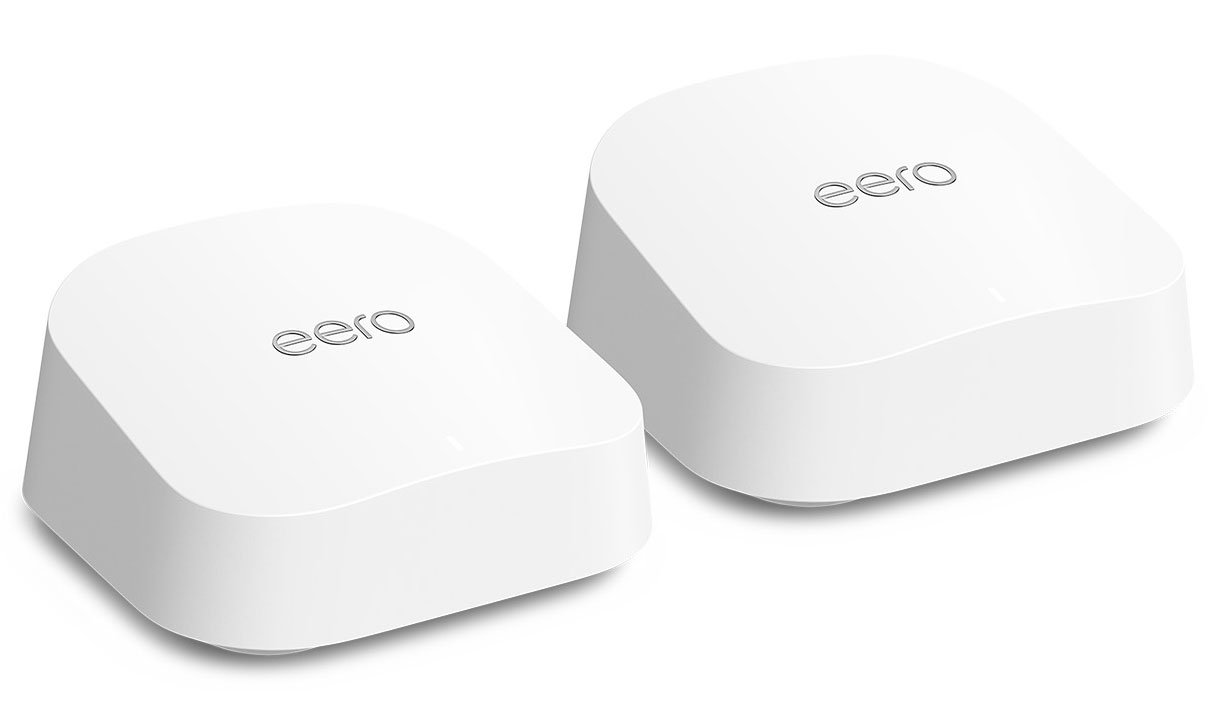
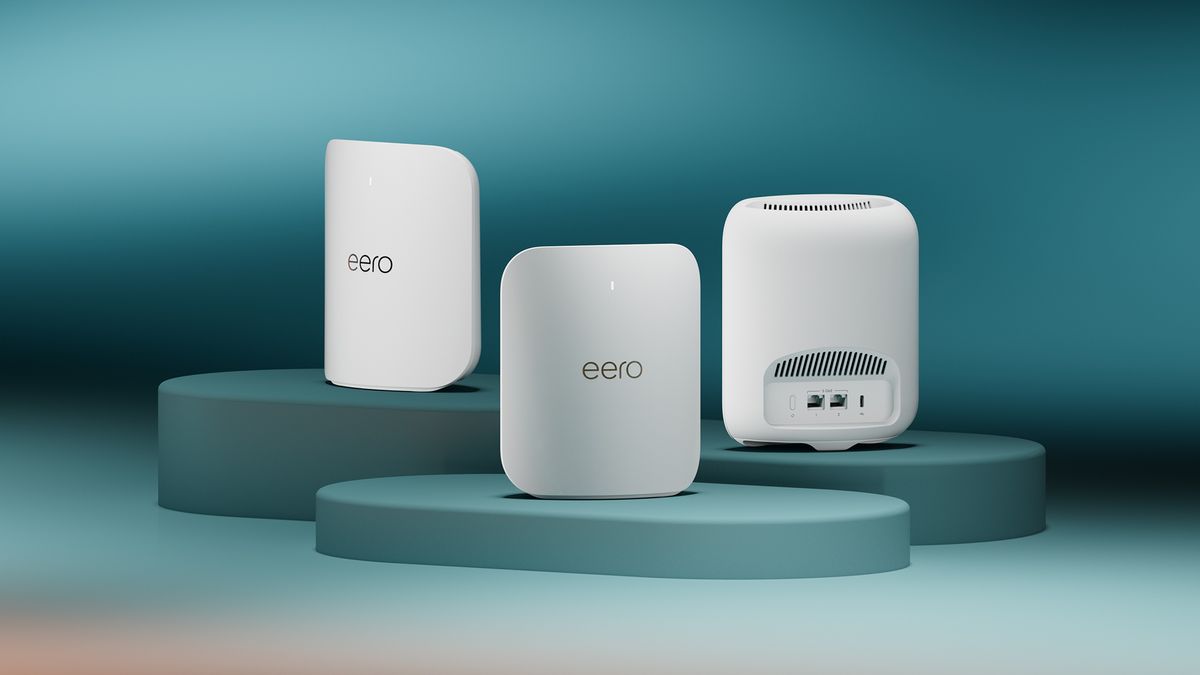
Eero Mesh Wifi provides whole-home internet coverage. It uses several devices to spread wifi signals evenly.
This system helps avoid dead spots and keeps your connection steady in every room.
How Mesh Wifi Works
Mesh wifi uses multiple nodes to create one big network. Each node talks to the others to share the internet.
- One main router connects to your modem.
- Additional nodes are placed around your home.
- Nodes send wifi signals to each other.
- Devices connect to the closest node for best speed.
- The system picks the best path for data to travel.
Benefits Of Eero System
Eero offers easy setup and strong wifi. It also lets you control internet use for each device.
| Feature | Benefit |
| Parental Controls | Limit screen time and filter content |
| Automatic Updates | Keeps your network secure |
| App Control | Manage your network from anywhere |
| Fast Speeds | Stream and game without interruptions |
Credit: www.t3.com
Parental Controls Features
Eero Mesh Wifi offers parental controls to help parents manage internet use. These controls keep children safe online.
Parents can filter content, set time limits, and pause internet access easily from the app.
Content Filtering Options
Content filtering blocks websites and apps that you do not want your children to access. You can choose filters based on age groups.
- Block adult content
- Restrict social media apps
- Limit video streaming sites
- Create custom block lists
Time Limits And Schedules
Set time limits on internet use to help kids balance online and offline activities. You can create daily schedules for internet access.
- Choose devices or profiles to limit
- Set hours for internet availability
- Apply limits for weekdays and weekends
- Adjust settings anytime via the app
Pause Internet Access
Parents can pause internet access instantly for specific devices or groups. This helps during family time or homework hours.
| Feature | Benefit |
| Pause by Device | Stop internet on one device |
| Pause by Profile | Stop internet for all devices in a profile |
| Quick Resume | Turn internet back on easily |
Setting Up Parental Controls
Parental controls help you manage internet use for your family. The Eero Mesh Wifi system offers easy tools to keep kids safe online.
This guide covers how to set up controls using the Eero app, create user profiles, and customize restrictions for each person.
Using The Eero App
Download and open the Eero app on your phone. You can control your network and set parental controls from here. The app lets you pause internet access, view usage, and set schedules.
- Open the Eero app and log in to your account
- Tap on the profile or device you want to manage
- Select “Pause Internet” to stop access temporarily
- Set schedules to limit internet times
- Monitor data usage for each device
Creating User Profiles
Create profiles for each family member to apply specific rules. This helps you control internet time and content for kids separately from adults.
| Profile Name | Device Assignment | Internet Access |
| Child 1 | Tablet, Smartphone | Restricted Hours |
| Child 2 | Gaming Console | Paused at Bedtime |
| Adult | Work Laptop | Full Access |
Customizing Restrictions
Set limits on what content each profile can access. You can block websites, filter content, and control screen time.
- Block adult websites automatically
- Set daily internet time limits
- Pause internet during homework or dinner
- Allow only approved websites
Use these settings to keep your family safe online with simple controls.

Credit: www.amazon.ca
Enhancing Home Safety
Eero Mesh Wifi offers more than fast internet. It helps keep your home safe online.
With parental controls, you can protect your family from harmful content and monitor internet use.
Blocking Harmful Content
Eero lets you block websites that are unsafe for kids. This keeps harmful content away from your home network.
You can set filters for adult sites, violent material, and other unsafe pages. This helps create a safer browsing space.
- Block adult and violent websites
- Prevent access to unsafe online content
- Customize filters by age group
Monitoring Internet Activity
Eero allows parents to see what websites kids visit. This helps you understand their internet habits.
You can check internet activity daily or weekly. This keeps you informed and ready to guide your children.
- View daily and weekly internet reports
- Know which sites are visited most
- Spot unusual or risky online behavior
Protecting Multiple Devices
Eero covers all your home devices with one network. It protects phones, tablets, and computers at once.
You can set rules for each device. This makes sure every family member is safe online, no matter what device they use.
- Protect smartphones, tablets, and laptops
- Set individual controls for each device
- Manage all devices from one app
Troubleshooting Tips
Eero Mesh Wifi with parental controls helps keep your home network safe. Sometimes, you may face issues with connectivity or controls. This guide offers simple tips to fix common problems and improve wifi performance.
Follow these tips to make sure your Eero system works well and your family stays connected safely.
Common Issues And Fixes
Some common problems include slow internet, devices not connecting, or parental controls not working. These issues can often be fixed with easy steps.
- Restart your Eero devices by unplugging them for 30 seconds.
- Check that your internet modem is working properly.
- Make sure your Eero app is updated to the latest version.
- Verify that devices are connected to the right Eero network.
- Reset parental controls settings if they do not apply correctly.
If a device won’t connect, try removing it from the network and adding it again.
Optimizing Wifi Performance
Good wifi speed and coverage depend on where you place your Eero units and how you set them up. Proper setup helps avoid slow speeds and connection drops.
- Place Eero nodes in open areas away from thick walls or metal objects.
- Keep Eero units at least 10 feet apart for better coverage.
- Use the Eero app to run a speed test and check signal strength.
- Limit the number of devices using wifi at the same time.
- Update your network settings to use less crowded wifi channels.
Adjust parental controls to limit screen time or block websites during busy hours. This also helps improve network speed for other users.
Comparing With Other Solutions
The Eero Mesh Wifi system offers a unique approach to home networking. It combines ease of use with advanced features.
Comparing it to traditional routers and other mesh systems helps to understand its strengths and weaknesses.
Eero Vs Traditional Routers
Traditional routers often struggle with coverage in large homes. Eero uses multiple devices to extend wifi reach.
- Traditional routers need extenders for large spaces
- Eero covers more area with less equipment
- Setup is simpler with Eero’s app
- Traditional routers require manual configuration
Parental Controls In Other Mesh Systems
Parental controls help manage internet access for kids. Different mesh systems offer varying features.
| System | Parental Control Features |
| Eero | Custom profiles, pause internet |
| Google Nest | Family Wi-Fi, site blocking |
| Netgear Orbi | Circle app, time limits |
Frequently Asked Questions
What Is Eero Mesh Wifi With Parental Controls?
Eero Mesh WiFi provides whole-home internet coverage using multiple devices. It includes parental controls to manage and monitor children’s online activity. These controls allow setting screen time limits, filtering content, and pausing internet access on specific devices. This ensures a safer and more controlled internet environment for families.
How Do Parental Controls Work On Eero Mesh Wifi?
Parental controls on Eero allow scheduling internet access and blocking inappropriate sites. Users can create profiles for each child and assign device access rules. The controls are easy to manage through the Eero app, enabling real-time monitoring and adjustments from anywhere.
This simplifies family internet management.
Can I Customize Content Filters On Eero Parental Controls?
Yes, Eero’s parental controls offer customizable content filters. You can block categories like adult content, gambling, and violence. Filters adjust automatically based on age profiles but can be tailored to your family’s preferences. This flexibility helps ensure kids access only safe and appropriate online content.
Does Eero Parental Control Support Multiple Devices?
Eero parental controls support multiple devices per profile. You can group devices by user, such as smartphones, tablets, or gaming consoles. This lets you apply consistent rules across all devices used by a child. It ensures comprehensive control over their entire online experience.
Conclusion
Eero mesh WiFi with parental controls keeps your home internet safe. It helps limit screen time and blocks unwanted content easily. Setting it up takes just a few minutes. Kids can enjoy the internet with fewer risks. Parents gain peace of mind while managing devices.
This system fits well in any home size. It supports many devices without slowing down. A smart choice for families wanting simple control. Reliable WiFi and safety, all in one package.