Is your Google Nest Mesh Wifi acting up when you need it most? Slow speeds, dropped connections, or devices that just won’t connect can be frustrating.
But don’t worry—you’re not alone, and fixing these issues is easier than you think. In this guide, you’ll find simple steps to troubleshoot your Google Nest Mesh Wifi and get your network running smoothly again. Keep reading to regain control of your internet and enjoy a strong, reliable connection throughout your home.
Common Nest Wifi Issues
Google Nest Wifi is popular for home internet. Sometimes, users face issues that affect performance.
Understanding common problems helps fix them faster and keeps your network stable.
Connection Drops
Connection drops happen when your device loses signal from the Nest Wifi. This causes internet to stop working briefly.
Common causes include interference, distance from the router, or device overload.
Slow Internet Speeds
Slow internet can make streaming, gaming, and browsing frustrating. Many factors cause slow speeds on Nest Wifi.
- Too many devices connected at once
- Router placed far from devices
- Old or damaged cables
- Interference from other electronics
- Network settings needing update
Device Not Connecting
If a device does not connect to Nest Wifi, check these common problems:
| Issue | Possible Cause | Solution |
| Device not found | Wi-Fi turned off on device | Turn on Wi-Fi in device settings |
| Wrong password | Incorrect network password entered | Re-enter correct password |
| Network full | Too many devices connected | Disconnect unused devices |
| Software outdated | Device or router needs update | Update firmware and device OS |
App Sync Problems
Sync issues in the Google Home app can stop you from managing Nest Wifi settings properly.
Try these fixes if the app does not sync:
- Close and reopen the app
- Check your phone’s internet connection
- Log out and log back into your Google account
- Restart your phone
- Update the Google Home app to the latest version
- Reboot your Nest Wifi router
Basic Fixes To Try First
Google Nest Mesh Wifi may face issues that slow down or block your connection. Fixes you try first can often solve common problems fast.
Start with easy steps before moving to complex solutions. These basic fixes help most users restore their network quickly.
Restarting Nest Devices
Restarting your Nest Wifi devices can clear temporary glitches. It refreshes the system and may fix slow or dropped connections.
Unplug your Nest router and points from power. Wait 30 seconds, then plug them back in. Let them fully reboot before testing.
- Unplug devices from power
- Wait for 30 seconds
- Plug devices back in
- Allow full reboot
Checking Internet Service
Check if your internet service is working outside Nest Wifi. Sometimes the problem is with your ISP or modem.
Try connecting a device directly to the modem. If internet is slow or not working, contact your internet provider.
- Disconnect Nest Wifi
- Connect a device to modem by cable
- Test internet speed and access
- Contact ISP if internet is down
Updating Firmware
Firmware updates fix bugs and improve performance. Make sure your Nest Wifi devices have the latest update installed.
Use the Google Home app to check for updates. If an update is available, follow prompts to install it on your devices.
- Open Google Home app
- Select your Nest Wifi device
- Check for firmware updates
- Install updates if available
Verifying Network Settings
Incorrect network settings can cause connection issues. Check your Nest Wifi settings for any wrong configurations.
Look at SSID name, password, and device limits. Reset settings if you spot errors or if changes were made recently.
- Open Google Home app
- Review network name and password
- Check connected device limits
- Reset settings if needed
Advanced Troubleshooting Steps
Google Nest Wifi usually works well, but some problems may happen. This guide helps you fix tough issues with your Nest Wifi system.
Follow these steps carefully to improve your network and get better performance from your devices.
Resetting Nest Wifi
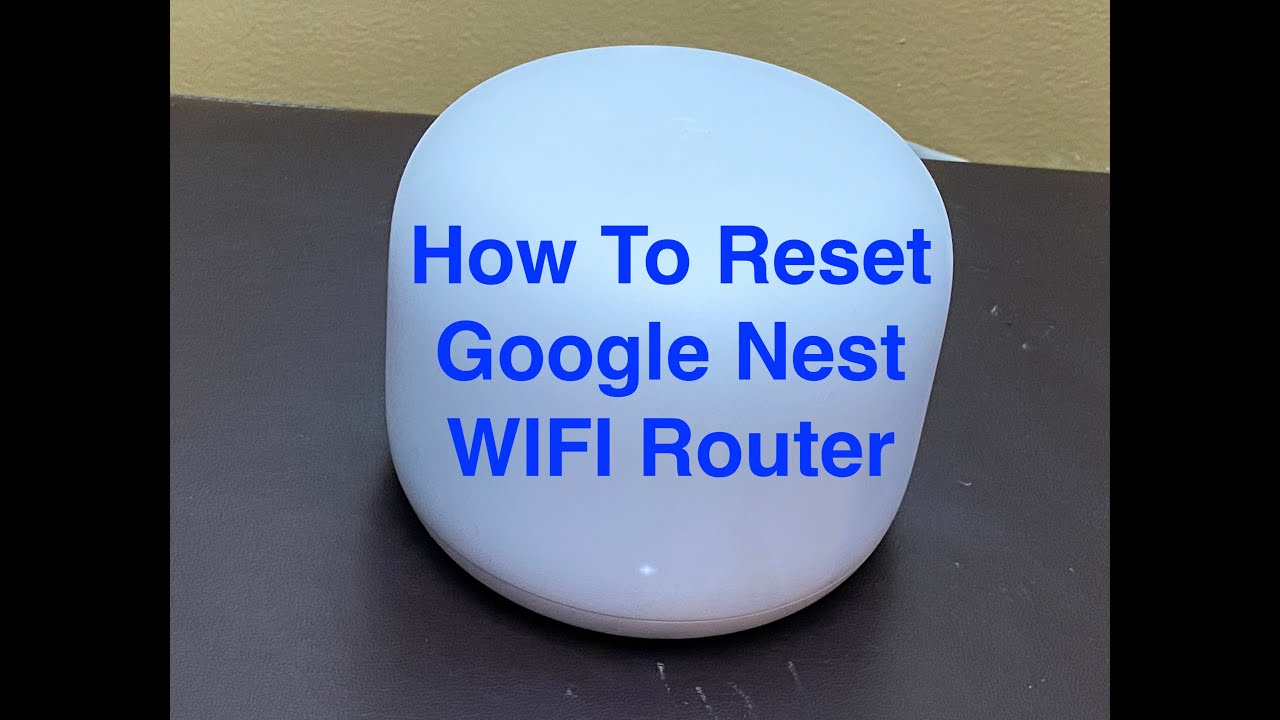
If your Nest Wifi keeps acting up, a reset can fix many issues. Resetting clears errors and restores factory settings.
- Unplug your Nest Wifi router and points from power.
- Press and hold the reset button on the device for about 10 seconds.
- Release the button when the light starts to flash.
- Wait for the device to restart and the light to turn solid white.
- Set up your network again using the Google Home app.
Reconfiguring Network
Sometimes your network settings cause connection problems. Reconfiguring can help fix slow speeds or dropouts.
Check your Google Home app and try these tips:
- Change your Wi-Fi password and reconnect devices.
- Update your network name (SSID) to avoid conflicts.
- Disable unused features like guest network if not needed.
- Ensure your Nest Wifi firmware is up to date.
Optimizing Device Placement
Where you put your Nest Wifi devices affects signal strength. Good placement gives better coverage and fewer dead zones.
| Placement Tip | Explanation |
| Central Location | Put router in center of your home for even signal. |
| Elevated Position | Place devices on shelves, not on the floor. |
| Open Space | Avoid hiding devices inside cabinets or behind furniture. |
| Away from Electronics | Keep devices away from microwaves or cordless phones. |
| Separate Points | Space out points to cover large areas without overlap. |
Managing Interference
Wireless interference can slow down or block your network. Identify and reduce interference for better Wi-Fi.
Common interference sources include:
- Other Wi-Fi networks nearby
- Bluetooth devices
- Microwaves and baby monitors
- Thick walls and metal objects
Try these fixes:
- Change your Nest Wifi channel in the app settings.
- Move devices away from interference sources.
- Turn off unused Bluetooth devices.
- Use 5 GHz band for less crowded signals.
Credit: www.androidpolice.com
Using Google Home App For Diagnostics
The Google Home app helps you check your Nest Mesh Wifi network. It shows important details and tools to find problems.
You can run tests, see device status, change settings, and get support all in one place. This guide explains how to use the app for these tasks.
Running Network Tests
Open the Google Home app and select your Wifi device. Use the app to test your network speed and check connection health.
- Open Google Home app on your phone.
- Tap on your Nest Wifi device.
- Select “Run Network Test”.
- Wait for results to see download and upload speeds.
- Follow any suggestions to fix slow connections.
Viewing Device Status
The app shows if your devices are online or offline. You can also see signal strength and connection type for each device.
| Device | Status | Signal Strength | Connection Type |
| Nest Wifi Router | Online | Strong | Ethernet |
| Nest Wifi Point 1 | Online | Good | Wireless |
| Nest Wifi Point 2 | Offline | N/A | N/A |
Adjusting Settings
You can change network settings to improve your Wifi. This includes pausing the internet or updating device names.
- Change Wifi network name and password.
- Pause internet access for specific devices.
- Set up guest network for visitors.
- Update firmware to fix bugs and improve performance.
Accessing Support Resources
The Google Home app links to help articles and customer support. Use these if you cannot fix problems by yourself.
Find help by tapping the “Support” or “Help” section in the app. You can also:
- Read troubleshooting guides.
- Contact Google support via chat or phone.
- Access community forums for tips.
Expert Tips For Reliable Performance
Google Nest Mesh Wifi can improve your home internet experience. Keeping it working well needs some care and attention.
Follow these expert tips to ensure strong signals and secure connections in your network.
Regular Maintenance Routines
Check your Nest Wifi devices regularly for updates and proper placement. This keeps your network fast and stable.
- Restart your router and points once a month.
- Update the Google Home app and device firmware.
- Clean devices and keep them away from heat sources.
- Place points in open areas for better signal spread.
- Check for interference from other electronics.
Securing Your Network
Protect your Wifi from intruders by using strong passwords and encryption. Keep your network safe for all users.
| Security Feature | Benefit |
| Strong Password | Stops unauthorized access |
| Two-Factor Authentication | Adds a second security layer |
| Automatic Updates | Keeps software secure |
| Guest Network | Limits access for visitors |
Expanding Coverage Effectively
Add extra Nest Wifi points to cover large or multi-story homes. Place them where your signal is weak or drops.
- Put points halfway between your router and dead zones.
- Avoid walls and metal objects blocking the signal.
- Use the Google Home app’s mesh test to find weak spots.
Leveraging Guest Networks
Set up a guest network to keep your main Wifi private. Guests can use the internet without accessing your devices.
- Enable guest Wifi in the Google Home app.
- Share guest network name and password easily.
- Turn off guest access anytime to protect your network.

Credit: www.reddit.com
When To Contact Google Support
Google Nest Mesh Wifi is a reliable system. But, sometimes you may face issues that require expert help. Knowing when to contact Google support can save you time and effort.
This guide will help you identify when it’s time to reach out for professional assistance. We will cover hardware issues, warranty options, and more.
Identifying Hardware Issues
Hardware issues can cause your Google Nest Mesh Wifi to malfunction. Look for signs like blinking lights or no power.
- Check if the device is plugged in correctly
- Look for any physical damage
- Try restarting the device
Warranty And Replacement Options
If your device is under warranty, you may get a replacement. Make sure to check the purchase date and warranty terms.
| Warranty Period | Replacement Eligibility |
| 1 Year | Yes |
| 2 Years | Yes |
| Expired | No |
Getting Professional Assistance
Sometimes, troubleshooting may not solve your issues. Contacting Google support can provide you with expert advice and solutions.
Credit: www.youtube.com
Frequently Asked Questions
How Do I Reset My Google Nest Mesh Wifi?
To reset, press and hold the reset button on the Nest Wifi point for 10 seconds. Release when the light flashes orange. This restores factory settings and can resolve connectivity issues.
Why Is My Google Nest Mesh Wifi Slow?
Slow speeds may result from interference, distance, or outdated firmware. Restart your router, update firmware, and reposition points closer for better coverage.
How Can I Check Google Nest Wifi Connection Status?
Use the Google Home app to monitor connection status. It shows device health, signal strength, and any connectivity problems for your Nest Wifi network.
What Causes Google Nest Mesh Wifi To Drop Connection?
Connection drops can stem from network congestion, interference, or firmware issues. Restart devices, reduce interference, and update firmware to improve stability.
Conclusion
Troubleshooting Google Nest Mesh WiFi can fix many common issues fast. Restart your devices and check connections first. Keep the firmware updated for better performance. Place your mesh points wisely to avoid weak signals. Use the Google Home app to spot and solve problems.
Simple steps often bring your WiFi back to life. Stay patient; most issues are easy to fix. Enjoy smoother internet with a little care and effort.