Imagine losing all your carefully customized gaming router settings just when you need them most. Frustrating, right?
If you’ve spent time tweaking your router for the best gaming experience, backing up those settings is a smart move. By doing this, you can quickly restore everything after a reset or firmware update, saving you hours of hassle. In this guide, you’ll learn simple, step-by-step ways to back up your gaming router settings so your connection stays strong and uninterrupted.
Keep reading, and take control of your gaming setup like a pro.
Why Backup Router Settings
Backing up your gaming router settings is a smart move. These settings control your network speed, security, and device connections. Losing them means resetting everything from scratch. This can cause frustration and downtime in your gaming sessions. Keeping a backup saves time and effort. It also protects your network from unexpected changes or failures.
Risks Of Losing Settings
- Loss of custom network configurations
- Reduced internet speed and connectivity issues
- Need to re-enter passwords and security keys
- Increased vulnerability to cyber attacks
- Downtime during critical gaming or work moments
Benefits Of Backup
- Quick restoration of all router settings
- Consistent gaming performance without interruptions
- Easy recovery after firmware updates or resets
- Protection against accidental misconfigurations
- Peace of mind knowing settings are safe

Credit: www.youtube.com
Preparing For Backup
Preparing your gaming router for backup is essential to avoid losing important settings. It ensures a smooth and quick restoration if needed. This preparation involves collecting key details and accessing the router’s control panel.
Gathering Necessary Information
Start by noting down your router’s brand and model. This helps in finding the right backup options. Keep your router’s IP address handy, usually found on the device’s label or manual. Write down your login credentials, including the username and password. Without these, you cannot reach the router’s settings page. Check for any special configurations like custom DNS or port forwarding. These details should be saved to include in your backup.
Accessing Router Interface
Connect your device to the router using Wi-Fi or an Ethernet cable. Open a web browser and enter the router’s IP address in the address bar. This opens the router’s login page. Enter your username and password to log in. Once inside, locate the settings or administration section. This area usually contains options for backing up your router’s configuration. Take time to explore the interface to understand where backup controls are placed.
Backing Up Router Settings
Backing up your gaming router settings is essential to protect your customized configurations. These settings might include your network name, password, port forwarding rules, and Quality of Service (QoS) preferences—all crucial for a smooth gaming experience. Losing these settings means reconfiguring everything from scratch, which can be time-consuming and frustrating.
Step-by-step Backup Process
Start by logging into your router’s web interface. Usually, you enter the router’s IP address in your browser’s address bar—commonly something like 192.168.1.1or 192.168.0.1.
Once logged in, look for a section labeled “Administration,” “System,”or “Maintenance.”This is where most routers store backup options.
Click on the option to “Backup”or “Save Configuration.”Your router will then create a file containing all your settings.
Download this file to your computer. It’s a good idea to name the file with the date or version of the settings so you can easily identify it later.
Saving Backup Files Securely
Backing up is only half the battle; storing these files safely is just as important. Don’t leave backup files on your desktop or in a shared folder where others might access them.
Use a dedicated folder on your computer labeled “Router Backups”and consider encrypting the folder if your router settings include sensitive information.
It’s smart to keep a copy on an external drive or a secure cloud service. This way, you won’t lose your settings if your computer crashes.
Have you ever lost your router settings after a reset? Keeping backups handy saves you time and headache. How often do you think you should update your backups?

Credit: danielrosehill.medium.com
Restoring Router Settings
Backing up gaming router settings saves time and effort after changes. It helps quickly restore your setup if needed. Keep a copy to avoid losing custom configurations.
Restoring Router Settings Restoring your gaming router settings can be a lifesaver when something goes wrong. It helps you quickly return your router to a previous state, ensuring your gaming experience isn’t disrupted. Whether you’ve accidentally altered configurations or faced a system failure, knowing how to restore settings efficiently is crucial.When To Restore
The decision to restore router settings isn’t always straightforward. You might need to restore if your connection suddenly drops or your customized settings are lost after a firmware update. Consider restoration if you can’t pinpoint the source of an issue after troubleshooting. Restoring settings can also be useful when experimenting with new configurations. If a change negatively impacts your gaming experience, reverting to a known good setup can save time and frustration. Remember, restoring is like hitting the “undo” button—it brings back stability.Restoration Procedure
Restoring your router settings is simpler than you might think. Here’s a straightforward guide to getting it done:- Log in to your router’s admin panel using a web browser. You’ll typically need the IP address of the router, which is often found on the device itself.
- Navigate to the backup or restore section. This is usually under the advanced settings menu.
- Select the option to restore settings. You’ll be prompted to upload a backup file.
- Choose the previously saved backup file from your computer. This file contains all your saved settings.
- Confirm the restoration process. Your router will reboot, applying the old settings.
Automating Backup Tasks
Automating backup tasks for your gaming router settings can save you time and protect your network against unexpected issues. Instead of manually saving your configurations, automation ensures that your settings are regularly backed up without you having to remember. This peace of mind lets you focus on gaming, knowing your router is safeguarded.
Using Router Features
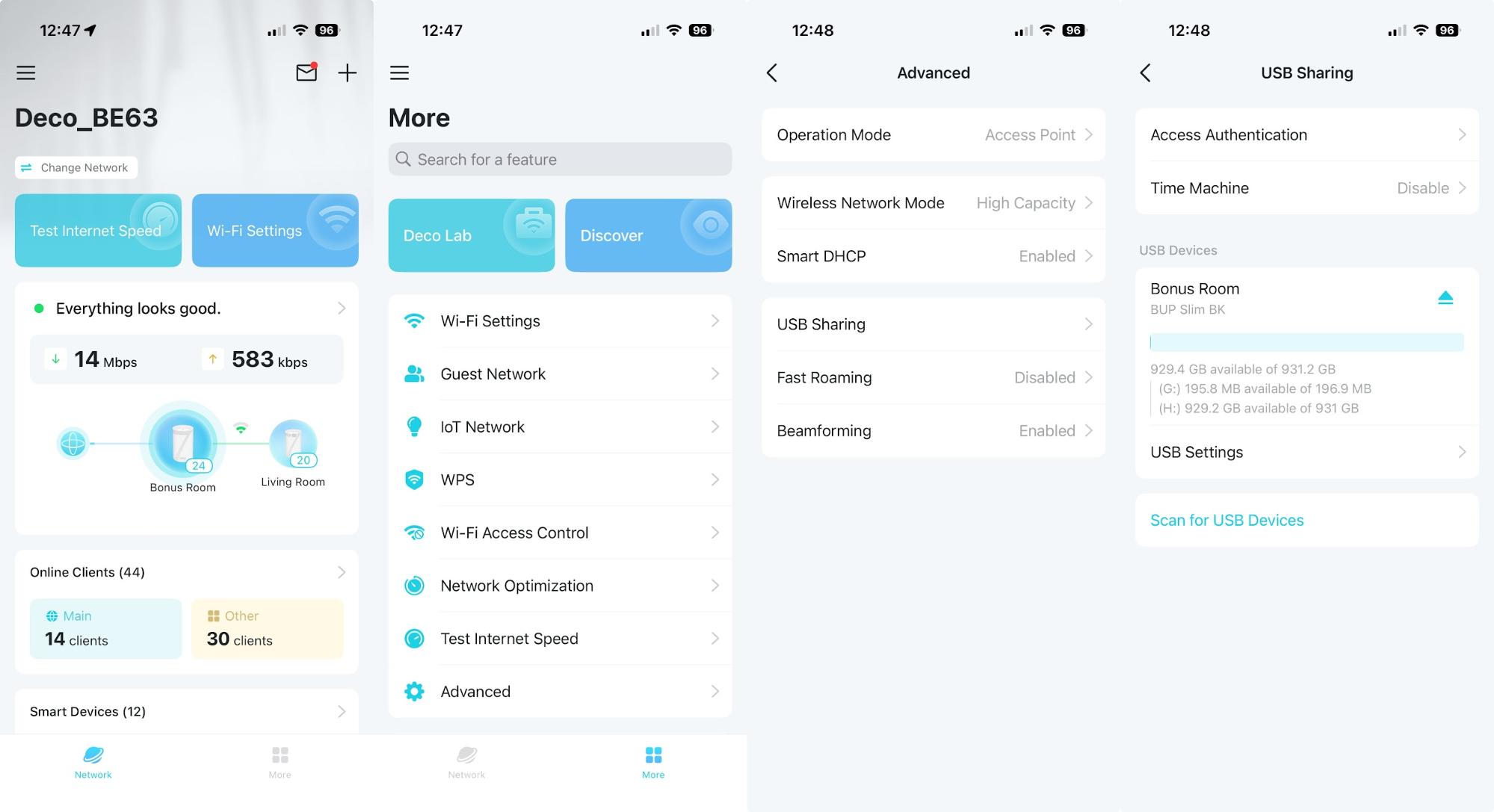
Many modern gaming routers come with built-in options to schedule automatic backups. You can usually find this feature in the router’s admin panel under system or maintenance settings. Enabling it means your router will save its configuration file to a location you specify, like a USB drive or a network folder, at set intervals.
Check if your router supports protocols like TR-069 or FTP for automated backups. Some brands even allow you to set email notifications when a backup completes successfully. Have you explored your router’s settings today to see what backup options are already available?
Third-party Tools
If your router lacks built-in automation, third-party tools can fill the gap. Programs like RouterBackup or scripts written in Python can connect to your router and download the config file automatically. These tools often support multiple router models and can be scheduled using your computer’s task scheduler.
Using third-party software requires some setup but offers flexibility. You can customize backup frequency, store files in the cloud, or integrate backups with other system maintenance tasks. What backup routine fits best into your gaming setup and daily workflow?
Credit: www.tomshardware.com
Troubleshooting Backup Issues
Backing up your gaming router settings keeps your network safe from unexpected changes. Sometimes, the backup process can fail or show errors. Troubleshooting these issues helps keep your router settings secure and easy to restore. Understanding common problems and their quick fixes saves time and reduces frustration.
Common Problems
- Backup file is missing or empty
- Router firmware version mismatch
- Insufficient storage space on your device
- Browser or software compatibility issues
- Interrupted connection during backup process
Quick Fixes
- Check your device’s storage before starting backup
- Update router firmware to the latest version
- Use a recommended browser or the router’s official app
- Restart the router and try backing up again
- Save backup files to a reliable location on your computer
Tips For Secure Backup Management
Backing up your gaming router settings is only half the battle. Managing these backups securely is what keeps your network safe and running smoothly when you need a restore. Without proper backup management, you risk losing crucial configurations or exposing sensitive data to threats.
Protecting Backup Files
Your backup files contain important details about your network’s setup. Treat them like valuable information and protect them accordingly.
- Use strong passwords:Encrypt your backup files with a strong password to prevent unauthorized access.
- Store backups offline:Keeping a copy on an external hard drive or USB stick reduces risks from online attacks.
- Limit access:Only allow trusted individuals to handle or access your backup files.
- Use secure cloud storage:If you back up to the cloud, choose services with robust encryption and two-factor authentication.
Once, I saved my router backup on my computer without encryption. A malware attack corrupted those files, and I had to spend hours reconfiguring my network. That experience taught me to never skip encrypting and securely storing backups.
Regular Backup Schedule
Backing up your router settings once and forgetting it is a common mistake. Your network environment changes, and so should your backups.
- Set reminders:Schedule backups weekly or monthly, depending on how often you change settings.
- Automate if possible:Some routers support automatic backups—use this feature to keep your data current without manual effort.
- Keep multiple versions:Retain several recent backups. This way, you can restore to different points if needed.
Ask yourself: How often do I update my router’s settings? Is my current backup fresh enough to save me time if something goes wrong? Regular backups ensure you never find yourself stuck with outdated or missing configurations.
Frequently Asked Questions
How Do I Backup Gaming Router Settings?
To backup gaming router settings, access your router’s admin panel. Find the backup option under system or maintenance. Save the configuration file to your device for future restoration. This protects your custom settings during updates or resets.
Why Should I Backup My Gaming Router Settings?
Backing up gaming router settings saves time and effort. It helps restore configurations after firmware updates or resets. This ensures your optimized gaming network remains intact without reconfiguring manually.
How Often Should I Backup Router Settings?
It’s best to backup router settings after any major change. Regular backups, such as monthly, ensure you have the latest configurations saved. This keeps your gaming network stable and ready to restore.
Can I Restore Router Settings From A Backup File?
Yes, you can restore settings using the backup file. Access your router’s admin panel and locate the restore option. Upload the saved file to revert to your previous gaming router setup quickly.
Conclusion
Backing up your gaming router settings saves time and avoids frustration. You keep your favorite settings safe. Restoring them is quick after a reset or update. This simple step protects your connection and gaming experience. Stay prepared and enjoy smooth gameplay without interruptions.
Regular backups help you fix issues faster. Don’t wait for problems—backup now and stay connected.