Have you ever spent hours setting up your tri band router just the way you like it, only to lose all your settings after a reset or firmware update? Losing your carefully configured network can be frustrating and time-consuming.
That’s why knowing how to back up your tri band router settings is a game-changer. With a simple backup, you can save your personalized setup and restore it instantly whenever needed. In this guide, you’ll learn easy, step-by-step methods to secure your router’s settings and keep your home network running smoothly—no tech skills required.
Keep reading to protect your network and avoid future headaches.
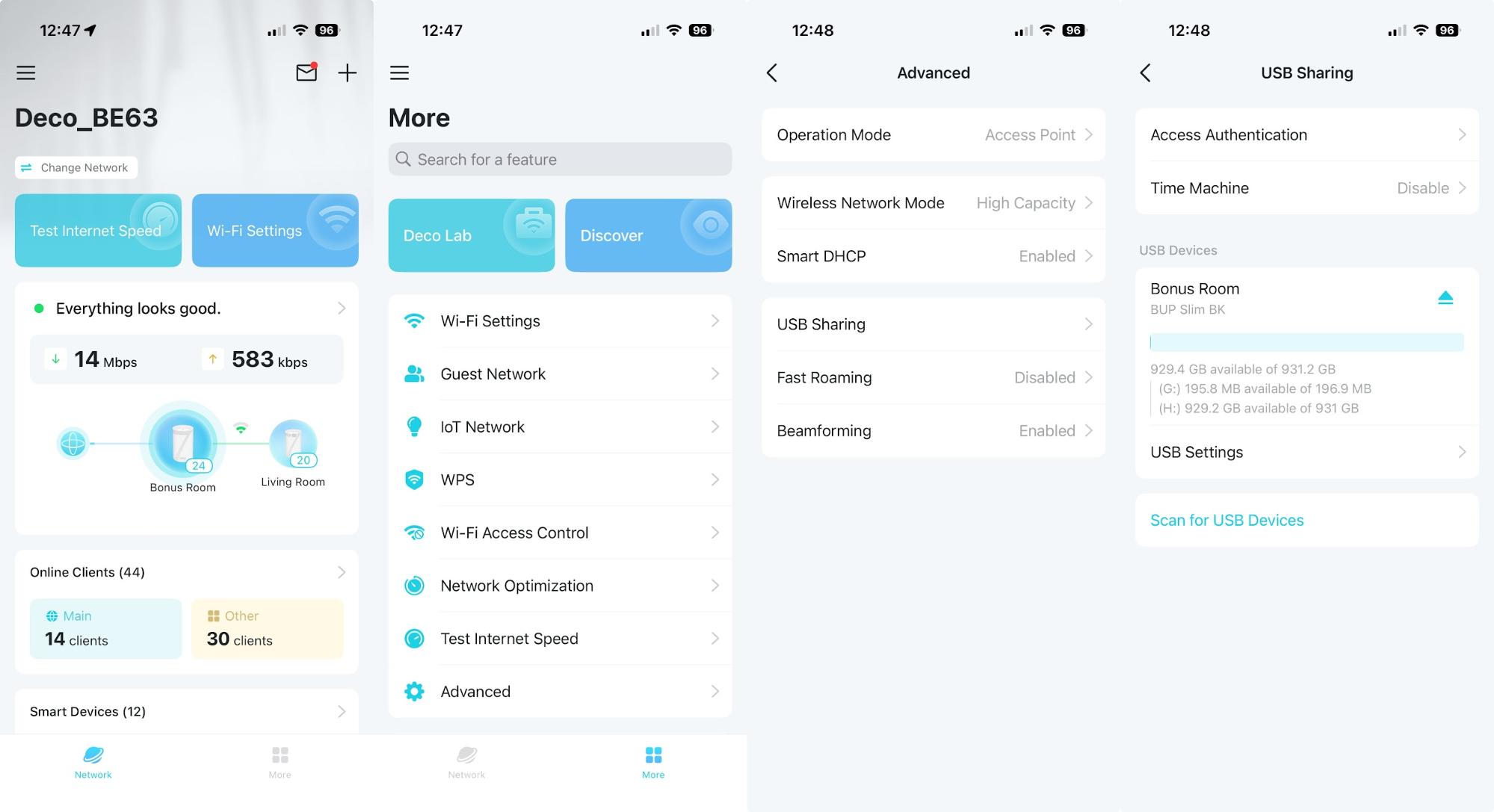
Credit: www.tomshardware.com
Tri Band Router Basics
Understanding the basics of a tri band router helps in managing its settings effectively. These routers provide better wireless performance by using three separate frequency bands. Knowing their core functions prepares you to protect your network and maintain smooth internet access.
What Is A Tri Band Router
A tri band router uses three wireless bands to connect devices. It usually has one 2.4 GHz band and two 5 GHz bands. This setup reduces congestion and improves speed for multiple devices. It supports many users without slowing down the network. Ideal for homes or offices with high internet use.
Importance Of Backing Up Settings
Backing up your router settings saves time and effort. It stores your network name, password, and other preferences safely. If the router resets or updates, you can restore settings quickly. This avoids reconfiguring everything from scratch. A backup ensures your network stays secure and stable.
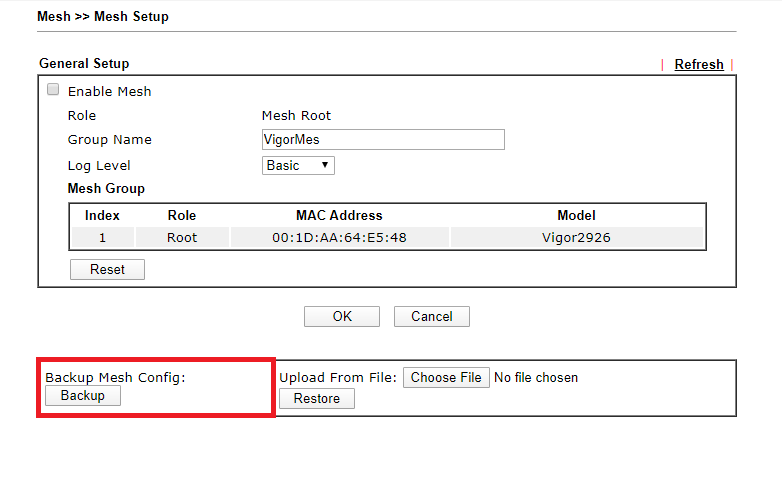
Credit: www.draytek.com
Preparing For Backup
Preparing for backup is an essential first step to protect your tri-band router settings. It helps avoid data loss and ensures quick recovery if needed. Taking time to prepare makes the backup process smooth and error-free.
Start by understanding what information you need. Then, access the router’s admin panel safely. These steps lay a strong foundation for a successful backup.
Gathering Necessary Information
Collect all details about your router before starting. This includes the router model and firmware version. Write down your router’s IP address, username, and password. These are vital to log into the admin panel.
Check if you have a stable internet connection. Ensure your computer or device is connected directly or via Wi-Fi to the router. Have a USB drive or cloud storage ready to save the backup file.
Accessing Router Admin Panel
Open a web browser on your connected device. Enter the router’s IP address in the address bar. Common addresses include 192.168.1.1 or 192.168.0.1.
You will see a login page. Enter the username and password you gathered earlier. If you don’t remember these, check the router label or user manual.
After logging in, navigate carefully through the menus. Look for settings related to system, maintenance, or backup options. This area lets you save the current configuration.
Step-by-step Backup Process
Backing up your tri band router settings is a smart move to keep your network running smoothly, especially if you need to reset or replace your device. The process is straightforward and doesn’t require advanced technical skills. Let’s break down the steps to ensure your router configuration is safely stored.
Locating Backup Options
Start by logging into your router’s admin panel, usually accessed through a web browser by typing the router’s IP address (often 192.168.1.1 or 192.168.0.1). Once logged in, look for sections labeled System, Maintenance, or Administration. These areas typically house the backup and restore settings.
If you’re unsure where the backup option is, check the router’s manual or online support site. Some tri band routers have a dedicated Backup Settingstab, while others might include it under a more general menu.
Exporting Configuration File
After locating the backup section, you’ll usually find an option to Exportor Backupyour current settings. Clicking this will generate a configuration file, often saved as a .cfg or .bin file. This file contains all your network details, including SSID, passwords, and custom configurations.
Save this file to a known location on your computer. If your router offers encryption or password protection for the backup file, consider using it to add an extra layer of security.
Saving Backup Securely
Think about where you store your backup file. Saving it on your desktop might be easy, but it’s not the safest choice. Use an external drive, USB stick, or a secure cloud storage service to keep the backup safe from accidental deletion or hardware failure.
Also, consider creating multiple copies in different locations. Have you ever lost important data because it was only saved in one place? Avoid this risk by spreading out your backups.
Keeping your backup organized and labeled with the date will help you quickly restore settings if needed. This small step can save hours of frustration later on.
Restoring Router Settings
Restoring your tri band router settings is crucial after a reset or firmware update. It saves time by bringing back your saved configuration quickly. This process helps keep your network running smoothly without redoing all settings manually.
Importing Backup File
Access your router’s admin panel through a web browser. Locate the backup or restore section in the settings menu. Choose the option to import or restore settings. Click the browse button to find the backup file on your computer. Select the correct backup file with your router’s settings. Confirm the import and wait for the router to upload the file. The router may restart to apply the restored settings.
Verifying Restored Settings
After the router restarts, log back into the admin panel. Check the key settings like Wi-Fi name, password, and security type. Verify the network channels and device priorities are correct. Ensure any custom configurations are intact, such as port forwarding or parental controls. Test your internet connection and connected devices to confirm everything works well.
Tips For Data Security
Backing up your tri-band router settings ensures quick recovery after resets or errors. Access the router’s admin page, find the backup option, and save the file to your computer. Regular backups protect your network configuration from unexpected changes or failures.
Securing your tri-band router settings with regular backups is a smart step towards safeguarding your network’s data. Data security is not just about having strong passwords; it extends to ensuring that your configuration settings are preserved in case of unexpected mishaps. Imagine spending hours configuring your router for optimal performance only to lose those settings due to a sudden reset or firmware update. That’s a scenario you want to avoid, right? Here are some actionable tips to ensure your backup process enhances data security.Storing Backups Safely
After creating a backup of your router settings, where you store it is crucial. You don’t want it sitting idle on your desktop where anyone can access it. Instead, consider using a secure cloud storage service to keep your backup files encrypted and away from prying eyes. Alternatively, a USB drive with password protection can serve as a safe physical storage solution. Just remember to label it clearly and store it in a secure location. Think about how often you’ve misplaced small items and ensure your USB doesn’t become one of them.Regular Backup Scheduling
Creating a backup once and forgetting about it won’t suffice. Your network needs evolve, and so should your backup strategy. Schedule regular backups to ensure your settings always reflect the latest changes you make. Set a reminder on your calendar or use automation tools to prompt you for a backup every month. This way, you won’t rely on memory alone and can avoid potential data loss. Are you someone who thrives on routine, or do you prefer spontaneous actions? Either way, incorporating regular backups into your schedule is a proactive measure that can save you from future headaches.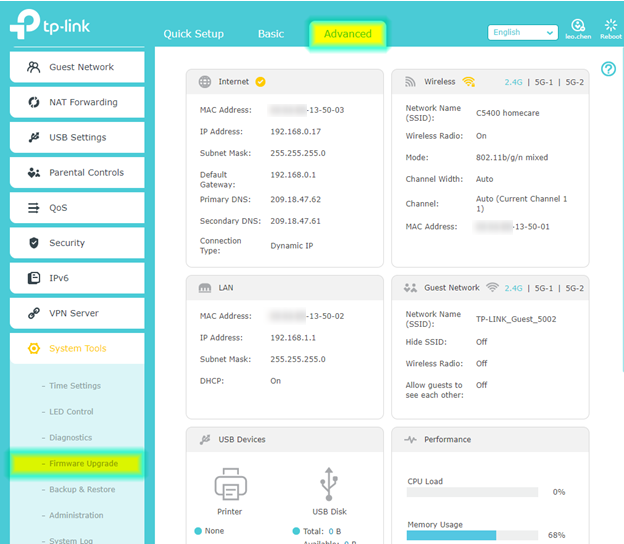
Credit: www.tp-link.com
Troubleshooting Backup Issues
Backing up your tri band router settings ensures you do not lose important configurations. Sometimes, issues arise during the backup process. Troubleshooting these problems quickly saves time and avoids frustration. Understanding common errors and knowing when to reset the router helps fix backup issues effectively.
Common Backup Errors
- Backup file is corrupted or incomplete
- Router interface becomes unresponsive during backup
- Backup process times out or freezes
- Incorrect file format or extension used
- Insufficient storage space on the device saving the backup
- Firmware version incompatibility causing backup failure
These errors often happen due to network interruptions or software glitches. Ensure stable internet and close other applications before starting a backup. Always save backups in the recommended file format.
When To Reset Router
Resetting the router is a useful troubleshooting step if backups consistently fail. Perform a reset when:
- The router interface does not respond during backup attempts
- Backup files are repeatedly corrupted
- Settings become unstable or the router works slowly
- Firmware updates do not resolve backup problems
Use the reset option to restore default settings. Remember to back up your current settings before resetting. After the reset, try the backup process again to check for improvements.
Frequently Asked Questions
How Do I Backup My Tri Band Router Settings?
Access your router’s admin panel using its IP address. Navigate to the “Backup” or “Save/Restore” section. Click “Backup” to download the settings file to your computer. This file saves your configurations for easy restoration if needed.
Why Should I Backup Tri Band Router Settings Regularly?
Regular backups prevent data loss during firmware updates or resets. They ensure quick recovery of your custom settings. This saves time and avoids reconfiguring your network from scratch, maintaining consistent performance and security.
Can I Restore Tri Band Router Settings From Backup?
Yes, you can restore settings using the backup file. Go to the router’s admin panel, find the “Restore” option, and upload the saved file. This will apply your previous configurations instantly, saving setup time.
What File Format Is Used For Router Backup?
Router backups are usually saved in a. bin or. cfg file. These formats contain all your router’s configuration data. Always keep this file secure to prevent unauthorized access to your network settings.
Conclusion
Backing up your tri-band router settings saves time and effort later. It keeps your network secure and stable during changes or resets. Regular backups help avoid losing important configurations. Just follow the simple steps to save your settings easily. Keep your backup file in a safe place for quick recovery.
Stay prepared and protect your internet connection with this smart habit.