Are you tired of annoying ads interrupting your online experience while traveling? Imagine browsing the web or streaming your favorite shows without those constant pop-ups and distractions.
Blocking ads not only makes your internet faster but also keeps your data safe from unwanted tracking. You’ll discover a simple way to take control of your connection using a travel router. Keep reading to learn how this small device can transform your online time, wherever you are.
Why Block Ads On Travel Routers
Blocking ads on travel routers is more than just a convenience—it’s about improving your entire travel experience. Ads can slow down your internet, drain your device’s battery, and even expose you to unwanted tracking. Understanding why you should block ads on your travel router helps you appreciate the value of a cleaner, faster, and safer connection wherever you go.
Impact Of Ads On Travel Devices
Ads consume precious bandwidth, which is often limited when you’re traveling. This can make web pages load slower and disrupt video streaming or video calls. Have you noticed your phone battery dying faster during trips? Ads run background scripts that increase power usage without you realizing it.
Ads also increase data usage, which can lead to unexpected costs if you’re on a metered connection. Some ads even contain malware or trackers that compromise your privacy. When you rely on public Wi-Fi or portable hotspots, these risks become more significant.
Benefits Of Ad-free Browsing On The Go
Blocking ads on your travel router creates a smoother browsing experience with faster page loading times. You save data and extend battery life, giving you more time to enjoy your trip without constant interruptions. Imagine checking maps or booking accommodations without waiting for ads to finish loading.
Ad-free browsing also means fewer distractions, helping you focus on what matters—whether that’s work or planning your next adventure. Plus, you reduce exposure to trackers that collect your browsing habits. This helps keep your personal information more secure during travel.
- Faster internet speeds
- Lower data usage and costs
- Longer device battery life
- Improved privacy and security
- Better overall user experience
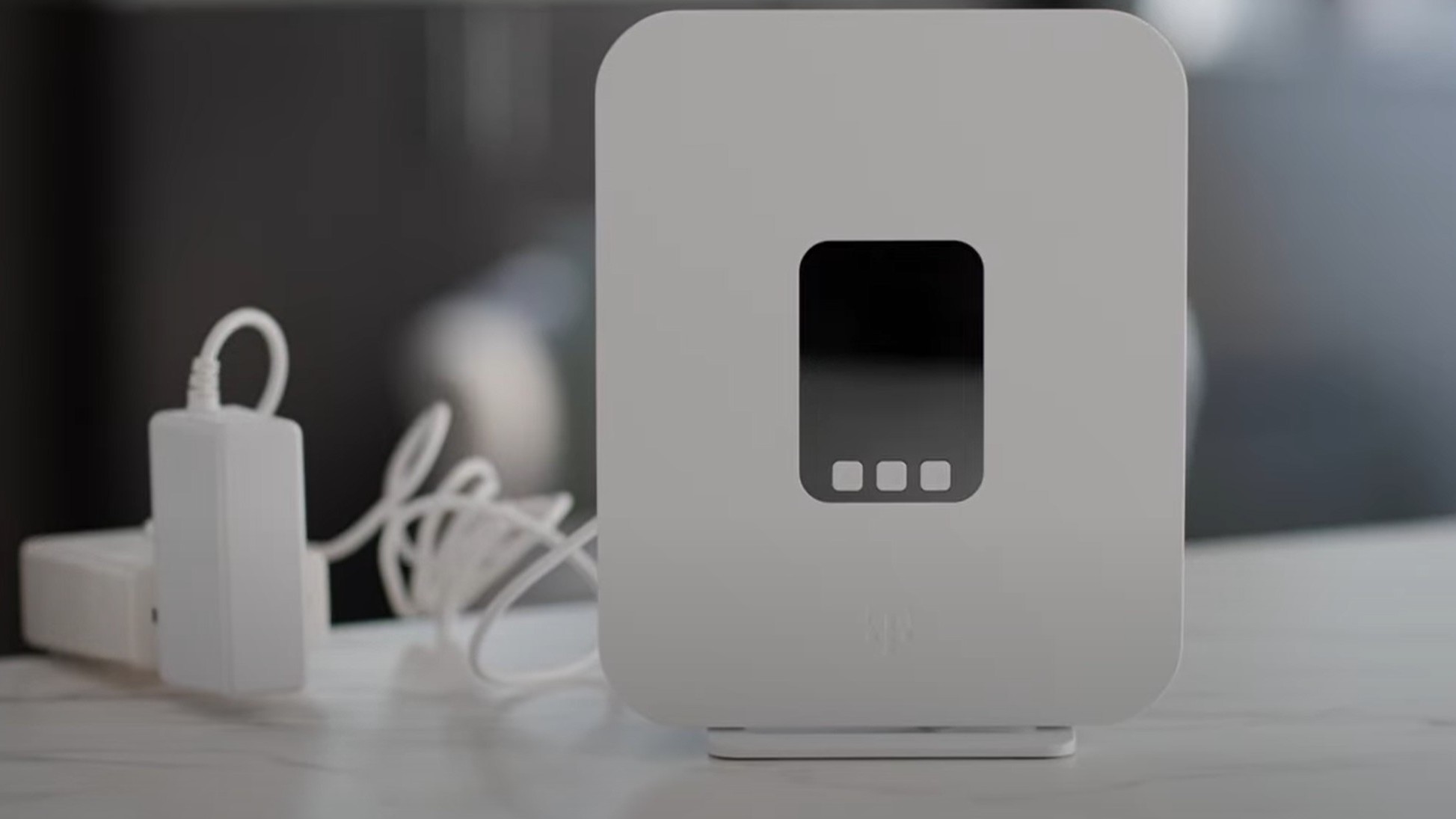
Credit: www.androidcentral.com
Choosing The Right Travel Router
Choosing the right travel router is key to blocking ads effectively on the go. A good travel router not only provides reliable Wi-Fi but also helps filter out unwanted ads. This reduces distractions and speeds up browsing. Consider your needs and the router’s features before buying. Small size, easy setup, and strong security matter.
Key Features To Look For
- Ad-blocking capability:Built-in ad filters or compatibility with custom firmware.
- Portability:Compact and lightweight for easy travel.
- Battery life:Long-lasting battery for use without power outlets.
- Dual-band Wi-Fi:Support for both 2.4 GHz and 5 GHz networks.
- VPN support:Adds extra security and privacy during browsing.
- Easy setup:User-friendly interface for quick configuration.
- Custom firmware compatibility:Options like OpenWRT or DD-WRT for advanced ad-blocking.
Popular Travel Routers With Ad Blocking
| Model | Ad-Blocking Features | Battery Life | Price Range |
|---|---|---|---|
| GL.iNet GL-AR750S | Supports OpenWRT, built-in ad-block packages | Up to 8 hours | $$ |
| TP-Link TL-WR902AC | Compatible with custom firmware for ad blocking | Needs external power | $ |
| RAVPower FileHub | Limited ad-blocking, VPN support | Up to 10 hours | $$ |
Setting Up Your Travel Router
Setting up a travel router can help block annoying ads during your travels. Configure your router settings to filter out unwanted ads, ensuring a smoother browsing experience. Enjoy uninterrupted internet access with fewer distractions.
Setting up your travel router to block ads can seem daunting at first, but with a little patience, it becomes a straightforward task. Imagine the convenience of browsing without intrusive ads while traveling. With a travel router, you can achieve just that. Here’s a simple guide to help you get started.Connecting To The Router
First, ensure your travel router is powered on. Connect it to your device using a Wi-Fi connection or an Ethernet cable. If you’re on the go and relying on Wi-Fi, locate your router’s network name on your device and connect. If you’re using an Ethernet cable, plug it into your device’s port and the router. This method often provides a faster and more stable connection. Have you ever tried browsing with a sluggish connection? It can be frustrating, so ensure your connection is solid.Accessing Router Settings
Once connected, open your web browser and enter the router’s IP address into the address bar. This is often found in the router’s manual or on a sticker on the device itself. After entering the IP address, you’ll be prompted to log in. Use the default credentials provided with your router. It’s usually something simple like ‘admin’ for both username and password. Once logged in, navigate to the settings page. Here, you can explore various options, including ad-blocking features. Accessing these settings might feel like opening a treasure chest of internet control. Have you ever adjusted router settings before? If not, take a moment to explore and familiarize yourself with the interface. This knowledge can empower you to make the most out of your travel router.
Credit: www.youtube.com
Configuring Ad Blocking Features
Configuring the ad blocking features on your travel router can transform your internet experience, especially when you’re on the move. It not only speeds up browsing but also protects your devices from unwanted trackers and intrusive ads. Let’s dive into practical ways you can set up ad blocking with your travel router.
Enabling Built-in Ad Blockers
Many modern travel routers come with built-in ad blocking features you can activate through their web interface. Access your router’s settings by typing its IP address into your browser and logging in with your credentials.
Look for options like “Ad Block,” “Content Filtering,” or “Parental Controls.” Toggle the ad blocker on, and you may also customize it by adding specific domains to block or allow. This simple step can immediately reduce the number of ads you see without extra software.
Installing Custom Firmware
If your travel router doesn’t include native ad blocking, installing custom firmware such as OpenWrt or DD-WRT can add this functionality. These firmwares offer advanced network controls and support for ad-blocking packages like Pi-hole or Adblock-ng.
Before installation, check your router’s compatibility and follow detailed guides to avoid bricking your device. Once installed, you can configure ad blocking rules, monitor traffic, and update settings remotely, giving you much greater control over your network.
Using Dns-based Ad Blocking
DNS-based ad blocking works by redirecting ad requests to a non-existent address, effectively stopping ads before they load. You can set your travel router to use privacy-focused DNS services like AdGuard DNS or NextDNS, which filter out ads and trackers.
Change the DNS settings in your router’s network configuration to these services. This method works across all devices connected to your router without the need for individual setups. Have you tried this approach to see if it improves your browsing speed and privacy?
Testing Ad Blocker Effectiveness
Testing the effectiveness of your ad blocker on a travel router is essential to ensure you’re getting the ad-free experience you expect. Simply setting it up isn’t enough; you need to confirm it actually blocks ads across different sites. This step helps you catch any gaps and fine-tune your settings for smoother browsing.
Verifying Ad Block On Websites
Start by visiting websites that are usually loaded with ads, such as news portals or streaming platforms. Notice if banner ads, pop-ups, and video ads are missing or significantly reduced. You can also use online tools like Ad Block Testerto get a quick report on what’s being blocked.
Try clearing your browser cache before testing to avoid old data affecting results. Checking multiple devices connected to your travel router confirms if the blocker works network-wide. Have you noticed ads still slipping through? This could signal a need for adjustments in your router’s ad block settings.
Troubleshooting Common Issues
If ads continue to appear, start by rebooting your travel router. Sometimes, changes don’t take effect until a restart. Check your router’s firmware version; outdated software may not support the latest ad block lists.
Another common problem is conflicting settings—if you have browser-based ad blockers or VPNs running simultaneously, they might interfere with your travel router’s ad blocker. Temporarily disable these to isolate the issue.
- Ensure your ad block lists are updated regularly to catch new ads.
- Look for whitelist settings that might allow ads on certain sites.
- Consult your travel router’s support forums for model-specific advice.
Have you ever found that disabling one setting unexpectedly stopped your ad blocking? Small tweaks can make a big difference in performance. Testing and troubleshooting is a continuous process—your experience will improve as you learn what works best for your setup.
Maintaining And Updating Ad Block Settings
Maintaining and updating ad block settings on your travel router ensures smooth browsing and effective ad blocking. Settings may need tweaks as websites change or new ads appear. Regular care keeps your ad blocker running well and protects your devices.
Regular Firmware Updates
Firmware updates improve security and add new features. They fix bugs that may affect ad blocking. Check the router’s admin panel often for updates. Download and install the latest firmware as soon as it is available. This keeps your ad block settings compatible with current web standards.
Adjusting Filters And Exceptions
Filters block unwanted ads but may sometimes block useful content. Review your filter list regularly to avoid missing important sites. Add trusted sites to the exceptions list to allow their content. Adjust filters based on your browsing needs and any new ad patterns. This balance helps maintain a smooth online experience.
Alternative Methods To Block Ads While Traveling
Blocking ads during travel can improve your browsing speed and reduce distractions. There are several ways to block ads without using a travel router. These alternatives are easy to set up and work on many devices. They help keep your online experience clean and fast.
Using Vpns With Ad Blocking
Virtual Private Networks (VPNs) can hide your IP address and protect your data. Some VPN services include ad blocking features. These block ads before they reach your device. This method works on all apps and browsers. It also helps prevent tracking and improves privacy. Choose a VPN with built-in ad blocking for the best results.
Browser Extensions For Mobile Devices
Many browsers support ad blocking extensions even on mobile devices. These extensions stop ads from loading on websites. They also prevent pop-ups and tracking scripts. Popular browsers like Chrome and Firefox offer many ad blockers. Installing these is simple and requires little technical skill. Use extensions that are regularly updated for better protection.

Credit: www.theverge.com
Frequently Asked Questions
How Does A Travel Router Block Ads?
A travel router blocks ads by filtering unwanted content at the network level. It uses DNS or firewall rules to stop ad servers. This prevents ads from loading on all connected devices. It improves browsing speed and reduces data usage during travel.
Can A Travel Router Block Ads On All Devices?
Yes, a travel router can block ads on all connected devices. It filters traffic before reaching your device, so no app or browser ads appear. This works for smartphones, laptops, tablets, and other Wi-Fi-enabled devices automatically.
Do Travel Routers Require Special Setup To Block Ads?
Most travel routers need basic setup to block ads. You must enable ad-blocking features or configure DNS settings. Some routers come with built-in ad-blocking software for easy activation. Setup usually takes a few minutes and improves your browsing experience.
Is Blocking Ads With A Travel Router Safe?
Blocking ads with a travel router is generally safe. It protects your privacy by preventing tracking ads and reduces malware risk. However, some ad blockers may block useful content, so choose settings carefully for balance.
Conclusion
Blocking ads with a travel router makes internet use cleaner and faster. It helps keep distractions away while you browse or stream. Setting it up takes just a few steps. This small device can improve your travel internet experience greatly.
Enjoy safer and smoother online time wherever you go. Try this method to reduce annoying ads today. It’s a smart way to stay connected without interruptions.